
To delete games from your PS5, navigate to your Game Library, select the game you wish to remove, press the options button, and then choose “Delete”.
Running out of space on your PS5? It happens to the best of us! You might find yourself asking, “how do i delete games from my ps5” to make room for new titles or simply to tidy up your digital collection. This quick guide will show you exactly how to do it.
It’s a straightforward process that only takes a few moments. By removing games you’re not currently playing, you can keep your console running smoothly and efficiently. Now, let’s get to it!

How Do I Delete Games from My PS5?
Is your PlayStation 5’s storage getting full? It’s a common problem! With amazing games like Spider-Man 2 and God of War Ragnarök taking up lots of space, you might need to clear out some older games. Don’t worry; deleting games on your PS5 is very easy, and we’re here to guide you. This article will show you all the ways to free up space by removing games you no longer play.
Why Delete Games from Your PS5?
Before we jump into the “how,” let’s discuss the “why.” Why might you want to delete games from your PS5? The biggest reason is storage space. The PS5 has a built-in storage drive, and it can fill up quickly, especially with large digital downloads. Here’s a breakdown of why deleting games might be a good idea:
- Free Up Storage: This is the main reason! Games, especially the latest ones, take up a lot of room. Deleting them makes room for new games and updates.
- Improve Performance: Although not directly related to game speed, keeping your storage drive from being completely full can help your PS5 run smoothly overall.
- Organization: A cluttered game library can be overwhelming. Deleting games you don’t play helps keep things organized.
- Make Space for New Games: Want to download that new game everyone is talking about? Deleting old games is a good first step.
Different Ways to Delete Games
Now let’s get to the exciting part – the different ways you can delete games from your PS5. There are multiple methods, so choose the one that works best for you. We’ll cover all of them in detail.
Deleting from the Games Home Screen
This is perhaps the simplest way to delete games. Here’s how to do it:
- Go to the Game Home Screen: Turn on your PS5 and navigate to the Games Home Screen (it’s the one with all your game tiles).
- Select the Game: Use your controller to highlight the game you want to delete.
- Press the Options Button: Press the Options button on your controller (it’s the button with three horizontal lines).
- Select “Delete”: A menu will pop up. Choose the “Delete” option.
- Confirm: The PS5 will ask if you’re sure. Select “OK” to confirm the deletion.
The game will now be removed from your PS5. It’s important to know this only removes the game data from your console. Your game licenses and saved game data are not deleted and will remain safe.
Deleting from the Storage Settings
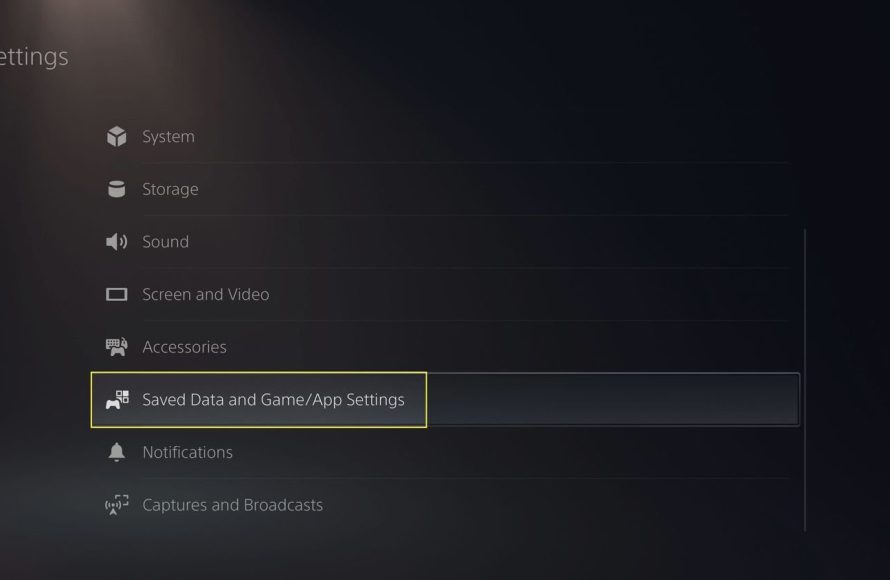
Another great method to delete games is through the PS5’s storage settings. This method allows you to see exactly how much space each game is using. Here’s how:
- Go to Settings: From the PS5 Home Screen, go to “Settings” (the gear icon in the top-right corner).
- Select Storage: In the Settings menu, choose “Storage”.
- Choose Console Storage or Extended Storage: Decide if the game you wish to remove is stored on the main console or an external hard drive.
- Select Games and Apps: This will show you a list of all your installed games and applications.
- Select the Game to Delete: Highlight the game you want to remove.
- Press the Options Button: Press the Options button on your controller.
- Choose Delete: Select “Delete” from the menu.
- Confirm: The PS5 will ask if you are sure. Choose “OK” to confirm.
Just like with the first method, this process will remove the game’s files from your storage. Your game saves and license will remain unaffected.
Deleting Games During Installation
Sometimes, you might try to download a game and run out of storage space during the installation process. When that happens, you might get a prompt asking you to delete something to continue. You can do it this way:
- Run out of storage while installing: When downloading a game, if you run out of space, the PS5 will show you a pop-up.
- Select “Delete”: This pop-up will have a “Delete” option. Select it.
- Choose games or apps to delete: You will be taken to a storage screen to select games or apps you wish to delete.
- Confirm: After selecting the games or apps, you will need to confirm to continue.
- Installation will resume: Your new game installation will now proceed after the selected items have been deleted.
Understanding Game Data and Saves
It’s very important to understand what happens when you delete a game. Deleting a game removes the game files from your console’s storage. It does not, however, delete your game saves or the game license that you purchased from the PlayStation store or redeemed via a physical copy.
Game Saves
Game saves are usually stored separately from the game installation files. Here’s what you need to know:
- They Stay Safe: Deleting a game does not delete your saved game data. This means if you re-download or re-install the game in the future, you can pick up right where you left off.
- Cloud Saves: If you have PlayStation Plus, your saves are likely backed up to the cloud. This adds an extra layer of safety, so you can even get your saves on a different PS5 if needed.
- Manual Backups: If you don’t have PlayStation Plus, you can manually back up your saves to a USB drive if you want to be extra cautious.
Game Licenses
Your game license is like a key. It shows that you have the right to play the game you own. When you delete a game from your PS5, you don’t lose this license.
- Digital Games: If you bought a digital game from the PlayStation Store, you can download it again anytime using the same account.
- Physical Games: If you have a physical disc, you can just insert the disc again and install the game on the console once more.
So, when you delete a game, you’re not losing the game itself. You’re simply getting rid of the large files that were stored on your PS5 storage.
Managing Storage Efficiently
Deleting games is one part of storage management. Here are some extra tips to manage your PS5 storage like a pro.
Consider Extended Storage
If you have many games or enjoy keeping them installed, an extended storage drive is a great idea. You can connect a USB drive to your PS5 to store and play PS4 games from the extended drive. You can also store and move your PS5 games to that drive too.
- Types of Drives: There are two main types of extended storage: SSD and HDD. SSDs are much faster than HDDs, so are good to install your current PS5 games on for fast loading.
- Transfer Games: You can move games from your console’s internal drive to the external drive to make space.
Check Storage Usage Regularly
Keep an eye on your storage from time to time. Knowing how much space your games use lets you plan ahead and make sure you always have the space you need.
- Settings Storage: Check your storage through the settings menu to keep an eye on what is taking up the most space.
- Plan Ahead: Plan which games you want to keep installed. Deleting games before you need to will keep your storage organized and less cluttered.
Transfer Data Wisely
When using a USB storage drive you should not just dump files on it and plug it into the console. Ensure the drive has been formatted by the PS5 to get the best performance from it.
- Format Correctly: When using an extended drive for your PS5, make sure you have formatted it to the correct file system, which is exFAT.
- Transfer Time: Remember that transferring large game files can take time. Keep this in mind when planning to switch games between storage drives.
Troubleshooting Deletion Issues
Sometimes, things don’t go exactly as planned. Here are a few common issues and how to fix them:
Game Doesn’t Delete
Sometimes, you may try to delete a game and it simply doesn’t go away. Here’s what you can try:
- Restart Your PS5: A simple restart can fix many issues. Turn off your PS5 completely, wait a few seconds, and turn it back on.
- Check the Disc: If you’re trying to delete a game that’s currently in your PS5, take out the disc first.
- Check for Updates: Make sure there aren’t any pending system updates for your PS5. They can sometimes interfere with game deletion.
- Rebuild the Database: If nothing else works, rebuilding your PS5’s database might help. To do this, turn your PS5 completely off, then hold the power button until you hear two beeps. This will take you to safe mode. Select “Rebuild Database” from this menu. (Note: This can take some time, so be patient.)
Error Messages
If you see an error message while deleting games, make note of the message itself. Then, you can search online for a specific fix or try some of the generic troubleshooting steps listed above.
- Write Down the Error: When an error occurs, write the code down. You can then search the internet for the fix.
- Restart Router: Some errors may come from network issues, restarting your router could fix the issue.
Deleting PS4 Games on PS5
If you’re playing a PS4 game on your PS5 (either digitally or from a disc) you can also delete these in the same way as PS5 games. The process is the exact same as above.
From the Games Home Screen
To delete the games from the home screen, use the steps we covered previously, all of this applies to both PS4 and PS5 games.
From Storage Settings
You can find your PS4 games in the same place as your PS5 games. Use the storage settings and just navigate to “Games and Apps” to find and remove your games.
In all cases, whether you’re deleting a PS4 or PS5 game, be sure that the games are backed up if you have important save data.
How to Delete Games on your PS5 (Must Know Info!)
Final Thoughts
To delete games, go to your game library, select the game, and press the options button. Then, choose “Delete” from the menu. This action removes the game from your console’s storage.
You can also delete games directly from the home screen. Highlight the game, press the options button, and select “Delete”. Confirm your choice to remove the game.
So, that’s how you delete games from your ps5. Remembering these steps will help manage your storage space quickly. Knowing how do i delete games from my ps5 is essential for efficient console management.

