
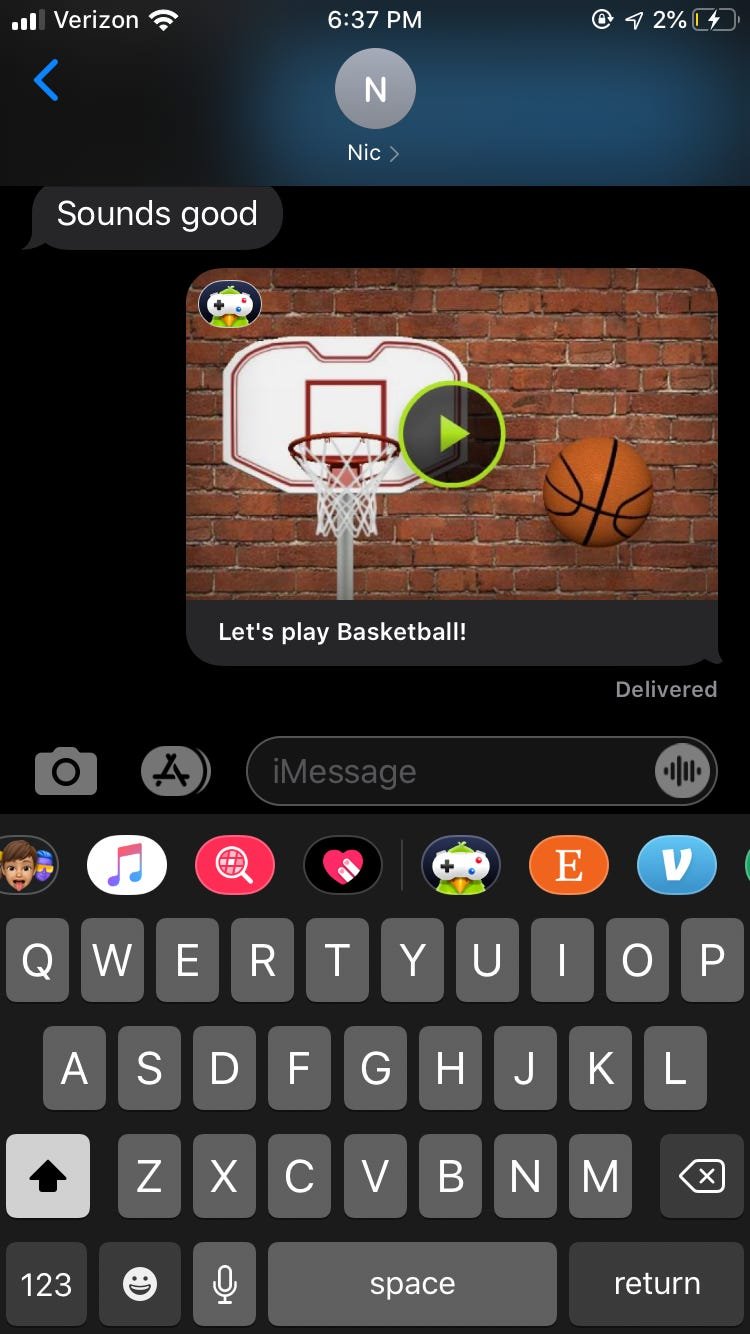
To get games on iMessage, you need to open an iMessage conversation, tap the App Store icon, and browse or search for game apps.
Have you ever found yourself wanting a little friendly competition directly within your text chats? It’s actually quite simple, and many people wonder ‘how do i get games on imessage’. The answer involves a quick trip to the app drawer right within your messaging window.
This method lets you play against your friends without having to leave your conversations. You can find many fun options waiting, ready for you to dive into some mobile gaming.

How Do I Get Games on iMessage?
Okay, so you want to play games with your friends directly in your iMessage chats? That’s super cool! It’s a lot more fun than just sending texts, right? The good news is, it’s totally possible and pretty easy to set up. Let’s dive into how you can add some gaming action to your iMessage conversations.
Understanding iMessage Games
First off, it’s helpful to understand that the games you play in iMessage aren’t the same as the apps you download from the App Store. They are smaller, simpler games designed to be played right inside your messages. Think of them as mini-games that are perfect for quick fun and friendly competition. These games are integrated through something called iMessage Apps. These apps are like small programs within iMessage that provide extra functionality, and, in our case, that functionality is games!
Finding Games within the App Store
You might think you’d find iMessage games in the same place you download regular apps, but that’s not quite the case. They live in a special part of the App Store. Here’s how to get to them:
Accessing the iMessage App Store
To find these game apps, you will need to first open your iMessage app. Then, open any conversation. If you want to play with your friend then open your conversation with your friend. Then, follow these steps:
- Look for the App Store icon (it looks like an ‘A’ made of a few lines). You’ll find this icon next to the text input box where you usually type your messages.
- Tap the App Store icon, and it will open the iMessage App Store. You are on the screen now where you can get different apps that can be used in iMessage.
- You might see a few apps already suggested in the first row. if you don’t want any of them, you can click the blue “App Store” button.
- This will take you to the full view of the iMessage App Store, which looks a bit like the regular App Store. Here, you’ll find categories like “Games,” “Stickers,” “Productivity” and more.
Navigating the Games Category
Once you’re in the iMessage App Store, finding the games is straightforward:
- You can either scroll down to find the “Games” category or search “games” in the search bar.
- The games category will show you a list of all the iMessage-compatible games you can install.
- Take your time and browse through the options. You’ll see different types of games—from puzzles and word games to simple strategy and sports games.
Installing iMessage Games
Now that you’ve found a game you like, it’s time to install it. It’s as easy as installing any other app.
Simple Installation Steps
- Tap on the game you want to install. This will take you to the game’s page in the iMessage App Store.
- Look for the “Get” button or a cloud icon with a downward arrow (if you’ve previously installed it). Tap this button to start the installation.
- You might be asked to confirm the installation with your Face ID, Touch ID, or your Apple ID password.
- Once installed, the button will change to “Open.” You can either open it from here or from your messages.
Playing Games with Friends
Okay, now you have the game installed, but how do you actually play it with your friend? It’s easy and fun:
Starting a Game in iMessage
- Open the conversation with the friend you want to play with.
- Again, click on the App Store icon next to the text input box.
- Find the game you just installed in the list of available iMessage apps. It might be in the first row or you might have to swipe left/right to find it.
- Tap on the game icon. This will launch the game interface within your iMessage conversation.
- You can start a new game and then it will send an invitation to your friend in the form of a message in the chat. The message will contain a link of the game. Your friend will then tap on the link to start playing.
Taking Turns and Playing
The exact gameplay will vary from game to game, but generally, here’s what to expect:
- Most iMessage games are turn-based. This means that one of you plays your turn, and then the game sends a notification to the other person to play.
- Some games will ask you to perform certain actions (like select a letter or draw something). The game will then update to show that action to the other person.
- You’ll see each other’s moves and progress within the message window.
- After you and your friend have finished playing a game, you can press play again to play again.
It’s really important to understand that the gameplay and user interface may vary with different games. It’s a good idea to get to know the controls of the game, or you can refer to their instruction manuals which will tell you how the game works.
Troubleshooting Common Issues
Sometimes things might not work perfectly. Here are some common problems and what to do about them:
Game Not Showing Up
If you don’t see the game after installing it, try the following:
- Close and re-open the Messages app. This can sometimes refresh the available iMessage apps.
- Make sure that you have the game turned on in iMessage app. For this you will need to click on the App Store icon, which is located just next to the input text box. Then, click on the “More” button. If it’s not turned on, turn the toggle on for that game app.
- Restart your phone. A simple restart can fix many small issues.
- Make sure that both of you have the game installed. If you can play a game and your friend can’t then he may not have it installed. He can just follow the steps from the beginning to install the game.
Game Not Loading or Freezing
If a game is not loading correctly or keeps freezing:
- Ensure that your internet connection is stable. A slow or spotty internet connection can cause issues.
- Close all other apps. Sometimes running too many apps can affect a game’s performance.
- Check for updates. An outdated game version can sometimes have issues. You can find app updates in the regular App Store by clicking on the “Updates” option.
- If a specific game is constantly giving problems, you can try deleting it and reinstalling it again.
Problems with Game Invitations
If you send game invitations but your friends do not get them:
- Make sure you have iMessage enabled in your settings. If it’s not turned on, then you will not be able to send any iMessage apps.
- Make sure your friend has iMessage enabled as well. If he doesn’t, you can’t play games.
- Sometimes, these invites may arrive in the wrong order due to a slow connection. Ask your friend to check the chats for it.
Exploring Different Types of iMessage Games
Now that you know the basics, let’s take a look at some of the types of games you can find on iMessage. This is just a small list, but it will give you a good idea about the different options.
Word Games
If you love words, then you’ll find plenty of fun word games on iMessage.
- Word Hunt: Try to find as many words as you can in a given amount of time from a jumbled set of letters.
- Hangman: A classic word-guessing game that’s perfect for a quick challenge.
- Crossword Puzzles: If you are into crosswords, there are even some iMessage-compatible crossword games.
Puzzle Games
Love puzzles? Then these iMessage puzzle games will be a perfect match.
- Matching Games: Test your memory skills by matching hidden images.
- Simple Jigsaw Puzzles: Solve mini puzzles with your friends.
- Logic Puzzles: Challenge your brain with different types of logic based puzzles.
Casual Games
If you want to play some very simple and laid-back games, then try some of the options below.
- Mini Golf: Aim and swing to get the ball in the hole, just like real mini golf.
- Simple Arcade Games: Play simplified versions of classic arcade games.
- Checkers: A classic strategy game for two players.
Drawing Games
If you have an artistic side, then drawing games will be just the right fit.
- Pictionary: One person draws, and the others guess what it is.
- Creative Drawing: You can express your creativity with fun drawing apps.
Tips for a Great Gaming Experience
Here are some tips to have the best iMessage gaming experience.
Choose the Right Games
Select games that both you and your friend enjoy. If one of you doesn’t like a game, it won’t be fun for long.
Keep it Light and Fun
Remember that these games are meant to be fun. Don’t get too competitive or serious about it.
Try Different Games
Don’t just stick to the same games. Explore all the different types of games to keep it fun and exciting.
Stay Updated
Keep your iMessage apps and iOS software up to date for the best gaming experience.
Keeping Your Games Organized
If you have many iMessage apps, you might want to arrange them.
Reordering Apps
To reorder iMessage apps, press and hold the app icon in the iMessage app drawer, and drag it to a different location.
Hiding Apps
If you have some iMessage apps that you do not use much, you can hide them. Click on the “More” button in the app drawer, and toggle off any apps that you want to hide. They will not be visible now unless you turn the toggle on.
Are iMessage Games Free?
Many iMessage games are free, but some apps may contain in-app purchases. These are extra things like extra levels, game coins, or removal of ads, that you don’t necessarily need to play the game. If you don’t want to purchase anything, you can still play plenty of free games.
It’s also a good idea to check the reviews of the games before you install them, that way you know if they are worth playing. Look for games with a good rating and recent reviews that indicate that the game works well and is not problematic.
So there you have it! Getting games on iMessage is easy, fun, and a great way to connect with your friends. Now you can go on and play lots of fun and amazing games right inside your iMessage!
How To Play Games On iMessage!
Final Thoughts
To get games on iMessage, open a conversation, tap the App Store icon, and browse available game options. You must install desired game apps within iMessage to play with contacts. This allows you to directly challenge friends in chats.
Remember to ensure both you and your contact have the game app installed for it to work correctly. This ensures a seamless multiplayer gaming experience. Thus, how do i get games on imessage is easily answered by exploring the App Store within your chats.

