
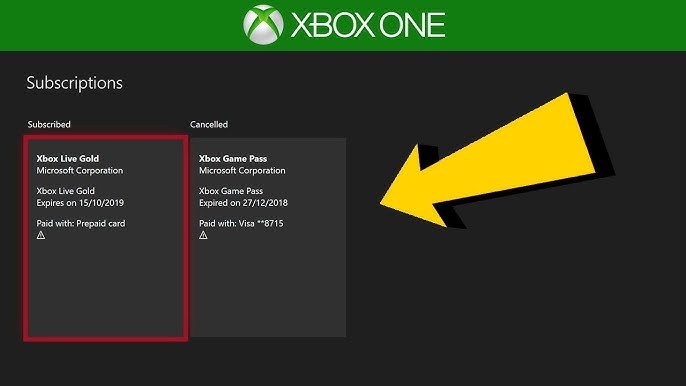
You can check if you have Xbox Game Pass by signing into your Xbox account on your console, the Xbox app, or the Xbox website. Your subscription status will be visible there.
Ever wondered if you’re currently enjoying the benefits of Xbox Game Pass? It’s a common question, and many people find themselves asking, “how do I know if I have Xbox Game Pass?”. It’s easy to forget which subscriptions you have active, or if they renewed.
Checking your subscription status is very simple, and you can do it across multiple platforms. It only takes a minute. Let’s get this sorted.

How Do I Know If I Have Xbox Game Pass?
It’s super exciting to dive into the world of Xbox games, and Xbox Game Pass makes it even more fun! But sometimes, it can be a little tricky to remember if you actually have a subscription or not. No worries, though! We’re going to go through all the ways you can check and make sure you know your Game Pass status. Let’s explore the different methods to verify your Xbox Game Pass subscription.
Checking on Your Xbox Console
The easiest way to check if you have Xbox Game Pass is right on your Xbox console. Whether you have an Xbox Series X, Xbox Series S, or Xbox One, the steps are very similar.
Using the Xbox Guide
The Xbox Guide is your friend! It’s quick and easy to access. Here’s how:
- Press the Xbox button in the middle of your controller. This opens the guide.
- Look for the “My games & apps” section, often represented by an icon that looks like a stack of squares.
- Select “See all” to view all your games and apps.
- Navigate down the menu on the left side of the screen, look for “Subscriptions.” Select this option.
- On the subscription screen, you’ll see if you have an active Xbox Game Pass subscription. It will show you the type of Game Pass you have, like Game Pass Ultimate, Game Pass for Console, or Game Pass for PC. You’ll also see when it’s going to renew.
If you see “Xbox Game Pass” and a date saying it’s active, you’re all set. If it says you don’t have a subscription, or you need to buy it, then it might mean your subscription has expired or you haven’t signed up for Game Pass yet.
Checking the Xbox Store
Another good place to check your subscription status on your console is through the Xbox Store.
- Go to the home screen on your Xbox.
- Use your controller to navigate to the “Store” icon. It looks like a shopping bag.
- Once in the store, look for the search bar at the top of the screen.
- Type in “Xbox Game Pass” and select the result.
- On the Xbox Game Pass page, look for an area that shows your status. It will tell you if you already have a subscription or offer you ways to buy it if you don’t.
This method is useful because you can see all the different Game Pass options at the same time. If you don’t have a subscription, it will clearly present purchasing options.
Checking on the Xbox App for PC and Mobile
You don’t always need your console to check your subscription status. You can also check it using the Xbox app on your PC or mobile device. This is great for those times you’re not near your Xbox but want to know if you can install a new game.
Using the Xbox App on PC
The Xbox app on PC provides similar information as the Xbox console.
- Open the Xbox app on your PC. You might need to log in with your Microsoft account if you haven’t already.
- Once logged in, click on your profile picture or icon (it is usually at the top right).
- In the dropdown menu, choose “Settings.”
- Navigate to the “Subscriptions” tab on left side of screen..
- In the subscription area, it will show the type of Game Pass that is active and when it will renew.
This section will show you all your subscriptions connected with the Microsoft account you have signed in with, not just your Xbox Game Pass.
Using the Xbox Mobile App
If you like to be on the go, the Xbox Mobile App is your friend. Here’s what you do:
- Start up the Xbox Mobile App on your phone or tablet.
- Tap on your profile picture or icon, you can usually find it in the bottom right corner or in the top left corner.
- Select “My Subscriptions.”
- You will see a list of all the subscriptions that are connected to your Microsoft account.
- Your Xbox Game Pass should be listed with its type and expiry date, so you can know what it is and how long you have to enjoy it.
This approach lets you know from anywhere whether you have Xbox Game Pass on the go. It’s really useful to check before planning your next gaming session.
Checking on the Microsoft Account Website
If you’d prefer to check your subscription using a web browser, that’s also simple. You can log in to your Microsoft account and check what subscriptions you have from there.
Accessing Your Microsoft Account
This method works on any device that has a web browser.
- Open your web browser and go to the official Microsoft account website.
- Click on “Sign in” and put in the same email address and password you use for your Xbox account.
- After logging in, select “Services & subscriptions” section that’s typically near the top of the page.
- On the Services and subscriptions page, look for your Xbox Game Pass subscription. You’ll see the type of plan you have and the date when it will renew.
This site lets you manage all of your subscriptions in one place. It’s great if you have multiple Microsoft services linked to your account.
Understanding Different Xbox Game Pass Types
Xbox Game Pass comes in different forms, and each has different offerings. Knowing which type you have is essential. Here’s a breakdown of the main options.
Xbox Game Pass Ultimate
Xbox Game Pass Ultimate is the highest tier. It includes:
- Game Pass for Console
- Game Pass for PC
- Xbox Live Gold (for online multiplayer gaming)
- Access to cloud gaming
If you see “Xbox Game Pass Ultimate,” you’ve got it all! This means you can play games on your console, PC, and even stream some games from the cloud to your mobile devices and PCs.
Xbox Game Pass for Console
This plan gives you access to many games on your Xbox console only. It does not include PC games or Xbox Live Gold.
If you have “Xbox Game Pass for Console,” you can enjoy a big library of games on your Xbox, but not on your PC or via cloud streaming.
Xbox Game Pass for PC
This one is for PC gamers. It allows you to play a variety of games on your Windows computer, but it does not include Xbox console games or Xbox Live Gold.
If you see “Xbox Game Pass for PC,” you can access a wide variety of games on your PC, but you need another subscription for console games.
Other Game Pass Options
Sometimes there are promotions that include a shorter time of Xbox Game Pass or come bundled with a console purchase. They may have a different name, but they still include the benefits mentioned above. If you have one of those deals, it will still be clear in your account details, no matter what name it is.
It’s important to know which kind you have so that you make sure you’re getting the most from your subscription. For instance, if you think you have Game Pass on your PC, but you have a console-only version, you may have some confusion trying to play PC games through Game Pass. Checking your subscription details regularly helps avoid those problems.
What To Do If You Don’t Have Game Pass
If you checked all the places and still don’t see an active Xbox Game Pass subscription, don’t worry! It’s super easy to sign up and start playing.
Signing Up on Your Console
- Go to the “Store” on your Xbox console.
- Search for “Xbox Game Pass”.
- Choose the type of Game Pass you want (Ultimate, Console, or PC).
- Follow the onscreen instructions to complete your purchase.
Signing Up on PC
- Open the Xbox app on your PC.
- Navigate to the “Game Pass” section.
- Pick your subscription plan and buy it.
Signing Up Online
- Go to the Microsoft website.
- Find Xbox Game Pass.
- Choose your subscription and buy it online.
After signing up, you’ll be able to start downloading games and enjoying all the benefits of Game Pass right away! Many times you have the option to choose recurring payment or you can choose one-time payment.
Managing Your Xbox Game Pass Subscription
It’s essential to know how to manage your Xbox Game Pass subscription. This way, you won’t have unexpected renewals or any other unwanted charges.
Turning Off Recurring Billing
If you don’t want your subscription to automatically renew:
- Go to the “Services & subscriptions” page on the Microsoft account website.
- Find your Xbox Game Pass subscription.
- Choose the option to turn off recurring billing.
Even with recurring billing off, your current subscription will still work until its expiration date. The most important thing here is that your subscription will not renew and you will not get charged. If you choose to turn recurring billing on again, you can simply follow the same steps.
Changing Your Subscription Type
If you want to switch between Game Pass Ultimate, Console, or PC, here’s how you can do it:
- Go to the “Services & subscriptions” page on the Microsoft account website.
- Find your current Game Pass subscription.
- You may see an option to change your plan. Choose this option.
- Follow the instructions to upgrade or downgrade your subscription.
It’s important to choose the option that best suits your gaming style and what devices you are going to be using. For example, if you want to play on console and PC, Xbox Game Pass Ultimate is your best pick.
Canceling Your Subscription
If you don’t want to keep your Xbox Game Pass, you can easily cancel:
- Go to the “Services & subscriptions” page on the Microsoft account website.
- Find your Xbox Game Pass subscription.
- Choose the option to cancel your subscription.
- Follow the directions to cancel.
After canceling, you’ll still have access to Game Pass until the end of your paid period. If you cancel partway through your period, you will still be able to access the games until your time is up. After your paid subscription period is up, you’ll lose access. Remember that you can always sign up again if you change your mind.
Keeping Track of Your Game Pass
With many games to play and various options, keeping an eye on your Game Pass is useful. Setting reminders or writing down renewal dates is a great way to know when your subscription is ending.
Setting Reminders
- Use your phone calendar to set reminders to check your subscription status.
- You can also set reminders a few days before the renewal date, so you can decide to keep it or not.
- Most apps allow you to set customized reminders, so it’s easy to make sure you have a reminder for your subscription date.
Checking Regularly
- Make it a habit to check your subscription every few weeks to ensure it is still active.
- When you are downloading a game, check your subscription status at that time too. It will help you prevent having to download a game you do not have the proper subscription for.
By taking some time to plan ahead, you can avoid any surprises with your Game Pass account.
Checking if you have an Xbox Game Pass subscription is simple and easy once you know the methods. You can check your Xbox console, your PC, your mobile app or from Microsoft’s website to confirm your subscription status. Knowing how to manage your account keeps you in control of your gaming and helps avoid surprises. No matter what device you prefer, the steps are similar, and you’ll be sure to keep playing the games you love!
How To Get Xbox Gamepass Ultimate For Free!
Final Thoughts
To quickly check, navigate to your Xbox console or PC’s settings. There, find the “Subscriptions” or “Account” section. This area clearly displays active memberships.
If you use the Xbox app on your mobile or PC, check the app settings. Your account details should highlight if you currently possess Game Pass. So, how do i know if i have xbox game pass? The answer must be clearly present in those account pages.
Remember, if you can access Game Pass titles without separate purchases, you certainly must have an active subscription. This is the easiest way to tell if your gaming membership is active.

