
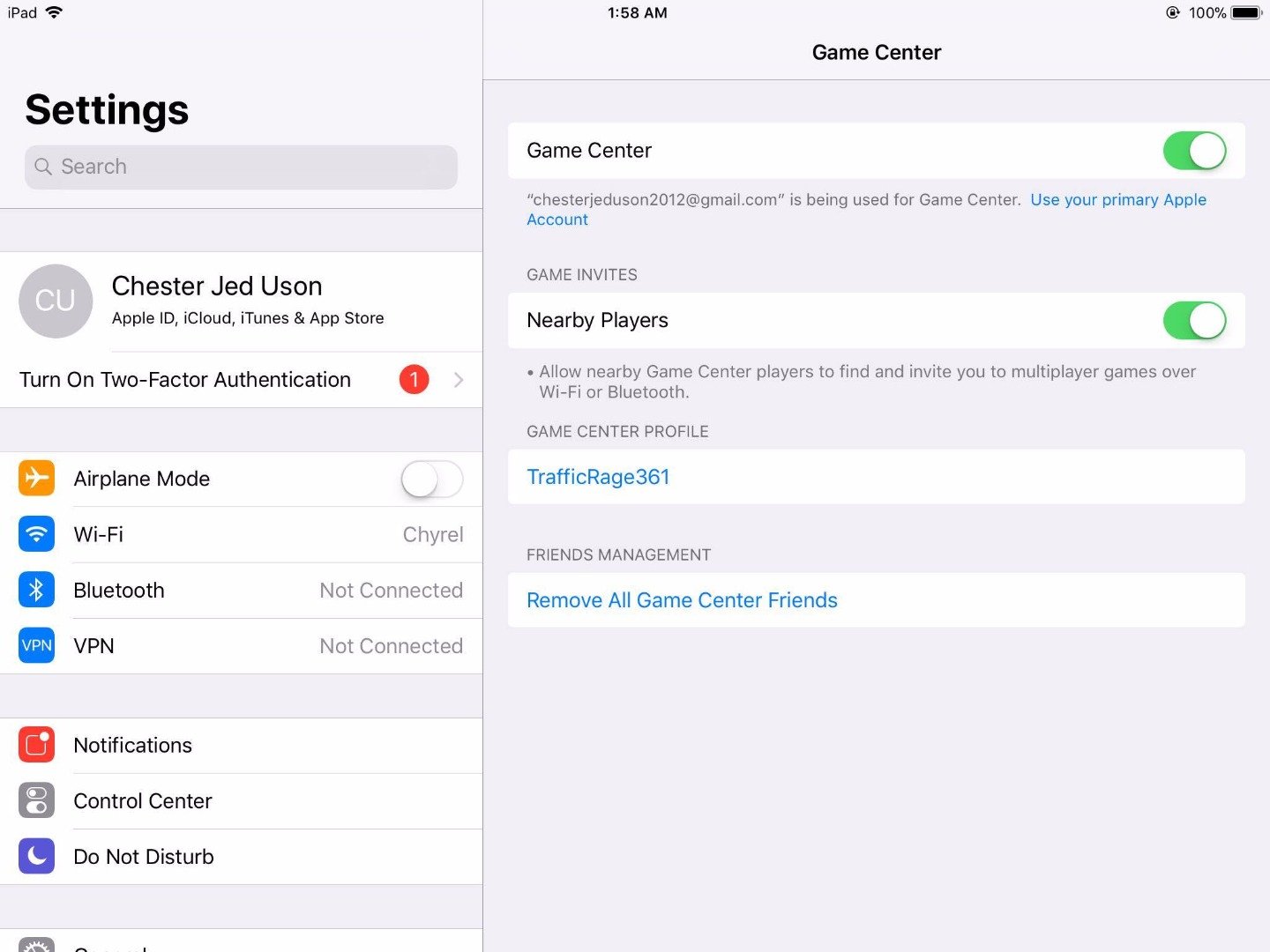
To logout of Game Center, go to your device’s Settings, tap on Game Center, and then tap on your Apple ID. You’ll see a sign out option.
Ever felt stuck in Game Center, wondering how to disengage? It’s a common question: “how do i logout of game center” and it can sometimes feel a bit hidden. We’re here to guide you through the steps to successfully sign out. This process is quite straightforward once you know where to find it.

How Do I Logout of Game Center?
Ever wanted to switch Game Center accounts on your iPhone, iPad, or Mac? Maybe you share a device with a family member, or you just want to start fresh with a new gaming persona. Whatever the reason, logging out of Game Center is totally doable, and we’re here to show you exactly how to do it. This guide will walk you through the steps on different Apple devices, ensuring you can manage your gaming profiles with ease.
Understanding Game Center and Why You Might Want to Log Out
Game Center is Apple’s social gaming network that lets you play games with friends, track your scores on leaderboards, and earn achievements. It’s connected to your Apple ID, and it usually works smoothly in the background. However, there are times when logging out becomes necessary. Here are a few common scenarios:
- Sharing a device: If multiple people use the same iPhone or iPad for gaming, each person should use their own Game Center account to keep scores and progress separate.
- Using multiple Apple IDs: Some users might have different Apple IDs for various purposes, and they might want to use a specific ID with Game Center.
- Troubleshooting issues: Sometimes, logging out and back in can fix problems with Game Center syncing or recognizing your progress.
- Starting a new game: Some might want to reset game progress or start fresh, and logging out/in with new account can help with that.
No matter why you need to do it, understanding the process is the first step. Let’s dive into the details on how to log out on your various Apple devices.
Logging Out of Game Center on iPhone and iPad
The process for logging out of Game Center on iPhones and iPads is pretty similar, thanks to the consistent iOS and iPadOS user interface. Here’s how you do it:
Step 1: Open the Settings App
First, find the Settings app on your home screen. It’s the one with the gear icon. Tap it to open the app. This is where you will find most of the settings for your Apple device, including Game Center settings.
Step 2: Find Game Center Settings
Once you’re in the Settings app, scroll down until you see “Game Center.” It’s usually located about halfway down the list. Tap it to access your Game Center settings.
Step 3: View Your Apple ID
Inside Game Center settings, you’ll notice your Apple ID, This is the ID that’s currently signed into Game Center. To proceed with logging out, you must interact with the Apple ID, it’s like a portal to your account.
Step 4: Sign Out of Game Center
When you tap the Apple ID, you’ll be redirected to a new page that allows you to manage it. In that page, you’ll see “Sign Out” button. Tap on it. A pop-up will appear, confirming if you want to sign out of Game Center. Click ‘Sign Out’ again to confirm. This will log you out of Game Center.
Step 5: Confirming the Logout
After logging out, you’ll notice that the area that showed your Apple ID will display “Sign in to Game Center.” This confirms that you’ve been successfully logged out of your Game Center account.
Logging Out of Game Center on Mac
On Macs, the way to log out of Game Center is a little different, since the operating system handles things slightly differently. Here’s how to sign out of your Game Center account on your macOS computer:
Step 1: Open System Settings
On your Mac, click the Apple icon on the top-left corner of your screen. From the drop-down menu, select “System Settings”. This will open your Mac’s settings app, which looks similar to Settings on iPhones and iPads.
Step 2: Find Game Center Settings
In the System Settings window, scroll down the sidebar until you see “Game Center” and click on it. It is listed under the “Applications & Services” header.
Step 3: Sign Out of Game Center
In the Game Center window, you’ll see your Apple ID and “Sign Out…” button on the screen. Click the “Sign Out…” button to log out of your Game Center account on Mac. There will be a confirmation pop-up to ensure you are sure about signing out.
Step 4: Confirming the Logout
After clicking “Sign Out…”, the area that displayed your Apple ID will show “Sign In” button now. This confirms that your Game Center account has been successfully logged out from your Mac.
Things to Keep in Mind Before Logging Out
Before you log out of Game Center, there are some things you should be aware of. This can help prevent any surprises or data loss. Here are some things to keep in mind:
Game Progress and Achievements
- Local Saves: When you log out of Game Center, your game progress might depend on how the game saves your data. Some games save progress locally on your device, while others save it on Game Center’s servers.
- Cloud Saves: Games that use iCloud save your data online, so your progress should be safe. If you plan to sign in with the same account again, your progress will be restored.
- Backup: It’s a good idea to make sure that your game saves are backed up before you sign out, especially if you’re unsure if they are automatically saved to the cloud.
- Achievements: Your achievements are linked to your Game Center account. When you log out, you won’t be able to see them until you log back in with the same account.
Consequences of Logging Out
- Social Features: When you’re logged out of Game Center, you won’t be able to see your friends list, compete on leaderboards, or send game invitations.
- Game Compatibility: Some games require you to be logged into Game Center to function properly. When you log out, some games might not work as intended.
- Potential Data Loss: If a game doesn’t use cloud saves, you might lose game progress when you log out, depending on the game’s design and your backup strategies.
Signing Back Into Game Center
Once you’ve logged out of Game Center, signing back in is very easy. The process is nearly the same as logging out, but you will be clicking the ‘Sign In’ button instead of ‘Sign Out’. Here’s how you do it:
On iPhone and iPad
- Go to the Settings app.
- Tap “Game Center.”
- Tap “Sign in to Game Center.”
- Follow the prompts to sign in using your Apple ID.
On Mac
- Open System Settings.
- Click “Game Center.”
- Click “Sign In…”.
- Follow the instructions to sign in using your Apple ID.
Once you sign back in, your games should be back to normal, with your scores and achievements restored.
Frequently Asked Questions About Game Center Logout
Let’s tackle some common questions you might have about logging out of Game Center.
What Happens to my Game Data if I Log Out?
Your game data is usually stored in one of two places: either locally on your device or in the cloud via iCloud. If the game saves in the cloud, your progress will be safe when you log out of Game Center, and it will be restored when you log back in. If the game only saves locally, you might risk losing your progress if you don’t back it up beforehand. Some games let you sync your game data with iCloud; if possible, try to do so before logging out.
Can I Use a Different Game Center Account?
Yes, you can. By logging out of your current Game Center account and logging back in with another Apple ID, you can switch to a completely different gaming profile. This is useful if you have separate gaming accounts or if you are sharing devices with multiple family members. This will let you have separate game data, progress, and achievements.
Is There a Way to Remove My Game Center Data?
No, you cannot remove your game center data. Apple does not allow to remove your game center data. The only option that you have is to switch between the account by log out and log in again.
Can Logging Out Fix Game Center Issues?
Sometimes, yes. If you are experiencing syncing issues, problems with leaderboards, or other bugs related to Game Center, logging out and back in can often help. This action essentially refreshes your connection to Apple’s gaming network. If you still have issues, checking for system updates or contacting Apple support are your next steps.
Logging out of Game Center is easy and very helpful when you need to manage your gaming experience across devices or accounts. Following the steps above will help you manage the process effectively, preventing any issues when you switch accounts. Remember to back up your game data and consider that some data may be lost if games only store progress locally. Enjoy the games and the world of Game Center!
iPhone 14/14 Pro Max: How to Sign Out Of Game Center
Final Thoughts
To quickly logout of Game Center, navigate to your device’s Settings app. Then, find and tap on the “Game Center” option.
Finally, toggle the Game Center switch to the off position. This action completely logs you out. This is the simplest way how do i logout of game center.

