
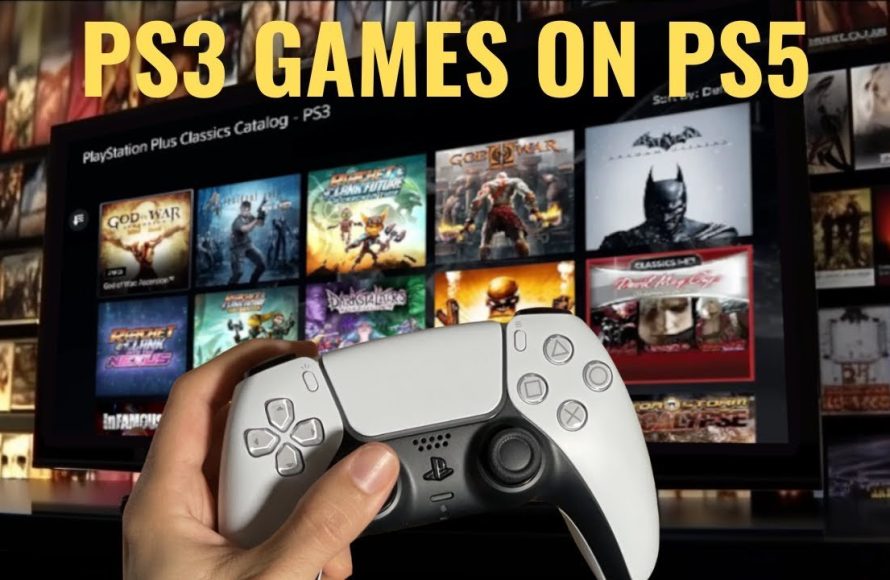
To play a game on PS3, insert the game disc, navigate to it on the XMB menu, and then select it to start.
So, you’ve got a PS3 and a game, but asking yourself, “how do i play a game on ps3?” Don’t worry, it is simpler than you think. The process mainly involves using the console’s disc drive.
Just pop the game disc into the console, and the system will then usually detect it automatically. Then you can navigate to the game and start your gaming session right away.

How Do I Play a Game on PS3?
So, you’ve got a PlayStation 3 (PS3), maybe it’s been sitting in the closet for a while, or you just got a cool retro find. You’re itching to jump into some games, but you might be a little rusty or completely new to the PS3 scene. No worries! Playing games on a PS3 is actually pretty easy once you know the basics. Let’s walk through everything step-by-step so you can get right into the action.
Getting Your PS3 Ready to Play
Before you can play any games, you need to make sure your PS3 is all set up. This includes connecting it to your TV and making sure everything is plugged in correctly. It’s like setting up a new toy – you gotta do the prep work first!
Connecting Your PS3 to the TV
First things first, let’s connect the PS3 to your television. Here’s what you’ll need:
- Your PS3 console.
- An AV cable (this is usually red, white, and yellow) or an HDMI cable.
- Your TV.
- A power cable for the PS3.
Here’s how to connect it:
- Find the ports on the back of your PS3. You’ll see either AV ports (the red, white, and yellow ones) or an HDMI port (it’s a single port).
- Look at the back of your TV and find matching ports.
- Plug one end of your cable (either AV or HDMI) into the PS3 and the other end into the matching port on your TV.
- Plug the power cable into the back of your PS3 and into a wall outlet.
If you’re using an HDMI cable, your picture will look sharper and clearer. If you use the AV cables, the picture might not be as clear, but it will still work. After you connected the ps3 to your tv, turn on your TV and select the right input (like HDMI 1 or AV) using your TV’s remote. Now, turn on your PS3 by pressing the power button on the front. You should see the PlayStation logo pop up on your screen, it means you’re connected properly.
Setting Up Your Controller
To play a game, you need a controller! The PS3 uses wireless controllers, and they need to be synced with the console before you can start playing. Here’s how:
- Make sure your controller has some battery life (you can charge it with a USB cable, usually included with the PS3).
- Turn on your PS3.
- Press the ‘PS’ button (the one in the middle with the PlayStation logo) on the controller.
- The lights on top of the controller should start flashing, this means that the controller is trying to connect to ps3.
- Once the controller is connected, one of the lights on top of the controller will stay on. This indicates that the controller is paired and ready to use.
If you have a wired controller, simply plug it into the USB port on the front of your PS3, and it should work right away. If you are using multiple controllers, you need to connect all of them with the console. Follow the same steps for each controller that you want to connect to ps3. Each connected controller will have its own dedicated number on the top of controller.
Loading and Playing a Game
Now that everything is connected, it’s time for the fun part – playing a game! The PS3 uses game discs, kind of like DVDs, or digital games that you buy from the PlayStation store.
Using a Game Disc
If you have a game disc, here’s what to do:
- Make sure your PS3 is on.
- Open the disc tray by pressing the ‘eject’ button on the console. The disc tray will slide out
- Place the game disc with the label facing up on the tray.
- Gently push the disc tray back in, or press the ‘eject’ button again, and the PS3 will start reading the disc.
- A menu for the game will appear on your TV screen.
Now, you can navigate the game menu using your controller and select options like ‘Start Game’ to begin playing. When you finish playing, you can take out the game disc by pressing the eject button, and the tray will slide out automatically. Grab the disc out from the tray and close the tray.
Playing Digital Games
Digital games are games you’ve downloaded from the PlayStation Store. Here’s how to play them:
- Make sure your PS3 is connected to the internet (you might need to set this up in the Settings menu).
- From the main menu, go to the ‘Game’ section.
- Scroll through the list of games you’ve installed.
- Select the game you want to play and press the ‘X’ button.
- The game will start up, and you’ll be ready to go!
Digital games don’t need a disc, so you can always access them from your PS3 without changing anything. When you complete playing a digital game, you can press the ‘PS’ button on your controller, and you will go back to the PS3 main menu screen. Then, you can select another game to play.
Navigating the PS3 Menu
Before you dive deep into games, it’s helpful to understand how to navigate the PS3 menu. This is where you find your games, settings, and other important stuff.
The Main Menu
The PS3 main menu has different sections listed horizontally. You can move between these using the left and right buttons on the D-pad on your controller. These main sections include:
- Users: Where you select your profile or set up a new one.
- Settings: Where you can change stuff like display settings, network settings, date/time, and other things.
- Game: Where you find all your installed games and game-related options.
- Network: Where you manage your internet connection and PlayStation Network account.
- PlayStation Network: To access PlayStation Store, account management and more.
- Video/Music/Photo: Where you can play movies, music, and look at photos stored on your PS3 or from USB devices.
To enter any of the sections, use the ‘X’ button. Then, you can move around using the D-pad, or the left analog stick, and press ‘X’ to select options and ‘O’ to go back to the previous screen. Navigating the PS3 menu is pretty intuitive once you practice a little bit!
User Profiles
If more than one person uses your PS3, you can create separate user profiles. This helps keep game saves and settings organized. To create a new user profile:
- Go to the ‘Users’ section in the main menu.
- Select ‘Create New User’ and follow the instructions on screen to create user profile.
- Choose a username and a picture for the profile.
You can easily switch between profiles on the main menu. This ensures everyone has their own space on the PS3, with their own game progress and settings.
Saving and Loading Games
Saving your game progress is super important! No one wants to lose all their hard work. Most games on the PS3 have an auto-save feature and also let you save manually.
Auto-Save Feature
Many games save your progress automatically at certain points or intervals. This means you won’t lose too much gameplay if you have to turn off the console suddenly. The auto-save feature will let you continue the game from the same point that the game last auto saved. Look for a symbol on your screen, usually a disc or some spinning symbol, and it shows that the game is saving automatically.
Manual Saving
Besides auto-saving, most games also let you save manually. Here’s how it generally works:
- Pause the game using the ‘Start’ button or the ‘PS’ button on your controller.
- Look for a ‘Save Game’ or ‘Save Progress’ option in the pause menu or in the game menu.
- Select the save option and follow the prompts. Some games have slots to save, so you can overwrite previous save files, or create a new slot to store save game file.
It is always a great idea to save your progress frequently in the game, and don’t rely on only the auto-save feature. When you want to load a game:
- Start the game.
- Select the ‘Load Game’ or ‘Load Progress’ option on the game’s main menu.
- Choose your save file and start playing from that point.
This way, you can start where you left off in the game without losing anything!
Understanding Game Controls
Every game has its own control scheme. The basic buttons on a PS3 controller are:
- D-Pad: The four directional buttons (up, down, left, right)
- Analog Sticks: Two sticks that can be pushed in different directions.
- X Button: Often used to select options.
- O Button: Often used to go back or cancel.
- Triangle Button: Often used to open menus or access special features.
- Square Button: Often used in games for specific actions.
- L1/L2 Buttons: Located on the top left of the controller.
- R1/R2 Buttons: Located on the top right of the controller.
- Start Button: Used to pause or access the game’s menu.
- Select Button: Has different functions in different games.
- PS Button: Used to access the PS3 menu.
Before playing a game, check the game’s manual or tutorial to learn what each button does. Most games have in-game tutorials that will teach you the controls.
Troubleshooting Common Issues
Sometimes things might not go perfectly. Here are some common issues and how to fix them:
PS3 Not Turning On
If your PS3 doesn’t turn on, check:
- Make sure the power cable is connected correctly to PS3 and plugged into the wall outlet.
- Try a different wall outlet.
- If the power light doesn’t come on, the power supply might have issues and may need repairing.
No Picture on the TV
If you can’t see a picture on your TV:
- Make sure the correct input (like HDMI or AV) is selected on your TV.
- Check that the cable (HDMI or AV) is firmly connected to both the PS3 and TV.
- Try a different cable to see if the issue is with the cable itself.
Controller Not Connecting
If your controller isn’t connecting, try:
- Make sure the controller is charged.
- Try connecting the controller to PS3 using a USB cable, if it connects using cable, then you may have battery or wireless connectivity issues.
- Resync your controller by pressing the small ‘reset’ button located at the back of the controller. Use a pin or paperclip for pressing this reset button.
Game Disc Not Reading
If the PS3 won’t read the game disc:
- Make sure the disc is clean. Wipe it gently with a soft cloth.
- Try another game disc to see if the issue is with the disc or the PS3.
- If you have tried multiple discs and none of them are working, then there could be an issue with the PS3 disc drive.
If you still have issues, try searching online for specific solutions, or ask a friend for help. There are tons of resources online to help you with PS3 troubleshooting.
Tips for the Best Gaming Experience
Here are a few more tips to make your PS3 gaming experience great:
- Keep your console in a well-ventilated area so that it does not overheat.
- Make sure the room is bright enough for playing and your eyes don’t get tired from looking at the TV.
- Take breaks when playing games to rest your eyes and mind.
- If you are playing online multiplayer games, make sure that you have a stable and good internet connection.
- Explore different genres of games! There are so many kinds of games on the PS3, from action to adventure to racing and more.
Have fun exploring and playing the games. The more you play, the better you will become at it! Playing games is a fun way to relax and challenge yourself.
With these simple steps, you’ll be playing your favorite PS3 games in no time. Just remember the basic connections, the controller sync, and how to navigate the menu, and you are all set. Have fun gaming!
How to start a Playstation 3 Game (Tutorial)
Final Thoughts
To play a game on your PS3, first insert the disc. Then, turn on the console using the power button. The game will appear on the XMB menu, simply select it and press ‘X’ to start.
You must use a controller connected via USB or wirelessly. Follow on-screen prompts, and you can begin playing. Therefore, ‘how do i play a game on ps3’ is simply a matter of disc insertion and selection.

