
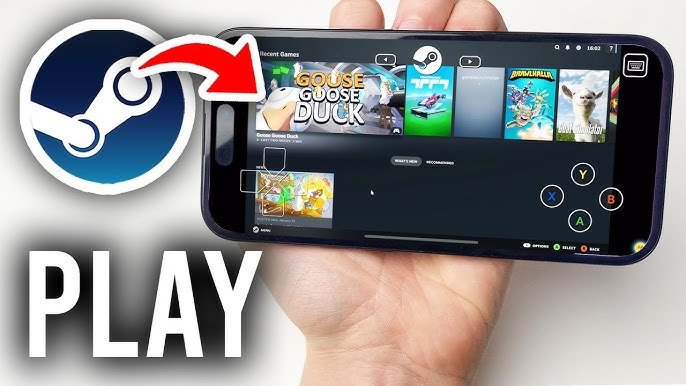
To play games on Steam, you first need to purchase and install them from the Steam store. Once installed, you can launch them directly from your Steam library.
So, you’re wondering, “how do i play games on steam?” It’s a common question for newcomers to the platform. The good news is, it’s really quite straightforward.
First, you’ll need a free Steam account and the Steam application installed on your computer. Then you explore the store, find games that catch your eye, and purchase them.
After purchase, the game downloads to your library, and from there you can start playing!

How Do I Play Games on Steam?
Okay, so you’ve got Steam all set up, and now you’re itching to play some awesome games! But how exactly do you do it? Don’t worry, it’s easier than you think. This guide will walk you through all the steps, from finding games to actually jumping in and having fun. Let’s explore all you need to know to get your game on using Steam.
Finding Games on the Steam Store
The first step to playing a game on Steam is finding one you like! The Steam store is where you can browse and buy games. It’s like a giant online toy store for video games. Here’s how you can navigate it:
Navigating the Store
When you open the Steam application, you will find a tab labeled “Store” at the top. Click on it to enter the virtual store. The store has multiple sections to help you find just the right game. Here’s a look at the common ones:
- Featured & Recommended: The front page of the store will usually show you games that are new, popular, or that Steam thinks you might like based on your past game choices. It’s a good place to start if you don’t have a specific game in mind.
- Categories: If you know what kind of game you are looking for, the categories can be really helpful. These categories include Action, Adventure, Strategy, Sports, Racing, Puzzle, Simulation, and many more. You can click on any category to see games that fit that description.
- Search Bar: At the top of the store, you’ll find a search bar. If you know the exact name of the game you are after, just type it in there.
- New & Trending: This area highlights newly released games and the ones that are most popular among other Steam users right now.
- Sales and Discounts: Steam regularly has sales. Keep an eye on these sections, they are a great way to get awesome games for less money.
Using Wishlists and Follow Options
Sometimes you might find a game that you are interested in, but you aren’t ready to buy it at this moment. This is where the wishlist and follow options can be super useful:
- Wishlists: Add games to your wishlist so you can keep track of them. Steam will tell you when those games go on sale so you can grab them for less.
- Follow: When you follow a game, Steam will keep you informed on its updates, like announcements of new content or discounts, ensuring you do not miss out.
Purchasing Games on Steam
Once you’ve found a game that you want to play, the next step is purchasing it. Don’t worry, it’s a straightforward process. Here’s what you need to know:
Adding to Cart
When you’re on a game’s store page, look for a green button that says “Add to Cart”. Clicking on it puts the game in your virtual shopping basket.
Completing your purchase
After you’ve added the game to your cart, click on the shopping cart icon at the top right corner of your screen. This takes you to your shopping cart page. Here, you have the options to either buy the game for yourself, or buy it as a gift for a friend. Steam accepts many payment methods, including:
- Credit cards and debit cards
- PayPal
- Steam Wallet funds (If you have prepaid funds on your account)
- Other payment providers based on your region
Pick the payment method you prefer and follow the instructions on the screen to finalize your purchase.
Understanding Game Bundles
Sometimes you’ll see game bundles on the store. Bundles are collections of games sold together at a lower price than buying them separately. If you are planning on purchasing multiple games, bundles can save you some money.
Installing Games on Steam
After buying a game, you must download it to your computer. Here is how that’s done:
Locating Your Games Library
At the top of the Steam application, you’ll find a tab labeled “Library”. Click on that to see all the games you own. Games that are ready to play are listed at the top, while games not yet installed are listed towards the bottom.
Downloading and Installation
When you find a game that you haven’t installed yet, you’ll see an “Install” button on its page. Click on this button, and Steam will ask where you’d like to install the game. You can choose the location or let Steam install in its default location. Once you select the location, Steam starts downloading and installing your game. You can view download progress in the downloads section at the bottom of the screen.
Managing Installation and Updates
Steam takes care of the game installation and updates. Once you install a game, Steam will automatically update it to the newest version. If you need to pause or cancel an installation, you can do this in the download section.
Playing Your Games
Once the game has finished downloading and installing, it is ready to be played! Here is how you can start gaming:
Launching Games from Your Library
Navigate to the library tab. The games that have already been installed will be on top of the list. Next to the game name, you’ll see the “Play” button. Click on it to launch your game. That’s it! You are playing the game.
Understanding Game Controls
Each game has its own specific set of controls. These controls are usually displayed in the game settings. You may use your keyboard and mouse, a game controller, or even a steering wheel depending on the game. Most games let you customize the controls to fit your style of play. It’s a good idea to explore the settings menu in each game to understand the controls and adjust them as you prefer.
Game Saves and Cloud Storage
Steam typically saves your game progress automatically. Steam Cloud saves your game files online, so you can pick up where you left off, even if you switch to a different computer. You do not have to worry about losing your game progress.
Using Steam Features
Steam offers more than just the ability to play games. It has a number of extra features that can make your gaming experience more social and fun.
The Steam Community
Steam has a built-in community hub where you can connect with other players:
- Friend Lists: Add your friends to your friends list. See when your friends are online, what games they are playing, and play games together.
- Groups: Join Steam groups for your favorite games to discuss game strategies and more.
- Forums: Game forums are a great place to find answers to game related questions, or just talk with other players.
- Reviews: Read other user’s reviews and see their playtime before you buy a game.
- Activity Feed: See what your friends are playing, games they’ve recently bought, and other updates from them on your Activity feed.
The Steam Overlay
The Steam overlay is a menu that you can pull up inside the game using your keyboard. It allows you to do things like:
- Chat with friends while playing a game.
- Take screenshots and videos of gameplay
- Browse the web or look up game guides
It gives you access to many Steam features without exiting the game.
Voice and Text Chat
Steam has built-in voice and text chat features. This means you can talk to your friends while you play games together, making it much easier to coordinate in multiplayer games or simply have a fun time chatting.
Steam Achievements and Badges
Many games have achievements for completing in-game tasks. Collecting these achievements can give you an extra sense of accomplishment. You can even compare how many achievements you’ve earned with your friends. Steam also gives you badges based on your game collection and other activities.
Troubleshooting Common Issues
Sometimes, you might encounter some problems while trying to play games on Steam. Here are some things you can try if you have issues:
Game Crashes
If your game keeps crashing or not starting up:
- Restart Steam and your computer: This is the first thing you should try. Sometimes just restarting things fixes the issue.
- Update your Graphics card drivers: Check the website of the manufacturer of your graphics card (e.g., Nvidia, AMD, Intel) and download the most recent drivers.
- Verify Game Files: In Steam, you can right-click on the game in your library, go to “Properties”, then “Local Files”, and click “Verify integrity of game files”. Steam will check if any files are missing or damaged and will fix them if needed.
- Check your Computer’s Specs: Make sure that your computer meets the minimum requirements for the game. If you do not have the required amount of memory or an appropriate graphics card, your game may have trouble working correctly.
Connection Problems
If you are having problems with connecting to the game server, try the following:
- Check Your Internet Connection: Confirm that your internet connection is working. Restarting your modem and router can sometimes fix connection problems.
- Steam Server Status: Check if Steam servers are experiencing issues. You can usually find this information on Steam’s website or social media channels.
- Firewall or Antivirus Settings: Make sure that your firewall or antivirus program is not blocking Steam from connecting to the internet.
Other Issues
- Check for Game Patches: Most games have updates or patches that fix bugs and other problems. Make sure that you have installed the latest version of the game. Steam will normally manage this for you.
- Ask for Help from the Community: If you are still having issues, use the game’s forums or social media channels. Sometimes other players have found and fixed similar issues and might be able to offer assistance.
Playing games on Steam is a great way to enjoy video games. From browsing the store to managing your collection, the platform offers many features to make the gaming experience fun and easy. With this knowledge, you are ready to play your favorite games!
What is Steam? || Beginner's Guide
Final Thoughts
To play Steam games, first, purchase them through the Steam store. Then, install the games by selecting them from your library. After installation, simply click the play button.
You can also find free games to play. Remember to keep your drivers updated for better performance. This method explains how do i play games on steam.

