
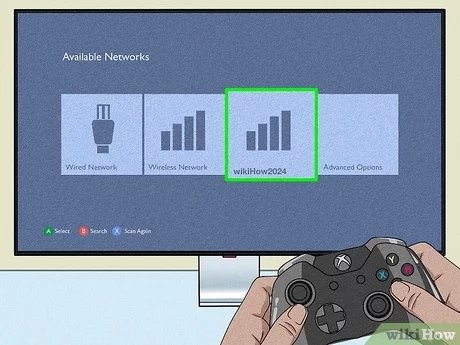
To play Xbox games on a 360, you insert the game disc into the console’s disc drive. Then, turn on the Xbox 360 and select the game from the menu.
So, you’ve got a stack of classic titles and are wondering, “how do i play xbox games on 360?”. It’s simpler than you think. The process is straightforward, and this article will guide you through it.
First, make sure your 360 console is plugged in and powered up. Then, locate your chosen game’s disc. Now we can go through the steps for playing your favorite game.

How Do I Play Xbox Games on 360?
So, you’ve got that trusty Xbox 360 sitting around, and you’re itching to play some games. Maybe you found it in the attic, or maybe you’re just feeling nostalgic. Whatever the reason, you’re wondering, “How do I actually play Xbox games on this thing?” Well, you’ve come to the right place! Let’s dive into everything you need to know to get your game on with your Xbox 360.
Understanding Xbox 360 Game Compatibility
First things first, not all Xbox games are created equal when it comes to the Xbox 360. It’s important to understand that the Xbox 360 plays games made specifically for it, and it also has some ability to play certain games from the original Xbox. However, it cannot play games that came out for the newer Xbox consoles, like the Xbox One or Xbox Series X/S. It’s all about the generation of the console and the games.
Xbox 360 Games: The Main Course
The games designed for the Xbox 360 are, of course, the easiest to play on the console. They come on physical discs that you simply insert into the console’s disc drive. These games are easy to identify since the game box and disc will clearly show that it’s for the Xbox 360. There are hundreds of games available for the Xbox 360 so you will have a lot of variety to choose from.
- Look for the “Xbox 360” logo on the game case.
- These games fit directly into the disc tray
- They load and play automatically most of the time.
Original Xbox Games: A Limited Selection
Now, here’s where it gets a little trickier. The Xbox 360 can play some, but not all, of the original Xbox games. This is called “backwards compatibility.” Microsoft decided which original Xbox games would work on the 360. To figure out if your game is compatible, you need to check Microsoft’s official list. There are a lot of sources online where you can find out the complete backward compatibility list. Here’s how to approach it:
- Find Microsoft’s Official Backwards Compatibility List. You can easily search this on the internet.
- Look for your original Xbox game on the list.
- If your game is there, great! It should work on your Xbox 360.
- If your game is not on the list, it sadly won’t work on your Xbox 360.
The backward compatibility is a great bonus, but remember that this feature is only available for a limited set of original Xbox games, and it may not always work flawlessly. Sometimes you might encounter glitches, but most of the games play well.
Xbox One and Xbox Series X/S Games: No Go
It’s very important to note that Xbox 360 cannot play Xbox One or Xbox Series X/S games. These newer console games use a different system and their discs and digital files are not compatible with older consoles. Don’t even try to put those newer discs in your Xbox 360, it won’t work.
Getting Started: Setting Up Your Xbox 360
Before you start playing any games, make sure your Xbox 360 is properly set up. This includes making sure all cables are plugged in correctly and that your TV is set to the right input. Here’s a quick rundown:
- Power: Make sure the power cable is securely plugged into both the back of the Xbox 360 and a working electrical outlet.
- Video Cable: The video cable (HDMI or component cable) connects your Xbox 360 to your TV. Make sure it’s connected to the correct port on the TV. You will see the right input on your TV with the right port from your Xbox 360.
- Controller: Make sure your controller has batteries, and it is connected to the Xbox 360.
- TV Input: Turn on your TV and set it to the correct input source where the Xbox 360 is connected.
Once you have properly set up your console, it is ready to play games.
Playing Physical Disc Games
Playing physical game discs is the most common way to play games on your Xbox 360. Here are the steps:
- Turn On Your Xbox 360: Press the power button on the console.
- Open the Disc Tray: Press the button on the front of the console to open the disc tray.
- Place the Disc: Put the game disc into the tray with the label facing up.
- Close the Disc Tray: Gently push the tray back in.
- Wait for the Game to Start: The Xbox 360 should recognize the disc and start the game automatically.
- Game Loading: You might see a loading screen or the Xbox 360 logo before the game starts.
If you have any issues, try turning off the Xbox 360 and trying again. Make sure your disc is not scratched or damaged and also make sure your game disc is not from a region different from your Xbox 360’s region. For example, if you have an Xbox 360 from the US, you will need the US version game disc.
Using Digital Games
Besides physical games, you can also play digital games on your Xbox 360. Digital games are stored on the hard drive of your console. To get digital games you have two ways:
- Download from the Xbox Live Marketplace: You would download games directly to your hard drive. Unfortunately, the Xbox 360 marketplace is no longer supported. So this option is not available anymore.
- Use a pre-installed game from the hard drive: If you purchased a used Xbox 360, you might find that some games are already stored in the hard drive. In this case, you can play those games without a disc.
How to Access Digital Games
- Turn on the Xbox 360. Make sure it is connected to a working power source.
- Go to the “My Games” Section: On the main dashboard, navigate to the “My Games” section using your controller.
- Select Your Game: Find the digital game you want to play from the list.
- Start the Game: Select the game and press the “A” button on the controller to start playing.
If the game does not work, it is likely that the game was not purchased or downloaded correctly. However, in most cases, it works smoothly.
Game Settings and Controls
Once you’ve got your game loaded, it is very important to know that each game has its own settings and controls. Here are some common things to consider:
- Pause Menu: Press the “Start” button on your controller to access the game’s pause menu.
- Controls: Each game will have its own control scheme. You will see an in game guide or an instruction manual on the game. Most games use the directional pad, “A”, “B”, “X”, and “Y” buttons, along with the triggers and bumpers.
- Game Settings: In the pause menu, you can change settings, for example the game volume or difficulty level.
Troubleshooting Common Issues
Sometimes things don’t go as planned, but that’s okay! Here are some common issues you might encounter and how to fix them:
Disc Read Errors
If your Xbox 360 is having trouble reading a game disc, try the following:
- Clean the Disc: Check the disc for smudges, scratches, or dust. Clean it gently with a soft cloth. Make sure to clean from the center outward, not in a circle.
- Try Another Disc: See if the console can read other game discs. If other discs work fine, your game disc is probably the problem. If it does not read any disc, your console might be the problem.
- Restart Your Xbox: Sometimes turning the console off and then back on helps.
No Video Signal
If you’re not seeing a picture on your TV, try these steps:
- Check Connections: Make sure your video cable is plugged into the correct ports on both the Xbox 360 and your TV.
- Switch Input: Make sure your TV is on the correct input channel.
- Try Another Cable: If possible, try another video cable to make sure your video cable is not the issue.
Controller Issues
If your controller is not working, here’s what you can do:
- Check Batteries: Make sure your controller has working batteries.
- Reconnect the Controller: Press the small button on the console and the small button on the controller to pair them.
- Try Another Controller: If available, try another controller to make sure your controller is not the issue.
Game Freezes or Crashes
If your game freezes or crashes, try these tips:
- Restart the Console: Turn the Xbox 360 off, then on again.
- Check Game Disc: Inspect your game disc and make sure it is not damaged.
- Make Sure Enough Storage: Digital games can fail to work if the console storage is full.
Tips for Enjoying Your Xbox 360
Now that you know how to play Xbox 360 games, here are a few tips to make your experience even better:
- Explore Different Genres: The Xbox 360 has a wide variety of games from racing and action to strategy and sports, so try a few different genres!
- Play With Friends: Many Xbox 360 games have multiplayer options for fun with friends and family. You can play couch co-op and also online if the game supports online gameplay.
- Find Game Guides: Look for tips and tricks online if you get stuck in a game. There are a lot of online communities and websites that help in playing a game smoothly.
- Take Breaks: Remember to take breaks between games to protect your eyes and stay healthy.
Playing games on the Xbox 360 can be a fun way to enjoy yourself and connect with friends and family. By understanding game compatibility and troubleshooting tips, you can have a great time playing classic games. There are plenty of fun games to enjoy on the console. Remember that while the Xbox 360 might be an older console, it still has many great games to offer.
How to play original Xbox games on your Xbox 360
Final Thoughts
To play original Xbox games on your Xbox 360, you must first check if the game is on the backward compatibility list. If it is, insert the game disc; your console may download an update. Not all Xbox titles work on 360, compatibility is limited, and its must.
Remember that digital Xbox titles purchased will not automatically transfer to the 360. Finally, to answer the question, “how do i play xbox games on 360?” you simply insert a compatible disc or purchase from the store.

