
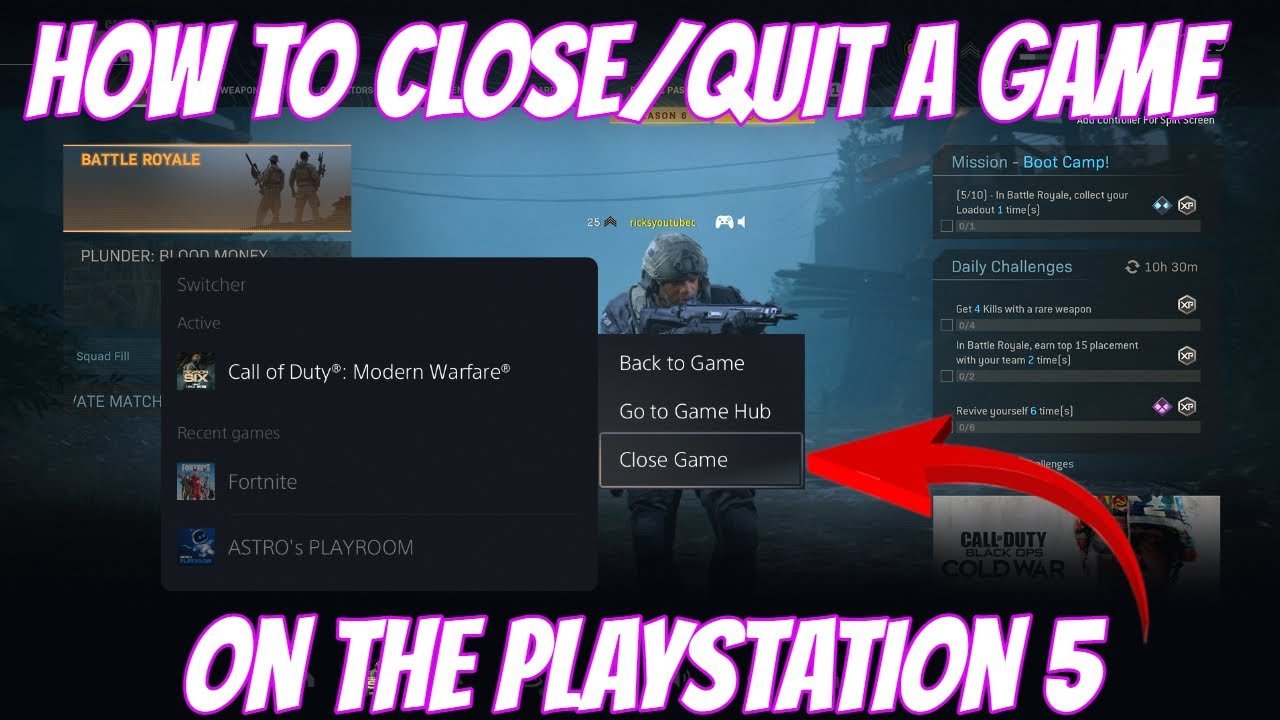
To quit a game on PS5, press the PlayStation button, navigate to the game’s icon, press the Options button, and select “Close Game”.
Ever found yourself lost in a digital world, wondering “how do i quit a game on ps5”? It happens to the best of us! Sometimes, you need a break, or maybe a different adventure is calling.
Thankfully, exiting games on the PlayStation 5 is quite straightforward. It’s just a matter of knowing which buttons to press. This guide will help you end your gaming sessions properly.

How Do I Quit a Game on PS5?
Okay, you’re deep into a game on your PlayStation 5, having a blast, but now it’s time to stop. Maybe dinner’s ready, you’ve got homework, or you just need a break. Knowing how to properly quit a game on your PS5 is important, not just for saving your progress, but for keeping your console running smoothly. It’s not as simple as just turning off the console, so let’s dive into how to do it the right way!
The Quick and Easy Method: Using the PlayStation Button
The fastest way to quit a game is by using the PlayStation button on your DualSense controller. This button, the one with the PlayStation logo, is your key to quickly jumping in and out of games. Here’s how it works:
- Press the PlayStation button once. This will bring up the Control Center. You’ll see a bunch of options, like notifications, sound settings, and power.
- Look for the game you’re playing, it will be shown as the active application on your screen.
- Move your cursor to the game and highlight it.
- Press the options button on your controller (it looks like three horizontal lines).
- A menu will appear. Select “Close Game.”
- And that’s it! The game will close, and you’ll be back on the PS5 home screen.
This method is super handy when you want to quickly jump to something else or just want to stop playing right away.
Why Simply Turning Off the Console Isn’t a Good Idea
You might be tempted to just press the power button on your PS5 to turn it off when you are done with a game. While this might seem faster, it’s not a great practice. Here’s why:
- Data Loss: Games often save your progress frequently, but if you just cut power without properly closing the game, you could lose some of that progress. You might find that you’ve gone back a bit farther than where you last remembered.
- Corrupted Files: In extreme cases, suddenly shutting off the console can cause the game files to become corrupted. This might require you to reinstall the game, which takes time and can be frustrating.
- Hard Drive Issues: Continuously shutting off the console without properly closing applications can also put unnecessary stress on the PS5’s hard drive and the console’s software. This could lead to problems down the road.
It is always better to quit a game properly using the method we just discussed to protect your game saves and your PS5.
Using the Home Screen to Quit Games
Another method to close a game is from the PS5 home screen. This method is useful when you’re already on the home screen and need to quit the game.
- Press the PlayStation button to go to the PS5 home screen.
- Find the game in the list of your recently played games. It will be under the “Games” section on the home screen.
- Select the game by moving the cursor on it.
- Once highlighted, press the Options button on your controller.
- You’ll see the same options menu as before. Select “Close Game.”
- Your game is now closed.
This method is equally effective as the first one, but you need to go to the home screen first.
Quitting Games While in a Different Application
Sometimes, you might be checking out something else, like the PlayStation Store or browsing your media, and you might want to close the game while you’re in other app. This process is very similar.
- First, press the PlayStation button to bring up the Control Center.
- You will notice that your game will be visible as the active application.
- Highlight the game, and press the Options button.
- Select “Close Game.”
- The game will quit and take you back to wherever you were, either on the home screen or in another app.
This method works even if you’re not directly in the game’s application. This lets you manage your games without having to constantly return to the home screen.
Understanding “Rest Mode” and Games
The PS5 has a feature called “Rest Mode,” which allows your console to stay on a low power setting and makes it quick to resume gameplay where you left off. But how does this interact with quitting games?
What Happens to Games in Rest Mode?
- When you put your PS5 into Rest Mode, your game remains open but paused. The console saves your current progress, allowing you to jump back into the game quickly.
- The game isn’t actually closed, which means you aren’t completely freeing up the system’s resources.
- If you plan on not using your console for a while or switching to a completely different game, it’s best to close your current game before going into Rest Mode.
Is it Okay to Leave Games Running in Rest Mode?
Yes, it’s generally okay, but there are a few things to think about:
- Power Consumption: The PS5 does use a small amount of power in Rest Mode, especially with a game running. It won’t be a lot, but over time, it adds up.
- Potential Glitches: Though rare, leaving a game running in Rest Mode for a very long time could sometimes lead to a small bug or glitch when you come back to it.
- Downloads and Updates: If you plan to start downloading new games or game updates, then it is recommended to close your running game. This will help speed up the download process.
For best practices, it’s recommended to fully close games if you’re not planning on playing them again right away, or if you are doing heavy tasks like downloading new games.
Closing Multiple Games
The PS5 doesn’t usually let you have multiple games running at the same time. However, if you have a game paused in Rest Mode and then start another game, you might wonder how to close both.
- First, always close the game you are actively playing using any of the methods described earlier.
- Then if you had a game running in rest mode, it will be in a suspended state. When you start another game, the previous one will be closed.
Typically, you won’t need to worry about closing multiple games, as the system usually handles this. But if you’re aiming to clear everything, remember to use the steps we’ve discussed above for each game.
Troubleshooting: Game Not Quitting
Sometimes, you might encounter an issue where the game doesn’t want to close. This can be annoying but is usually easy to fix. Here are some common problems and solutions:
Game Is Frozen
If the game appears to be completely frozen and doesn’t respond to any inputs, you can try these steps:
- Hold down the PlayStation button on your controller for about 10 seconds. This should bring up the “Power” menu.
- Select “Restart PS5”. This forces the console to reboot and usually closes any stuck applications.
- If the game continues to not quit, you might have to use the power button on your console for an emergency shutdown.
- After the restart, you might lose some unsaved progress, so make sure to quit your games properly when they are not frozen.
System Error
Sometimes, the PS5 might show a system error that prevents you from quitting the game. If this occurs, follow the on-screen instructions. Often, it requires a console restart to fix the underlying issue.
Check for Updates
Outdated game software can occasionally cause problems. Make sure your game is up to date. If your games are constantly having issues with closing, make sure you keep your games and PS5 updated.
Best Practices for Managing Games
To ensure that your PS5 runs smoothly and to avoid any data loss or issues, follow these simple best practices:
- Always close your game properly before turning off the console.
- Don’t rely solely on rest mode. Only use the rest mode if you’re planning on returning to the game soon.
- Make sure your PS5 and all of your games are up to date. Game updates can sometimes fix bugs and glitches that affect the closing process of games.
- Avoid abruptly powering off your console during gameplay.
- Periodically, check for game updates to ensure best performance.
Why Proper Game Quitting Matters
Properly quitting games might seem like a small thing, but it’s an important habit to develop. Here’s why:
- Saves Your Progress: As we mentioned before, quitting correctly helps prevent losing your precious game saves.
- Console Health: This helps in preserving the console’s hardware and software, reducing the risk of future problems.
- System Performance: Closing a game frees up your PS5’s resources, making other tasks run faster and more smoothly.
- It’s Good Habit: Like brushing your teeth or wearing a seat belt, quitting games properly becomes a habit that is beneficial.
Taking a few extra seconds to quit a game using the correct method makes a big difference in the long run.
Quitting a game on your PS5 is easy once you know how. Whether you prefer the quick access through the PlayStation button or using the home screen method, the key is to be consistent. Make it a habit to close your games properly to keep your save data safe and your PS5 happy. Now you know exactly how to close games on your PS5, you’re all set for endless adventures!
PS5: How to Close Games & Applications Tutorial! (For Beginners) 2024
Final Thoughts
To quit a game on PS5, simply press the PlayStation button on your controller. This action will take you to the home screen. From there, you can highlight the game and select “Close Game”.
Remember this process; it’s the main way. Therefore, it’s straightforward to exit any application. Knowing exactly how do i quit a game on ps5 enhances your gaming experience significantly.

