
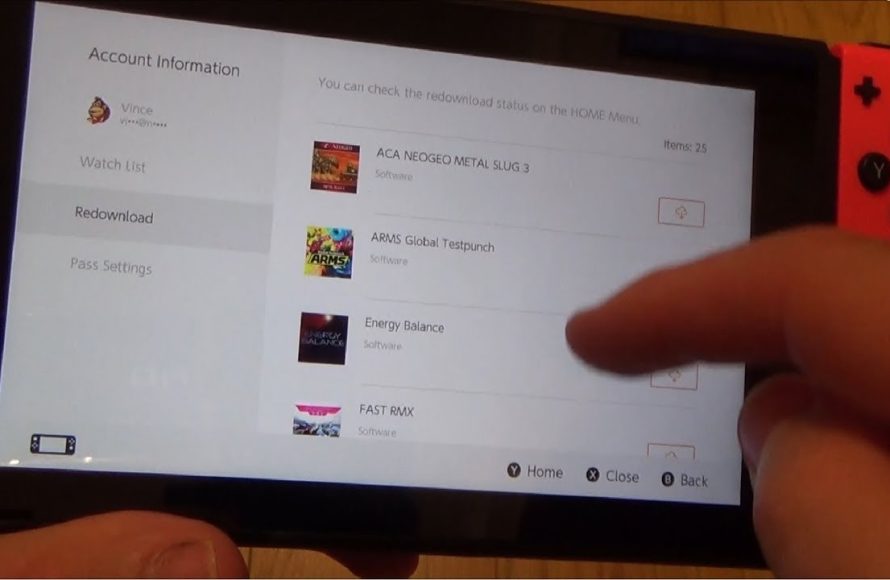
To redownload a game on Switch, access the eShop, select your profile icon, go to “Redownload,” and choose the game.
Ever accidentally delete a game or switch to a new console and wonder, “how do i redownload a game on switch?” It’s a common question for Switch owners. Luckily, Nintendo made it quite simple to get back your previously purchased digital titles.
The process is straightforward and requires just a few steps within the Nintendo eShop. You can quickly restore any game you own that you might have removed from your system. It is a great way to free up storage without actually losing your purchases.

How Do I Redownload a Game on Switch?
So, you’ve got your Nintendo Switch, and maybe you’ve deleted a game to make space for a new one, or perhaps you got a new Switch and want all your old favorites back. Don’t worry; getting those games back is usually a breeze. This guide will walk you through all the ways you can redownload your games on the Nintendo Switch. We’ll cover everything from how to find your games to what to do if you run into problems. Let’s get started!
Redownloading Digital Games from the Nintendo eShop
The most common way to redownload a game is if you bought it digitally from the Nintendo eShop. Nintendo keeps track of all your digital purchases tied to your Nintendo account. This makes it easy to find and download them again whenever you need to.
Accessing Your Nintendo eShop Account
First things first, you need to get to the Nintendo eShop. Here’s how:
- Make sure your Nintendo Switch is turned on and connected to the internet.
- From the main HOME Menu, you’ll see a little orange shopping bag icon. This is the Nintendo eShop icon. Tap it or select it using your controller.
- If you have multiple user profiles, it will ask you which account you want to use. Pick the account that you originally used to buy the game you want to redownload.
Once you’ve done this, you’ll be in the Nintendo eShop.
Finding Your Redownloadable Games
Now that you’re in the eShop, follow these steps to find the games you can redownload:
- Look at the menu on the left side of the screen. You will see different options like “Search,” “Wish List,” and “Enter Code.”
- Scroll down to the very bottom of the menu. You will see an option that says “Redownload.” Select it.
- A list of all the digital games that are linked to the account you are currently using will now appear. This includes any demos or content that you had previously purchased.
Starting the Redownload Process
You’ve found your game; now let’s download it:
- Find the game you want to redownload from the list and select it.
- A new screen will appear showing the game’s details. There will be a button to download. Select it. The download should start automatically.
You’ll now see the progress of the download on your HOME Menu. You might need to scroll down your game list to see the downloading icon. Once the download is finished, you can start playing again.
Redownloading Archived Games
Sometimes, you don’t delete a game, but instead archive it to free up space. Archiving keeps the game data on Nintendo’s servers, but removes it from your console. The great news is that redownloading an archived game is just as simple as redownloading a deleted one!
Distinguishing Between Archived and Deleted Games
It’s essential to know if a game is deleted or archived. Deleted games are removed completely from your Nintendo Switch. Archived games remain on your Nintendo account, and you have to go through the eShop to redownload them. When a game is archived, it keeps its icon in your HOME Menu, but the icon will have a little cloud icon beside it to indicate it needs to be downloaded again.
Redownloading from the HOME Menu
Here’s how to redownload an archived game directly from your HOME Menu:
- Look for the game’s icon on your HOME Menu that has a cloud icon beside it.
- Select the game icon.
- The console will show a confirmation screen. Confirm to start redownloading the game.
- The download process will now start. You’ll see a downloading icon over the game in your HOME Menu.
Redownloading Games on a New Nintendo Switch
Getting a new Nintendo Switch is exciting, but you might wonder how to transfer all of your digital games. Don’t worry, Nintendo makes it fairly straightforward to get all of your games on your new console.
Linking Your Nintendo Account
The first, most important step is to link your Nintendo account to your new console. Here’s what you do:
- Make sure your new Nintendo Switch is turned on and connected to the internet.
- During the initial setup process, you will be prompted to link a Nintendo account or create a new one. Choose to link your existing Nintendo account.
- If you didn’t link your account during initial setup, you can do it later in system settings. Go to System Settings from the HOME Menu. Find “Users” and then select “Link a Nintendo Account.”
- Follow the on-screen instructions. This will likely involve entering your username and password.
Once your Nintendo Account is linked, all games and downloadable content bought under that account are now accessible on your new Switch.
Redownloading After Linking Your Account
After linking your account, you can redownload games in the same way as on your original console. Here’s a quick recap of the process:
- Go to the Nintendo eShop.
- Pick the user that is linked to the account where you purchased the game.
- Scroll all the way down to the bottom left hand menu and select “Redownload.”
- Find the game you want to redownload and choose it. Select the button that will let you download the game.
All of your downloaded games will now be downloading on your new switch.
Troubleshooting Redownload Issues
Sometimes, even with the best instructions, things don’t go as planned. Here are some common problems and how to fix them.
The “Redownload” Option Isn’t Appearing
If you can’t find the “Redownload” option in the eShop, there could be a few causes. Here’s how to deal with it:
- Check Your Nintendo Account: Make sure you are logged into the correct Nintendo account that you used to purchase the game originally. Sometimes we accidentally create multiple accounts or forget which account a game is tied to.
- Verify Purchases: Make sure you’ve bought the game digitally on that account. If you own the game as a physical copy, you can’t redownload it from the eShop.
- Check for System Updates: Make sure your Nintendo Switch system software is updated to the latest version. Old system software can sometimes cause issues. Go to System Settings > System > System Update to check for updates.
Download Is Stuck or Freezing
It can be frustrating when your game stops downloading. Let’s see what you can do if your download gets stuck:
- Check Your Internet Connection: A poor internet connection is a frequent reason for download issues. Make sure your internet is working correctly. You can restart your internet modem and router to help fix this problem.
- Restart Your Nintendo Switch: Sometimes, a simple restart can fix issues. Hold down the power button, and then choose “Restart.” Then, try to redownload the game.
- Check Storage Space: Make sure you have enough space on your Nintendo Switch to download the game. If your memory is full, you might need to remove some games or use a MicroSD card.
- Pause and Resume: In your home menu, find the downloading icon and press A to pause the download and then A again to resume it.
“Error Code” Appears
If you get an error code during the download, it means something isn’t working quite right. Here’s how to take action:
- Note the Error Code: Write down the error code. This code provides information about the issue.
- Check Nintendo’s Support Website: Go to the Nintendo support website and search for the error code to find instructions on how to solve the problem.
- Contact Nintendo Support: If you can’t fix the error code with online resources, contact Nintendo customer support directly for personalized help.
Managing Your Nintendo Switch Storage
Since you’re dealing with redownloading games, it’s a good time to talk about managing storage. Your Nintendo Switch has a set amount of internal storage, but you can also expand this using a microSD card.
Checking Your Storage Space
Here’s how to see how much space you have left:
- Go to System Settings from the HOME Menu.
- Scroll down to the “Data Management” option and select it.
- You will see your current system storage. Your available storage is shown above the game icons. You will also see options to manage and move game data.
Using MicroSD Cards
MicroSD cards are a great way to get more storage. Here’s what you need to know:
- Choose the Right Card: Make sure the MicroSD card you pick is compatible with your Switch. Look for a MicroSDHC or MicroSDXC card, which are types of cards that will work.
- Insert the Card: Open the small flap behind your Nintendo Switch and insert the MicroSD card. Your Switch will then recognize it.
- Transferring Game Data: In Data Management you have the option to move games from the system to your MicroSD Card.
Understanding Game Licenses
Knowing about licenses will help you understand how game redownloads work on your Nintendo Switch.
Digital Game Licenses
When you purchase a game from the eShop, you are not buying the game files. You are buying a license to play that game on your Nintendo account. This license is why you can redownload the game even if you delete it from your system.
Physical Game Licenses
Physical games are on cartridges, and your license comes from the game cartridge itself. You won’t be able to redownload a physical game from the Nintendo eShop. If you lose the game cartridge, you’ll need to buy it again.
Sharing Game Licenses
It’s essential to understand that Nintendo game licenses are tied to the Nintendo Account. If you have multiple Nintendo Switches, only one console can play games at the same time if the license is tied to the same account. However, you can have many consoles with the same account linked to them, and you can download on each switch the games you own.
Redownloading games on the Nintendo Switch is usually a very easy and user-friendly process. This guide covers the most common ways you would redownload a digital game, including re-downloading deleted and archived games, how to get games on a new console and trouble shooting issues. By following these tips, you can easily access all the games you own and keep having fun playing. Remember to keep an eye on your storage space and to ensure your connection to the internet is strong.
How to Redownload Deleted Nintendo Switch Games & Apps (Fast Method!)
Final Thoughts
To redownload a game, visit the eShop using the same account you purchased it with. Find the game in your purchase history. Select the download option and the game will begin reinstalling.
Remember, this method works even if you’ve deleted the game from your console. The game remains linked to your account. Knowing ‘how do i redownload a game on switch’ makes managing your game library simple. You must have enough space for redownloading.

