
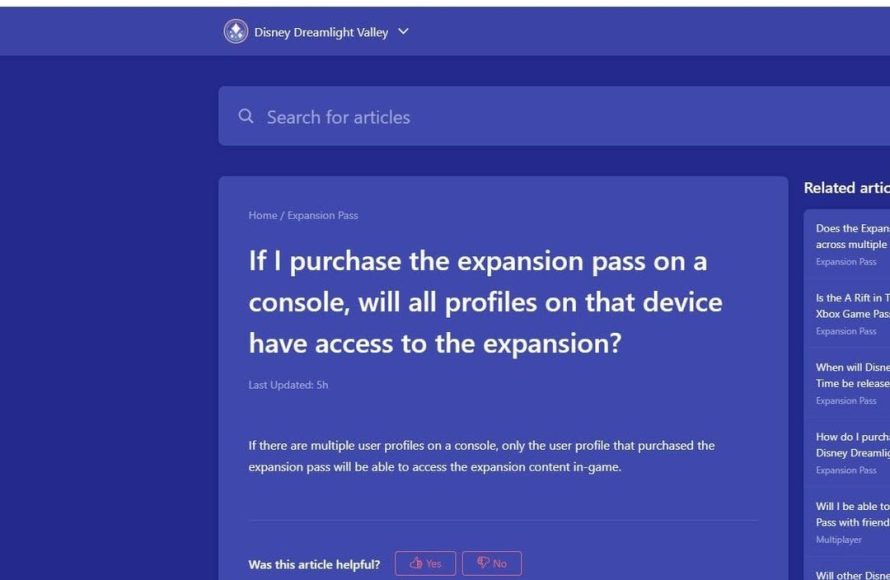
Yes, you can game share DLC on Xbox with another account on your console if you have set it as your home Xbox.
So, you’re wondering, can you game share dlc on xbox? It’s a common question for players who like to play together. Sharing games is great, but what about those extra content packs you bought?
Many gamers often ask whether the downloadable content transfers over as well. This feature allows you to share not only your games but also their extra goodies.

Can You Game Share DLC on Xbox?
So, you’ve got a buddy, a sibling, or maybe even a very generous parent who also loves Xbox, and you’re wondering if you can share your awesome downloadable content (DLC). Maybe you just bought that super cool expansion for your favorite game, and you’re itching to play it together. The good news is: yes, you can often share DLC on Xbox! It’s not quite as simple as handing over a disc, but it’s definitely doable. Let’s dive into the details and see how this all works.
Understanding Xbox Game Sharing
Before we get into the nitty-gritty of sharing DLC, it’s important to understand the core concept of Xbox game sharing. At its heart, game sharing on Xbox allows two people to share their digital game libraries and, crucially, their downloadable content. This is done through a system called “Home Xbox.” It’s like designating one Xbox console as your primary home, and letting others play your digital games and DLC on that console, even if they’re using their own Xbox profile.
Think of it like this: you have a library of games. Your “Home Xbox” is like having a copy of your library accessible at a friend’s house. They can borrow any book, or in this case, play any game, from your collection when they are using their account on your designated Home Xbox. When they go back home, their Xbox won’t have access to your library, unless it’s their home Xbox as well!
How Does the Home Xbox Work?
The Home Xbox feature is the engine behind game and DLC sharing. Here’s how it works:
- Designating Your Home Xbox: You choose one Xbox console and designate it as your “Home Xbox”. This is usually the console that you use most frequently, or the one you want others in your household to use your digital games on.
- Account Linking: Your Xbox account is linked to this “Home Xbox”. Any digital games or DLC you purchase will be available to play by anyone using that “Home Xbox,” even if they are using a different profile.
- Accessing Games and DLC: On your Home Xbox, anyone logged in with their own Xbox profile can access and play the games and DLC you have purchased. They don’t need your password or access to your main account.
- Access on Other Consoles: You can still play your games and DLC on any Xbox console by simply logging into your Xbox profile. This works because you are the owner of those purchases, and you are simply using your own digital content. However, others can’t share the content on any console other than your home Xbox.
Sharing DLC: The Specifics
Now that we have the general idea of “Home Xbox” down, let’s focus on how this impacts the sharing of DLC. The rule is simple: If the DLC is attached to your account, and that account is designated as the Home Xbox account, then the others who use that Xbox, they can also access the DLC.
Types of DLC and Sharing
Not all DLC is created equal, and there can be differences in how shareable they are:
- Game Expansions: Expansions that add new areas, storylines, or characters are usually fully shareable. If you buy an expansion for your favorite action-adventure game, it will generally be accessible to anyone playing on your Home Xbox.
- Character Packs and Skins: Many cosmetic items, like new character appearances or weapon skins, are also shareable. If you purchase that cool new outfit for your character, your friends and family using your Home Xbox can probably use it too.
- In-Game Currency or Boosts: These types of DLC can sometimes be tricky. Often, they are tied directly to the account that purchased them and are not always shared. For example, if you buy a bunch of in-game currency, your friend on the same home Xbox might not be able to use it.
- Season Passes: These are designed to give you access to all DLC released for a game. If you share a Season Pass through your Home Xbox, your friend on that Xbox will likely have access to all the DLC included in that season pass.
Troubleshooting DLC Sharing
Sometimes, things don’t go as planned, and you might run into issues while sharing DLC. Here are some common problems and how to solve them:
- DLC Doesn’t Show Up: If your DLC isn’t showing up for your friend on your Home Xbox, first try restarting your console. Sometimes a simple restart can resolve the problem. Also, ensure the DLC is actually associated with the account that is marked as Home Xbox.
- Licensing Issues: Occasionally, you might face a licensing issue. This often means the game can’t verify if you own the DLC. Make sure that the account which bought the DLC is set as the home account on the xbox. Try signing out and signing back in on both accounts and this often fixes the issue.
- Incorrect Home Xbox: Double-check that your designated “Home Xbox” is actually set up correctly. If it isn’t, your friend or family member might not be accessing the DLC through the correct console. Only one Xbox can be set as the Home Xbox at one time.
- Specific Game Limitations: Some games may have specific restrictions on DLC sharing. These are rare, but always check online forums for each specific game as every game can be different. Always try to search if your game has an issue with DLC sharing before making your purchase decision.
Step-by-Step Guide to Setting Up Home Xbox for DLC Sharing
Here’s a step-by-step guide on how to designate your Home Xbox so everyone can start enjoying your shared content:
- Sign in to Your Account: Start by signing into the Xbox account on the console you want to set as your Home Xbox. This is the account with the games and DLC you plan to share.
- Open Settings: Press the Xbox button on your controller to open the guide. Go to ‘Profile & system,’ select ‘Settings.’
- Find General: In the settings menu, select ‘General.’
- Go to Personalization: Choose ‘Personalization’ within the General settings.
- Select My Home Xbox: Click on ‘My Home Xbox.’ You will see options related to your home Xbox setting.
- Make This My Home Xbox: Choose “Make this my home Xbox.” This will designate this console as your “Home Xbox”.
- Confirmation: The system will ask you to confirm your selection. Select “Make this my Home Xbox” to confirm this choice.
- Share DLC: Now, anyone who uses that designated console with their own profile will be able to access all of your digital games and shared DLC. They won’t be able to access them on their own console unless they buy them.
The Benefits of Game Sharing DLC
Game sharing with your “Home Xbox” is very beneficial. This feature isn’t just convenient; it can be a great money-saver and makes gaming more social and enjoyable.
Cost Savings
One of the greatest advantages of game sharing is the cost savings. Instead of buying multiple copies of the same game or DLC, you can purchase it once and share it with family or roommates. That means you can have your friends playing the same game with the DLC purchased under your account while paying only once. This becomes a great value, especially with more expensive expansion and season pass options. By sharing with one or two others, you can share costs and still have access to the same games!
More Social Gaming
Game sharing promotes more social gaming experiences. It allows everyone in your household to get more involved in the games and the shared content. This can be really fun when you are playing multiplayer games where you are fighting together to win, using the same characters. It helps bring people together in a new fun way. Everyone gets to enjoy the same in-game content, leading to more shared experiences and a lot of fun together.
Simplified Access
Game sharing also makes accessing your games and DLC so easy. You don’t have to worry about passing discs around, you can all play on the console that is set to the home Xbox. It’s very easy for anyone using your Home Xbox to start playing. You can easily hop between your games without much hassle. You are simply choosing the game you want to play without any additional steps.
Limitations of Game Sharing DLC
While game sharing is great, it does have some limitations you should be aware of.
One Home Xbox at a Time
The biggest limitation is that you can only have one “Home Xbox” designated at any given time. You can change it, but not frequently, and it could take some time for the changes to take effect. If you try to share with multiple groups, there is no way for you to do this as you can only have one designated “Home Xbox.” This also means you can’t share your library with everyone that you know who has an Xbox. This can be a limitation if you want to share with friends who are not living in your household.
Account Based Sharing
Remember, sharing is linked to your Xbox account. This means others can only access your games and DLC when they are using the Home Xbox. If they are using a different console, they won’t have access to your shared content unless they purchase it themselves or log into your account. If you are looking to share your games with anyone that you want, you should consider that your account details are at stake as you need to share the login details with them. Remember to set up a strong password before sharing account credentials with others.
Not All DLC Is Shareable
While most DLC is shareable, some forms of content might be linked specifically to the account that purchased them, and can’t be shared. Some in-game currency or very specific item packs might not be accessible by other users. Also, always verify online to make sure that the specific game or DLC that you intend to purchase is shareable, before you buy it.
Game sharing on Xbox, including DLC, is a fantastic feature that enables cost savings, better social gaming, and streamlined access to a shared game library. Understanding the ins and outs of Home Xbox settings, various DLC types, and potential problems are crucial. However, by following the steps outlined above, you can easily set up and take advantage of game sharing to the fullest potential. It’s a way to make your gaming experience more fun for everyone without breaking the bank. With a bit of care, you and your friends or family can make the most of this useful feature and enjoy all the great content Xbox has to offer together.
XBOX SERIES X S HOW TO SHARE DLC!
Final Thoughts
Yes, you can game share DLC on Xbox. The primary account with the DLC must set the console as their home Xbox. Then other profiles on that home Xbox can access the DLC.
This sharing applies to digital content purchased from the Microsoft Store. It’s a great way to maximize your gaming investment and play with friends and family. So, remember you can you game share dlc on xbox and enjoy more content.

