
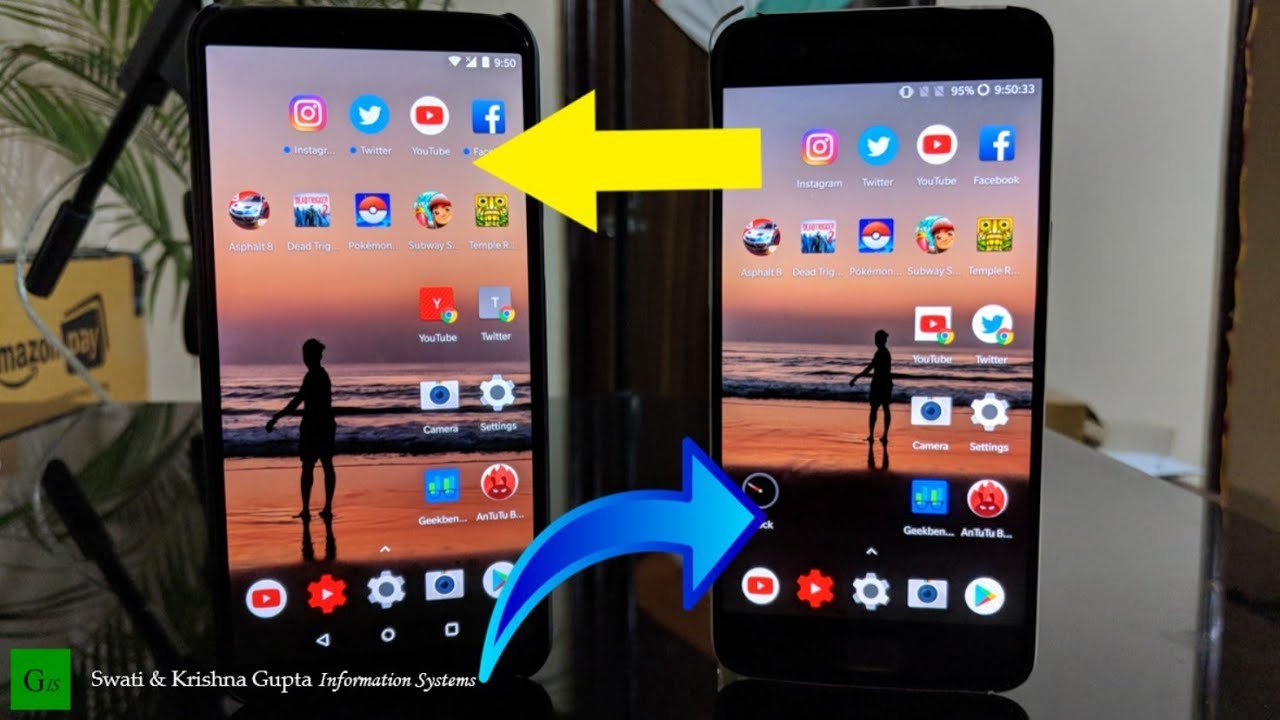
To transfer games from one phone to another, you generally use cloud saves if the game supports it, or utilize phone-specific transfer tools or third-party apps.
Want to keep playing your favorite mobile games even when you get a new phone? Many people ask, “how do i transfer games from one phone to another,” and the answer isn’t always obvious. It can be a bit tricky, depending on the game and the operating systems of your phones.
Fortunately, several methods exist to help you move those precious game saves. Let’s delve into the options and make switching devices a lot smoother for you.

How Do I Transfer Games From One Phone To Another?
Moving your favorite games from one phone to another can feel like a big puzzle, but it’s totally doable! Think of it like moving your toys from one toy box to a new one. You just need to know the right steps. This guide will walk you through all the different ways you can move your games, whether you have an Android phone, an iPhone, or both!
Understanding Game Transfer Basics
Before we jump into the “how-to,” let’s talk about what actually happens when you transfer a game. When you move a game, you’re not just moving the app itself; you’re also trying to move all the cool stuff inside it, like your high scores, saved games, and special items you collected. This data is often stored in different ways, making the transfer a bit more complex. Sometimes game data is saved on your phone itself, and sometimes it’s saved “in the cloud,” like a giant online storage space. This makes transferring game progress a bit tricky, but not impossible! We’ll get into different ways to manage that.
Types of Game Data
- Local Saves: This is game data stored directly on your phone. Think of it like keeping a diary in your room. It’s easily accessible, but only on that phone.
- Cloud Saves: This is game data stored on the internet, often linked to your game account. Think of it like keeping your diary in a special online library. You can access it from different places.
- Game App: This is the actual game program. It’s the same for everyone who downloads it from the App Store or Play Store.
Understanding where the game saves your progress is the first step to a successful transfer. If your games use cloud saves, the process will be much smoother. If they only use local saves, it takes a bit more work.
Transferring Games on Android Devices
Android phones offer many ways to move your games, so let’s dive into the most common methods:
Using Google Play Games
Google Play Games is like a central hub for your Android games. It often handles cloud saves automatically, making it the best place to start. Here’s how it usually works:
- Sign In: First, make sure you’re signed in to the same Google account on both phones.
- Check Cloud Saves: Most games that work with Google Play Games should save your progress to the cloud. When you install the game on your new phone and sign in to your Google account, your progress should load automatically.
- Start Playing: If everything worked correctly, you should be able to pick up right where you left off!
Some games have their own cloud save options too. So always look for these features in the game settings.
Using a Phone Cloning or Backup Feature
Most Android phone makers offer a way to clone or back up your entire phone, including apps and data. This can be a very simple way to move everything over. Here’s how:
- Backup Your Old Phone: Most Android phones have a built-in backup feature (often in the Settings app under “System” or “Accounts”). You can back up to Google Drive or to a computer.
- Restore on New Phone: When you set up your new phone, choose to restore from the backup. This will copy over all your apps, and sometimes, game data.
- Start Playing: Once your restore is complete, check to see if your game progress transferred. If so, you are good to go!
This method can be convenient, but it might not always transfer all local game saves perfectly. It’s best to combine it with cloud saves whenever possible.
Using Third-Party Apps (Caution!)
Some apps claim to transfer games, but be very careful using these! Often, these can be a scam, or they don’t work well. It’s better to use the methods given above first before trusting other apps.
Transferring Games on iOS (iPhone) Devices
Apple devices also have options to transfer your games, and they are usually very straightforward:
Using iCloud
iCloud is Apple’s cloud service and it’s the main way iOS games save data. Here is how to use iCloud to transfer your games:
- iCloud Backup: Make sure you’re signed into iCloud on your old iPhone. Go to Settings > [Your Name] > iCloud > iCloud Backup. Then, tap “Back Up Now.”
- iCloud Restore: When setting up your new iPhone, choose the option to restore from an iCloud backup. This will transfer all your apps, data, and usually, game saves.
- Sign in on the new device: Once the restore is done, open the games, and your progress should be back where you left off.
Apple is very good at making sure iCloud works smoothly. But, always check if your games use iCloud in its settings.
Using Quick Start (iPhone to iPhone)
If you are getting a new iPhone, the Quick Start option is the fastest way to transfer everything over including apps and app data:
- Hold the Phones Close: Place your old and new iPhones near each other. Make sure both phones have Bluetooth turned on.
- Follow Prompts: Your old iPhone will detect the new one. Follow the instructions that pop up on both screens.
- Transfer Data: Choose to transfer your data from your old phone to your new one. This includes your apps and their data (including saved games).
- Start Playing: Once the process is complete, your games and progress should be waiting for you on your new phone.
Quick Start is very convenient because it moves almost everything over wirelessly, saving you a lot of time.
Using iTunes or Finder (Computer Backup)
If you prefer using a computer, you can also back up your old iPhone using iTunes (on Windows) or Finder (on macOS) and restore that backup to your new iPhone:
- Connect to Computer: Connect your old iPhone to your computer using a USB cable.
- Open iTunes/Finder: Open iTunes (on Windows or older macOS) or Finder (on newer macOS).
- Create Backup: Choose your iPhone and create a backup on your computer. Be sure to choose “backup to this computer”, not to icloud.
- Connect New iPhone: Connect your new iPhone to the computer and restore from the backup you just made.
- Start Playing: Once the restore is complete, your games and game saves should be there.
This is a more traditional way to transfer data, but it works very reliably.
Transferring Games Between Android and iOS
Moving games from an Android phone to an iPhone (or vice versa) can be tricky, because the systems are very different. There aren’t ways to just directly transfer the apps and the data like you can between two android phones or two iphones.
Cloud Saves are Your Best Friend
The easiest way to move some game progress from Android to iOS is to make sure your game uses cloud saving. Some games will let you log into an account for the game on both your Android device and your iPhone. If you do this, you will get your progress and game data synced between devices as the devices are just getting this data from the game’s servers and not directly from your other device. Here’s what to do:
- Check Game Settings: See if your game uses a special login system (like an email and password, or a Facebook login).
- Log in on Both Devices: Log into the same account on both your old Android device and your new iPhone.
- Sync the Data: Hopefully the game will sync your data over. If not, check the game’s settings for an option to manually sync.
Using a game account with cloud save is the best option when trying to sync between iOS and Android. Make sure that the games you enjoy uses a cloud save feature so that you can pick up where you left off.
Game Specific Solutions
Some popular games have their own way to transfer progress across different devices. For example, you might be able to link your account with a social media account and sync that way, or use a unique transfer code the game provides. The exact steps will vary, so always check the instructions for that game.
Starting Over Is Sometimes Necessary
Unfortunately, not every game has a way to transfer progress between Android and iOS. Sometimes you have to start over, which can be sad, but at least you know what you are doing the second time around!
Troubleshooting Common Issues
Sometimes things don’t go as planned. Here are some common issues and how to solve them:
Game Progress Doesn’t Sync
- Check Your Internet: Make sure both phones have a stable internet connection for cloud saves to work.
- Sign in Again: Try signing out of your game account on both devices and then sign back in again.
- Update the Game: Make sure the game is the latest version on both devices.
- Game Support: If all else fails, check the game developer’s support website for more help.
Transfer Error
- Restart Devices: Try turning both devices off and on.
- Check Storage: Make sure your new phone has enough storage space to hold the game and its data.
- Try Again: Start the transfer process again, carefully following the steps.
Missing App Icon
- Re-download App: If an icon is missing you may need to re-download the app from the app store.
- Check for Updates: Sometimes a quick update of the app can fix missing icons.
Transferring games can sometimes be a little tricky, but usually you should get it working by trying a different method, and making sure you follow every step.
Moving your games from one phone to another doesn’t have to be a headache. With the right steps and some patience, you can take all your favorite gaming adventures with you on your new device. By using cloud saves, backup options, and careful checking, you can keep playing your games without losing any progress. Remember to check your games’ settings and try multiple methods if one doesn’t work right away. Happy gaming!
How To Manually Transfer A single App from one Android Phone To Another
Final Thoughts
Transferring games between phones varies depending on the platform and game. Cloud saves, if available, are the easiest method. Otherwise, specific apps or file transfer tools might be needed.
Direct transfers, though sometimes possible, may not include saved game progress. This makes cloud saves vital when you want to maintain game history. Therefore ‘how do i transfer games from one phone to another’ depends on game and availability of cloud save.
Remember, some games might require specific in-game options or linked accounts to facilitate transfer. Each game developer has different methods. You must verify these details.

