
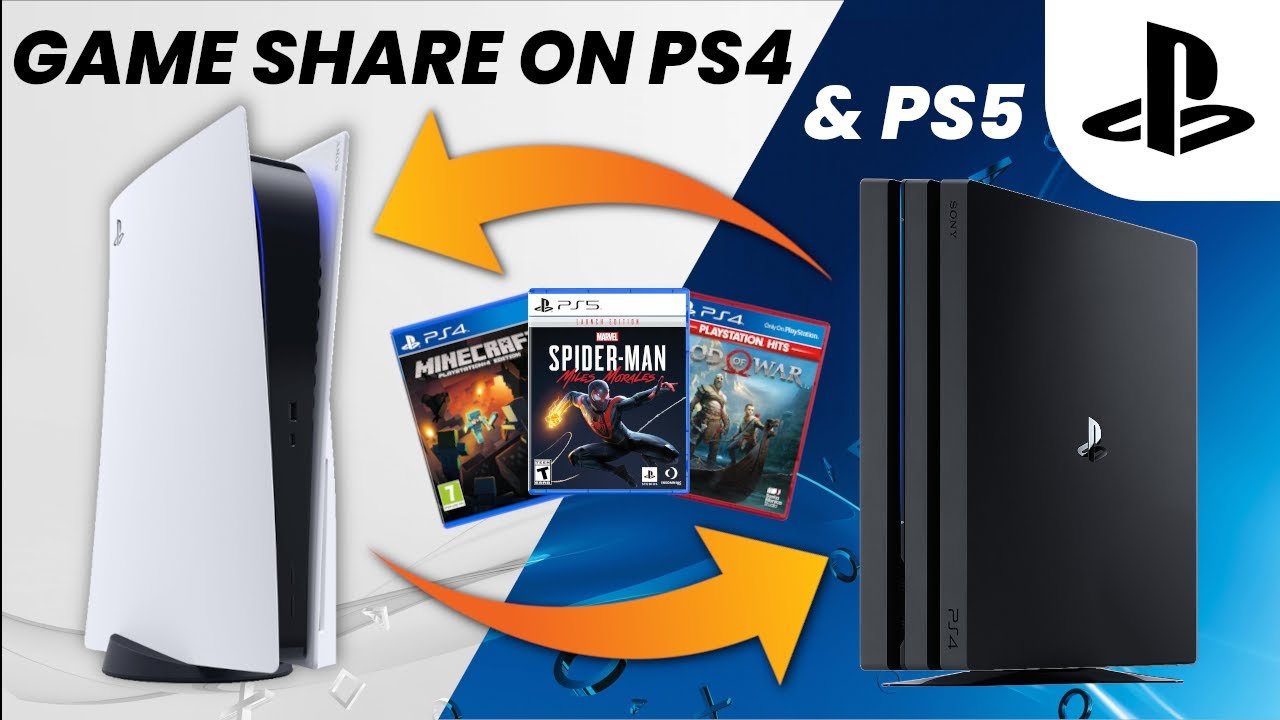
Yes, you can game share PS4 games to a PS5 console, allowing another account on the PS5 to play them.
Wondering if your PlayStation 4 game library can make the jump to your shiny new PS5? It’s a common question for players upgrading consoles, particularly when wanting to share games with family or friends. So can you game share PS4 to PS5?
The good news is, the functionality exists. You can access and play your PS4 digital games on the PS5 using the game share feature, it works similarly to how it does on PS4. This opens the door for sharing your collection between consoles.

Can You Game Share PS4 to PS5?
Okay, let’s talk about something super cool – sharing games! Imagine you have awesome PlayStation 4 (PS4) games and a shiny new PlayStation 5 (PS5). Wouldn’t it be amazing if you could play those PS4 games on your PS5 without buying them again? Well, that’s where game sharing comes in. It’s like lending your toys to a friend, but in a digital way. Let’s dive into how this works when going from PS4 to PS5.
Understanding Game Sharing on PlayStation
Before we get into the nitty-gritty of PS4 to PS5 game sharing, it’s good to understand the basics of how game sharing works on PlayStation consoles in general. The core idea is that you have a primary console. Think of it like your main home. Any PlayStation account on that console can play the digital games bought on that console’s primary user account. When you share your games with someone, you are letting another console use your games.
Primary vs. Secondary Consoles
The trick to making game sharing work is knowing your primary and secondary consoles. The primary console is the one where you usually play your games. The one you have set as your “home” console. The other one is then considered a secondary console. Here’s the breakdown:
- Primary Console: This is your main console. Any account on your primary console can play your downloaded games.
- Secondary Console: On this console, only the account that owns the games (the one that bought them) can play them.
This is crucial to remember because it controls who can access the games from your account. It’s like having the keys to a castle; only the person with the keys can enter. However, on the “main” castle (your primary console) all the people who live in there can enjoy the kingdom.
The Good News: PS4 Games on PS5
Here’s the fantastic news: The PS5 is backwards compatible with almost all PS4 games. This means you don’t have to throw away your PS4 game library when you upgrade to a PS5. You can play most of those games on your new console! This is a big deal, and a wonderful feature offered by Sony. So, when we talk about game sharing from PS4 to PS5, it’s really about your game library transferring over smoothly, using either the same account on both the consoles, or by using your game sharing methods.
How Game Sharing Works PS4 to PS5
Now, let’s discuss the process. How do you actually do this game sharing thing from your PS4 to your PS5? It’s not too complicated, but there are a few important steps. We’ll look at a few ways you can share. One where you are using the same account on both systems. And another if you are sharing between users.
Method 1: Using the Same Account on Both Consoles
The easiest method is using the same account on both your PS4 and PS5. This works if you are just upgrading or moving your existing profile to a new system. Here’s how it works:
- Log In: On your PS5, log in with the same PlayStation Network (PSN) account you used on your PS4.
- Go to Your Library: Go to your game library. You’ll see your purchased PS4 games listed, which are ready to download.
- Download the Games: Download the games you want to play on your PS5.
- Start Playing: Once downloaded, you can play them as normal.
This method is the most straight forward, making moving between PS4 and PS5 pretty easy. It requires no sharing and is simply moving your games library to the new console.
Method 2: Game Sharing Between Different Accounts
This is a bit more complex, but here’s how you can share digital games with someone who has a PS5 using your PS4 account:
Setting Up Your PS4 as the Secondary Console
The first step is to set up your friend’s PS5 as your primary console and your PS4 as the secondary. Here’s what you should do:
- Log into PS5 with your Account: Log into your PSN account on your friend’s PS5.
- Activate as Primary Console: On their PS5, go to Settings > User & Accounts > Other > Console Sharing and Offline Play and select “Enable”. This makes the PS5 your primary console. This allows anyone on the PS5 to play your purchased games.
- Log back into your own PS4 account.
This means your PS4 is now considered a secondary console for your account.
Accessing Games on the Secondary Console
Now that you have set up the consoles correctly, the user on the PS4 is only able to play the games through the account that purchased them. This means:
- On the PS4, only your account can play digital games on the console.
- The other users of your PS4 cannot play your downloaded games unless they purchase the games themselves.
Accessing Games on the Primary Console
The user on the PS5 is now able to play all games purchased by your account. This is the key component of game sharing. This means:
- All users on the PS5 can play all the games you purchased.
- You and your friend can play games together if they are multiplayer.
You need to remember that your friend can not play your games on their profile using your account on another system. This is because there can be only one primary console associated with your account at any time.
Important Notes About this Method
- You can only have one PS5 set as your primary console at a time.
- If you want to switch your primary console back to your PS4, you’ll need to repeat the process on the PS4.
- The user on the secondary console (in this case, your PS4) must always be logged in to your profile to play the games.
Troubleshooting Common Game Sharing Issues
Sometimes, things don’t go as planned. Here are some common problems you might face and how to fix them:
Games Not Appearing in Library
If your games aren’t showing up in your library, try these steps:
- Check your internet connection: Make sure your PS5 is connected to the internet.
- Restart the PS5: Sometimes a simple restart does the trick.
- Sign out and back in: Log out of your PSN account and log back in.
- Restore Licenses: Go to Settings > User and Accounts > Other > Restore Licenses.
Locked Games
If the game shows a lock symbol, it means that your account doesn’t have the right license to play the game on the system. This can happen if:
- You are trying to play on a secondary console and are not logged into your own account.
- Your friend is not logged into their own account on your primary console.
- The primary console isn’t properly set up for your account.
Ensure all logins are correct and that console sharing is set up correctly. Try the steps in “Games Not Appearing in Library” if needed.
Account Conflicts
If your account is being used on too many consoles, you may experience issues with the game sharing feature. Only one PS5 can be set as your primary console at any time.
Slow Download Speeds
If your games are taking a long time to download, try these fixes:
- Use an ethernet cable: Wired connections are faster than Wi-Fi.
- Restart your router: This can sometimes fix internet problems.
- Download at a quieter time: Internet speeds can slow down during peak hours.
Legal and Ethical Considerations
While game sharing is a great feature, it’s important to use it responsibly and within Sony’s guidelines. Here’s what you should keep in mind:
Following Terms of Service
Make sure you are following PlayStation’s terms of service. Misuse of this feature may lead to account bans. Only share with people you trust and only within Sony’s user guidelines.
Don’t Share With Strangers
Avoid sharing your account details with strangers. This can put your account at risk, as you are giving access to all payment information linked to your account. Account details should only be shared with those you trust. And remember that only one person can access a game through a specific account at a time on secondary systems. If one person plays on the primary system, no one else on a secondary system can play.
Respect Digital Ownership
Digital games are just like physical ones in that they need to be purchased for every player. Game sharing should be used to share with family or close friends in your household, and not as a method to circumvent having to pay for a game.
Additional Tips for Game Sharing
To ensure a smooth game sharing experience, consider these additional tips:
- Keep your software up to date: Always keep your console software up to date to avoid problems.
- Use a secure password: Create a strong password for your PSN account.
- Enable two-factor authentication: This adds an extra layer of security to your account.
Game sharing from PS4 to PS5 is a really useful feature that allows you to play your existing games on your new console. By following these guidelines and understanding the process, you can enjoy your games with your friends and family. And now you know all about how this feature works, and what to do when problems occur. Enjoy your gaming!
How to Game Share on PS4 and PS5! (and how to get the PS Plus collection on PS4) (EASY) (2021) | SCG
Final Thoughts
Game sharing between PS4 and PS5 consoles does have limitations. You cannot directly share games between the two generations using the same method as within a single console family.
This means that the typical console sharing feature doesn’t work from PS4 to PS5. There are alternative methods for accessing games across the platforms, but it’s not quite the standard sharing process.
So, while it’s not a straightforward yes, the answer to ‘can you game share ps4 to ps5’ is generally no with a few workarounds.

