
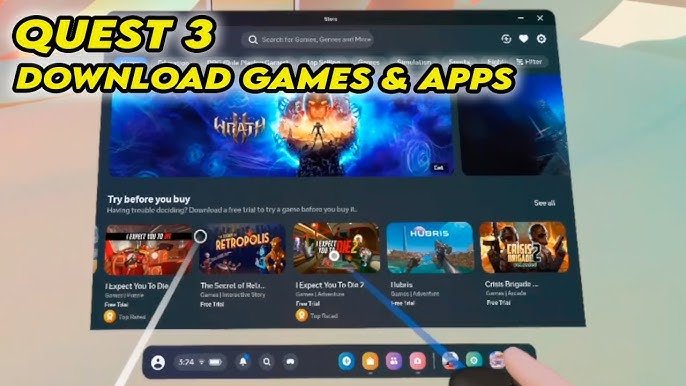
You buy games for Meta Quest 3 through the Meta Quest Store, accessible directly on your headset or via the Meta mobile app or website.
Ready to jump into exciting virtual worlds on your brand new Meta Quest 3? You’re probably thinking, how do you buy games for meta quest 3? The good news is the process is very straightforward.
You have a few options to get new content. The most convenient way is right through the Meta Quest Store which you can find when wearing your headset. Alternatively, you can also make purchases using the Meta mobile app or the website.

How Do You Buy Games for Meta Quest 3?
So, you’ve got your shiny new Meta Quest 3 and you’re ready to dive into some awesome virtual worlds! But how do you actually get games for it? It’s not like popping a disc into a console anymore. Don’t worry, it’s actually quite simple and we’re here to guide you through the whole process. This guide will show you everything you need to know, from finding games to making your purchases and getting them onto your headset. Let’s get started!
The Meta Quest Store: Your Gateway to VR Fun
The first and most important thing to know is that most Meta Quest 3 games are bought and downloaded digitally through the Meta Quest Store. This is like the app store on your phone, but for virtual reality. It’s where you’ll find thousands of games, experiences, and apps. Think of it as your central hub for all things Meta Quest. Here’s how to find it:
Accessing the Store: On Your Headset
The easiest way to get to the Meta Quest Store is right from your headset. Here’s the quick rundown:
- Put on your Meta Quest 3. Make sure it’s charged and you’ve got your controllers ready to go.
- Navigate to the Menu. Look for the Meta button on your right controller. Pressing this will bring up the main menu.
- Find the Store Icon. It usually looks like a shopping bag or a square with a play button in it. Select this and the Meta Quest Store will open within your VR view.
- Start Browsing! You can look at what’s new, search for specific titles, or see what’s on sale. You can also browse through different genres of games.
Accessing the Store: On Your Phone
You can also browse and buy games through the Meta Quest app on your smartphone or tablet. This can be handy for when you want to plan your next VR adventure when you’re not wearing your headset. Here’s how:
- Download the App. If you don’t have it yet, download the Meta Quest app from your app store (available for both Android and iOS).
- Log In. Log in with your Meta account (the same one you use for your headset).
- Go to the Store Tab. At the bottom of the app, you will find the Store or similar icon. Click it.
- Browse and Buy. Just like on the headset store, you can search for games, look at categories, and make your purchases.
Finding the Right Games for You
Now that you’re in the store, how do you find great games? The Meta Quest Store is loaded with options, so here’s a few strategies to use:
Browsing by Category
The store organizes games into categories, making it easy to discover experiences that match your interest. Some popular categories you might find include:
- Action: If you like fast-paced thrills and adventure, this is the place to be.
- Adventure: Explore fantastic worlds and go on epic quests.
- Puzzle: Challenge your mind with clever brain teasers.
- Sports: Get moving with virtual sports like boxing, golf, or tennis.
- Multiplayer: Play with friends and other people online.
- Fitness: Combine working out with fun in engaging VR fitness games.
Using the Search Bar
Do you have a specific game in mind? Use the search bar at the top of the store to type in the game’s name. This is great if you know exactly what you are looking for. Try to use precise words or phrases to get better search results.
Checking Out Featured Games
The Meta Quest Store has a section that features new releases, trending titles, and special promotions. Take a peek here to find popular or new games that others are enjoying. This is a great place to check out when you are unsure of what to play next.
Reading Reviews and Watching Trailers
Before you spend your money, check what others think. Read reviews from other players on the store page. You can also watch trailers or gameplay videos to see if a game seems interesting before you buy it. This will ensure that you know what you are getting into.
The Nitty-Gritty: Buying Your Games
Once you find a game you want, it’s time to buy it. Here’s what that looks like:
Adding Games to Your Cart
When you’re on a game’s page, you will see a price and a button that says “Buy” or something similar. You will typically see the option to directly purchase the game or add it to your shopping cart. If you want to buy more than one game, you can add many games to the cart before checking out.
Using a Payment Method
Meta accepts most major payment methods. Here are some options you’ll see:
- Credit or Debit Card: You can enter your card information directly when you are purchasing games from the Meta Quest Store.
- PayPal: You can use PayPal if that’s your preferred method of payment.
- Meta Quest Store Credit: If you have any store credit, this will be shown as a payment option.
Completing the Purchase
After choosing your payment method, you will be asked to confirm your purchase. Ensure all the information is correct. Once you approve, the payment will go through and your game will be ready to install. You will often receive an email confirmation of your purchase.
Understanding Game Prices and Sales
Game prices vary depending on the game’s size, quality, and popularity. It’s good to keep a few points in mind:
- Full Price Games: Most new releases will be at full price, which can be anywhere from a few dollars to more than $40.
- Sales and Discounts: The Meta Quest Store regularly has sales, so keep an eye out for those to get better deals. You can often save a lot during holiday periods like Black Friday, Christmas or New Year.
- Bundles: Buying game bundles can be a cost-effective way to get multiple games at a reduced price.
Installing Your New Games
So you’ve bought a game, now what? Here’s how to get it on your Meta Quest 3:
Downloading and Installing from Your Headset
- Go to Your Library: Once your purchase is complete, the game will start to download in your library. You can find your game library by navigating to the menu on your Meta Quest 3.
- Monitor Download Progress: You will see a download progress bar for the games. Once it finishes, you will be able to launch the game.
- Launch the Game: Once installed, the game icon will have a play button on it. Select it to launch and start playing.
Managing Game Installations
If your Meta Quest 3 is low on space, you might need to uninstall some games to make room for new ones. Here is how to do that:
- Go to your Library: Find all your installed games in the game library section of your Meta Quest 3.
- Choose a Game: Find the game that you want to uninstall.
- Select Uninstall: There should be an option to uninstall the game. Once you select it, the game will be uninstalled from your Meta Quest 3.
Other Ways to Get Meta Quest Games
While the Meta Quest Store is the main source, there are a few other ways you can potentially get games:
App Lab
App Lab is where developers can release games that aren’t quite ready for the full Meta Quest Store. These games might be a bit experimental or still in development but they are often great to check out. They sometimes offer unique and innovative gameplay options.
You won’t find App Lab games directly in the main store. You need to get the direct link from the game developers, so a bit of searching is required to find out more information on these games. Once you have the link, you can purchase or download from your headset or the Meta Quest app.
Game Bundles and Promotions
Sometimes Meta or other retailers will sell bundles that include a Meta Quest 3 and some pre-installed games, or provide codes for free games. Be sure to check this before purchase to see if any games that you want are included.
Game Codes
Sometimes, you might get a game code. This is usually a code or key that you can redeem in the Meta Quest Store. This could be from a promotion, a gift, or something else. To redeem, go to the Meta Quest Store and find a place to enter your code. After that, the game will appear in your library ready to be downloaded.
Free Games and Demos
Keep an eye out for free games and demos. These are a great way to try out new experiences without spending any money. Often you can test games and see if you like them. You may also get a chance to try out new updates to a game before it’s official release.
Tips for a Smooth Buying Experience
To ensure you get the most out of your experience, here are some tips:
Check System Requirements
Before you buy, make sure the game you choose will work well on your Meta Quest 3. The store page will usually show information about this.
Keep Your Headset Updated
Make sure your Meta Quest 3 is running the latest software. This will ensure that games run correctly and without any problems.
Manage Your Storage
Be mindful of the storage space on your Meta Quest 3. If you are running low, you might need to remove some older games to make room for new ones. Uninstalling games is simple and easy.
Stay Safe
Always be careful when you are using the headset and ensure you take frequent breaks. If you feel sick, stop playing and rest. This will ensure that you have a safe experience when playing your games.
Use a Good Wi-Fi Connection
To download games quickly, use a stable and fast Wi-Fi connection. The games can take a while to download and you will want to make sure you have a strong internet signal.
Look for Bundles and Promotions
Keep an eye out for bundles and promotions. These are great opportunities to save some money. Especially around holiday time, sales are common.
Buying games for your Meta Quest 3 is an easy process. With many games to choose from, there is always something new and exciting to try. From the Meta Quest Store, App Lab, and other ways, you can get a wide variety of virtual experiences. Follow these steps and you’ll be fully prepared for your next big virtual reality experience! Happy gaming!
Meta Quest 3: How to Download & Install Games & Apps
Final Thoughts
You can purchase Meta Quest 3 games through the Meta Quest store, either directly on the headset or via the Meta app. The store features a wide selection of titles.
You can also buy some games from third-party retailers, receiving a code to redeem in the Meta store. These options allow for easy and convenient access to great virtual reality experiences.
So, to answer directly, how do you buy games for meta quest 3? You do it through the digital storefront mainly, or redeem codes you might receive from other sellers.

