
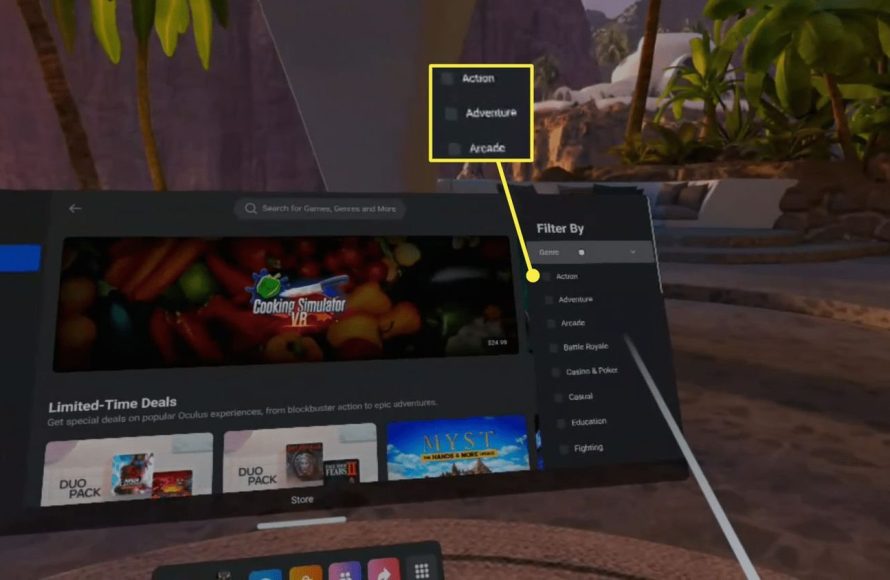
The Meta Quest 2 lets you buy games directly through its built-in store, using your linked payment method. You can also purchase titles via the Meta website or mobile app.
Eager to jump into virtual worlds on your Meta Quest 2? Many people wonder, ‘how do you buy games for the meta quest 2’. It’s simpler than you might think. The platform offers several convenient ways to expand your game library.
The built-in store within your headset makes purchasing new games quick and easy. Alternatively, you can browse and buy titles on the Meta website using your computer or phone.

How Do You Buy Games for the Meta Quest 2?
So, you’ve got your shiny new Meta Quest 2 (or maybe you’ve had it for a while!), and you’re itching to play some awesome virtual reality games. Great! But how exactly do you get those games onto your headset? It’s not like popping in a cartridge or disc. Don’t worry, it’s easier than you might think. This guide will walk you through all the ways you can purchase and enjoy new gaming experiences on your Meta Quest 2.
The Meta Quest Store: Your Main Game Hub
The primary place to get games for your Meta Quest 2 is the Meta Quest Store. Think of it like the app store on your phone, but specifically for VR games and experiences. You can access this store in a couple of ways:
Using Your Meta Quest 2 Headset
The most common way to browse and buy games is directly through your headset. Here’s how it works:
- Put on your Meta Quest 2 and make sure it’s powered on.
- You will be taken to your home environment and you will see menu at bottom, select the Store icon in the main menu. This looks like a little shopping bag.
- You will be in the Store. Browse through the featured titles or use the search bar to look for specific games.
- Click on a game you are interested in. You’ll see game trailers, screenshots, descriptions, and reviews from other players.
- If you want to buy it, click the price button.
- Follow the prompts to complete your payment. You’ll likely need to have a payment method setup already.
- Once you buy the game, it will begin to download. A notification will appear when download is complete.
Tips for the Meta Quest Store on Headset:
- Check ratings and reviews: See what other users think of a game before buying.
- Read the descriptions carefully: Make sure the game is something that interests you.
- Look for sales: Games sometimes go on sale, so keep an eye out for deals!
- Try free demos: Some games have free demos, so you can try them before you buy.
Using the Meta Quest Mobile App
You can also browse the Meta Quest Store on your smartphone or tablet with the Meta Quest mobile app. This is great if you want to purchase games when you aren’t wearing your headset.
- Download and Install the Meta Quest app from your phone’s app store(Google Play or Apple App Store).
- Open the app and log in with the same account you use on your Meta Quest 2.
- At the bottom, you’ll see the Store icon. Tap on it.
- Browse through the games just like you would on the headset.
- Click on a game, read the information, and tap on the price to buy.
- The game will download to your Meta Quest 2 when you next turn it on and it is connected to Wi-Fi.
Advantages of using the mobile app:
- It’s easier to browse on a bigger screen.
- You can purchase games on the go, and they’ll be ready to download when you get back home.
Understanding Payment Options
Okay, so you’ve found a game you want to purchase. What about payment options? Meta offers various ways to pay for your games:
- Credit Cards/Debit Cards: The most common method. You can add your card details to your Meta account. Supported cards include Visa, Mastercard, and American Express.
- PayPal: If you have a PayPal account, you can use it to make purchases, which is very convenient.
- Meta Quest Store Gift Cards: These are a good gift option, you can add funds to your Meta Account using store gift cards.
Important Note: Make sure your payment information is correct and up-to-date. Check your billing address. Sometimes, billing address discrepancies can cause problems with payments. You can add or modify payment methods in your Meta account settings, either on your headset or through the mobile app.
Exploring Game Types and Genres
The Meta Quest Store offers a wide variety of games for every player’s interest. From action-packed adventures to relaxing puzzle games, there’s something for everyone. Here are some popular game genres you will find:
- Action: Fast-paced games where you fight enemies, explore dungeons, or participate in sports.
- Adventure: Games with immersive stories and exciting journeys.
- Puzzle: Games that make you think, solve riddles, or find solutions to complex situations.
- Simulation: Games that mimic real-life activities, such as flying, driving, or farming.
- Social: Games where you can interact with other people in virtual spaces.
- Educational: Games that help you learn, explore history, or improve your skills.
- Fitness: Games that get you moving and working out.
- Music: Games that allow you to play along with songs, create music or dance.
Take some time to explore different genres and discover what types of games you enjoy the most. You might surprise yourself!
Free Games and Demos
Not sure if you want to spend money on a game yet? No problem! There are many free games and demos available on the Meta Quest Store.
Free-to-Play Games
Some games are completely free, meaning you don’t have to pay anything to play. These games may have in-app purchases but the core game is free. These are great way to experience VR without spending any money. Usually free games are great for new users to familiarize themselves with VR.
Demos
Many developers offer demos, which are like short trials of the full game. It lets you get a taste of the game before you decide to purchase it. Demos are great, because if you try a demo first and you didn’t like it then you saved your money.
How to find free games and demos:
- Browse the store and look for games marked as “Free” or “Demo.”
- Use the store’s filters to sort by price and look for free titles.
- Keep an eye out for special events or promotions where games are available for free.
Game Bundles and Deals
Sometimes, Meta offers game bundles, which combine multiple games into one discounted package. These can be a good way to save money if you’re interested in multiple games from the same developer or genre. You also see big sales on special holidays and events like Black Friday.
How to find bundles and deals:
- Check the “Deals” section of the Meta Quest Store.
- Keep an eye on social media or gaming websites for announcements of game bundles.
Game Updates and Patches
After you purchase a game, the developers might release updates or patches to fix bugs, add new features, or improve the game’s performance. It is common with games and will happen regularly.
How to update your games:
- The game update will automatically begin when your Meta Quest 2 is connected to Wi-Fi.
- If the update does not automatically begin then a notification will appear in your headset, prompting you to update the game.
Returning or Getting Refunds for Games
Sometimes, you might buy a game and then realize it’s not what you expected, don’t worry. Meta has a refund policy that allows you to return games and get your money back, but you must meet certain conditions.
Meta’s Refund Policy
- You can request a refund within 14 days of purchasing the game.
- You must have played the game for less than two hours.
- Some games might not be eligible for refunds, so read the details carefully before buying.
How to request a refund:
- Go to your Meta account settings, either on your headset or through the app.
- Find the purchase history and locate the game you want to return.
- Look for the “request refund” button. If you don’t see one then your purchase is likely no longer eligible for a refund.
- Follow the prompts to submit your request.
External Game Sources: App Lab
In addition to the main Meta Quest Store, there is another place where you can find games for your Meta Quest 2: App Lab. App Lab is a way for developers to share their games that haven’t gone through the full approval process to be on the Meta Quest store, and they are usually still being developed. They are a great way to play new games, sometimes free or discounted games. These games still adhere to Meta’s safety guidelines, but are not as polished as games on the main Meta Quest Store.
How to Find App Lab Games
- App Lab games are not readily available on the main store. You can’t just browse for them, you must look for them in the following methods.
- The best method to find them is by being sent a direct link to the app on the store. These links are usually shared on social media, the developer’s website, or online VR communities.
- Another method to find them is to use a third-party app or website that lists App Lab games.
How to Buy App Lab Games
Purchasing games on the App Lab is similar to the main Meta Quest Store. When you click on a direct link, it will take you to the game page where you can purchase the game like any other title.
Things to Keep in Mind with App Lab Games
- App Lab games are not as polished as games on the main Meta Quest Store. These games might have bugs, glitches, or missing features.
- App Lab games are often in development, so expect updates or changes to the games as they get closer to full release.
- Always do your research on the game before you buy, read reviews, look at forums, and see what others are saying.
Using PC VR
Another way to get an even wider selection of games on your Meta Quest 2 is by using PC VR. This method requires a gaming PC that meets the minimum requirements to run VR games. It’s a great way to play VR games that are not available on the Meta Quest Store.
What You Need for PC VR
- A gaming PC that meets the minimum VR requirements.
- A USB-C cable (Meta Link Cable) or a reliable Wi-Fi connection.
- The Oculus PC app.
Purchasing Games Through PC VR
Games for PC VR are not purchased through the Meta Quest store on your headset, they are purchased through Steam or the Oculus PC app.
- Steam: One of the most popular platforms to purchase PC VR games. Download Steam and purchase games as you normally would. Once purchased you can run the Steam VR application and play using your Meta Quest 2.
- Oculus PC App: Some games are exclusive to the Oculus app. Download the Oculus PC app, purchase games, and run the application. Then use your Meta Quest 2 to play the games.
PC VR opens you to a whole new library of games, and allows for much greater graphical fidelity.
Managing Your Game Library
After you’ve bought a few games, it’s good to know how to manage them. The Meta Quest library allows you to view all your purchased games.
How to Access Your Library
You can see your game library in a few ways:
- On your Meta Quest 2 headset, select the Library icon from the main menu.
- In the Meta Quest mobile app, select the Library tab.
Sorting and Filtering Games
Your game library can quickly become large, you can keep your library organized by using the following methods:
- Sort by recently played, name, or purchase date.
- Use filters to find games by genre.
- Create folders to separate games.
Uninstalling Games
If you need to clear space on your headset, you can uninstall games you no longer play. Simply click on the game and the uninstall option should be clearly visible.
Keeping your library organized makes it easier to find the games you want to play when you want to play them.
Buying games for your Meta Quest 2 is easy and opens up an incredible world of virtual reality experiences. The Meta Quest Store is your primary resource. You can get games through the headset or mobile app. You have multiple payment options. There are lots of different games to pick from including free games and demos. You can even use PC VR for games that are not available on the headset. You can also try games from App Lab. By understanding the process, you’ll always be able to quickly purchase your next VR game. So, put on that headset and start your next adventure!
How to Buy Games on Meta Quest 2
Final Thoughts
To buy Meta Quest 2 games, you primarily use the Meta Quest store, accessible directly through the headset or via their mobile app. You can browse, select, and purchase games using a credit card or other linked payment method.
The process is generally straightforward, ensuring you quickly expand your VR library. Also, some games support cross-buy between Rift and Quest platforms, saving you money. How do you buy games for the meta quest 2 is answered easily by the steps within the Meta Quest ecosystem.

