
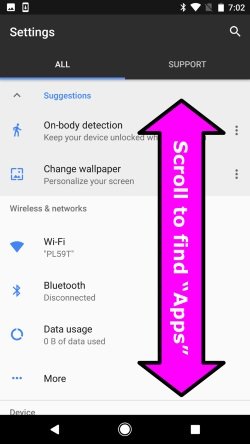
To delete game data on Android, you can go to your device’s Settings, then Apps, select the game, and choose “Storage,” followed by “Clear Data”.
Ever find your phone’s memory getting eaten up by games? It’s a common problem, especially if you have a lot of titles installed. Sometimes, you need to clear out old game progress or data. So, how do you delete game data on android devices effectively?
This article will walk you through the process. You will easily get rid of saved games, freeing up space, and potentially resolving some app issues you might experience. It’s easier than you think.

How Do You Delete Game Data on Android?
So, you’re ready to clear some space on your Android phone or maybe you want to start a game completely fresh? Awesome! Deleting game data can seem tricky, but it’s really not that hard. Think of it like cleaning out your toy box – sometimes you need to get rid of the old stuff to make room for the new. In this article, we will look at the steps and options you have for deleting game data on your Android device.
Why Delete Game Data?
Before we jump into how to do it, let’s talk about why you might want to get rid of game data in the first place. There are a few common reasons:
Freeing Up Storage Space
Games, especially the big ones with amazing graphics, can take up a lot of space on your phone. If you are running out of room to take pictures, download music, or get new apps, getting rid of old game data can make a big difference. It’s like decluttering your room to find hidden treasures. Game data includes things like saved games, game settings, and temporary files. Deleting this data can give you back precious storage space on your phone.
Starting a Game Over
Sometimes you want to play a game from the very beginning. Maybe you made some choices you regret, or maybe you just want the feeling of starting fresh. Deleting game data will often reset your progress, allowing you to play as if you’ve just downloaded the game for the first time. It’s like erasing a drawing and starting on a blank canvas.
Fixing Game Issues
If a game is acting strangely or not working properly, clearing its data can sometimes solve the problem. Think of it as giving the game a fresh start, so it can run smoothly again. Sometimes glitches happen because of corrupt or outdated data, and clearing it can help the game work right again.
Managing Multiple Accounts
Some games let you have multiple accounts on the same device. If you want to switch accounts, deleting the game data is often necessary. This ensures you are starting on the correct account each time you play.
Methods for Deleting Game Data
Now let’s get to the good part – how do you actually delete game data on your Android device? There are several methods, and the best one to use will depend on what you are trying to achieve.
Clearing App Data Through Settings
The most common way to delete game data is through your phone’s settings. This process is pretty much the same on most Android devices, though the specific menus might look a little different.
- Open the Settings app on your Android phone or tablet. You will usually find it by swiping down from the top of your screen and tapping the gear icon, or by finding it in your app drawer.
- Find and tap on Apps or Apps & notifications. The exact wording can differ slightly based on your device’s manufacturer.
- You’ll now see a list of all the apps on your phone. Scroll down or use the search bar at the top to locate the game that you want to clear the data for and tap on it.
- Once you have selected the game, you will be on its app info page. Here you will see options for the app. Tap on Storage or Storage & cache.
- Now, you will see buttons like “Clear data”, “Clear storage” or sometimes just “clear” and “Clear cache.” You may also see a specific option to “Manage storage”.
- Clear cache: This will only delete the temporary files. It is the safest option to try first because this will not delete your game progress. It will simply delete unnecessary temporary files that can improve your game’s performance.
- Clear data: This is the option you want to use if you want to erase all game progress. This will delete all settings and saved data. Please note, this action is usually irreversible, so you want to be completely sure before tapping the button.
- Tap Clear data (or the equivalent). A pop-up box might appear asking you to confirm. Confirm, and your game’s data should now be deleted.
- Now you can go back and launch the game. It should be like the first time you opened it.
This method is useful when you want to clear all game data to free up space, reset game progress, or to try and resolve issues with a game. Always consider making backup first, if possible. The data cannot be recovered after you delete it.
Using a File Manager App
Another way to delete game data involves using a file manager app. This method offers a more advanced control on the files themselves, but may require more caution. Every Android phone will come with its own default file manager app, but there are others that are widely available from the play store that you can choose to use if you prefer.
Understanding Game Data Locations
Before you go digging around in your files, it’s helpful to understand how game data is usually stored. Game data may exist in several locations:
- Internal Storage: Most game data is stored within your phone’s internal storage, often in folders related to the game’s name or developer.
- SD Card: Some games let you save data to an SD card, if you have one installed.
- Android/data directory: This is the main place to look for game data. Game developers generally store game data within this directory.
- Android/obb directory: Some of the bigger games will store the main expansion files in this directory. These files usually do not contain any user data.
- Dedicated folders: Some games will create their own folder in the root directory of your internal storage.
Steps to Delete Data Using a File Manager
Now, let’s look at the steps involved in deleting game data with a file manager app:
- Open the file manager app.
- Look for the internal storage location. The name will vary a little based on the file manager you are using. Look for the storage location and go to it.
- Inside the internal storage, look for the Android folder. Tap to open it.
- Inside the Android folder, you will see two folders in general, the data folder and the obb folder. Tap on data to open it.
- Inside the data folder, you will see many folders. Look for the folder that matches the game you want to delete the data from. The folder name often is the same as the game’s package name, which may be hard to recognize. However, sometimes the game developers will use the same name as the game, so this makes finding the correct folder easy. You can check a game’s package name by looking at its details on the Google play store.
- Once you have found the right folder, long-press on it to select it.
- Now that the folder is selected, you should have an option to delete it from the menu that appears, or from an icon.
- Tap delete, and it will be moved to the trash. Most file managers have a trash folder, in case you need to recover data.
- Go back to the Android folder. Check to see if there is an obb folder. If there is, and the game you were looking for has a folder in there, repeat the above steps.
- Now that you have deleted the game’s data, you can go back and launch the game.
Using a file manager to delete game data can be helpful when you need to clear data for multiple games or want to get rid of specific files. However, you need to be careful when using a file manager, because deleting the wrong files can cause your other apps or the phone to not work. Always double check before deleting. If you are unsure, it is better to use the method through settings.
Uninstalling and Reinstalling the Game
Uninstalling and reinstalling a game can also effectively delete all of its data. This is often a quick and easy method, especially if you’re not concerned about having to re-download the game.
Uninstalling the Game
- Find the game app icon on your home screen or in your app drawer.
- Long-press the app icon until a menu appears.
- Tap on the Uninstall option. The precise wording might vary slightly depending on your phone model.
- Confirm that you want to uninstall the game when prompted.
- After the game has been uninstalled, all of its data will be cleared.
Reinstalling the Game
- Open the Google Play Store app.
- Search for the game.
- Tap on the install button.
- Wait for the download and installation to complete.
This method is straightforward and is very effective at removing all game data, including saved games, settings, and other files. This is a good option if you want a completely fresh start. Please note you will need to have a good internet connection to download the game again.
Cloud Saves and Game Data
Before deleting game data, you must think about whether the game has cloud saves. Many modern games utilize cloud services to store game progress online. If you delete your data on your device, but the game uses cloud saves, the next time you open the game after deleting data, the game will attempt to sync to the online save. This will result in you downloading your old progress onto your phone. If you want a completely new start, then you must find an option within the game to start a new game. This option will sometimes overwrite your old cloud save.
Also, it is worth keeping in mind that if you delete game data on one device, this can cause you to lose progress on other devices that you use to play the same game.
Things to Keep in Mind
Here are some important points to consider before you delete any game data.
Data Recovery
As mentioned before, when you delete game data, it is often gone for good. So make sure you have backed up the game data somewhere, or that you are 100% happy to delete it.
Game-Specific Settings
Some games have settings within the app where you can reset progress, start a new game, or clear user data. Check the game’s settings menu first before deleting the data from your settings. This might be an easier and quicker way to reset your game.
Backup Your Data
If a game has the option to backup game saves to the cloud, make sure you do so before you delete any data from your device. You never know if you will want to go back to a particular point.
Read Game Documentation
Some games will have official documentation or FAQs on their site which can be helpful. You can look at those to see if there are specific instructions on how to delete game data for that particular title.
Deleting game data on your Android phone doesn’t need to be complicated. With the steps above, you can reclaim storage, fix game issues, or start with a clean slate. Always be cautious about what you are deleting and double check before you confirm. It’s like taking care of your room – you have the power to organize it just the way you want!
How To Delete All Game Data on Android [Very Easy!]
Final Thoughts
To delete game data on Android, you can clear the app’s cache and storage in settings. This will remove save files and progress. You can also uninstall the game completely if you don’t need it anymore. This action removes all associated data.
Deleting game data can be crucial for various reasons. Freeing up storage space or starting fresh with a game are two main motives. Remember that data removal is mostly permanent. So be absolutely sure before doing it.
Therefore, ‘how do you delete game data on android’ essentially comes down to clearing the app’s data or uninstalling it altogether. Both methods efficiently remove game related information. Choose the option that fits your needs.

