
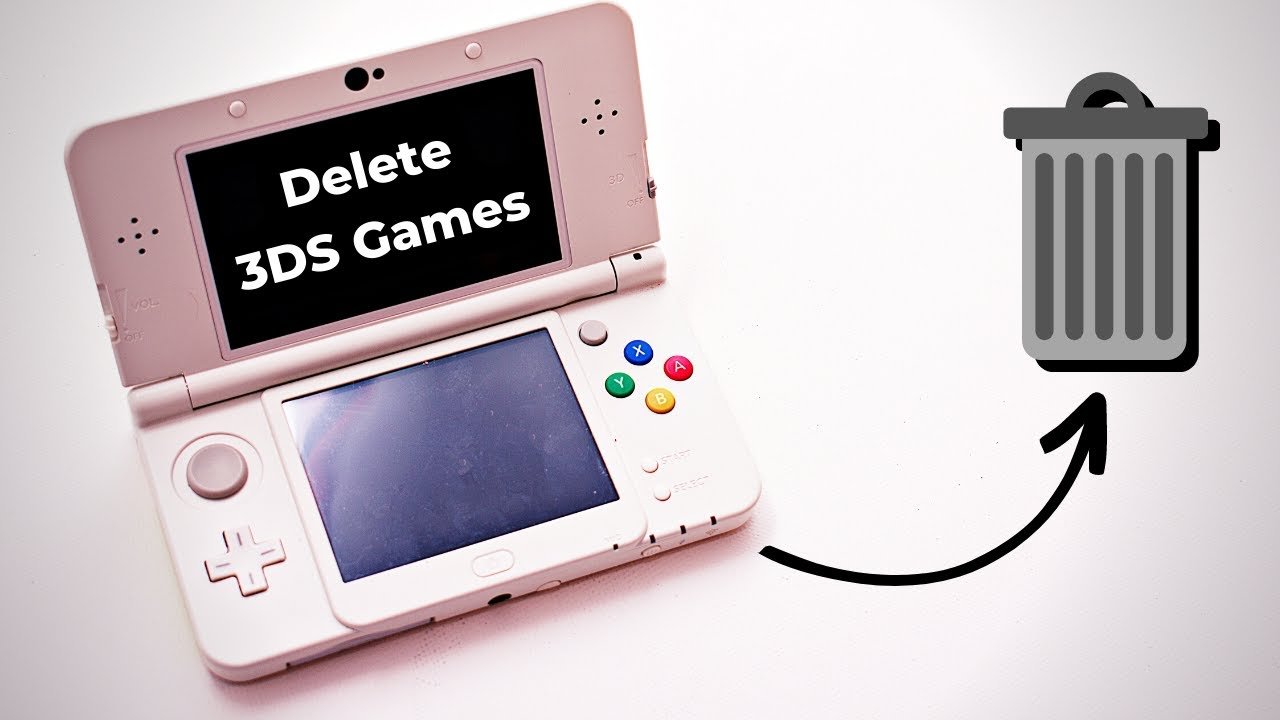
To delete games on 3DS, navigate to System Settings from the HOME Menu, select Data Management, then Nintendo 3DS, and finally, select the game you want to delete.
Ever found your 3DS memory getting full? It’s a common issue, especially with the great library of games available. Many players ask, “how do you delete games on 3ds?” It’s actually quite simple, despite initial concerns that it may be complicated.
The system provides an easy way to manage your game data, freeing up space for new adventures. Don’t worry, removing a game doesn’t mean you lose your purchase or game progress permanently.

How Do You Delete Games on 3DS?
Getting rid of old games on your Nintendo 3DS can free up space for new adventures! Whether you’re making room for a digital download or just want to tidy things up, knowing how to delete games is super helpful. It’s not as simple as dragging something to the trash, but don’t worry, it’s easy once you know the steps. This guide will walk you through all the different ways to remove games from your 3DS, whether they’re digital downloads or physical cartridges.
Understanding Game Storage on Your 3DS
Before we get into deleting games, let’s understand how the 3DS stores them. There are two main ways games are stored:
- Physical Cartridges: These are the little plastic cards that you insert into your 3DS. The game data mostly comes from the cartridge itself. However, save data and any game updates are stored on the 3DS system’s memory.
- Digital Downloads: These are games you buy from the Nintendo eShop. They’re downloaded and stored directly on your 3DS system or an SD card.
Knowing this difference is important because deleting a cartridge game is different from deleting a digital one.
Deleting Digital Downloaded Games
Deleting games that you’ve downloaded from the eShop frees up space on your 3DS storage. It’s like clearing out your bookshelf to make room for new books. Here’s how you do it:
Accessing System Settings
The first step is to get to your 3DS system settings:
- Turn on your 3DS.
- Tap the wrench icon on the HOME Menu. This opens System Settings.
Navigating to Data Management
Once in system settings, you’ll need to find the area where you can manage your data:
- Scroll through the options. Look for “Data Management.”
- Tap “Data Management” to open it.
Choosing Nintendo 3DS or SD Card Management
Your digital games are stored either on the 3DS system’s internal memory or on an SD card, if you’re using one:
- If the game is stored in your 3DS system, tap “Nintendo 3DS.”
- If the game is stored on your SD card, tap “SD Card.”
Selecting Your Game
Now, you’ll see a list of your downloaded titles. Here’s what to do:
- Tap “Software.” This will show all your downloaded games.
- Scroll through the list to find the game you want to delete.
- Tap on the game’s icon.
Deleting the Game
Almost there! Now it’s time to delete the game:
- Tap “Delete” or “Delete Data.”
- A confirmation message will appear. Tap “Delete” again to confirm you want to remove the game.
Understanding What You’re Deleting
It is really important to know that when you delete a digital game this way, you are removing the game and all of its associated data, including save files, from your system or SD card. If you want to keep the save data, you may want to look into backing up save data, which we will discuss later in the article. However, you can always redownload the game again from the eShop without needing to purchase it again. Just make sure you are using the same Nintendo account.
Deleting Game Updates
Sometimes games have updates, and these updates also take up space. If you want to free up even more space, you can delete updates as well. Here’s how to do that:
Follow Steps to Access Data Management
First, follow the steps above to get to the Data Management screen of your 3ds:
- Turn on your 3DS.
- Tap the wrench icon on the HOME Menu. This opens System Settings.
- Scroll through the options. Look for “Data Management.”
- Tap “Data Management” to open it.
Choose The Storage Location
As with games, the updates can be on your system storage or SD Card:
- If the game update is stored in your 3DS system, tap “Nintendo 3DS.”
- If the game update is stored on your SD card, tap “SD Card.”
Choose Extra Data
Now that you are in the correct storage location, you’ll need to select the right option:
- Tap “Extra Data.”
- Scroll through the list to find the game with the update you want to delete.
- Tap on the game’s icon.
Delete the Update
Finally you will delete the update :
- Tap “Delete” or “Delete Data.”
- Confirm your decision to delete by tapping “Delete” again.
By deleting updates, you’ll save storage space. Keep in mind that doing this will reset your game to its original version, so you might have to download the update again to play the game online.
Handling Save Data
Save data holds all your progress, scores, and collectibles in your games. It’s stored separately from the game itself. Before deleting a game, you might want to think about what to do with your save data.
Deleting Save Data
When you delete a digital game, the associated save data is also deleted. If you choose to delete a game update, the save data remains. Deleting save data can’t be undone, so make sure you are sure before deleting!
Backing Up Save Data with the 3DS
Nintendo 3DS does not allow you to back up your save data. This means if you are deleting games and would like to eventually play them again, you will have to start over from scratch! There are third party devices that may allow you to back up save data, but using these devices may void your 3DS warranty.
Removing Physical Game Cartridges
Removing a physical game cartridge is much easier than deleting a digital game! Unlike digital games, removing a physical cartridge does not delete the game itself from your 3DS. However, it does remove that game from your available games to play on the 3DS:
- Turn off your Nintendo 3DS.
- Locate the game cartridge slot. It’s usually on the side or top of your 3DS.
- Push the cartridge gently into the slot. This will make the cartridge pop out slightly.
- Gently pull the cartridge out of the slot.
That’s it! Your game cartridge is now removed from your system. Remember, game saves from cartridge games are still stored on the system’s memory or the SD Card.
Troubleshooting Common Issues
Sometimes, you might run into a problem while deleting games. Here are a couple of common ones and how to handle them:
Game Not Appearing in the List
- Solution: Make sure you’re looking in the correct storage location (Nintendo 3DS or SD Card). Double-check that you’re choosing “Software” or “Extra Data” to see the appropriate files. Restarting your 3DS can sometimes refresh the list as well.
“Unable to Delete” Error
- Solution: Make sure that the game you are trying to delete is not currently running. Be sure that the game is closed before trying to delete the software or data.
Accidentally Deleting a Game
If you accidentally delete a digital game, don’t worry! You can always redownload it from the Nintendo eShop, provided you have not changed your Nintendo account. Just go back to the eShop, go to redownloadable software, and download your game again! Unfortunately, if you didn’t back up your save data, you will have to start over from the beginning.
Tips for Managing Your 3DS Storage
Keeping your 3DS storage organized will help you have a better experience playing your favorite games. Here are some things you can do:
- Use an SD Card: If you plan to download a lot of games, get an SD card. It gives you extra space for digital games, updates, and extra data.
- Regularly Clear Out Unwanted Data: Make it a habit to go through your storage every now and then. Delete old demos, unused apps, or games you no longer play.
- Organize Your HOME Menu: Keep all your favorite games on the first few pages, and group games that are similar together.
By being proactive with your 3DS storage, you’ll always have room for new adventures and reduce frustration. Remember to check the game sizes and how much storage you have on your device before purchasing a new game. Knowing how to manage your data is a important skill for any 3DS player!
Deleting games on the 3DS is a simple task when you understand the process. With the steps and tips given above, you can keep your 3DS tidy and make room for new games. Now go enjoy more games on your 3DS!
How to Delete 3DS Games
Final Thoughts
To delete games on 3DS, navigate to System Settings from the HOME Menu. Select Data Management, then Nintendo 3DS software. Choose the title you want to remove.
Now, tap Delete and confirm your decision. This removes the game from your system’s memory. Remember, deleting only removes the game data, not any purchased licenses.
So, that’s how you delete games on 3ds. Follow these steps to free up storage space when needed. This process is simple and quick for managing your titles.

