
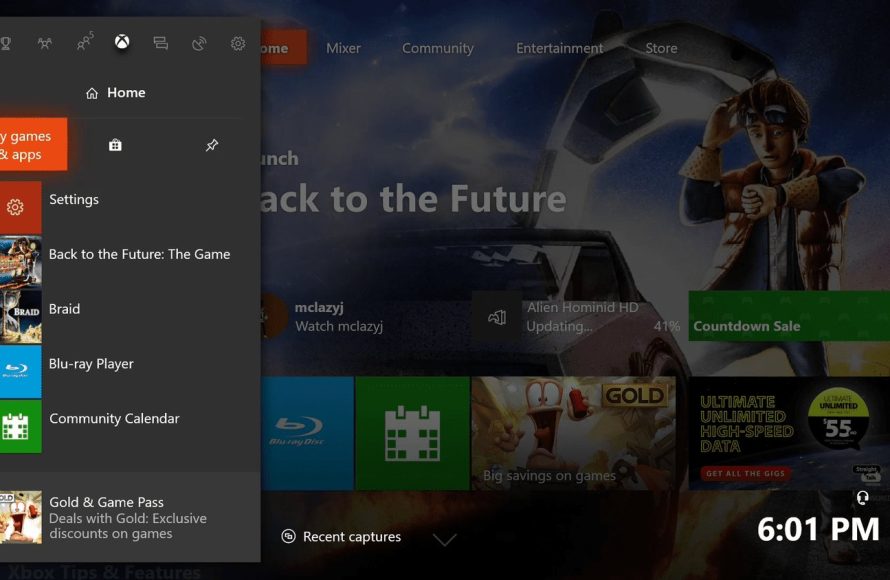
To delete installed games on Xbox One, navigate to “My games & apps,” select the game, press the “Menu” button, and choose “Uninstall.”
Is your Xbox One storage filling up fast? Games take up significant space, and sometimes you need to make room for new titles. Many players often wonder, how do you delete installed games on xbox one? It is a very simple process.
Freeing up space can improve the performance of your console. You can remove old games with a few easy steps. This will allow you to add exciting new games.

How Do You Delete Installed Games on Xbox One?
Okay, so you’ve been having a blast playing your favorite Xbox One games, but now your hard drive is starting to feel a bit cramped. Maybe you’ve finished a game, or perhaps you just need to make room for a new release. Don’t worry; deleting games from your Xbox One is easy! This article will guide you through the simple steps and give you some extra tips to make sure you’re managing your storage like a pro.
Understanding Game Storage on Xbox One
Before we dive into deleting games, let’s talk a little bit about how the Xbox One stores your games. When you install a game, it’s copied onto your console’s hard drive, or an external drive if you’re using one. This takes up space, and over time, this space can fill up, especially if you have a lot of games. You might even have game updates and add-ons taking up extra room. It’s important to understand that deleting a game only removes it from your hard drive. Your game license is still tied to your account, which means you can re-download the game anytime you want, as long as you have the license or the game is available on Xbox Game Pass or through digital download from the store.
Internal vs. External Storage
Your Xbox One comes with an internal hard drive. This is where most of your games and apps are stored by default. However, you can also plug in an external hard drive to give you more space. If you have an external drive connected, your games could be on either drive, so it’s good to know where your games are stored before you start deleting. Knowing where your game is stored is important because you can’t delete a game from a hard drive that it isn’t on.
Here’s a simple breakdown:
- Internal Storage: This is the built-in storage inside your Xbox.
- External Storage: This is a separate hard drive that you plug into your Xbox via a USB port.
Simple Steps to Delete Games
Now, let’s get to the main part: how to actually delete those games! There are a few ways to get the job done, and we’ll walk through each one.
Deleting from the “My Games & Apps” Section
This is the most common and straightforward way to remove games from your Xbox One. Here’s how it’s done:
- Press the Xbox button on your controller. This will open the guide menu.
- Go to “My games & apps.” You’ll find it on the far right side of the menu.
- Select “See all.” This will show you all your installed games and apps.
- Scroll through your list and find the game you wish to delete.
- Press the Menu button on your controller (the button with three horizontal lines) while highlighting the game.
- A small menu will appear, scroll down to choose “Manage game & add-ons”. Select it
- On the next screen, Select the game on the left side.
- You will then see several options. Choose “Uninstall all”.
- Your xbox might ask to confirm. confirm uninstalling.
- The game will now start the uninstall process. once completed the game has been deleted from your xbox.
That’s it! The game is now removed from your hard drive. Keep in mind that depending on the size of the game, the deletion process can take a few minutes.
Deleting Games from the Xbox Store
You can also manage your installed games through the Xbox Store. This method is helpful if you’re browsing the store and realize you want to remove something you’ve already downloaded.
- Open the Xbox Store. You can find this on the home screen or in “My Games & Apps”.
- Go to “My Library” inside of store.
- Select “All owned games”.
- Scroll through your list and find the game you wish to delete.
- Click on the game, then select “Manage”.
- Choose the “Uninstall” option.
- Confirm if requested to confirm the uninstall process
- wait for uninstallation to complete, the game will then be deleted from your xbox console
Deleting Games from the Xbox Mobile App
If you have the Xbox mobile app installed on your phone or tablet, you can also use it to manage your console’s storage remotely. This can be quite convenient, especially if you’re not near your Xbox.
- Open the Xbox app on your mobile device and make sure it’s connected to your Xbox console.
- At the bottom of the app, tap the console icon (it looks like an Xbox console).
- Tap “Manage console & games”.
- On the next screen, tap the “Installed” option.
- Scroll through the list and find the game you want to remove.
- Tap the three dots menu button beside the game name.
- Select “Uninstall” from the menu options.
- Confirm if requested to confirm the uninstall process
- wait for uninstallation to complete, the game will then be deleted from your xbox console
Advanced Storage Management Tips
Deleting games is one thing, but sometimes you want to be extra smart about your storage. Here are some pro-tips to keep your hard drive in tip-top shape:
Moving Games Between Storage Devices
If you have both internal and external storage, you can move games between them instead of deleting them. This is a great way to free up space on your main drive for games you play more often, while still keeping other games around.
- Go to “My games & apps” and find the game you want to move.
- Press the Menu button on your controller.
- Select “Manage game & add-ons”.
- Choose “Move or Copy” option.
- Select the target drive.
- Your xbox might ask to confirm. confirm the moving process.
- The game will now start moving to the other drive. once completed the game has been moved.
Keep in mind, moving games can take some time, depending on the size of the game. But, its a great option if you don’t want to completely delete the game and have the option to play them in the future.
Managing Add-ons and DLC
Sometimes, large game add-ons or downloadable content (DLC) can take up a significant chunk of space. You can choose to delete these separately without deleting the main game. here is how:
- Go to “My games & apps” and find the game that has the add-ons you want to manage.
- Press the Menu button on your controller.
- Select “Manage game & add-ons”.
- Scroll down to where you see “Add-ons”
- Select which add-ons you want to uninstall.
- Choose the “Uninstall” option on the add-on.
- Confirm if requested to confirm the uninstall process
- The add-on will now uninstall.
Using External Hard Drives
If you are constantly running out of space, consider getting an external hard drive. They’re relatively affordable and can significantly increase your storage. With a larger storage space, you won’t need to delete game so frequently. External hard drives also make it easier to move your games to a new xbox console. If you’re using an external hard drive, make sure that it’s USB 3.0 or better. This will give you the fastest loading speeds and ensure that games run well.
Regularly Review Your Installed Games
It’s a good idea to regularly go through your list of installed games. Are there games you haven’t touched in months? If so, you might want to consider deleting them to free up space. This helps to keep your console organized and makes it easier to find the games you actually play.
Game Pass and Storage Considerations
If you subscribe to Xbox Game Pass, you’ll often have many games available to you. However, remember that even if you get a game through Game Pass, you still need to download it to your console’s hard drive. So, be sure to manage your storage carefully, especially if you tend to try out lots of games on Game Pass.
Checking Your Storage Space
It’s useful to keep tabs on how much storage space you have left. Here’s how you can check that:
- Press the Xbox button on your controller.
- Navigate to “Settings”.
- Select “System.”
- Choose “Storage”.
- You will see a breakdown of how much space you’ve used and how much is available on each storage device.
This is useful for planning and to decide which games to delete or move to another drive.
Cloud Saves and Game Data
When you delete a game, your save data is usually still safe in the cloud. This means that if you re-install the game, you should be able to pick up right where you left off. However, it’s always a good idea to make sure your console is syncing your save data to the cloud. Check your console’s settings for cloud save options and sync frequently. This protects your game progress even if your hard drive fails.
Re-downloading Games
Remember that deleting a game doesn’t mean you’ve lost it forever. You can always re-download any game you own. The time to download will depend on the game size and your internet speed. If you are trying to remove games and are concerned that you might need to play them again soon, remember you can always re-install them at a later date.
Common Mistakes and How to Avoid Them
While deleting games on Xbox One is easy, here are a few common mistakes to be aware of:
- Deleting the Wrong Game: Double-check the game you’re about to delete to avoid removing a game you actually want to keep.
- Forgetting About Add-ons: Remember to manage add-ons and DLC separately if you need to clear more space.
- Not Checking External Storage: If you have an external drive, make sure to look for games there as well.
- Worrying About Re-installing: Don’t worry about deleting a game. As long as your game is connected to your xbox account, or available through Game Pass, or via digital store purchase, you can re-download it at any time.
Troubleshooting Deletion Problems
Sometimes, you might run into issues while trying to delete a game. Here are a few things to try if you’re having trouble:
- Restart Your Console: This is often the first solution to try. Simply turn off your Xbox, wait a few seconds, and turn it back on.
- Check for Updates: Make sure your Xbox system software is up to date. Sometimes, out-of-date software can cause issues.
- Check Your Internet Connection: A weak or unstable connection can sometimes interfere with deleting games.
- Hard Reset Your Console: If the problem continues, perform a hard reset by holding the power button on your console for ten seconds.
If none of these steps work, you may need to contact Xbox support for further assistance.
Deleting games on your Xbox One is an important skill to learn to keep your console running efficiently and to ensure there is enough space to play new games. By understanding how to manage your storage space and delete games correctly, you’ll avoid the frustration of not being able to install a new game. Using the methods we’ve shown, you’ll find it’s easier than you thought to manage the space on your console. So, go ahead, clear up some space, and enjoy your gaming!
How to DELETE GAMES on XBOX ONE & Uninstall APPS (Easy Method!)
Final Thoughts
To delete games, navigate to “My games & apps.” Highlight the game and press the menu button. Select “Manage game & add-ons” then “Uninstall.”
You can also manage storage under “Settings.” Then choose “System” and “Storage.” Select your drive and find the game to delete.
This clarifies how do you delete installed games on xbox one. This method quickly frees up space on your console.

