
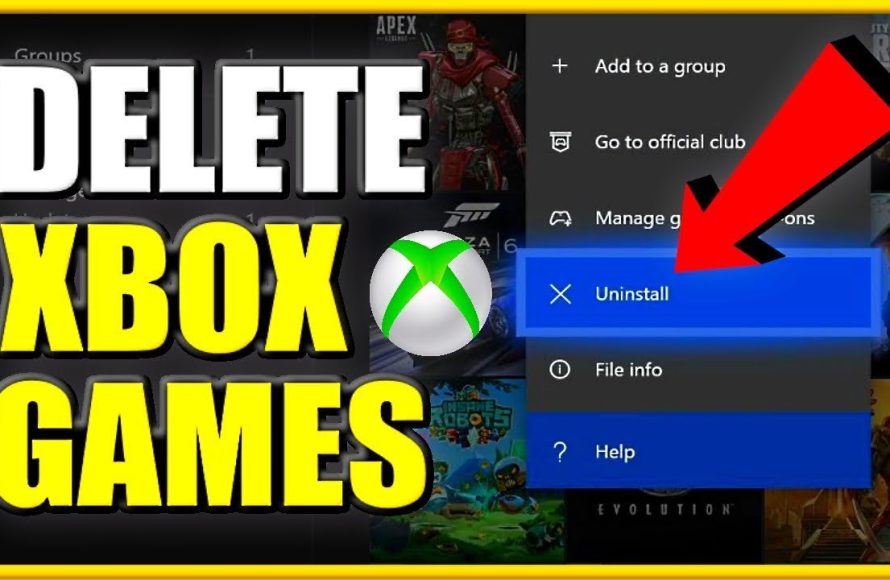
To erase games on Xbox One, navigate to “My games & apps,” highlight the game, press the Menu button, select “Manage game & add-ons,” then choose “Uninstall.”
Have you ever needed to free up space on your Xbox One? It’s a common issue, especially with so many amazing titles available. Figuring out exactly how do you erase games on Xbox One can feel a little tricky at first.
Don’t worry; it’s a straightforward process once you know the steps. You can easily remove those games you no longer play and make room for new adventures. The whole process only takes a few moments, too.

How Do You Erase Games on Xbox One?
Okay, so you’ve got an Xbox One and it’s getting a bit full. Maybe you’ve finished a game, or perhaps you need to make room for a new one. Whatever the reason, learning how to erase games on your Xbox One is a useful skill. It’s easier than you might think, and we’re here to guide you through every step. Let’s dive in and get that storage cleaned up!
Understanding Game Storage on Your Xbox One
Before we start deleting, let’s quickly understand how your Xbox One stores games. Games aren’t just one big file; they’re made up of different parts, like the main game, updates, and downloadable content (DLC). When you “erase” a game, you’re actually getting rid of these parts from your hard drive or external storage. It’s not like permanently deleting something from existence; it’s more like removing the files from your Xbox’s memory. This frees up space for new games and other cool stuff.
Internal vs. External Storage
Your Xbox One has some built-in storage (the internal hard drive) which is where you likely put most of your games when you first got the console. However, you can also use an external hard drive (like a USB drive that’s made for Xbox) to store even more games. Knowing where a game is stored is important when you want to erase it. You can check this through your system settings. When you want to erase games, the process remains the same for games stored on both your internal and external storage drives, making it easy to maintain your games library no matter where the game is located.
Steps to Erase a Game from Your Xbox One
Now that we know where the games are, let’s get to the actual erasing. Here’s a step-by-step guide that will work for any game stored on your Xbox One. The whole process will take just a few minutes, so you’ll have more room for new adventures in no time.
- Turn on your Xbox One. Use your controller to turn on your console and log in to your profile.
- Go to “My Games & Apps”. From the Xbox Home screen, press the Xbox button on your controller. Then, use the directional buttons or the left stick to navigate to the “My Games & Apps” tile. It looks like three squares and a circle. Press “A” to select it.
- Choose “See all”. You will likely see a list of some recently played items. At the end of the list is an option that says “See all”. Select that by pressing “A”.
- Locate the Game You Want to Erase. You’ll see a big list of all your installed games and apps. You can scroll through or you can use the filters at the top to make it easier to find your game. Find the game you want to erase.
- Open Manage Game options. Once you’ve selected the game, press the menu button on your controller. This is the button with three horizontal lines. A new pop-up menu will appear.
- Select “Manage game”. Use the directional pad or left stick to select “Manage game” from the menu that appeared and press the “A” button.
- Select “Uninstall”. This opens a new screen with information about the game and your save files. In the menu to the left hand side, select “uninstall”. A confirmation box will appear.
- Confirm your choice. The Xbox will ask “Are you sure you want to uninstall?” Select “Uninstall” using your controller and then press the “A” button. Your Xbox One will now begin to remove the game and all of its files.
Deleting Games and Game Saves
When you erase a game, it doesn’t automatically erase your game saves too. Game saves are precious because they contain your progress, achievements, and customizations. You might want to keep them in case you decide to reinstall the game later. When you uninstall, you can usually choose what you want to delete. Here’s a look at how game saves work when you erase a game.
How Game Saves Work
- Cloud Storage: Most Xbox One games automatically back up your saves to the cloud. This is great because you can pick up right where you left off on a different Xbox or if you reinstall the game.
- Local Storage: Some games also keep save files locally on your Xbox One.
- Deleting Saves: If you want to delete local save files along with your game, you usually have an option to do so in the “Manage Game” menu. Be very careful about this choice, as deleting saves from local storage is permanent. You won’t be able to get those files back.
- Cloud Saves: Cloud saves stay put unless you tell Xbox to delete them. So if you remove a game from the console and reinstall later, the cloud save will automatically download and you can pick right back up where you were.
Steps to Manage Game Save Files
Let’s say you want to check on those save files before uninstalling a game. You can see the save files linked to the games. Here is what you can do:
- Go to “Manage game”. Just like we mentioned in the steps to erase a game, find your game in the “My games and apps” menu, press the menu button and select “Manage game”.
- Check your save files. On the Manage Game screen you’ll see your save game data in the “Saved data” section. Usually there’ll be save files for each player. You can select each file and choose to delete it or leave it untouched when you uninstall the game.
- Sync to the cloud. Xbox will automatically sync your game saves to the cloud. So don’t be alarmed, it is happening automatically in the background. If for any reason you wish to remove saves from the cloud, you have to do this from within the game itself, as there is no way to delete cloud saves through the “Manage Game” menu on the dashboard.
Managing DLC and Add-ons
Sometimes, your games come with extra content like downloadable content (DLC) or add-ons. These are usually extra levels, characters, or items that you buy or get for free. These add-ons also take up storage space, so knowing how to deal with them is good. When you erase the game, the DLC will be removed, but they can easily be re-downloaded if you ever choose to reinstall the game.
How to Uninstall DLC
If you want to remove the DLC without removing the game, here are the steps you need to follow.
- Go to “My games and apps”. As with other tasks, go to “My games and apps” using your controller.
- Find your game. Locate the game which has add-ons you want to manage.
- Open Manage Game options. Once you’ve selected the game, press the menu button on your controller. A new pop-up menu will appear.
- Select “Manage game”. Use the directional pad or left stick to select “Manage game” from the menu that appeared and press the “A” button.
- Check the “Manage Installation” section. Here you’ll see the game itself listed along with any DLC or add-ons you have.
- Select the content to remove. Use your directional stick to scroll to the piece of content you want to remove. Select it by pressing the “A” button. Select “Uninstall” on the popup box. Confirm that you want to remove it by again pressing “A” on the option that says “Uninstall”.
Reinstalling DLC
If you ever choose to play the game again, you can always reinstall the DLC if you want to. Just navigate to “Manage Game” for the game and find the “Ready to install” section, which shows the DLC items that are available to reinstall.
Freeing Up Space: Tips and Tricks
Besides erasing games, there are other ways to free up space on your Xbox One. It is always a good idea to keep your console tidy. Here are a few extra tips and tricks to help you make room on your Xbox One.
- Check Your Apps: Apps like Netflix, Hulu, and YouTube also take up space. If you don’t use them often, you can uninstall them just like games. You can always download them again when you are ready.
- External Hard Drive: If you consistently play a lot of games, get an external hard drive. These drives made for Xbox have a lot of space and are great for storing games, thus freeing up space on your console’s internal storage.
- Move Games, Don’t Just Erase: If you have both internal and external storage, you can move games between them rather than erase them entirely. This saves you time if you want to play a game again in the future. You can move game files from the “Manage game” menu.
- Clear the Cache: Clearing the cache on your Xbox One can sometimes free up a little bit of space. To do this, turn off the Xbox by holding the power button on the front of the console for about 10 seconds, until it completely shuts off. Then unplug the power cord from the back of the console and wait a minute before plugging it back in and turning the console on.
Reinstalling Games
If you remove a game and then decide you want to play it again, that’s okay! Reinstalling games is a snap. You can do it using the Xbox store, or from your library. The process is easy:
- Go to “My Games & Apps” Use your controller to find this icon on the dashboard.
- Select “See all” From the list of items, click on “See all” to see your full library of owned games.
- Find your game. Your removed game will be in your library. Find the game you want to install. The games that are not currently installed will show a small download icon on the game tile.
- Install the game. Press the A button to start the install process. Your Xbox will then download and install the game again.
Remember, your cloud saves will be waiting, so you can dive right back in to where you left off.
Removing games on the Xbox One is really simple once you understand the basic steps. With just a little bit of practice, you’ll be a pro at keeping your Xbox storage clean and organized! Remember, it’s all about managing the game files and saves, and you have lots of control over what gets removed. With this information, you can easily handle your game library on the console.
How to DELETE GAMES on XBOX ONE & Uninstall APPS (Easy Method!)
Final Thoughts
To erase games on Xbox One, navigate to ‘My games & apps,’ then select ‘See all’. Choose the game you want to remove, press the menu button, and pick ‘Uninstall’. This action frees up space.
You must confirm your choice; this is a permanent action for the game files on your console. How do you erase games on xbox one is a simple process, but know that save data may remain unless you take additional steps to delete that separately.

