
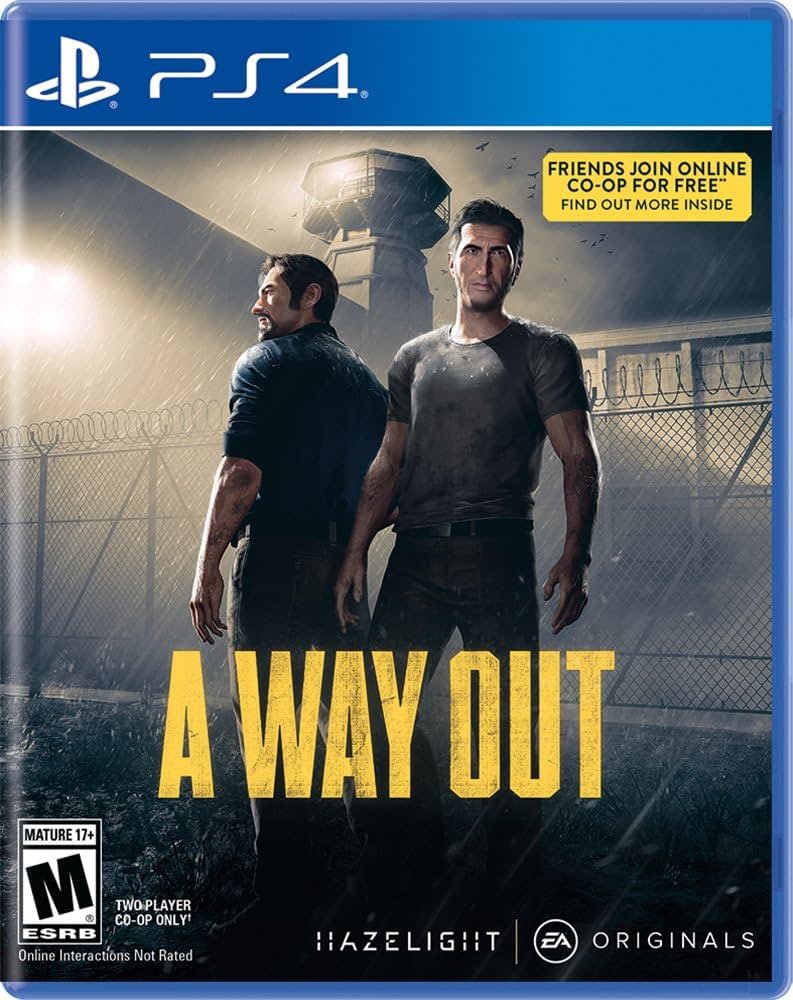
To get a game out of a PS4, simply press the eject button located on the console itself.
Ever found yourself staring at your PlayStation, wondering how do you get a game out of a PS4 after a long gaming session? It’s a simple action but occasionally a small moment of forgetfulness. We’ve all been there, fingers hovering over the controller, but unsure about the next step.
This quick guide will walk you through the straightforward process, ensuring you can easily swap games and continue your gaming adventures without any fuss. The process is actually very basic.

How Do You Get a Game Out of a PS4?
So, you’re done playing your awesome PlayStation 4 game, or maybe you want to lend it to a friend. That’s great! But, how do you actually get the game out of the console? Don’t worry, it’s a super easy process, and this guide will help you become a pro at swapping games on your PS4. Whether you have a disc or a digital game, there are different ways to manage them, and we are going to cover both. Let’s dive in and explore everything you need to know about removing games from your PS4. We’ll look at how to eject game discs, how to manage your downloaded games, and some troubleshooting tips if things aren’t working right.
Ejecting a Physical Game Disc from Your PS4
For games that come on a disc, the process is really straightforward. The PS4 has a disc drive, similar to a DVD or Blu-ray player. Here’s how you get those game discs out:
Using the Eject Button
The most common and easiest way to remove a disc is by using the eject button on your console. Different PS4 models have slightly different locations for the eject button but it’s always easy to find.
- PS4 Original: You’ll find the eject button on the front of the console, usually on the left side near the disc slot. It’s a thin, rectangular button.
- PS4 Slim: The eject button is located on the left side of the front panel, right above the power button. It’s small and easy to press.
- PS4 Pro: Similar to the Slim, the eject button is on the left front panel, above the power button, but slightly more defined.
Here’s what to do:
- Make sure your PS4 is turned on. The eject button typically won’t work when the console is off.
- Locate the eject button on your console based on its model.
- Gently press the eject button. You should hear a soft whirring sound, and the disc will start to come out of the disc slot.
- Carefully grasp the disc by its edges and pull it out the rest of the way.
- Always store the disc back in its case so that it does not get damaged and you can always find it.
That’s it! The game disc is now out and ready to be stored or played in another PS4.
Ejecting a Disc When Your PS4 is Off
Sometimes, you might need to eject a disc when your console is off or if the eject button isn’t working properly. There’s a manual way to do this, which requires a small tool, like a paper clip or a safety pin.
Important: Please be careful, and don’t use anything too sharp. Avoid poking around inside of the console; instead, gently probe for the tiny release hole. Forcing anything inside may damage your PS4.
- Find the Eject Hole: Turn off your PS4 and locate the manual eject hole. This is a tiny hole, and it’s usually near the disc slot, but it varies for different models.
- PS4 Original: The eject hole is usually on the left side, right next to the disc slot. It may be covered by a tiny piece of tape or plastic that can be removed.
- PS4 Slim: The eject hole is on the bottom-left corner of the console, near the side panel.
- PS4 Pro: Like the Slim, the eject hole is on the bottom-left corner of the console, toward the side.
- Insert the Paper Clip: Gently straighten a paper clip or use a safety pin (point facing out, not in) and carefully insert the tip into the eject hole. You might feel some resistance; you do not need to force it.
- Eject the Disc: As you push the paper clip in, the disc mechanism should start to move, and you’ll be able to gently slide the disc out by the edge.
Be careful as you eject the disc with the manual eject hole. Forcing anything may damage the PS4 mechanism.
Managing Digital Games on Your PS4
Digital games are games that you’ve downloaded from the PlayStation Store. They don’t come on a disc, so there’s no physical disc to remove. Instead, you’ll manage them from the PS4’s menu.
Deleting Digital Games to Free Up Space
When you’re done playing a digital game or just need to free up space on your PS4’s hard drive, you can delete them from your console. Remember: this does not delete the game from your PlayStation account; you can always re-download it later.
- Go to Settings: On the PS4’s home screen, go all the way to the right and select “Settings.”
- Select Storage: Scroll down in the settings menu and select “Storage.”
- Choose System Storage: Choose “System Storage”. This is where you’ll see all the games, apps, and other data on your console.
- Go to Applications: Select “Applications.” This will list all your games and apps.
- Select the Game: Find the digital game you want to delete. Highlight it.
- Delete the Game: Press the Options button on your controller. From the menu that appears, select “Delete”.
- Confirm Deletion: A confirmation screen will show up. Select “OK” to delete the game.
The game will now be deleted from your console’s storage, freeing up space. You can download it again from your library whenever you want to play it.
Re-downloading Digital Games
If you delete a game and you want to play it again, it’s not gone forever. It’s tied to your account, and you can re-download it any time you like.
- Go to Library: On the PS4’s home screen, go to the right and select “Library.” It’s the icon that looks like a collection of books.
- Select Purchased: In the library menu, you’ll see various options on the left-side menu, including “Your Collections”. Select “Purchased.” This will show all of the games you’ve bought through your account.
- Find Your Game: Scroll through the list of purchased games and select the one you want to re-download.
- Download the Game: Select the download button. It’s usually an arrow pointing downwards. The game will start to download to your PS4.
Once the game finishes downloading, it’ll be ready to play again.
Managing Game Data
Even after deleting a game, you may still have some save data associated with it. This is the data that allows you to resume games from where you left off. If you do not want this data to take up storage, you can remove it as well. Keep in mind that if you plan to reinstall the game, removing this data will mean you start from the beginning.
- Go to Settings: On the PS4’s home screen, go all the way to the right and select “Settings.”
- Select Storage: Scroll down in the settings menu and select “Storage.”
- Choose System Storage: Choose “System Storage.”
- Go to Saved Data: Select “Saved Data.” This will list all of your game saves.
- Select a Game: Find the game for which you want to remove the saved data. Highlight it and press the Options button on the controller.
- Delete Saved Data: Select “Delete” from the menu.
- Confirm Deletion: Confirm that you want to delete the save data when prompted.
Note that deleting saved data is permanent and can’t be undone. Only do this if you are certain you do not need it.
Troubleshooting Common Issues
Sometimes, things might not go as smoothly. Here are some common problems you might encounter and how to fix them:
Disc Won’t Eject
- Check the Power: Make sure your PS4 is turned on. The eject button will not work if the console is powered off.
- Try the Eject Button Again: Sometimes, you might just have to try it again. Press the button a few more times, but don’t press too hard.
- Use the Manual Eject Hole: If the button isn’t working, use the manual eject hole method with a paper clip. Be very gentle, and don’t force anything.
- Restart Your Console: Sometimes, a simple restart can fix minor glitches. Turn off your PS4 completely, wait a minute, and then turn it back on and try to eject the disc.
- Check For Error Codes: If you get an error code on your screen, consult your manual or the PlayStation website to see what it means and how to fix it.
Game Won’t Delete
- Restart Your PS4: The simple fix often resolves many issues. Turn the console off and back on.
- Check for Updates: Make sure your PS4 system software is up to date. You can go to the Settings menu to update it if necessary.
- Make Sure You Aren’t Using It: If the game is still running in the background, it may not let you delete it. Close the game completely before trying to delete it again.
- Rebuild Database: If the issue persists, try rebuilding the PS4 database. This is done from Safe Mode, which is accessed by starting the PS4 in a special way. Be sure to follow instructions for accessing Safe Mode carefully to avoid unintended consequences. Select option 5, “Rebuild Database,” from the Safe Mode menu. This will reorganize the data on your PS4 and fix any database corruption.
Download Issues
- Check Your Internet Connection: Make sure you’re connected to the internet. Check your wifi signal or network cable.
- Restart Your Router: If you think your network connection is spotty, turn your router off for about 30 seconds, then back on.
- Check PlayStation Network Status: Sometimes, the PlayStation Network is down for maintenance. Visit the PlayStation website to check its current status.
- Free Up Space: Make sure you have enough space on your PS4 to download the game. You might need to delete a different game or other data to make room.
These are the most common fixes for common issues. If these fixes do not solve the problem, you may need to seek help from a qualified technician.
Removing games from your PS4, whether they are physical discs or digital downloads, is a straightforward process. By following these simple steps, you can easily manage your game collection and troubleshoot any issues that might come up. Remember to handle your game discs carefully and keep your software up to date for the best experience. Now you can switch between games with ease and keep the fun going!
PS4 Ways How to Remove a Disc!
Final Thoughts
To get a game out of a PS4, you must first power it off. Then, locate the disc drive and push the eject button. The disc should pop out slightly, allowing you to remove it.
Always handle game discs with care. Avoid touching the bottom surface of the disc to prevent scratches. This process is how you get a game out of a PS4.

