
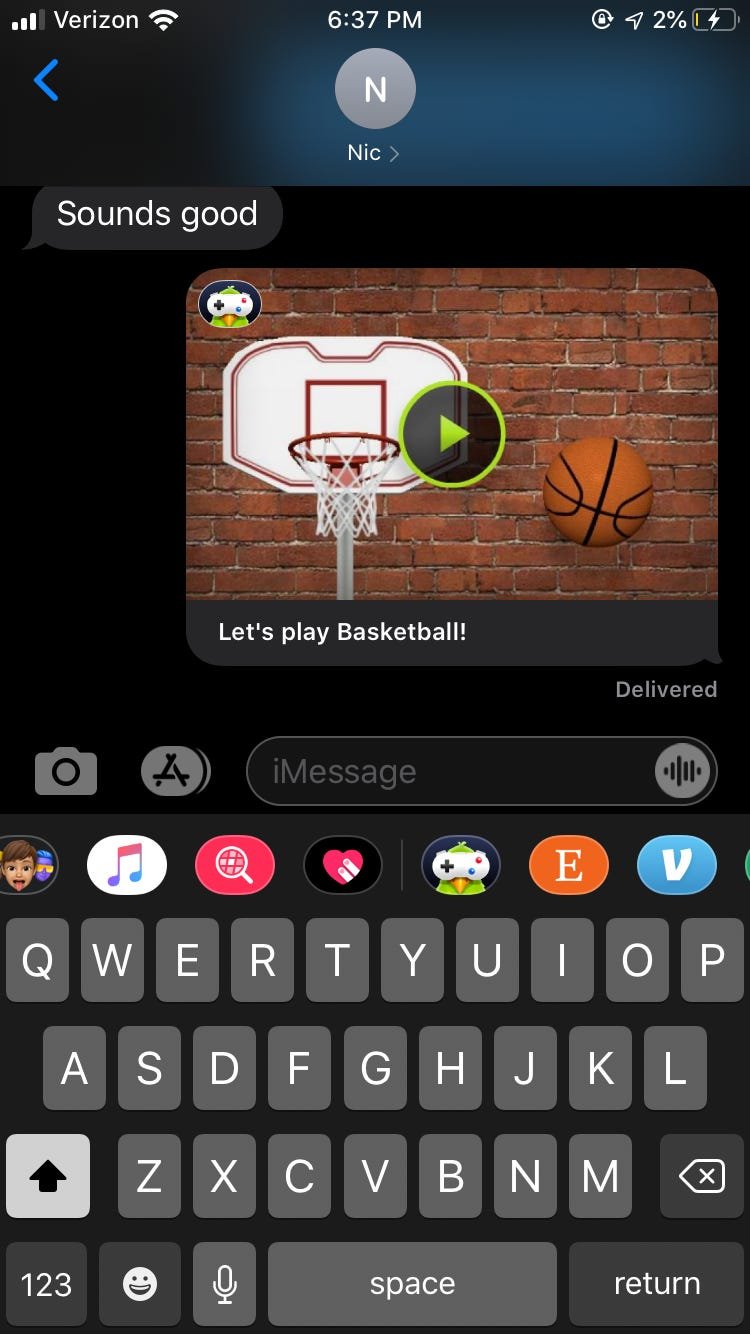
To get iMessage games, you simply open a Messages conversation, tap the App Store icon next to the text field, and then browse or search for games within the iMessage App Store.
Ever wondered how to spice up your iMessage chats? You might be thinking, how do you get iMessage games? It’s simpler than you think, and they’re a great way to connect with friends and family in a fun, interactive way.
This feature is readily available within the iMessage platform itself, making it super easy to find and enjoy a variety of games. Let’s explore how you can quickly access this fun addition to your messaging experience.

How Do You Get iMessage Games?
So, you’re ready to dive into the fun world of iMessage games? That’s awesome! Playing games with your friends and family right in your text messages is a super cool way to connect and have some laughs. But how exactly do you find and start playing these games? Don’t worry, it’s easier than you might think. This guide will walk you through everything you need to know, from finding games to sending challenges to your pals.
Understanding the iMessage App Store
Before we jump into finding games, let’s talk about where they live. iMessage games aren’t downloaded from the regular App Store where you get apps like Instagram or TikTok. Instead, they live inside the iMessage app itself, in something called the iMessage App Store. Think of it as a special section just for iMessage goodies.
Accessing the iMessage App Drawer
To find this special section, you’ll first need to open up a message thread with someone. It doesn’t matter who, just pick a friend. At the bottom of the screen, you’ll see a row of icons. This is the iMessage app drawer. If you don’t see it right away, look for a little “A” logo that’s usually on the left side of the text entry box. Click on that “A”, and the app drawer should pop right up.
Inside this drawer, you’ll see different app icons – some may be familiar, like Apple Pay, or some that you’ve added yourself. To get to the App Store section for iMessage, look for the icon with the four blue circles. That’s where the games live!
Finding Fun iMessage Games
Now that you’ve found the iMessage App Store, the real fun begins! Here, you can browse all kinds of games. Let’s explore the different ways to find the perfect one for you and your friends:
Exploring Featured Games
Just like the regular App Store, the iMessage App Store also has a “Featured” section. This is where Apple shows off new games, popular games, and games they think you’ll enjoy. Keep an eye out for banners at the top that often advertise awesome new games. It’s a great place to start if you’re not sure what you’re looking for.
Browsing by Category
If you have a specific type of game in mind, the App Store also has different categories. You might see things like “Puzzles,” “Word Games,” “Arcade,” or “Action.” Tap “See All” next to the categories to browse the full selection and find something that suits your taste. This is a very effective way to narrow down the types of iMessage games you would like to explore.
Using the Search Function
Know exactly what you want? Then the search tool is your best friend! At the top of the iMessage App Store, you’ll see a search bar. Tap it, type in the name of the game you’re looking for, and see if it pops up. If your friend tells you about their favorite game, this is where you’d look for it.
Installing iMessage Games
Once you find a game that catches your eye, getting it onto your phone is super simple. Think of it like downloading any other app.
The Get Button
Next to each game in the App Store, you’ll see a button that says “Get” or it might show a cloud icon with a down arrow, if you’ve downloaded it previously. Just tap that button, and your phone will start downloading the game.
App Installation
Just like with regular apps, you might need to confirm the download by using Face ID, Touch ID, or entering your Apple ID password. Once it’s done, the “Get” button will change to an “Open” button. This means the game is now installed and ready to play.
Starting a Game with Friends
Okay, you’ve got the game, now what? It’s time to send a challenge to your friends!
Opening the Game in iMessage
Go back to the message thread where you want to play the game. Tap the “A” icon again to open your iMessage app drawer. You’ll find the icon of your newly downloaded game. Tap it.
Starting a New Game
The game will open within the message, and you’ll usually see an option to start a new game or challenge. It will vary a bit from game to game, but it’s usually a pretty obvious button. Tap it to begin. Some games may ask you to choose which friend you want to play against or offer other options before starting.
Sending the Challenge
Once you’ve started the game, a message will appear in your text thread to send the challenge. Your friend can then tap the message to start playing their turn. The game will track scores and keep you updated on each other’s progress.
Types of iMessage Games
The world of iMessage games is very broad, with lots of different options that can appeal to all kinds of gamers. Let’s explore some common types of games you’ll find:
Word Games
If you like to play with words, there are a number of awesome word games available on iMessage. Think of popular games like:
- Word Hunt: Find as many words as you can from a jumbled grid of letters.
- Anagrams: Solve words by rearranging letter sets.
- Scrabble: Try to make words using letter tiles to get the most points.
These are great for improving your vocabulary and thinking skills, all while having fun with friends.
Puzzle Games
If puzzles are your thing, you won’t be disappointed by the offerings in iMessage. Here are some examples:
- Jigsaw Puzzles: Assemble picture pieces together to form a complete picture.
- Sudoku: Fill in number grids correctly using logic and critical thinking.
- Connect-the-Dots: Draw lines to connect dots and reveal images.
These games are great to test your brain power and give you a sense of achievement as you solve them.
Casual Games
Casual games are easy to learn and quick to play, which make them ideal for short bursts of fun. Here are some examples:
- 8 Ball Pool: Play a quick game of billiards with your friend.
- Mini Golf: Tee off and try to sink your ball in the hole in the least shots.
- Simple Racing Games: Compete to see who can get to the finish line first using simple controls.
These are perfect for when you just want a fast-paced and fun distraction.
Arcade Games
For the retro-game lover, you’ll be happy to know that there are also arcade-style games available on iMessage. Here are some of them:
- Simple Action Games: Test your reflexes in games where you tap and swipe to get past obstacles.
- Classic Games: Play timeless games such as Space Invaders or Pac-Man.
- Platformers: Jump and maneuver your way through levels, avoid enemies, and collect coins.
These games provide lots of challenge and nostalgic fun with their familiar gameplay.
Managing your iMessage Games
Like any other apps, you might need to manage your iMessage games from time to time. Here is a list of actions you can take to have a smoother game playing experience:
Deleting iMessage Games
If you’re no longer playing a game or you need to make space on your phone, deleting an iMessage game is quite similar to deleting regular apps. You can do it a couple of different ways:
- From the iMessage App Drawer: Open the iMessage app drawer by tapping the “A” icon. Find the game icon and hold down on it until a menu pops up. Tap “Delete” to uninstall it.
- From Your Settings: Go to your phone’s Settings, then select “General”, then “iPhone Storage”. Scroll until you find the game in the app list, tap on it, then tap “Delete App”.
Updating iMessage Games
Just like regular apps, iMessage games also get updates, to fix any problems or add new features. Here is how to update:
- Automatically: Usually, your phone is set up to update apps automatically when you connect to Wi-Fi. You may get a notification on your phone that says your iMessage game has been updated.
- Manually: To manually check for updates, open the iMessage app drawer, tap the App Store icon (four blue circles) and go to your profile, you may be required to enter your Apple ID. There you should find a list of updates, or a button that says “Update All”.
Privacy Considerations
When playing iMessage games, remember your privacy is important. If you ever notice the games asking for access to your personal data, be sure to double check if you actually want to allow it. Here are a few things to consider:
- Personal Information: Most iMessage games only require your screen name and your game scores, but if one asks for more information, proceed with caution.
- Permissions: Always review permissions a game requests before starting it and make sure it doesn’t ask for things like location access or access to your photos.
- Report Issues: If you notice a game acting suspiciously, report it to Apple so they can investigate.
Troubleshooting Common Issues
Sometimes, things might not work as expected when trying to use iMessage games. Here are some of the issues you might encounter and some ideas on how to resolve them:
Game Not Loading
If a game isn’t loading or keeps crashing, try these basic steps:
- Close the App: Force-close the Messages app and then re-open it.
- Restart Your Device: Turn your iPhone off and on again to see if that helps the game start working correctly.
- Check for Updates: Make sure you have the latest updates for iOS and the iMessage game installed.
Game Not Appearing in Drawer
If you downloaded a game but can’t see it in the app drawer, try this:
- Check for Updates: Ensure the app is fully downloaded and check if there are updates for the message app.
- Restart the App: Close the message app and re-open it.
- Restart Your Device: As mentioned, turning your phone off and on can resolve small glitches.
Game not letting you send or receive messages
If you’re having trouble sending and receiving game challenges to your friends, try these troubleshooting steps:
- Check the internet: Make sure you and your friend both have a good Wi-Fi or cellular connection.
- iMessage enabled: Make sure iMessage is turned on for both you and your friend in settings.
- Restart app: try restarting the game to see if it fixes the issue.
Tips for the Best iMessage Game Experience
Here are a few additional tips to make your iMessage gaming experience even better:
Choose Games You and Your Friends Enjoy
Find games that everyone in your group finds fun. If you start a game no one likes, no one will be having a great time. Try different things and let everyone have their say on what type of games you would like to play together.
Be a Good Sport
Games are meant to be fun, so try not to get too competitive or too upset if you lose. Everyone should just try to have fun playing together! Be kind and encourage each other even if one friend is doing better than another.
Keep an Eye Out for New Games
Apple constantly adds new games to the iMessage App Store, so don’t forget to check the featured section regularly for new additions. You never know when a cool new game is going to appear that you and your friends would love. Be the first to find the latest great games!
Use the Mute Function
If your friends are sending too many challenge notifications and it’s getting annoying, you can mute the chat thread without having to exit the game. This means you won’t get notified every time someone takes their turn but you can still have fun with the game when you feel like playing.
Have Fun
The most important part of playing iMessage games is to have fun and connect with friends and family! So laugh, share some memes, and enjoy the games together.
Now you’re all set to dive into the fun world of iMessage games! With these steps, you can easily find, install, and start playing with your friends. Happy gaming!
How To Play Games On iMessage!
Final Thoughts
To get iMessage games, first, open the Messages app. Then, start a conversation with the person you want to play with. You must then tap the App Store icon within the conversation to browse available games.
Select a game you prefer and press the download button. How do you get iMessage games? They install directly in your Messages app, ready for play with your contacts. After installation, launch the game through the app drawer.

