
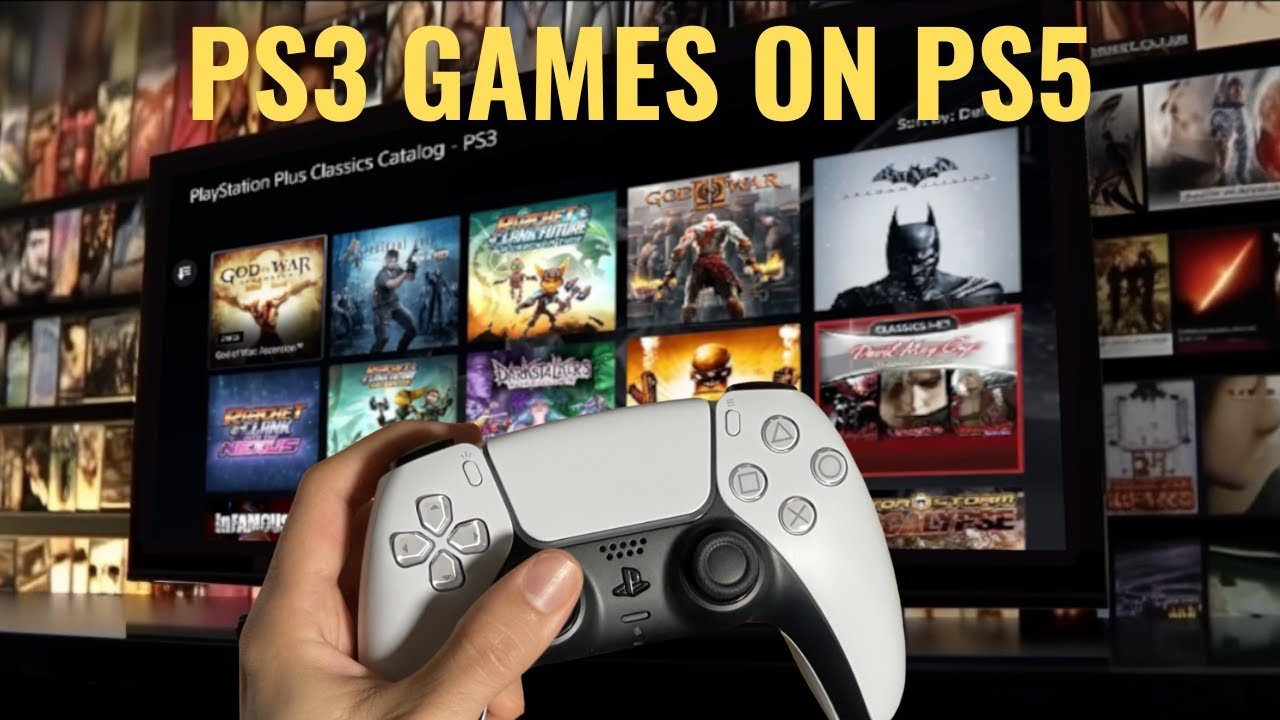
To play a game on PS3, insert the game disc into the console, navigate to it on the XMB menu, and press the X button to start.
Ever wondered how do you play a game on ps3? It’s actually quite simple once you know the steps. This older console still has a lot of great titles to explore.
First, locate your game’s disc. Put the disc into the ps3’s drive. Next, you need to navigate the menu.
Once the system reads the disc, select the game with your controller. Then simply press X and enjoy your game.

How Do You Play a Game on PS3?
So, you’ve got your hands on a PlayStation 3 (PS3), and you’re itching to jump into some gaming fun! That’s awesome! Playing a game on a PS3 is pretty straightforward, but let’s walk through each step to make sure you’re a pro in no time. We’ll cover everything from hooking up the console to selecting a game and getting the most out of your gameplay. It’s like learning to ride a bike – once you get the hang of it, it’s smooth sailing!
Setting Up Your PS3 Console
Before you can start playing, you need to make sure your PS3 is properly connected and ready to go. It’s like building a race car – each part has to be in place!
Connecting the Cables
The first step is making sure all the wires are plugged in correctly. Don’t worry, it’s easier than it sounds! Here’s what you need to do:
- Power Cord: Find the power cable and plug one end into the back of your PS3 and the other into a wall outlet. This gives your PS3 the power it needs to run.
- Video Cable (HDMI or AV): You’ll need either an HDMI cable (which is best for sharper pictures) or an AV cable (the one with red, white, and yellow plugs). Plug one end into the back of the PS3 and the other into your TV. Make sure you choose the right input on your TV using your TV remote.
- Controller: Your PS3 controller uses Bluetooth, so once the PS3 is on, you will be able to sync them up. You will need a usb cable to charge the controller.
Powering On Your PS3
Once everything is connected, press the power button on the front of the PS3. A light will appear, and you’ll see the PlayStation logo appear on your TV screen. If it doesn’t, double-check your video cable connections and make sure your TV is on the correct input setting. If you are using an old crt tv, make sure you are using the correct cable connection, it will not work properly by using a hdmi cable.
Initial Setup
The first time you turn on your PS3, it will take you through a basic setup process. This will involve things like:
- Selecting your Language: Choose your preferred language from the list.
- Setting the Date and Time: Enter the correct date and time. This is important so your game saves properly!
- Connecting to the Internet (Optional): If you want to play online or download games, you’ll want to connect to your Wi-Fi. Choose the correct network and enter the password if needed. If you don’t want to do this, you can skip this step.
Understanding the PS3 Interface
Once the setup is done, you’ll be taken to the PlayStation 3’s main menu. Think of this like your home base, where you can get to all the things you want to do on your PS3.
The XrossMediaBar (XMB)
The PS3 uses the XrossMediaBar, or XMB. It’s a set of icons arranged horizontally, like a menu in a restaurant! The icons are divided into sections:
- Users: This is where you can manage user profiles. Each user can have its own game saves and settings.
- Settings: Here, you can change things like display, network settings, and parental controls. It’s where you customize your PS3.
- Game: This is where your games live. You can launch them from here.
- Network: You’ll find options for online gaming and PlayStation Store here.
- PlayStation Network: This area handles your PlayStation Network account.
- Video: Access saved video files and apps for watching videos.
- Music: Listen to music files saved on the PS3.
- Photos: View your photo files.
Navigating the XMB
You can navigate the XMB using the left analog stick or the directional pad (D-pad) on your controller. Press ‘X’ to select an item. Use the ‘circle’ button to go back to the previous screen. Getting to know how to move around on this is really important. It’s like learning how to find everything in your bedroom.
Playing a Game on PS3
Now comes the best part – playing games! There are a few ways to start playing, so let’s go through each one.
Starting with a Disc Game
If you have a game on a disc, here’s how you play:
- Open the Disc Tray: Press the ‘eject’ button on the front of your PS3 to open the disc tray. It will slide out like a small drawer.
- Place the Disc: Put the game disc, label side up, into the tray. Be sure to handle the disc by the edges to avoid smudges or scratches.
- Close the Tray: Press the ‘eject’ button again to close the tray. The PS3 will recognize the disc.
- Launch the Game: Go to the ‘Game’ section on the XMB. You should see the game icon appear. Select it and press ‘X’ to launch it.
Starting with a Downloaded Game
If you purchased a digital game from the PlayStation Store, you can launch the game directly through the XMB:
- Go to the Game Section: Navigate to the ‘Game’ area on the XMB.
- Find your Downloaded Game: Locate the game you want to play. They should be listed below ‘Installed Game Data.’
- Select and Launch: Press ‘X’ to select the game and then ‘X’ again to launch it.
Game Controls
Each game has its own unique controls, which you will usually see on the screen after you first load up the game. But most games use these basic functions on the PS3 controller:
- Left Analog Stick: Move characters around.
- Right Analog Stick: Move the camera or aim.
- D-pad: Select in-game options and/or menus.
- X Button: Usually used for actions like jump, talk, or select.
- O Button: Cancel or back out of a menu or action.
- Square Button: Various actions, such as picking things up.
- Triangle Button: Opens the start menu/inventory/in-game map.
- R1, R2, L1, and L2: Additional actions and abilities, depending on the game.
- Start Button: Opens the pause menu, often where you save your game.
- Select Button: Brings up the in-game map and sometimes some other menu options.
Saving Your Game Progress
It’s super important to save your game, so you don’t lose all your progress! Most games have their own save systems, but here are some general guidelines:
In-Game Save Points
Many games have specific save points scattered throughout the game. They may look like a flag, a statue, or something else that tells you ‘this is where you save.’ When you get to one, it’s like having a chance to take a break. Follow the on-screen instructions to save. It will usually ask you to press a specific button.
Auto-Save Features
Some games have auto-save features that save your progress automatically at certain points. You don’t have to do anything! Usually, you will see an icon appear on the screen when it saves.
Saving from the Menu
Most games also let you save by going into the in-game menu. Press the ‘start’ button, navigate to the ‘save’ option, and follow the prompts. It’s like making sure to put away your toys before you go to bed.
Playing Multiplayer Games
Playing games with friends can be some of the most fun experiences on your PS3! Here’s how to get started with multiplayer games:
Local Multiplayer
Local multiplayer means you play on the same screen, with friends who are physically near you. To play local multiplayer, just turn on additional controllers and follow the game’s menu instructions. It’s like having a video game party in your living room!
Online Multiplayer
To play online with other players around the world, you will need to be connected to the internet. Here’s how it works:
- Sign into the PlayStation Network (PSN): Go to the ‘PlayStation Network’ icon on the XMB, select ‘Sign In,’ and enter your account details. If you don’t have one, it’s easy to create an account by following the instructions on screen.
- Launch the game: Select and launch the game you would like to play.
- Select the multiplayer option: From the main menu, locate the multiplayer option. It might say ‘online multiplayer,’ ‘play online,’ or something similar.
- Find a game: From here you will be able to find a game to join. You can either search for specific games or you can use the ‘Quick Match’ function and let the game put you into a server.
Troubleshooting Common Problems
Sometimes things might not go as planned. Here are some common problems and how to fix them:
Game Won’t Start
If your game won’t start, try these steps:
- Check the Disc: Make sure your game disc is clean and not scratched.
- Restart the Console: Turn off your PS3 and then turn it back on. This will sometimes fix a random problem.
- Make Sure the Game is compatible: Some PS3 games are different from other regions. Make sure your game is compatible with your PS3 (PAL vs NTSC)
Controller Issues
If your controller is not working, try these fixes:
- Make sure it’s charged: Plug your controller into the PS3 using the USB cable. A red light should appear while charging.
- Pair the Controller: Hold down the ‘PS’ button on the controller to resync it with the PS3.
- Restart the console: Turn off your PS3 and then turn it back on.
No Video Output
If you do not see the screen output on your TV, check these things:
- Check Your Connections: Check that the video cable (HDMI or AV) is connected properly to both the PS3 and the TV.
- Check TV Input: Make sure your TV is set to the correct input.
- Try Another Cable: See if a different cable might fix the issue.
Playing games on the PS3 is a great way to have fun and be entertained. From the moment you turn it on, to exploring the XMB, to experiencing the fantastic titles it has to offer, the PS3 is an excellent choice. Whether you’re playing on your own, with friends in your living room, or with people around the globe, it will surely bring you lots of good times. By following this guide, you are now equipped to play games like a pro. Now grab your controller, and get ready for a good time!
How to start a Playstation 3 Game (Tutorial)
Final Thoughts
To play a game on PS3, first insert the disc into the console. Next, turn on the system and the game should appear on the screen. Use your controller to navigate the menu and select the game. It’s quite simple really.
The core process is inserting the disc, booting up the console, and selecting the game. That is how you play a game on ps3. This simple method allows you to enjoy your PS3 game library.

