
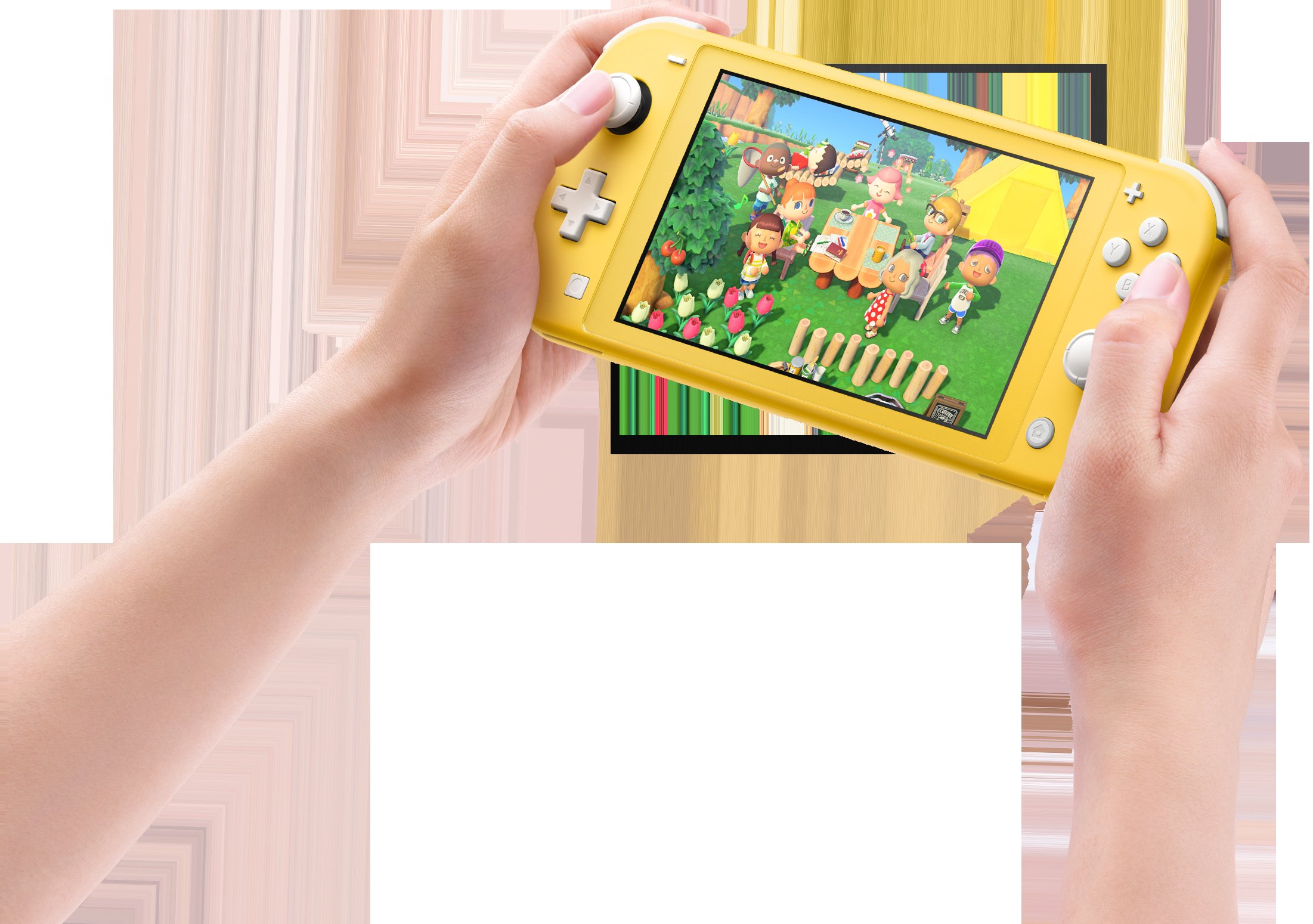
Playing games on Nintendo Switch Lite involves using the built-in controls and selecting the game from the console’s menu.
Curious about how you play games on Nintendo Switch Lite? It’s simpler than you might think. This handheld console is designed for gaming on the go, meaning everything you need is right there.
You simply choose your title from the main menu with the console’s buttons, and then start playing right away. The integrated controls make it very easy to jump straight into your favorite adventures.

How Do You Play Games on Nintendo Switch Lite?
The Nintendo Switch Lite is a super cool handheld video game console. It’s smaller and lighter than the regular Nintendo Switch, and it’s made just for playing on the go. But how exactly do you get started and enjoy all those fun games? It’s easier than you think! Let’s dive into everything you need to know about playing games on your Nintendo Switch Lite.
Getting Started with Your Nintendo Switch Lite
Before you can jump into the action, there are a few things you’ll want to do when you first get your Nintendo Switch Lite:
Unboxing and Initial Setup
When you get your new Nintendo Switch Lite, it’ll come in a box. Inside, you’ll find the console itself, along with a power adapter for charging. Take everything out of the box carefully. You’ll need to plug the power adapter into the wall and then into your Nintendo Switch Lite to charge it up before using it. Once it’s charged, press the power button to turn it on, which is usually located on the top of the console. The system will guide you through a short initial setup, like choosing your language and connecting to the internet. Be sure to have your Wi-Fi password ready!
Creating a User Profile
You’ll need to create a user profile. This is like your account on the console. You can pick a name and an icon. This is how the console knows who’s playing, and it keeps track of your game progress. If multiple people in your family will use the Switch Lite, everyone should have their own profile.
Connecting to Wi-Fi
To download games and play online with friends, you’ll need to connect your Switch Lite to Wi-Fi. Go to “System Settings” (the gear icon on the home screen), then choose “Internet.” Find your Wi-Fi network in the list and enter your password. Once connected, you can access the Nintendo eShop.
Finding and Buying Games
Once you’ve completed the setup, it’s time to get some games! There are two main ways to buy games for your Nintendo Switch Lite:
Digital Games from the Nintendo eShop
The Nintendo eShop is like an online store for games. You can find a ton of different games to download directly to your Switch Lite. Here’s how to use it:
- Make sure your Switch Lite is connected to Wi-Fi.
- On the home screen, select the orange “eShop” icon.
- You may have to log in with your Nintendo Account if you haven’t already.
- Browse through the different categories, like “New Releases,” “Best Sellers,” or by specific game titles.
- When you find a game you like, select it and read about it. Look at the pictures and read the description.
- If you want to buy the game, choose “Purchase” and follow the instructions. You might need to add money to your Nintendo Account using a credit card or a prepaid eShop card.
- Once you’ve completed the purchase, the game will begin downloading to your Switch Lite. You can play the game after the download is completed.
Physical Game Cartridges
Just like the old days, you can buy games on little plastic cartridges! These are physical copies of the game. Here’s how they work with the Switch Lite:
- Each game comes on a tiny cartridge. You’ll find a little slot on the top of your Switch Lite.
- Carefully insert the game cartridge into the slot until it clicks into place.
- Your console will recognize the game and a game icon will appear on the home screen. Select the icon to start playing!
- To remove the game, push the cartridge a bit inwards and it will pop out a little. Then you can pull it out. Always be gentle!
Remember, the Nintendo Switch Lite only works with game cartridges that are compatible with handheld mode. Some games that require Joy-Con controllers to play in tabletop mode on the original Nintendo Switch cannot be played in handheld mode, or will require additional purchase of Joy-Cons to play. You can look on the box of the cartridge to check it’s compatible with Nintendo Switch Lite. It usually shows a symbol of Nintendo Switch Lite in a small square on the game box. If the game only shows the original Switch symbol, you might need to buy a separate pair of Joy-Cons to play.
Navigating the Nintendo Switch Lite Interface
The Nintendo Switch Lite is made to be easy to use. Let’s explore the different parts of the system:
The Home Screen
When you turn on your Switch Lite, you’ll see the home screen. It’s like the main hub for all your games and apps. Here’s what you’ll find on the Home Screen:
- Your game icons – these are the icons for all the games you have downloaded or use cartridges. Click on the game icon to play.
- The Nintendo eShop icon – the orange icon that takes you to the online store.
- The News icon – read the latest gaming news from Nintendo.
- The Album – view screenshots and videos you’ve taken while playing your games.
- System Settings – change the settings of your Switch Lite, like volume, Wi-Fi connection, and screen brightness.
- Sleep/Power button – put the system in sleep mode, or power it off.
Using the Buttons and Controls
The Nintendo Switch Lite has several buttons that you’ll use to play games. They are easy to learn and will become second nature with practice.
- Control Stick: This is the small stick on the left side. Use this to move characters and make selections in menus.
- Directional Buttons: These buttons are just below the Control Stick. Use these for directions and menu selections.
- A, B, X, and Y Buttons: These colored buttons on the right side are the action buttons. You will use these to jump, attack, talk, and do other things in games.
- Plus (+) and Minus (-) Buttons: These are typically used to pause the game, bring up options menus, or change the view.
- L and R Buttons: These shoulder buttons are on the top left and right of your Switch Lite. Some games use these for special actions.
- ZL and ZR Buttons: These shoulder buttons are right next to the L and R buttons. They’re also used for special actions in some games.
- Power Button: Press the power button to turn your Switch Lite on or off, or put it in sleep mode. A quick press will activate sleep mode. Hold it down for a few seconds to turn off the system completely.
Don’t worry if you don’t remember all the buttons at first. Games usually guide you through how to use them.
Adjusting Settings
The settings area is very useful to personalize your Nintendo Switch Lite experience. Here’s how to get to the settings and what you can change:
- On the Home screen, click on the ‘System Settings’ icon. It’s the gear shaped icon.
- Here, you can adjust the brightness of your screen. If it’s too bright or too dim, you can adjust it for comfortable viewing.
- Adjust the volume of the game sounds and console sounds. You can also mute the system.
- Go to the Internet settings to set up or change your Wi-Fi connection if needed.
- In the “Data Management” section, you can view how much storage space your games are using. You can also delete game data you no longer need to free up space.
- You can find parental controls, which are tools for parents to help manage how much and when kids use the console.
Playing Different Types of Games
The Nintendo Switch Lite can play a wide variety of games. Here are a few examples:
Action-Adventure Games
These games usually involve exploration, fighting, and solving puzzles. You might play as a hero and go on an adventure in a big fantasy world. Some famous games in this category include The Legend of Zelda series and Metroid.
Platformers
These are games where you jump through levels and avoid enemies. They usually involve lots of running and jumping, maybe even a bit of sliding. Super Mario Bros is a classic example of a platformer.
Puzzle Games
If you like to think and solve problems, puzzle games are for you! These games test your brain with different kinds of puzzles. Tetris is a very famous puzzle game.
Role-Playing Games (RPGs)
In RPGs, you play as a character in a story. You get to make choices that affect the story. RPGs also include leveling up your character and collecting items. Final Fantasy games are examples of RPGs.
Simulation Games
Simulation games allow you to control real-life activities. Examples are Animal Crossing, where you build a town and make friends with cute animals, and farming games where you manage crops and animals.
Sports Games
These games allow you to play virtual sports. You can play as your favorite team or even create a character to play with. Popular sports games include FIFA soccer games and the Mario & Sonic at the Olympics series.
Tips and Tricks for Playing on the Switch Lite
Here are a few things to keep in mind for a better gaming experience:
Charging Your Console
Always keep your Switch Lite charged, especially if you are going out. A low battery can ruin your game time. The Switch Lite uses a USB-C charging cable, so you can use a portable charger if you are not near a wall outlet.
Taking Care of Your Screen
The Switch Lite screen can get scratched easily. You can apply a screen protector to protect it. Always keep the screen clean by gently wiping it with a soft cloth.
Using Headphones
If you want to play without bothering others or want a more immersive experience, plug in your headphones. Your Switch Lite has a headphone jack. If you have Bluetooth headphones, you can use Bluetooth audio settings, but you might experience some audio lag in Bluetooth. For the best audio, you may want to use headphones with a 3.5mm audio jack.
Saving Your Game
Always save your progress when you are finished or want to stop for a while. Most games use auto save, but don’t always rely on it. It’s best to manually save so that you do not lose game progress.
Updating Your System
Make sure your console software is always up to date. Updates can add new features and improve the stability of the console. Your Switch Lite will tell you if there is an update available.
Keeping it Clean
Make sure to keep your Switch Lite clean. Food and dust can get inside the buttons and cause them to become sticky. Always wash your hands before playing on your console. It helps keep the console nice and clean.
Protecting Your Switch Lite
Consider using a protective case to keep it safe when you’re carrying it around. Some cases include built in screen protectors as well.
Troubleshooting Common Issues
Sometimes, things don’t go exactly right. Here are some common problems and how to solve them:
Game Won’t Load
If a game isn’t loading, check if the cartridge is correctly inserted, or if the digital game is completely downloaded. Restarting the system can sometimes fix these problems.
Screen Freezes
If your screen freezes, try pressing and holding the power button for about fifteen seconds. This will reset your console and can solve this problem. You may lose unsaved progress in a game if you are forced to reset the console this way.
Wi-Fi Problems
If you are having trouble connecting to Wi-Fi, try restarting your Wi-Fi router and your Nintendo Switch Lite. Also, check that you’ve typed in the correct password.
Sound Issues
If you cannot hear the game, make sure that the volume is up and that headphones are not connected. Check the headphone jack for dust if you have sound issues with headphones as well. Restarting the Switch Lite also solves a lot of sound issues.
Stuck Buttons
If a button is stuck, try using a small brush or an air blower to remove any dust or food debris that may be causing the issue. Don’t use water or any other liquids as that will damage the console.
Playing games on the Nintendo Switch Lite is a fantastic experience! It’s portable, easy to use, and has an awesome library of games. With these tips, you’ll be ready to play all your favorite games anywhere you go. Remember to explore all of the settings and be patient when learning all the different controls. With a little practice, you’ll be a pro in no time!
How to Setup the Nintendo Switch Lite for Beginners
Final Thoughts
To play games, you simply insert a game card or download a digital title from the eShop. Select your desired game from the home menu. The controls are integrated into the device; you use the buttons and joysticks on the console itself.
You can navigate menus and start playing right away. ‘How do you play games on Nintendo Switch Lite’ is fairly straightforward; it’s designed for convenient handheld gameplay. It’s a dedicated handheld, with no option for TV output.

