
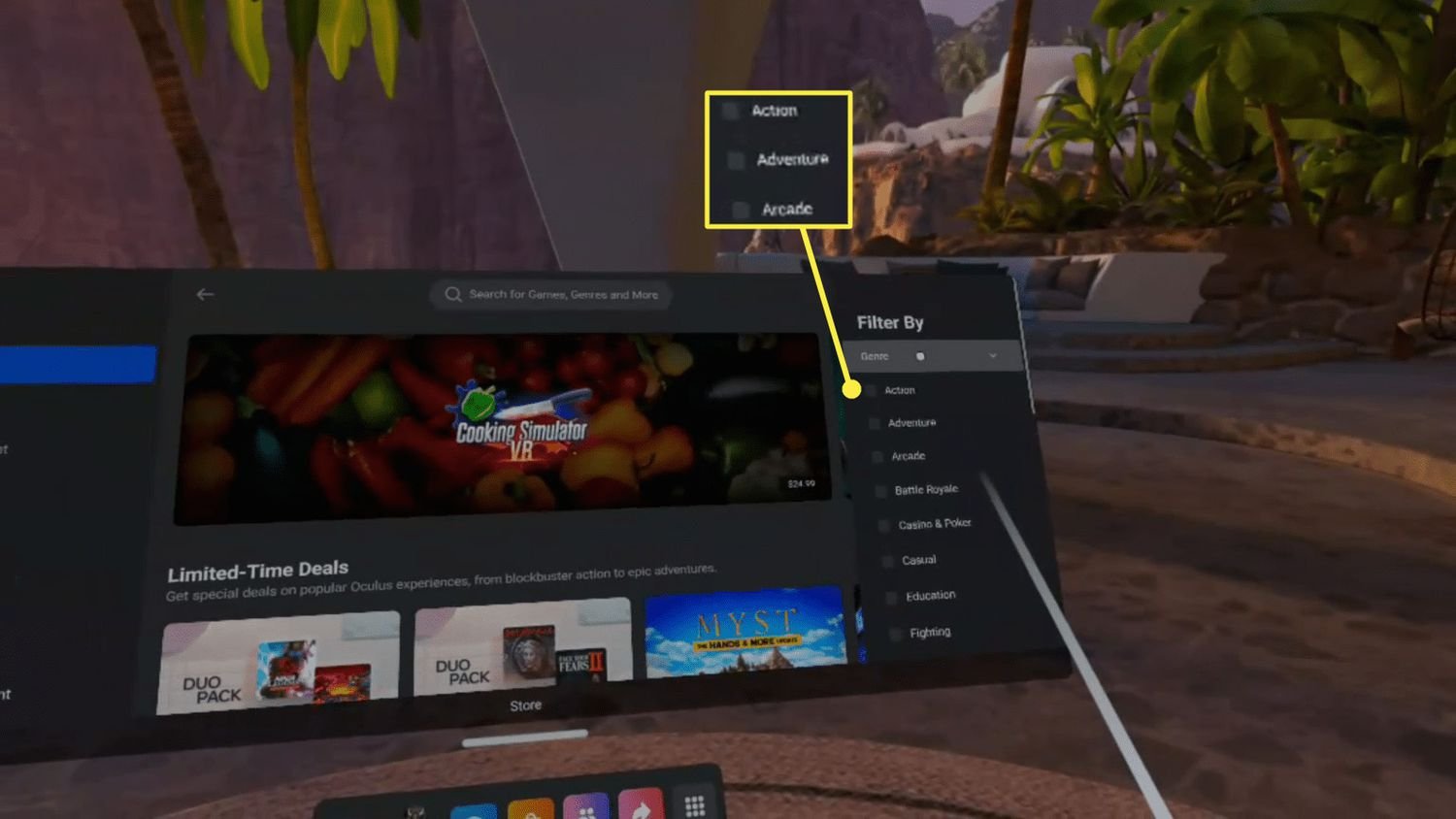
To purchase games for Oculus, you can do so directly through the Oculus app on your headset or the Oculus mobile app and website, using a linked payment method.
Want to jump into amazing virtual worlds but unsure how to get the games? Many people ask, “how do you purchase games for oculus”, and it’s simpler than you might think. The process is quite straightforward.
You can browse and buy titles within the Oculus environment, similar to any other digital storefront. Once purchased, the game is readily available to play on your VR device. It’s just a few clicks away!

How Do You Purchase Games for Oculus?
Getting new games for your Oculus VR headset is like walking into a cool video game store, but it’s all online! It’s not difficult, but there are a few important things you should know to make the process super easy and fun. Let’s explore all the ways you can buy awesome VR games for your Oculus.
Understanding the Oculus Store
First things first, the main place where you’ll buy your Oculus games is called the Oculus Store. This is like the app store for your VR headset. You can find it on your computer, on your phone using the Oculus app, and directly inside your VR headset. Each version has the same games, but the way you see and explore them might be a little different. Whether you are using an Oculus Rift, Oculus Quest, or any other Oculus VR headset, the core idea is the same – you use the store to find and buy content.
Accessing the Oculus Store
You can reach the Oculus store in several ways, making it convenient for you to browse and buy games:
- Through the Oculus Desktop App: If you have the Oculus software installed on your computer, you can open the app, and the store is one of the main sections you’ll see. This is a good way to browse on a bigger screen and makes typing easier.
- Via the Oculus Mobile App: If you prefer using your phone, you can download the Oculus app. The store is right there so you can find new games while you are on the go.
- Within your Oculus Headset: Put on your Oculus headset, and you will see a menu with an option for the store. Using your controllers, you can explore and choose games directly in VR.
Navigating the Oculus Store
The Oculus store is set up to be easy to use. Here’s how to move around and find the best games for you:
- The Search Bar: If you know what game you are looking for, use the search bar at the top of the screen. Just type in the name, and the results will pop up.
- Browsing Categories: Games are sorted into groups like “Action,” “Adventure,” “Puzzle,” and “Multiplayer.” This helps you find games that you like.
- New Releases: You’ll find a special section for the newest games in the store. This is where you can spot all the fresh content.
- Top Charts: Look at the popular or highest-rated games if you are not sure what to get. The charts show you what other players like the most.
- Sales and Deals: Always keep your eyes open for sales! You’ll find games that are on sale with special prices, which is a great way to save some money.
Purchasing Games on the Oculus Store
Once you’ve found a game you want, here are the steps you’ll take to buy it:
- Game Details: Click on the game you are interested in. You’ll see a lot of important information about the game. This includes the price, a description of the game, the rating, pictures or videos, and comments from other players.
- Adding to Cart: If you are ready to buy it, click the button that says “Add to Cart” or “Buy Now.” This will put the game in your shopping cart.
- Checkout: When you are done shopping, go to your cart. You’ll see all of the games you’ve picked. Click on the button to go to the checkout.
- Payment Information: You’ll need to enter your payment information. You can use a credit card or a debit card. Some stores may also let you use PayPal or other payment methods. If this is your first purchase, you’ll have to add a payment method.
- Confirmation: You might need to confirm that you want to purchase the games. You will get a receipt that proves that you made the purchase.
- Downloading Your Game: After you have bought the game, you can download it to your headset or computer. Make sure your headset is connected to your internet. You can usually find it in your library of games.
Payment Options
The Oculus store wants to make it simple for you to pay for your games. Here are some of the most popular ways you can pay:
- Credit Cards: You can use major credit cards like Visa, MasterCard, and American Express.
- Debit Cards: Debit cards that have the Visa or MasterCard logo usually work fine too.
- PayPal: You can often use your PayPal account to pay, which is handy if you prefer not to use your credit card directly.
- Oculus Store Credits: Sometimes, you might get store credit from promotions or gift cards. This can be used to buy games too.
Purchasing Games Directly from Your Oculus Headset
One of the coolest things about the Oculus is that you can browse and buy games without using a computer or phone! Here’s how to do it directly from your VR headset:
- Open the Store: Put on your headset. Use your controllers to select the “Store” icon, which looks like a shopping bag.
- Browse Games: Use your controllers to look at the games that are available. You can select the categories, new games, or charts.
- Select a Game: Once you find a game that looks fun, select it with your controller.
- View Details: You will see information about the game and the price. If you want to buy it, select the button that says “Buy Now.”
- Enter Your PIN or Password: You may need to enter a security pin or password to confirm the purchase.
- Download and Play: After the game is bought, you can download it and start playing right away!
Gift Cards and Store Credits
Did you know that there are other ways to get games besides using a credit card? Oculus Gift cards and store credits are other ways to load up your account to buy your new favorite VR experiences.
- Oculus Gift Cards: Oculus gift cards can be bought from many different stores. They come with a code that you can enter on your account to add money to your store balance.
- Redeeming a Gift Card: You can enter gift card codes on your account through the Oculus website or app. When you enter it, the money is added to your account.
- Using Store Credits: If you have credit on your account, it will be used first to pay for any games. You can check your balance in your account settings.
Redeeming Gift Codes
You can redeem a gift code in several ways:
- On the Oculus Website: Log into your Oculus account, go to the redeem code section, and enter the code.
- Through the Mobile App: Open the Oculus mobile app and look for the option to redeem a code.
- In Your VR Headset: You can also find the redeem code section within the Oculus store in your headset.
Managing Your Oculus Game Library
Once you have purchased your games, it is very important to understand how to manage your game library. This is where you find the games you already own.
- Accessing Your Library: You can find your library in the Oculus app, on the computer software, or in your headset. This is where all of the games you have purchased are.
- Downloading Games: Select the game you want to download. The download will start, and you can see how much longer you have to wait.
- Uninstalling Games: If you need to free up some space on your Oculus, you can uninstall games you are not playing right now. You can easily install it again later from your library.
- Game Updates: Games may have updates every now and then. You will get a message on your Oculus app when a game needs an update. It’s best to install the updates so your games run well.
Understanding Game Compatibility
Before you purchase a game, ensure that the game works with your Oculus headset. Some games are for specific headsets, so it’s important to look at the details. Look at the product page for the compatible devices.
- Oculus Rift Games: If you are using an Oculus Rift, games created for that headset will usually work smoothly.
- Oculus Quest Games: If you are using an Oculus Quest, most games are made for it but double-check compatibility.
- Cross-Buy Games: Some games allow you to play them on multiple headsets after you have bought them once. This is called “cross-buy.”
- Compatibility Information: Look at the game description before buying a game. The description will tell you what devices it is for.
Tips for a Smooth Purchasing Experience
Here are a few extra tips to make buying games for your Oculus a great experience:
- Check Game Reviews: Before you purchase a game, read what other people have to say about it. Reviews can help you decide if the game is right for you.
- Look at Game Trailers: Watch the game trailers on the store page. This will help you see what the game is like and if it’s something you are interested in.
- Keep Your Software Updated: Keeping the Oculus app and headset updated is very important. Updates often fix issues that might cause problems with games.
- Check Storage Space: Make sure you have enough space on your headset before buying new games. The bigger the game, the more storage space you will need.
- Use Wi-Fi Connection: When you download games, make sure you have a reliable and strong Wi-Fi connection for a fast download.
Purchasing games for your Oculus VR headset is an easy and enjoyable process once you understand the steps. By using the Oculus Store, browsing available games, and managing your library, you will be able to fill your Oculus headset with a wide variety of exciting games. From using your phone, a computer or directly in your headset, you have all the means to obtain new adventures for your Oculus VR headset.
How to Buy Games on Meta Quest 2
Final Thoughts
You purchase Oculus games directly through the Meta Quest store. This store is accessible via the Oculus app on your phone or within your VR headset. Simply browse, select, and pay with your linked payment method.
The Meta Quest store offers a variety of VR experiences. Remember to check game ratings before making a purchase. This ensures you find a game that suits your preferences.
So, how do you purchase games for Oculus? You do it using the official Meta Quest store, which is the primary way to access and get your favorite VR titles.

