
To switch game to another monitor, use the game’s display settings, or press Windows Key + Shift + Left/Right Arrow.
Ever found yourself wanting to move your game onto a different screen? It’s a common scenario, especially for multi-monitor setups, making it easy to get lost on how to switch game to another monitor. We’ve all been there, wanting that immersive experience on a larger display, or just needing to free up a screen for other tasks.
Luckily, moving your game is usually pretty simple. Most games offer display options directly in their settings. Plus, there’s a useful keyboard shortcut if the in-game menu fails. We’ll explore these methods to get your game where you want it.

How to Switch Game to Another Monitor
So, you’re ready to level up your gaming experience, huh? Maybe you’ve just got a shiny new monitor, or you want to play your favorite games on a different screen. Whatever the reason, moving your game from one monitor to another doesn’t have to be a big headache. In fact, it’s usually pretty easy! Let’s dive into the steps to get your game displaying exactly where you want it.
Understanding Display Settings
Before we jump into the actual steps, it’s a good idea to understand how your computer handles multiple monitors. Your computer sees each monitor as a separate display. Each display has its own settings, like resolution (how sharp the picture is) and its position (left, right, above, or below another screen).
Display Modes
There are a few different ways you can set up your monitors. Let’s look at the most common:
- Duplicate: This makes both screens show the same thing. It’s useful if you’re giving a presentation or want to share the game with someone else.
- Extend: This turns both monitors into one big desktop area. You can drag windows and apps from one screen to the other. This is the mode we’ll mostly use for gaming on a specific monitor.
- Second Screen Only: This shows everything only on your second screen and turns off your main screen. You’d typically use this when you have a single display setup connected like a projector or a TV.
- PC Screen Only: This uses the main screen for everything and turns off other monitors.
Methods to Move Your Game
Now, let’s look at the different ways you can move your game to another screen. We’ll cover both ways that work most of the time, and some other tricky ones.
Using Windows Display Settings
This is probably the easiest way to shift your game from one display to another. It’s a quick fix and works with most games that do not force a display mode.
- Right-click on your desktop.
- Select Display settings.
- You’ll see rectangles representing your monitors. The one that is currently set as main display will be numbered ‘1’ and others will have ‘2’, ‘3’, or so on.
- Select the monitor you want your game to display on, and then scroll down to “Make this my main display” checkbox and select it.
- After selecting the main monitor, launch your game and it should appear on the monitor you selected.
Note: Sometimes, even after changing the main monitor, your game may still display on the previous screen. In this case, try closing the game and re-launching it after setting the correct primary display.
Alternatively, you can use the Windows Key + Shift + Left/Right Arrow Keys shortcut to move the application from one monitor to another. This shortcut will work even with games running in full screen mode.
Adjusting Game Settings
Many games allow you to select the display from within their settings menus. This is particularly useful if Windows settings aren’t working correctly or if the game supports exclusive fullscreen mode which doesn’t like display changes made by operating system.
Here’s how to usually do this:
- Launch your game.
- Look for Settings or Options in the game menu. This could be within the main menu, or while you are in game play.
- Find Display or Graphics settings.
- There may be a dropdown menu labeled Monitor, Display, or Output. Choose the monitor that you want to play on.
- Save your settings. You might need to restart the game to apply these changes.
Note:The exact location and wording of the setting will vary from game to game, but the concept remains the same.
Troubleshooting Common Issues
Sometimes, things just don’t go as planned. Here are a few things you might encounter and how to fix them.
The Game Doesn’t Move
If the game stubbornly stays on the wrong screen, try the following steps:
- Restart the game: Sometimes a simple restart is all it takes.
- Restart your computer: This may fix operating system related issues that cause the game to not detect the new monitor.
- Update drivers: Make sure your graphics card drivers are up-to-date. Outdated drivers can cause display problems.
- Check the game settings: Double-check that the display setting is correct in game’s menu.
- Run in windowed mode: Try running the game in windowed mode and then move the window to the desired display. Once moved, you can change back to fullscreen.
- Full Screen or Windowed mode: Sometimes switching between full screen and windowed mode can force the game to switch to correct display.
Game Appears Stretched
If your game looks stretched or distorted on the new screen, check the resolution settings:
- Game resolution: Make sure that your game’s resolution is set the correct screen resolution of the display that you want to play on.
- Monitor resolution: Set the resolution of your monitor to the native resolution. You can change your monitor resolution in display settings.
Game is minimized or not appearing
Sometimes games can minimize or hide behind other windows or apps.
- Check taskbar: Make sure that the game is not running in the background and minimized in taskbar.
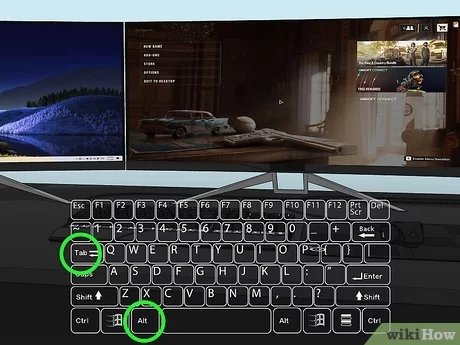
- Alt+Tab: Use Alt+Tab to quickly switch to the game window and then move the game to the desired monitor.
- Windowed mode: If nothing else works, try running the game in windowed mode. This can be configured inside of the game settings.
Advanced Configuration
If you have a more sophisticated setup or specific needs, you might need to dive a little deeper:
Using Graphics Card Control Panels
Both NVIDIA and AMD graphics cards have their own control panels that allow you to fine-tune display settings. These settings can sometimes override the game settings.
For NVIDIA:
- Right-click on your desktop and select NVIDIA Control Panel.
- Go to Display > Set up multiple displays.
- Select your preferred screen as the main screen.
- There may be additional settings to adjust for each individual monitor including resolution, refresh rate and others.
For AMD:
- Right-click on your desktop and select AMD Radeon Software.
- Go to Display tab
- Select the monitor you want to make main display.
- There may be additional settings to adjust for each individual monitor including resolution, refresh rate and others.
Note: These graphics control panels may have options to select application display specific settings and override the game configuration if you so wish to do that.
Using DisplayFusion
For advanced multi-monitor users, there are tools like DisplayFusion that can further help you manage your screens. DisplayFusion is a paid third party tool. This software makes managing multiple monitors easier, it allows you to create a multiple profile with monitor settings, this way you don’t have to change them manually.
DisplayFusion adds features that are missing from windows including:
- Monitor profiles: It can save your monitor setup, that is useful if you regularly change your monitor setup.
- Advanced window management: You can set rules for how windows open, for example always open games on monitor 2.
- Hotkeys: You can move applications between monitors with hotkeys.
- Taskbar on each monitor: You can get a taskbar on each display.
Multiple GPU Setup
If you have multiple graphics cards, it’s crucial to know which GPU is handling which display. Usually, the display connected to the primary graphics card (the one in the top slot of your motherboard) is the one Windows uses as default. You can configure your display settings to utilize the GPUs that are connected to the specific display.
Switching your game to another monitor doesn’t have to be difficult. With a bit of understanding of your display settings and your game’s options, you should be able to enjoy your game on any of your monitors. Remember to always check your drivers and update them regularly. By following the above steps, you can set up your multiple monitor setup with ease and enjoy your games to the fullest potential.
How To Move Full Screen Game To Other Monitor – Full Guide
Final Thoughts
To switch game to another monitor, use Windows key + Shift + Left/Right arrow. Game settings might also offer display options, so check them. Some games have specific shortcuts.
Remember, different games and setups may act slightly different. Experiment a little if required. Ultimately, how to switch game to another monitor becomes simple with a bit of practice.

