
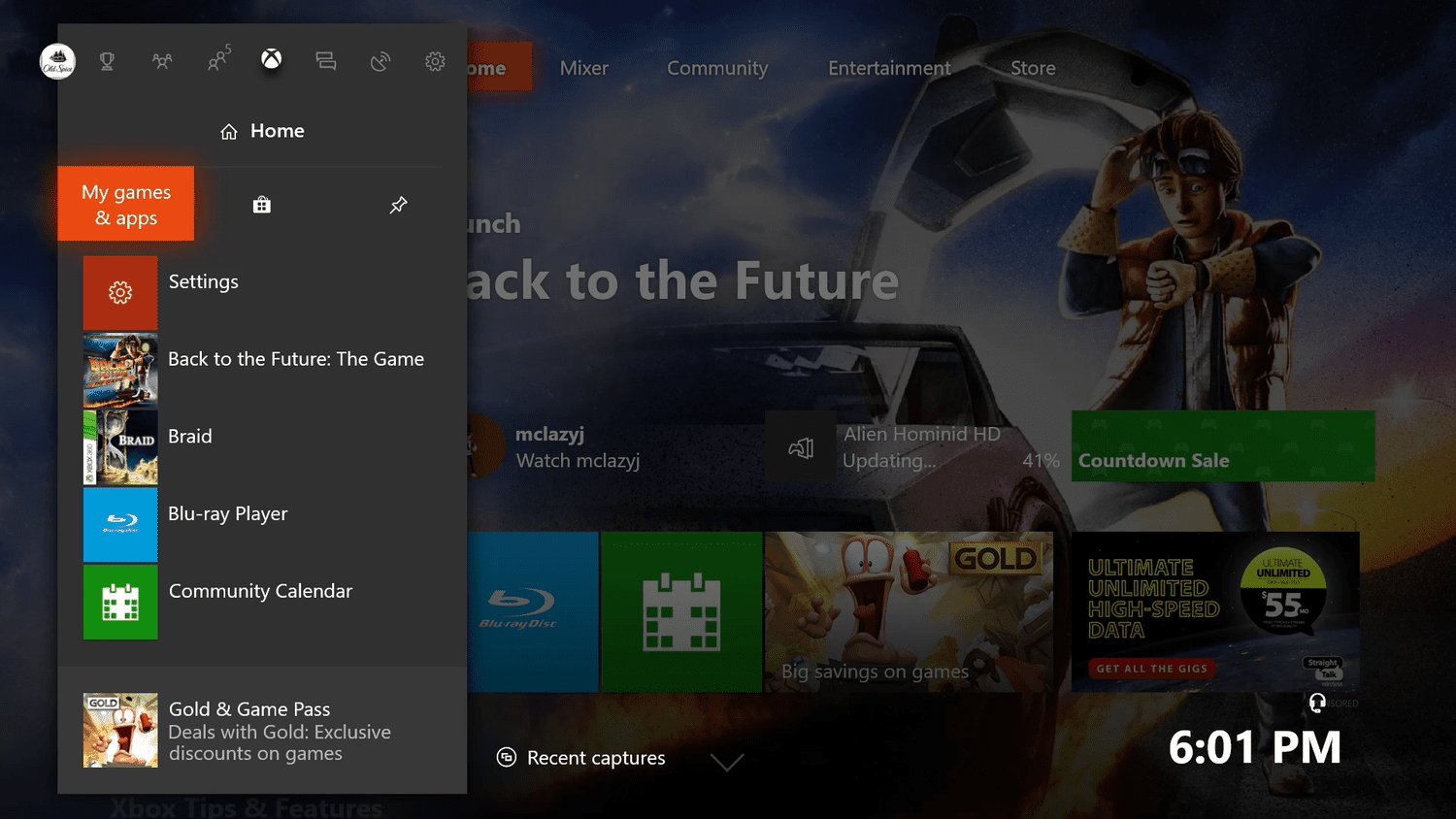
To remove games from Xbox One, highlight the game, press the Menu button on your controller, select ‘Manage game & add-ons’, and then choose ‘Uninstall’.
Ever felt your Xbox One’s storage getting cramped? It happens, especially with all those amazing games available. You might be asking, “how do you remove games from xbox one?” It’s a common question, and thankfully, the process is quite simple.
Freeing up space is essential, so you can make room for new titles or updates for your favorites. We’ll walk you through the easy steps to declutter your console. Get ready to learn how.

How Do You Remove Games From Xbox One?
Okay, so you’ve got your Xbox One, you’re playing all the awesome games, but maybe your storage is starting to look a little full. Or perhaps you finished a game and you’re ready to say goodbye. Whatever the reason, learning how to remove games from your Xbox One is super important! It’s like cleaning up your room, but for your console. Don’t worry, it’s not hard at all, and we’re here to show you exactly how it’s done. Let’s dive in!
Understanding Game Storage on Xbox One
Before we start deleting games, let’s quickly chat about how your Xbox One stores them. You see, the Xbox One doesn’t just keep game discs. It actually copies the game data onto its hard drive (or an external hard drive if you have one). This is so your games load faster and play smoother. This means you’re not just removing the disc from the console; you’re deleting the saved game files from the hard drive.
Internal vs. External Storage
Your Xbox One comes with its own internal hard drive. This is where it usually stores all the games, apps, and saved data. But you can also add an external hard drive (like a portable hard drive) to give you even more space. This is awesome if you have a ton of games. Knowing where your games are stored—either on the internal hard drive or an external one—is important when removing games.
Think of it like your book shelf at home. Your internal storage is like your main shelf that came with the house. The external is like an extra shelf you added because you love reading books (games!).
Methods for Removing Games
Now, let’s get to the good part: actually removing those games! There are a few ways to do this, and we’ll go through each one step by step. It’s like having different tools to clean up, sometimes you need a broom, sometimes you need a vacuum. Here are the main methods you can use:
- Removing Games Directly from “My Games & Apps”
- Uninstalling Games Through the Game’s Manage Section
- Using the Storage Management Menu
Removing Games Directly from “My Games & Apps”
This is one of the easiest ways to remove games, and many players use this method frequently because it’s very user-friendly. Here’s how you do it:
- First, turn on your Xbox One and go to the Home screen by pressing the Xbox button on your controller.
- Next, go to “My games & apps.” You can usually find this on the right side of the Home screen. Select it.
- Now, you will see a list of all your games and apps. Scroll down and find the game you want to remove.
- Once you have highlighted the game, press the Menu button on your controller (it’s the button with three lines).
- A small menu will appear. Select “Uninstall” (or sometimes, “Remove”).
- The system will ask to confirm your action. Select “Uninstall” again to confirm the game removal.
- The game will now begin to uninstall. You can see the progress on the screen. Once the process is completed, the game will be removed from your Xbox One.
That’s it! The game is gone. This is like putting away one of your toys when you are done playing with it.
Uninstalling Games Through the Game’s Manage Section
Another excellent way to remove games is through the game’s manage section. This is a more detailed way to deal with the games if you need to uninstall add-ons, or need to see other details about the game before uninstalling. Here’s how to do it:
- Go to the Home screen on your Xbox One.
- Navigate to “My games & apps” and press the “A” button.
- Find the game you want to remove.
- Highlight the game. Press the Menu button on your controller.
- Select “Manage game & add-ons”.
- On the next screen, you should see “Uninstall all.” If you do not see the “Uninstall All” option you will have to individually uninstall each section of the game by selecting it and then selecting uninstall.
- Select “Uninstall all” and the game will be uninstalled from your Xbox One.
This method allows you to control what parts of the game are uninstalled, if the game has extra content.
Using the Storage Management Menu
The storage menu is great for looking at all the space being used on your Xbox and removing multiple games at once if you need to. Here’s how to access and use this menu:
- From the Home screen, press the Xbox button on your controller to bring up the guide menu.
- Go to “Settings” (the gear icon).
- Select “System.”
- Select “Storage.”
- You will see a list of the places where you have installed games. These will be your Internal Hard Drive or the name of an external storage device if you have one. Click on the device you want to manage.
- You will now see all the games and apps that are on the selected storage device. Highlight the game you wish to remove.
- Press the Menu button on your controller.
- Select “Uninstall”.
- Confirm the uninstall. The game will now be uninstalled.
The storage menu can be great to use to help you know what is taking up the most space and what you should uninstall.
Things to Keep in Mind
Okay, you now know how to remove games, but here are a few extra things to keep in mind:
Deleting Doesn’t Delete Your Progress
Don’t worry! Removing a game from your Xbox One doesn’t mean you’re losing all your game progress. Usually, your saved game data is stored in the cloud (the Internet). This means if you install the game again later, you can continue right where you left off. This is like remembering where you left off in a book even when you close it for a while.
Reinstalling Games
If you decide you want to play a game again that you deleted, it’s not a problem! You can always reinstall it from the Microsoft Store, or by re-inserting the game disc. It’s like putting your book back on the shelf.
Organizing Your Game Library
Sometimes you do not need to uninstall a game if you just need to organize your list of games. You can create groups in your library to organize all of your games in an easy to see way. Here’s how to do it.
- Go to “My games & apps” and select the game you want to group.
- Press the Menu Button. Select “Add to Group”
- Select “Create New Group” or add the game to an existing group.
This will allow you to organize your game library how you see fit.
Troubleshooting Common Issues
Sometimes things don’t go perfectly. Here are some common problems that can happen and how to handle them.
Game Won’t Uninstall
Sometimes, a game might seem like it’s not uninstalling. Here are some things you can try:
- Restart Your Xbox One: Turn your console off, then turn it back on. Sometimes a simple restart can fix little glitches.
- Check for Updates: Make sure your Xbox One has the latest system software. Sometimes updates can fix issues that keep games from uninstalling properly.
- Try a Different Method: If one method does not work, try using the storage management method to uninstall the game.
Not Enough Storage Space
If you’re trying to install a new game but keep getting a message saying you don’t have enough storage, here are some things you can do:
- Uninstall Games You Don’t Play: Go through your games list and remove the ones you don’t play anymore.
- Use an External Hard Drive: Get an external hard drive and move some of your games there to free up space on your internal drive.
- Delete Old Game Capture Clips: Sometimes captured videos of your gameplay can take up a lot of space. You can delete them in the capture section of the console.
These tips will help you make sure you have enough space for the games you want to play.
Game Still Appears After Uninstall
Sometimes even after uninstalling a game, it might appear on your list of games. If you have the game installed through a Game Pass subscription, the game might still appear on your list, but it will say “Ready To Install”. If you don’t have game pass, but the game still appears, the game might still be installed and you should use one of the methods above to uninstall the game.
In the end, removing games from your Xbox One is easy and straightforward once you know how. Keep your console clean and only store the games you love the most. Now, you are all set to manage your games like a pro!
How to DELETE GAMES on XBOX ONE & Uninstall APPS (Easy Method!)
Final Thoughts
To remove games, navigate to “My games & apps,” highlight the title, press the menu button, and select “Uninstall.” This process effectively deletes the game from your console’s storage.
You can also manage storage within the settings menu, deleting games and other content. Knowing how do you remove games from xbox one is vital for maintaining space.
These methods enable you to efficiently manage your Xbox library and free up space. Always confirm you want to uninstall before proceeding with the game removal.

