
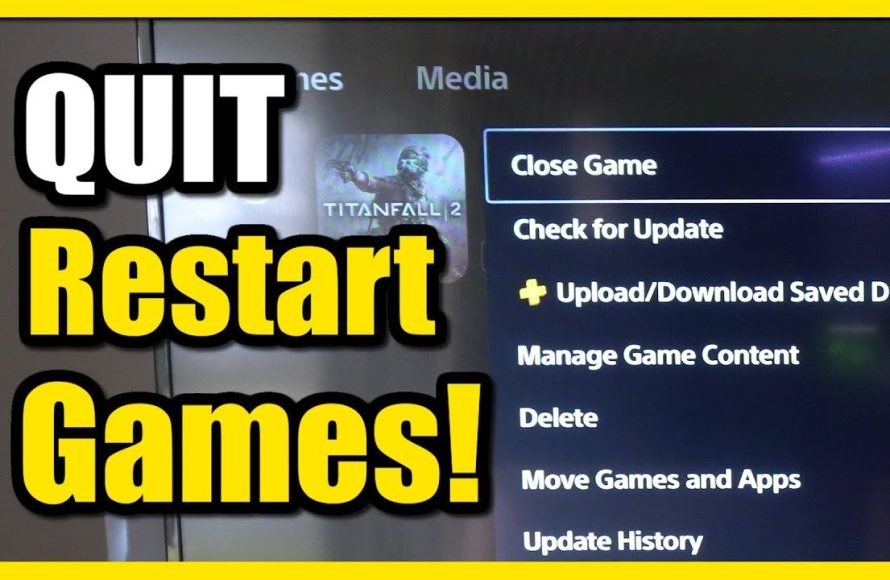
To restart a game on PS5, close the game completely by pressing the PlayStation button, navigating to the game tile on the home screen, pressing the options button, and then selecting “Close Game”. You can then relaunch it from the home screen.
Ever found yourself in a tricky spot in a game and wished for a fresh start? You’re not alone, many players wonder, how do you restart a game on PS5 when they get stuck or simply want a clean slate. Fortunately, the process is straightforward.
It might seem complicated at first, but it’s just a few quick steps. You just have to completely close the game and relaunch it. This will give the game the fresh start you might desire.

How Do You Restart a Game on PS5?
Sometimes, when you’re playing a video game on your PlayStation 5 (PS5), things might not go as planned. Maybe you got stuck, want to try a different strategy, or just want to start fresh. The good news is, restarting a game on your PS5 is easy! This guide will show you all the ways to do it, so you can jump back into your game and have fun.
The Quickest Way: Closing and Reopening
The most common way to restart a game is by completely closing it and then opening it again. Think of it like turning a light switch off and then back on. This method usually clears out any temporary issues and gives you a clean slate to play from.
How to Close a Game
Here’s how to close a game on your PS5:
- Press the PlayStation button on your controller. This is the button with the PlayStation logo in the middle.
- This will open the Control Center at the bottom of your screen.
- Now, you need to select the game you are currently playing from the activities card.
- Once you select the game card, then press the options button (the button with three horizontal lines).
- From the menu that pops up, select “Close Game.”
Your game will now close. You’re ready for the next step!
How to Reopen the Game
Now that the game is closed, follow these simple steps to reopen it:
- Go back to your PS5’s home screen using the PlayStation button.
- Find your game in the Games section. It might be on your main games list or in your game library.
- Select the game icon and press the X button on your controller.
- The game will start again from the beginning or from the last save point.
That’s it! You’ve successfully restarted your game by closing and reopening it. This is the go-to method for most situations.
Using the Game Menu for Restarting
Some games have their own restart option within their menus. This is useful if you want to quickly start the level or game again without having to fully close and reopen the game application. However, not all games offer this feature.
Finding the Game’s Menu
When you’re inside a game, different games have different menu designs. However, the most common way to open the menu is:
- Press the options button on your controller (it’s usually the button with three horizontal lines).
- This will usually bring up a pause menu or the game’s main menu.
Looking for Restart Options
Now that you have the game’s menu open, you’ll need to look for specific restart options. These can go by different names, such as:
- “Restart Level”
- “Restart Game”
- “Try Again”
- “Load Last Checkpoint”
Choose the option that best fits what you’re trying to do, press the X button, and the game will restart based on the option you chose.
If there is not a restart option in the game’s menu then close and reopen game as described in previous section.
Restarting from a Save Point
Many games don’t allow you to completely restart the whole game, but instead, have save points or checkpoints where you can return to. These allow you to go back in time within the game.
What are Save Points?
Save points are like little markers in the game that remember where you were. When you return to a save point, you don’t lose all your progress. Here’s how they work:
- Automatic Saves: Some games save your progress automatically at certain points. These are often called autosaves.
- Manual Saves: Other games allow you to save your game yourself at certain spots using their in-game menu.
How to Restart from a Save Point
If you need to start again from a save point, here’s what you should do:
- Open the game’s menu by pressing the options button on your controller, as previously mentioned.
- Look for options like “Load Game,” “Load Save,” or “Load Checkpoint.”
- Select the save you want to return to, then choose the save point you want to start from.
- The game will now load from the point you selected.
Keep in mind if the game does not have an option to load a save then close and reopen the game to restart from start or last save.
Restarting a Multiplayer Game
Playing with others online? Restarting a multiplayer game might be a bit different. It depends on the game itself and how it’s set up. Here are some things to consider:
Leaving a Multiplayer Match
If you want to restart a multiplayer match, you usually need to leave the match you’re currently in first. Here’s how to do it:
- Open the game’s menu using the options button on your controller.
- Find an option to “Leave Match,” “Exit Game,” or something similar.
- Select this option.
This will take you back to the game’s main menu.
Joining a New Match
Now you can start a new multiplayer match.
- From the game’s main menu, find the multiplayer or online play option.
- Choose the type of match you want to play.
- The game will search for a new match and add you to it.
Sometimes, there may be a “Rematch” button after the multiplayer match. Selecting this button may allow you to start a new game with the same players.
Troubleshooting Restarting Issues
Sometimes, despite your best efforts, restarting a game might not go smoothly. Here are a few common problems you might encounter and how to solve them:
Game Freezing or Not Closing
If your game freezes or doesn’t close when you try to do so, you might need to force-close it. Here’s how:
- Press and hold the PlayStation button on your controller for a few seconds.
- This will bring up the quick menu.
- Select the game you are trying to close.
- From the menu that pops up, select “Close Game.”
If that doesn’t work, try restarting your console.
How to Restart Your PS5 Console
- Press the PlayStation button on your controller to go to the Home Screen.
- Select the settings icon (it looks like a gear).
- In the settings menu, go to “System.”
- Choose “Power.”
- Select “Restart PS5.”
This will turn your PS5 off and back on, which can help clear up many problems. After your console restarts, open your game again.
Game Not Saving Progress
If you notice your game isn’t saving your progress, it could be due to a problem with the game or your system. Check the following:
- Sufficient Storage: Make sure your PS5 has enough space to save game data. If your storage is full, delete games or applications.
- Game Updates: Ensure your game is up to date. Sometimes a game bug can prevent progress from being saved.
- Game Settings: Check the in-game save options. Make sure autosave is enabled, or try to save manually if possible.
- System Updates: Ensure that your PS5 has the latest system updates.
When Nothing Works
If you’ve tried all the above steps and you still can’t restart a game properly, try these last resorts:
- Contact Support: Contact the game’s developers or PlayStation customer support for more specialized help.
- Reinstall Game: You can try deleting and re-installing the game on your console. You may lose your saved games, but sometimes this is the only fix.
Restarting games on your PS5 is a normal part of gaming. By understanding the different methods available, you can quickly get back to having fun. From closing and reopening games to using in-game options, there are several ways to make sure you start just where you want to be. If you experience any issues, our troubleshooting tips will guide you through to a solution. Happy Gaming!
How to Reset PS5 Games & Delete Game Progress (Easy Method)
Final Thoughts
To restart a game on your PS5, first close the game by pressing the PlayStation button and selecting “Close Game.” Then, relaunch it from the game library or the home screen. This action effectively restarts your game session.
You can also try a complete console restart if facing more persistent issues. Turning the console off and then on will often clear any temporary problems. So, that’s how you restart a game on PS5.

