
Discord identifies the game you’re playing by actively detecting running processes on your computer, matching them against a database of known games.
Ever wondered how your friends on Discord always seem to know exactly what you’re playing? It’s a frequent question, and many of us think, ‘how does discord know what game youre playing?’.
Discord uses a clever method of identifying which applications are actively running on your device. It then cross-references this with a large list of games, allowing it to display your current activity to your contacts.

How Does Discord Know What Game You’re Playing?
Ever wondered how Discord magically knows when you’re battling dragons, racing cars, or building amazing worlds? It’s not mind-reading, I promise! Discord uses some clever tricks to figure out what game you’re playing, and it’s all about making it easier for your friends to know what you’re up to. Let’s dive into the secret world of how Discord identifies your game activity. We’ll explore everything from the basic way games send information to Discord, to the more complex methods for games that don’t directly talk to Discord.
The Magic of Game Activity Detection
Discord’s game detection isn’t really magic, it’s technology! It relies on a few methods. The most common way is when a game directly tells Discord, “Hey, I’m running, and my name is [Game Name]!” Think of it like the game having a little messenger that runs to Discord and gives it the information. This direct communication is the easiest and most accurate way for Discord to know what you’re playing.
How Games Communicate Directly with Discord
Many modern games have an integration specifically designed to work with Discord. This means the game developers put some special code inside the game that lets it interact with Discord. When you launch a game like this, it automatically sends a signal to Discord with details like:
- Game Name: The official name of the game (e.g., Minecraft, Fortnite, League of Legends).
- Rich Presence Information: Sometimes, games share more details, like the character you’re playing, the map you’re on, or even your current score. This is what makes your Discord profile so informative!
- Start and End Times: Discord knows how long you’ve been playing. This helps your friends know when you’re free.
This direct communication is the preferred method because it’s the most reliable and allows for that cool “rich presence” feature. Games with this integration often show specific game artwork on your profile, and you can sometimes even join games directly through Discord.
The Process: From Game to Discord
Let’s break down the exact steps of how a game communicates with Discord. When you launch a game with Discord integration, the following things happen:
- Game Starts: You fire up the game on your computer.
- Game’s Messenger: The game’s internal code (like that messenger we talked about) detects you are playing it.
- Message to Discord: The messenger sends a message to the Discord application running on your computer.
- Discord Receives Info: Discord receives the message and updates your status, displaying the game on your profile.
- Dynamic Updates: As you play, the game may send updates to Discord, sharing things like your current location or progress, which shows up on rich presence.
What Happens When a Game Doesn’t Talk Directly?
Not every game has that built-in messenger. What happens then? Discord isn’t completely stumped! It has other ways of figuring things out, though they might not be as precise or detailed. These alternative methods involve Discord “looking” at your system to see what applications are running.
Using Window Titles
One clever method Discord uses involves something called “window titles.” When you open a program or game on your computer, it has a title displayed on the window’s top bar. Discord looks at these window titles. If a window title matches a known game title in Discord’s database, it displays that game on your profile. For example, if you are playing “Stardew Valley” and the window is named “Stardew Valley – 1.5.6” discord will likely be able to identify the game you are playing.
- Simple Matching: It’s like comparing the window title to a list of known game names.
- Less Detail: This method usually doesn’t provide the detailed “rich presence” info.
- Sometimes Misidentifies: Sometimes, if a window title is similar to a game, Discord might get confused.
Process Name Detection
Another method Discord uses is checking your computer’s process list. Every application running on your computer has a “process name”, which is a unique identifier. Discord scans this list, and if it finds a process name that matches a known game, it assumes that you’re playing that game. Think of it like looking at a list of all the programs currently active on your computer and seeing what matches with known games.
- Process names: Discord looks at the specific names programs use behind the scenes.
- More complex than window titles: This method is better at finding the right game if window titles are not very distinct.
- Still no rich presence: This method also usually just tells Discord the basic game you are playing.
The Role of Discord’s Game Database
Behind the scenes, Discord has a big database of games. This database isn’t just a simple list of game names; it contains a lot of information for each game:
- Official Names: The correct spelling of the game’s name.
- Window Titles: Common variations of window titles.
- Process Names: The program process identifiers.
- Rich Presence Integration Details: Information on how to connect to and display that extra data from the game.
- Game Art: The icons and artwork displayed on profiles when you are playing.
This database gets updated frequently, to keep up with new game releases and updates. Without this, Discord would struggle to recognize many games.
Why Discord May Not Recognize a Game
Sometimes, Discord just doesn’t get it right. It might not show the game you’re playing, or it might show a completely different game! There are several reasons why this can happen:
The Game is New
If a game is brand new, it might not be in Discord’s database yet. It takes time for Discord to add new games, especially if the game isn’t super popular. You might just see “Playing a game” rather than the name of the specific game.
No Direct Communication and Confusing Titles
If the game doesn’t directly talk to Discord and its window title or process name is ambiguous, Discord might get confused. It might think you’re playing something else or not show any game activity at all. For example, if a game has a generic window title, or has many similar words in its process name as other games, that can cause an issue.
Technical Issues
Sometimes, technical issues on either your computer or with Discord’s service can stop the detection from working correctly. It might be a software conflict, a network problem, or even a bug in Discord itself. Also if Discord is not running with the elevated permissions to scan the processes and windows you have running on your system, it may fail to be able to detect any games.
Games in Web Browsers
Games that run directly inside a web browser can sometimes be more challenging for Discord to detect because they might not have their own unique process name or distinct window title. Although, discord has been working on improving on the way it detects games in browser windows.
What You Can Do When Discord Doesn’t Recognize Your Game
If Discord doesn’t automatically recognize your game, don’t worry! You can often fix it:
Manually Add the Game
You can manually add the game through Discord’s settings. Here’s how:
- Go to your Discord User Settings.
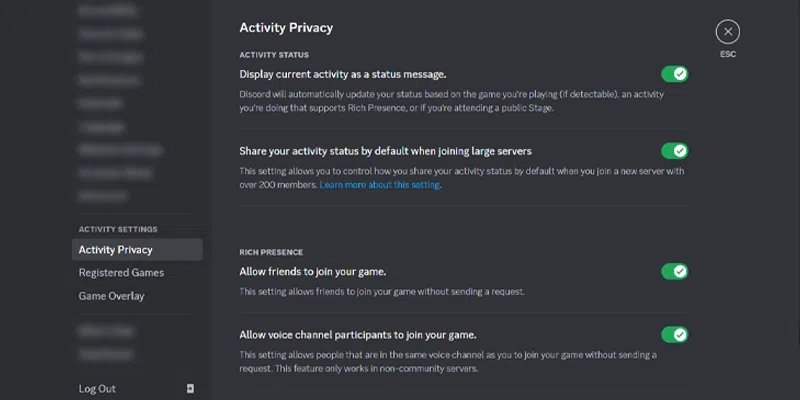
- Select the “Activity Privacy” option.
- Click on “Add it!” next to the text saying “Not seeing your game?”
- Select the application from the dropdown list.
This tells Discord specifically what application to associate with your game activity.
Restart Discord
Sometimes, simply restarting Discord can resolve temporary glitches that might be stopping the detection from working. This is like giving your Discord a fresh start.
Restart your Computer
If restarting Discord doesn’t help, restarting your computer can sometimes fix underlying issues that might be preventing Discord from detecting the game properly.
Check for Discord Updates
Make sure that your Discord application is updated to the newest version, as that contains fixes for past bugs and improvements to the app’s functionality that might be causing your detection issues.
Community Suggestions
Discord has a vast and active community. You can often find helpful suggestions online or in Discord support forums. Other people may have already found solutions to the same game detection issue.
A Final Look
Discord’s game detection system is quite clever, using a combination of direct communication from games, window title analysis, process scanning, and a database of game information. While not perfect, it’s designed to be efficient and helpful, allowing you to easily share your current gaming adventures with your friends. When it doesn’t work, you now know the reasons why and how to try and fix it. As time passes and new technologies come out, Discord is likely to further refine its approach to game activity detection, further ensuring that it is an accurate depiction of your gameplay.
How to Show What Game You're Playing on Discord
Final Thoughts
Discord detects your game activity through a few methods. Primarily, it uses game executable files. Discord scans running processes and matches them against a database of known games.
When it identifies a match, it displays the game title in your profile. This process happens automatically and generally quickly. ‘how does discord know what game youre playing’ essentially boils down to its process-scanning ability and game database.
Discord utilizes APIs to gather rich presence information from supported games too. It means some games can provide custom data like match scores, level, etc. This allows for more detailed display of your gaming experience.

