
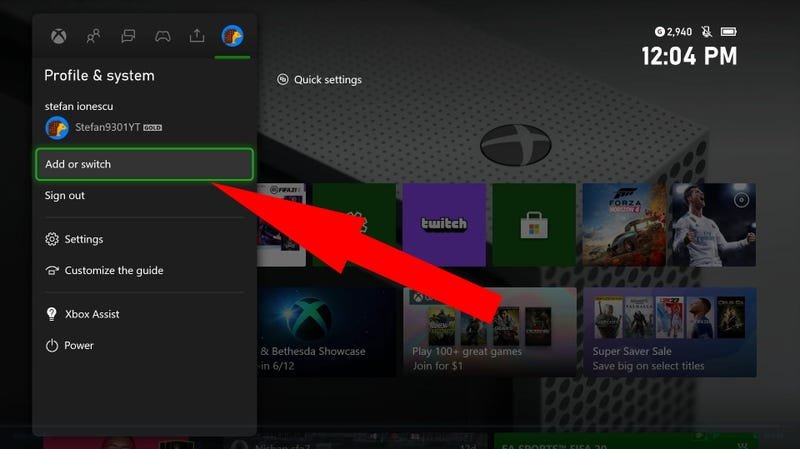
Game share works by allowing a user to designate a console as their “home” console, enabling other profiles on that console to access their digital game library.
Ever wondered how your friends can play games you purchased without using your account? It’s all down to the magic of game sharing. Many console platforms offer this feature, but understanding the specifics can be a little tricky.
How does game share work? The basic concept involves linking your digital game licenses to a particular console. You can then share those games with other users on that specific console. It is a convenient way to share games among family or friends who share a console.

How Does Game Share Work?
Have you ever wished you could play a game your friend has without buying it yourself? Or maybe you wanted to share your awesome collection with someone? That’s where game sharing comes in! It’s like lending a book, but for video games. But how does it actually work? Let’s dive in and see what’s happening behind the scenes.
The Basics of Digital Game Sharing
Digital game sharing, at its heart, is about letting someone else play a game you bought digitally. Instead of having a physical disc, you’ve got a download linked to your account. This makes sharing a little more complicated than just handing over a disc. Different platforms like PlayStation, Xbox, and even some PC launchers, have different ways of making it happen. So, what’s the general idea?
Think of it like this: your digital game is tied to your “home” console or computer, and your user profile. When you game share, you’re basically giving another console or user profile access to your library. They can play the games, often as if they bought them themselves, while you can still access your own library as well. This all happens through online systems. Let’s see how these platforms achieve this.
Game Sharing on PlayStation
PlayStation uses a system that combines “Primary Console” and account sharing. It sounds confusing, but it’s not too hard to grasp once you break it down.
Setting up Console Sharing and Offline Play
First, you have to set up a primary console. Here’s how it usually goes:
- On the console you want to share games from, log in with your PlayStation Network (PSN) account.
- Go to “Settings,” then “Account Management.”
- Look for something like “Console Sharing and Offline Play,” which may be named differently depending on your PS5 or PS4 system version
- Enable Console Sharing and Offline Play
This makes that console your “primary” one. Now, anyone who uses that console will be able to play your digital games, even with their own user profile. And here’s the cool part: you can still play your games on another PlayStation too, logged into your profile, though you need to be connected to the internet.
The Importance of Primary Console
The “primary console” is the key here. It’s like a home base for your digital library. Everyone who uses a primary console can access and use that account’s digital downloads, whether they have their own profile or a guest profile. It’s great for families who share a single console.
Play Limitations on PlayStation
It’s important to remember the limitations. When you’re using your account on your “non-primary” console, you will need an active internet connection to play your games. This is because PlayStation needs to verify your purchase, it is a method to stop users from sharing the game library across many consoles/profiles. Also, If the user is using your account on a non-primary console, they may have issues playing the game at the same time that you’re using the same account and playing a game on your primary console.
Game Sharing on Xbox
Xbox has its own system that’s similar to PlayStation but uses slightly different terms. It’s based around the concept of a “Home Xbox.”
Designating Your Home Xbox
To set up game sharing on Xbox, follow these steps:
- Log in with your Xbox Live account on the Xbox you want to share games from.
- Go to “Settings,” then “Personalization.”
- Select “My home Xbox.”
- Choose “Make this my home Xbox.”
This designates that Xbox as your “home Xbox.” Any profile on that console can now access your digital game library, and if you have Xbox Live Gold, they can play multiplayer games, without the other user needing an extra subscription to Xbox Live.
How It Works
Much like PlayStation’s primary console system, the ‘Home Xbox’ has a direct link to your game library. Anyone using it can access and play your digitally owned games, even when you are not on the console or even if you’re logged into another Xbox elsewhere. However, when you sign in to another Xbox, it needs an internet connection to verify your game library. It’s simple and user-friendly for families and friends who play together.
Xbox Limitations to Game Sharing
Xbox also has limitations on game sharing. The same as playstation, you can only have one “Home Xbox” set at a time. If you try to use your account on a different Xbox, you’ll need to be connected to the internet to access your games. Also, if you are playing games on your non home Xbox, at the same time someone else is playing the same game on your home xbox using your account/library, you’re going to get a message on the non-home xbox that you can’t continue to play the game because it’s being played elsewhere, this is also for security reasons.
Game Sharing on PC Platforms
PC game sharing is a little more varied because there’s no single “console” like PlayStation or Xbox. Instead, it depends on the game launchers and platforms you use, like Steam, Epic Games Store, and GOG.
Steam Family Sharing
Steam has its own feature called Family Sharing which allows sharing of most of your game library with other users logged into the same PC. It’s a popular way to share games among friends and family members.
How to Set up Steam Family Sharing:
- Log into your Steam account on the computer you want to share from.
- Go to “Settings,” then “Family.”
- Click the “Authorize Library Sharing on this Computer” button and choose the user profiles from the same PC you want to share with.
Once set up, those authorized users can access and play the games from your library on that specific PC. Here is one condition with Steam Family Sharing, only one user can play one game from the shared library at any given time. If the game owner wants to play the same game on the non home computer or laptop, it will kick the user who’s playing the game out.
Limitations on Steam
Family Sharing on Steam is not a perfect solution. There are limitations to consider. The games must be compatible with Family Sharing (some games are excluded, specifically from third-party publishers who don’t want to participate in this method), and your entire library isn’t always shareable. There’s no sharing games between users using different PCs. Each user needs to be using the same computer for the game sharing to work. Steam accounts cannot play any game from the shared library if the main owner is playing any game from the same library, and they can not play the same game. Steam also has a system in place to monitor and restrict accounts that frequently have a library share between different accounts on the same PC, or users are abusing this method of game sharing.
Epic Games Store and GOG
The Epic Games Store and GOG, while having some similar features to Steam, don’t have a built-in system as comprehensive as Steam Family Sharing. Instead, you need to share your whole account, which comes with all of its challenges.
Sharing a full account isn’t recommended because it gives the other person access to your entire library and payment information. So there is no way to do true “game sharing” on GOG and Epic store. Many PC game owners simply buy multiple copies of a game if they want to play with their friends. You can still share the games by logging in with the same account, but that means you would have to switch back and forth between each other, and not be able to play a game simultaneously. It’s a case of balancing convenience with security.
The Benefits of Game Sharing
Why go to all this effort with setting up game sharing? There are some pretty good reasons:
- Save money: You don’t need to buy the same game twice! If a friend or family member already owns it, you can play it without extra cost. This is good for testing out a game before buying it yourself.
- Play with friends and family: It’s a simple way for more people to experience the same games, especially in homes where multiple people share the same console.
- Easy access: Once set up, access to the shared library is simple and convenient. No need to swap discs or anything similar.
- Try before buying: You can try a game that your friend or family has, and if you like the game you can purchase it for yourself.
The Drawbacks of Game Sharing
With the good also comes the bad. There are some problems with game sharing that you should know before starting it:
- Account Security: Giving access to your account can pose risks if you’re not careful. Sharing accounts with people you don’t trust can lead to problems. Always be aware of the dangers and make sure the other person is someone you can rely on.
- Internet dependency: You will always need internet to play your games on the non-home console/computer. If you go on a trip you will not be able to play any games on your Playstation or Xbox without an internet connection, even if it is a single player game.
- Conflicts with playing games simultaneously: You can’t usually play the same game simultaneously, or even any game, from the same library. This can be frustrating if you both want to game at the same time.
- Limited to one friend or family member: You will usually be able to game share with one user at a time. If you set another home console/computer, it will reset the game sharing with the previous one.
Things to Keep in Mind
Before you get started with game sharing, here are some important things you should know to make the process easy and safe:
- Read the fine print: Always check the specific policies of your console or platform. They sometimes change the rules, or have exceptions.
- Trust is Key: Only share with people you really trust, to help protect your account and payment information.
- Be respectful: When using the other person’s library, remember that they’re letting you access something they paid for. Do not change account settings and make sure that the access is being used according to what was agreed upon.
Game sharing is a fantastic way to get the most out of your digital game library, letting you play with family and friends without breaking the bank. Each platform has its own rules and quirks, so knowing how it works on your device is key. With all the benefits and possible problems listed above, you will be able to make an informed decision on whether you want to game share, or even purchase games for yourself. Just be sure to do it responsibly and share with people you trust and respect.
How to Game Share on Xbox ~The Easy Way~
Final Thoughts
Game share lets one console owner share their digital library with another. You designate a console as your “home” console. This allows anyone playing on that console access to your purchased games.
The other console, accessing your library, needs your account logged in. Only one person can play a specific shared game at a time from a single account. This explains ‘how does game share work’.

