
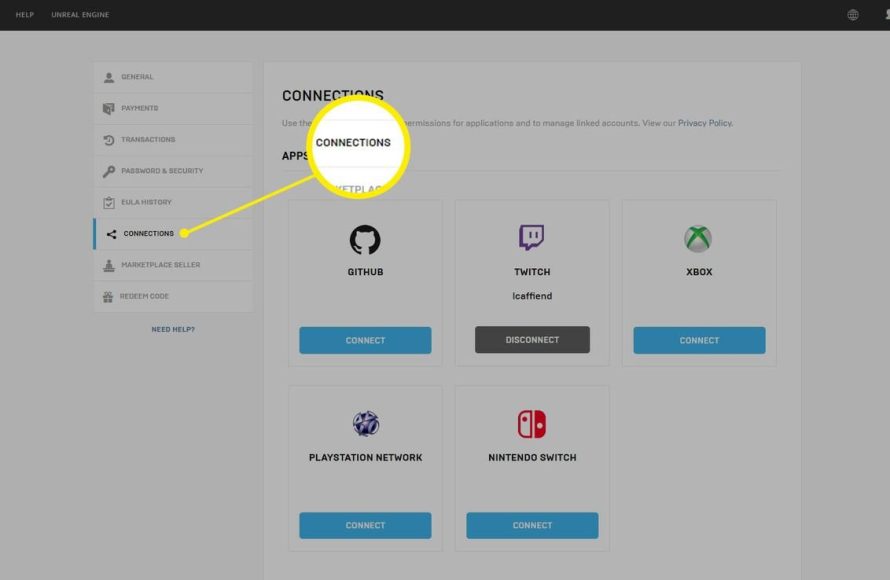
To unlink an Epic Games account from Xbox, you must visit the Epic Games website, sign into your account, go to ‘Connected Accounts’, find your Xbox connection, and then choose to disconnect it.
Ever found yourself needing to manage which accounts are linked to your Epic Games profile? It’s a common situation, especially when you’ve connected your Xbox account and maybe want to change it. This need can come up for various reasons, and it’s good to know how to unlink an epic games account from xbox. This guide will provide a clear path to get this done.

How to Unlink an Epic Games Account from Xbox
Have you ever accidentally linked your Epic Games account to the wrong Xbox profile, or maybe you just want to start fresh? It happens! Luckily, unlinking your accounts isn’t as tricky as it might seem. It involves a few steps, and we’re here to guide you through it all. Think of it like untying a knot – once you know the right way, it’s pretty easy. Let’s get started and see how you can separate your Epic Games account from your Xbox account.
Why Unlink Your Epic Games and Xbox Accounts?
Before we jump into the “how,” let’s briefly talk about “why.” You might want to unlink your accounts for several reasons. Here are some common ones:
- Account Mix-Up: Maybe you linked your Epic Games account to your friend’s Xbox or vice versa by mistake, or you have multiple xbox profiles, and you linked the wrong one.
- Starting Over: You might want to create a new Epic Games account and link it to your Xbox profile without any past data.
- Changing Primary Platform: Maybe you’ve switched to PC and don’t need the link anymore, or you’ve just acquired a new xbox, and want to link to that console.
- Privacy Concerns: You might want to control which accounts are linked for security or privacy reasons.
Whatever your reason, unlinking is often the best solution.
The Official Method: Unlinking Through Epic Games Account Settings
The most direct way to unlink your Epic Games account from your Xbox account is through the Epic Games website. Here’s how to do it:
Step 1: Visit the Epic Games Website
First, open your web browser (like Chrome, Firefox, or Safari) and go to the official Epic Games website. Make sure you’re on the real site – the URL is usually www.epicgames.com.
Step 2: Sign In to Your Epic Games Account
Click on the “Sign In” button, usually found in the top-right corner of the page. Enter the email address and password you use for your Epic Games account. If you have set up a two-factor authentication, enter the code as well.
Step 3: Navigate to Account Settings
After signing in, hover your mouse cursor over your username or profile icon (usually in the top right corner again), and a drop-down menu should appear. Click on the “Account” option in the drop-down list. This will take you to your account settings page.
Step 4: Find the Connected Accounts Section
On the Account settings page, look for a section called “Connections” or “Connected Accounts.” This is where you will see a list of all the accounts that are connected to your Epic Games account, including Xbox, PlayStation, Nintendo, and others.
Step 5: Unlink Your Xbox Account
Find the Xbox icon or label in the connected accounts list. You’ll usually see an option or a button near it that says “Remove,” “Unlink,” or a similar phrase. Click on this button. A confirmation popup may show on the screen, confirming you wish to unlink your account. Read the message carefully and confirm to finalize the process. Once the process is finished, the Xbox account should disappear from the list of connected accounts.
That’s it! Your Xbox account should now be successfully unlinked from your Epic Games account. After completing the above steps, it’s always good idea to double check by logging out and back in to make sure that the Xbox is not listed there.
What Happens After Unlinking?
Unlinking your accounts has some important effects. Knowing what happens can help you avoid any confusion later on:
Progress and Purchases
Here’s a crucial point: unlinking does not delete your game progress or any purchases made on either account. Your game progress and any items purchased using your xbox account are associated with your Epic Games account. Therefore, you won’t lose any of your progress or purchases when you unlink. They remain tied to your Epic Games account, even after unlinking from the xbox account.
Linking to a Different Xbox Account
You can link a different Xbox account to your Epic Games account after unlinking. This allows you to play your Epic Games games on a different console profile or the correct one after mistakenly linking the wrong one. This gives you the flexibility to control which Xbox account is associated with your Epic Games account.
Re-linking the Same Xbox Account
If you want to link the same Xbox account again, you can. If you’re experiencing a problem and thought that unlinking and re-linking would fix it, then that process can be done. Keep in mind that this process will not reset your data or progression.
Troubleshooting Common Unlinking Problems
Sometimes, things don’t go as smoothly as planned. Here are some common issues people run into when unlinking their Epic Games and Xbox accounts and how to fix them:
Problem: The Unlink Option Isn’t There
Solution: First, ensure that you are logged in to the correct Epic Games account. Double-check if you’re seeing the correct username in the top right corner of the screen, or verify the email associated with your account. If you are on the right account, try refreshing the page. Sometimes the page can be slow to update. If the option is still missing, try using a different web browser. It’s possible that your current browser has a compatibility issue with the website. Clearing your browser’s cache and cookies could be helpful too.
Problem: An Error Message Appears During Unlinking
Solution: Pay close attention to the error message provided. It might offer clues about why the unlinking failed. Some common reasons include server problems on Epic Games side, or if the Xbox account is linked with a different Epic account, so make sure to investigate this issue. Wait for a short while, and then try again. Restart your computer or web browser to ensure that the issue is not related to a temporary browser glitch. If the problem keeps happening, you can contact Epic Games’ support to further investigate the issue.
Problem: Unable to Link to a New Xbox Account
Solution: Double-check that you have unlinked from the current Xbox account first. If you’re trying to link to a new Xbox account, make sure that the new account is not already linked to another Epic Games account, as an Xbox account can only be linked to one Epic Games account at a time. Also ensure that your Xbox and Epic accounts region matches, because if you have region mismatch, you might experience issues while linking or unlinking your accounts. If all checks out, and you still can’t link the account, then, it might be a temporary server issue or something wrong on the Epic Games side, so you may need to try again later. If the issue persists, reach out to Epic Games support to figure out the root cause of the problem.
Problem: Progress or Purchases Disappeared After Unlinking
Solution: This shouldn’t happen because unlinking only breaks the connection, not the data. If you see your data or purchases missing, it’s likely that you are using a different Epic Games account now. Ensure that you are using the correct Epic account that you were using with your Xbox account. Double check the email address associated with the Epic Games account. This is a common mistake. If that does not resolve the issue then contact Epic Games support and they will be able to look into the issue.
Alternative Methods (If the Official Method Fails)
While the method described above is the official one, there are some alternative things you can try if the official method isn’t working.
Checking your Xbox Profile Settings
Sometimes, an option to remove the connection can appear in your Xbox profile settings (though it’s not as common). To check this:
- Sign in to your Xbox profile on your console or on the Microsoft website.
- Go to your profile settings, and look for an option to manage connected accounts or linked services.
- If you see an option to remove the Epic Games account, use that.
If this option is not available in your Xbox account settings, then use the official method.
Contacting Epic Games Support
If all the above troubleshooting methods fail, then it’s time to contact Epic Games support directly. Here is how you can do it:
- Visit the Epic Games Support page.
- Find the contact option (usually a “Contact Us” button).
- Explain your situation clearly, stating that you have issues with unlinking your xbox account from Epic Games account. Provide as many details as possible, such as what error messages you have received, or what methods you have already tried.
- Follow the instructions provided by their support team.
Contacting support will help because they have access to the back end systems and can help resolve the issue more effectively. They can manually unlink accounts if necessary. Usually they are very quick to respond to issues, but it may vary. Be patient while waiting for them to respond.
Social Media Support
Some companies have customer support channels on social media like X (Twitter). Epic Games may have a team that is dedicated to addressing customer queries on social media. You can try contacting their official social media account and see if they can help. If you are contacting them on Social Media, it is not guaranteed that your issue will be resolved, but it is another thing that you can try, if all else fails.
Tips for Avoiding Future Linking Problems
To prevent similar linking or unlinking issues in the future, consider these tips:
- Double-Check Before Linking: Always verify that you are linking to the correct Xbox account and Epic Games account before you confirm. Make sure you are logged into the correct profile, before you finalize the linking of your accounts.
- Use a Password Manager: A good password manager can help you keep track of your account credentials, reducing the chances of you accidentally using the wrong account. Many password managers can store your email, username and passwords, along with two-factor authenticator codes.
- Keep Accounts Organized: Try to use consistent emails and usernames across different gaming platforms. This makes it easier to keep track of which account is linked to which.
- Regularly Review Linked Accounts: Take a look at your Epic Games account connections every now and then to ensure everything is linked correctly. This is good to check your security settings on a regular basis.
By following these tips, you can reduce the chances of linking the wrong accounts and make the whole process easier.
Unlinking your Epic Games account from your Xbox profile can be simple and straightforward. The key is to follow the steps on the official Epic Games website, pay attention to any error messages, and know what to do if problems arise. Remember that your game progress and purchases are tied to your Epic Games account, not your Xbox account. By using this guide, you can confidently manage your connected accounts and get back to gaming.
How To Unlink Your Xbox Account From Epic Games
Final Thoughts
To unlink your Epic Games account from Xbox, navigate to the connections settings on your Epic Games account website. You must then select the Xbox account that you wish to disconnect. This will break the link between the two accounts.
Remember, after unlinking, your game progress will still remain on your Epic Games account. Follow these steps if you need to know ‘how to unlink an epic games account from xbox’. The process is quite simple.

