
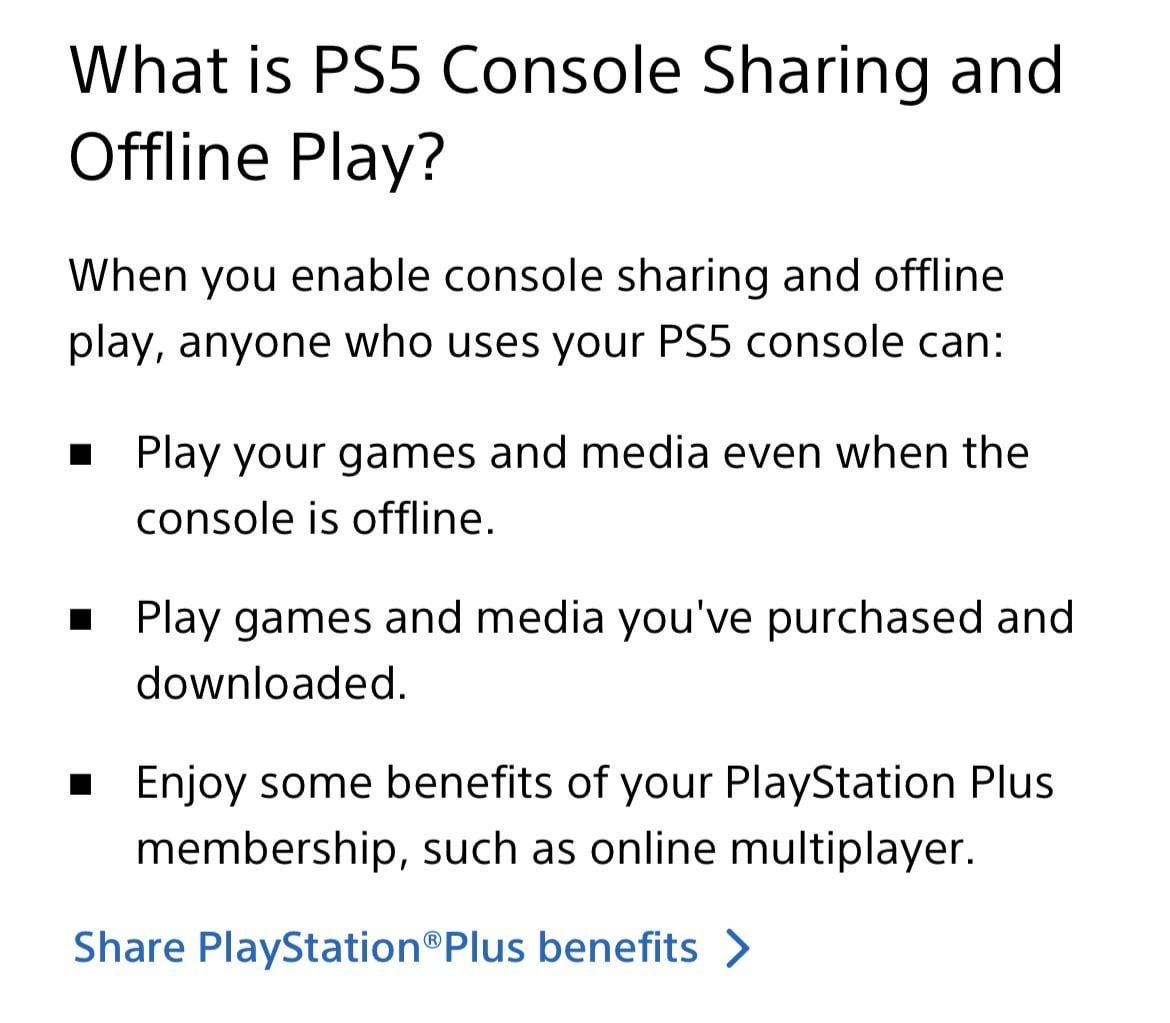
Game sharing on PS5 works by designating one console as the “primary” console for an account, allowing other accounts on that primary console to access its digital games and PlayStation Plus benefits.
Ever wondered how friends play your downloaded games on their own profiles? The process involves a setup that connects your account to a particular PS5. Knowing how does game sharing work on ps5 can dramatically change your gaming experience and who you enjoy games with.
Basically, you activate one console as the main hub. Then users on that specific console play your digitally owned games. This also applies to shared PS Plus content.

How Does Game Sharing Work on PS5?
Okay, so you’ve got a PlayStation 5 and you’re excited to play all the cool games. But what if your friend also wants to play? Or maybe you want to share your digital library with your family? That’s where game sharing comes in! It’s a super handy feature that lets you share your digital games with other people. But how does it all work? Let’s dive into the nitty-gritty details and make it easy to understand.
The Basics of PS5 Game Sharing
The core idea behind game sharing on the PS5 is that you can allow another person to play your digital games on their console without having to buy the games again. Imagine it like loaning a physical disc, but instead of swapping discs, it’s all done digitally. The PlayStation system does this through a feature called “Console Sharing and Offline Play.” It’s not designed for sharing with everyone you know; it is mostly intended to let friends or family that share a household enjoy each other’s games.
Understanding Console Sharing and Offline Play
This setting is crucial for making game sharing function correctly. When you enable “Console Sharing and Offline Play” on your PS5, you’re essentially designating that console as the ‘primary’ PS5 for your account. This means that any account that logs into that console can play the digital games associated with your account, even if your account isn’t currently logged in. That’s the secret to sharing your game library. But here’s a super important note: only one PS5 can be your primary console at a time for your PlayStation Network account.
The “Primary” PS5 and Account Rules
Think of your PlayStation Network account like your own personal library. When you download a digital game, it is linked to your library and it is your right to play it. Now, when you set a console as the ‘primary’ for your account, you are essentially giving permission for everyone who uses that primary console to borrow from your library. If you decide to switch to another PS5 and make that your primary, then users on the old primary can no longer play the game from your account. This is why careful consideration is required when selecting your primary console. This primary console setting also allows you to play your games offline, if needed. This makes it convenient, when the internet connection isn’t available. This primary console is critical for sharing games and enables offline gaming, both.
How to Set Up Game Sharing on PS5
Okay, now let’s talk about how to actually set up game sharing. Don’t worry, it’s not complicated at all. Here’s a step-by-step guide:
- Log in to your account on the PS5 you want to share games on: Make sure you’re logged in with the PlayStation Network account that owns the games you want to share.
- Go to Settings: From the PS5 home screen, select the settings icon (it looks like a little gear).
- Navigate to Users and Accounts: Scroll down and click on “Users and Accounts”.
- Select Other: Go to “Other” section.
- Find Console Sharing and Offline Play: Now, select “Console Sharing and Offline Play”.
- Enable Console Sharing: If it is not already enabled, click to enable it. You may see a message confirming whether your console is currently set as primary or not. Now you must select ‘Enable’ option.
That’s it! Now, anyone who uses that PS5 can play the games you’ve downloaded with your account. It’s as simple as flipping a switch. If, in the future, you wish to enable game sharing on a different console, you will first need to disable the game sharing on the previous console.
Switching Your Primary PS5
Want to change your primary console? You can. But it’s not something you can do constantly. To switch to a new console, first you need to disable “Console Sharing and Offline Play” on your previous primary console. Then, log into your account on your new PS5 and follow the steps outlined above to set the new one as your primary console. Remember that whenever you change it, anyone using your old primary console will lose the ability to play your games. You need an internet connection to make these changes.
Who Can Benefit from Game Sharing?
Game sharing is fantastic for a few different groups of people. Here’s how different users may find this feature very beneficial:
- Families: If you have multiple PS5 consoles at home, this is perfect for sharing games amongst family members. If a parent buys a game digitally, kids can play it on their own PS5 without needing another purchase.
- Roommates: Living with a friend? It’s a great way for everyone to get a chance to play from a shared library of games.
- Close Friends: Though not really intended for wide sharing, some close friends like to share their digital games among themselves. Keep in mind this may go against terms of service of the service and it is best to share it only within your household.
- Gamers on a Budget: This can also help users save a bit of money as you won’t have to double-buy the same games.
Limitations of PS5 Game Sharing
While game sharing is super convenient, it’s not perfect. There are some restrictions you need to be aware of. These limitations are important to understand to fully grasp how the game sharing works on PS5:
Account Restrictions
First, only one PS5 can be set as your primary console at any given time, as previously discussed. If you try to log in on another console and enable sharing while it is active on a different console, it will deactivate it on the previous primary console. You also have to keep in mind that the console must be connected to the internet every time when you launch the game from your main account on the non-primary console. If you are playing from your main account on primary console, internet is not required. But, any other user that is playing the game from your account on the primary console can play the game without internet, as well. Additionally, if you and your friend have both made each other’s consoles your primary consoles, then you will only have access to the games while both of you are online on your own accounts, which can also be a big drawback.
Simultaneous Play Restrictions
A major point to know is that you usually can’t play the same game simultaneously on two different consoles using the same account. For example, if you are playing a game on your PS5 using your account, another person cannot play the same game on their PS5 using your account at the same time, which is a drawback for game sharing. If you are playing the game from your account on the non-primary console, then you must be logged in to your account while playing. If your main account is logged in on your console and you are also playing from your account, other user in your primary console will still have the ability to play the game.
Terms of Service
It’s also a good idea to check PlayStation’s Terms of Service. Officially, game sharing is meant for use within a single household. Sharing with a large group of friends could technically be against the rules, although this is difficult to enforce. It is best to follow Sony’s policy and just use this feature within the household.
DLC Sharing
Downloadable content (DLC) can sometimes be a little bit tricky, depending on the game. Usually, if the DLC is linked to a specific account, only the account that purchased the DLC can use it. While the base game might be shared, the DLC won’t always follow. This is another reason why it is good to use this only in your household, as you don’t want to leave your friend disappointed, because of the DLC.
Game Sharing on PS5 vs PS4
If you’re used to game sharing on the PlayStation 4, the concept is similar on the PS5. But there are still some differences. The main idea of having a primary console and offline play is the same. However, the layout in the settings is slightly different on the PS5. Generally, the functionality is mostly the same but it is a bit easier and convenient on the PS5. The performance and loading times on PS5 also enhance the gaming experience significantly. So, you will see many more improvements than you might think, even though the method of enabling the sharing feature is almost the same.
Troubleshooting Common Game Sharing Issues
Sometimes, things might not work as smoothly as planned. Here are some common problems and what you can do to fix them:
Game Locked
If a game is locked on the other console, it usually means that the console is not set as your primary. Or, if it was previously a primary console, it might be that you have set another console as a primary. Double-check the “Console Sharing and Offline Play” settings to make sure your console is set up correctly. If you are logged in on both primary and non-primary console with the same account, then the game might be locked on your non-primary console. Keep in mind that both consoles cannot play the same game with the same account at the same time.
Game Not Appearing
If the game doesn’t show up at all on the shared console, first ensure that it was downloaded using your account. Ensure that it is not linked to another user’s account on the console. Also ensure that the sharing was successfully enabled, or disable the sharing and then re-enable it, to be sure. Also, try restarting the console to see if that makes the games visible.
Internet Connectivity Issues
Remember, when you’re using a non-primary console to play games from another user’s account, it requires internet connection. If you are having trouble playing, make sure your internet is connected and working properly. Check your wifi connection or try restarting the router to see if it can help.
Tips for Successful Game Sharing
To make sure your game sharing is smooth and stress-free, here are some helpful tips:
- Communicate: Talk to the people you’re sharing with, and make sure everyone understands how it works.
- Set Up Correctly: Always double-check that the primary console settings are configured properly.
- Test the setup: When you first setup sharing, ensure that it works, instead of assuming.
- Be mindful of download times: Downloading large games can take a while. Plan accordingly.
By following these tips, you can make game sharing a breeze.
So, that’s game sharing on the PS5 in a nutshell! It’s a very helpful way to share your games with friends and family, but it’s important to understand how it works and what its limits are. Following the above steps can greatly improve your experience. Now you can enjoy many games without spending extra cash. Happy gaming!
How to Game Share on PS5! (EASY) (2024) | SCG
Final Thoughts
To summarize, game sharing on PS5 involves designating a console as primary. This allows other users on that console to play your digital games. Your account needs to be logged in on the primary PS5.
Others can play your games even if you are playing on a separate console. Note that ‘how does game sharing work on ps5’ hinges on these settings. Only one PS5 can be primary for your account.

