
If Game Pigeon is not working, it’s likely due to issues like a poor internet connection, outdated app version, or temporary glitches. Try restarting the app, updating it, or checking your network.
Frustration bubbles when you’re ready for a quick match and why is my game pigeon not working pops into your head. It’s a common issue, and thankfully, usually easy to fix.
We all love a fun game with friends, but technical hiccups can spoil the fun. Let’s explore simple solutions to get you back in the game quickly.

Why is My Game Pigeon Not Working?
It’s super frustrating when you’re ready to challenge your friends to a quick game of 8-Ball or a round of Cup Pong on Game Pigeon, and it just won’t cooperate. You might see the screen freeze, the app crash, or maybe it just refuses to load at all. Don’t worry; you’re definitely not alone! Many people face this problem, and usually, it’s something simple that you can fix yourself. Let’s take a closer look at why Game Pigeon might be giving you trouble and how to get it back in action.
Common Culprits: Basic Troubleshooting
Before we dive into more complicated fixes, let’s check some of the most common reasons why Game Pigeon isn’t working. These are often the easiest to solve, so start here!
Internet Connection Issues
Game Pigeon, like most online apps, needs a stable internet connection to work properly. If your Wi-Fi is weak or your data signal is spotty, that could be the root of your problem. Here’s how to check:
- Check Your Wi-Fi: Make sure you’re connected to your home Wi-Fi network and that it’s working for other apps and devices. If the Wi-Fi signal is weak, try moving closer to your router.
- Mobile Data: If you’re using mobile data, make sure you have a good signal. You can usually see your signal strength in the top corner of your screen. If it’s low, you may have trouble connecting.
- Try Other Apps: Test if other apps that use the internet, like your web browser or a streaming service, are working. If they are also having trouble, then the issue is most likely your internet connection, not Game Pigeon.
- Restart Your Router: Sometimes, your router needs a little break. Unplug your router, wait about 30 seconds, and then plug it back in. Wait for it to fully restart and try Game Pigeon again.
App Updates
Outdated apps are a frequent cause of problems. App developers regularly release updates to fix bugs, improve performance, and add new features. If you are running an old version of Game Pigeon, that might be why it is not working for you. This is how to check and update the app:
- Check the App Store: Go to the App Store and search for “Game Pigeon.” If an update is available, you will see an “Update” button. Tap it to download the latest version.
- Automatic Updates: Make sure that the setting of automatic app updates is turned on in your device settings. Then you would not need to worry about updating it manually next time.
- Restart App After Update: After the app update is complete, try closing and reopening it. Then check whether or not the app is working properly.
Device Restart
Sometimes, all your device needs is a good restart. This can clear out temporary files and processes that might be interfering with Game Pigeon.
- Restart Your iPhone: Press and hold either volume button and the side button until the power off slider appears. Drag the slider, then wait 30 seconds for your device to turn off. To turn it back on, press and hold the side button until you see the Apple logo.
- Restart iPad: Press and hold the top button until the power off slider appears. Drag the slider, then wait 30 seconds for your device to turn off. To turn it back on, press and hold the top button until you see the Apple logo.
iMessage Issues
Game Pigeon relies on iMessage to work. If iMessage has a problem, Game Pigeon will probably struggle too.
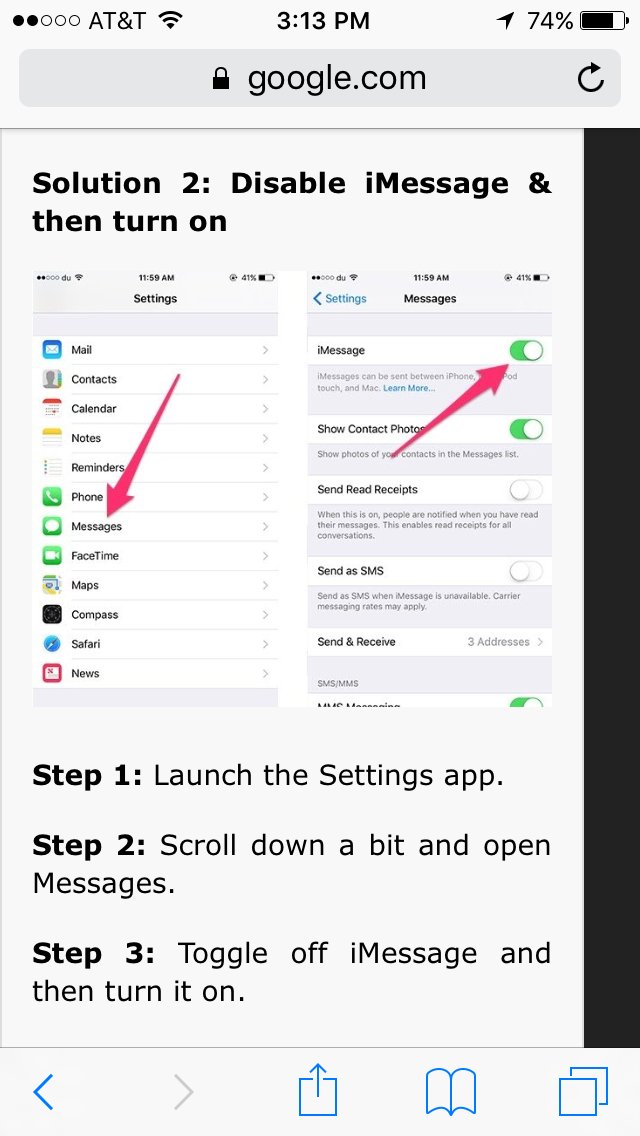
- Check iMessage Settings: Go to Settings > Messages and make sure that iMessage is turned on. If it’s already on, try turning it off and then back on again.
- iMessage Delivery: Make sure that you are able to send and receive iMessages with your contacts. If you can’t, then there might be a problem with your iMessage account and you should contact Apple support for more help.
Deeper Dive: More Complex Issues
If the simple fixes didn’t do the trick, it might be time to look at some of the more complex issues. Don’t worry; we’ll break them down step-by-step!
Storage Space
If your phone or iPad is running low on storage space, it can affect how apps perform. Here’s how to check and free up some space.
Checking Your Storage
- Go to Settings: Go to Settings > General > iPhone Storage (or iPad Storage).
- See How Much You Have: The storage bar at the top will show how much space you have used and how much is available.
- Identify Large Users: Scroll down to see which apps and files are taking up the most space.
Freeing Up Space
- Delete Unused Apps: Tap on apps you don’t use often and select “Delete App.”
- Delete Old Photos and Videos: Move photos and videos to cloud storage or an external drive, and then remove them from your device.
- Clear Browser Data: In your browser settings, clear your browsing history and cache.
- Remove Downloaded Files: Get rid of unnecessary downloaded files that you might have stored.
Corrupted App Data
Sometimes, the data that Game Pigeon saves on your device can become corrupted. This can lead to crashes and other problems. Here’s how to address this issue:
Clearing Game Pigeon Data
Sadly, you can’t directly clear the data from Game Pigeon. However, you can try uninstalling and reinstalling the app.
- Uninstall Game Pigeon: Locate the Game Pigeon app on your home screen, press and hold on the app icon, tap “Remove App,” and then select “Delete App”.
- Reinstall Game Pigeon: Go to the App Store and search for “Game Pigeon.” Install the app again.
- Set Up Again: You will need to set up Game Pigeon again after reinstalling it. Open it and see whether it’s working correctly this time or not.
Note: Reinstalling the app can erase your game progress. But some games and saved game data are associated with your Apple ID and may be restored.
VPN Issues
If you are using a Virtual Private Network (VPN), it might be interfering with Game Pigeon. VPNs can sometimes cause connection issues.
- Turn off Your VPN: Try turning off your VPN temporarily and see if Game Pigeon starts working again.
- Try a Different Server: If you need to use your VPN, try connecting to a different server location. Some servers might be more stable than others.
System Software Problems
Sometimes, the problem may not be with Game Pigeon itself, but with your device’s software.
Update iOS
- Check for Updates: Go to Settings > General > Software Update and check whether there is a software update pending.
- Install Updates: If an update is available, tap “Download and Install.” Make sure your device is connected to Wi-Fi and plugged in to the power during the update.
Conflicting Apps
Sometimes, other apps you have installed may interfere with how Game Pigeon works.
- Close Background Apps: Double-tap the home button (or swipe up from the bottom of the screen) to see all open apps. Swipe up on each app to close it.
- Restart: Close the apps and restart your device and then try Game Pigeon again.
Game Pigeon Server Issues
While rare, Game Pigeon’s own servers might be experiencing problems. If this is the case, you might not be able to do much about it, but you can try a few things.
- Check Online Forums: Visit online forums or social media groups to see if others are reporting the same issue. If so, it’s likely a problem on Game Pigeon’s end.
- Wait and Try Again: If there is a server problem, the best option is usually just to wait and try again later.
Low Power Mode
If your iPhone or iPad is in Low Power Mode, it may restrict some functions, including the performance of certain apps, which could lead to Game Pigeon malfunctioning.
- Check Low Power Mode Setting: Go to Settings > Battery, and make sure that the Low Power Mode is not switched on. If the Low Power Mode is on, switch it off.
Date and Time Settings
Incorrect date and time settings may sometimes interfere with apps such as Game Pigeon.
- Check Date and Time Settings: Go to Settings > General > Date & Time. Make sure that “Set Automatically” is turned on. If it’s already on, try turning it off and on again.
Apple ID Problems
Game Pigeon requires an Apple ID to function correctly. Issues with your Apple ID might cause it to not work properly.
- Check Apple ID: Make sure that your Apple ID is working correctly. Try signing out of your Apple ID and then signing back in to see if that fixes the issue.
Bluetooth Issues
Though not directly related to Game Pigeon’s core functionality, Bluetooth issues have been known to sometimes cause conflicts with other apps.
- Turn off Bluetooth: Try turning off your device’s Bluetooth and see if the issues persist. Go to Settings > Bluetooth and turn off the Bluetooth.
Accessibility Issues
Accessibility settings can sometimes unintentionally interfere with app functionality.
- Check Accessibility Settings: Go to Settings > Accessibility. Check to ensure that none of the settings are interfering with Game Pigeon. You can try disabling features one by one to pinpoint the issue.
Contacting Support
If you have tried all the solutions mentioned above and Game Pigeon is still not working for you, then it might be time to contact the game developer or Apple support. They might be able to provide more specific help.
- Game Pigeon Support: Search for Game Pigeon official support pages or contact the developer directly through their contact details.
- Apple Support: You can contact Apple Support through their official website or through the Apple Support app. They can give specific advice relating to your device.
By systematically working through these troubleshooting steps, you should be able to identify the problem and get Game Pigeon working again. Remember to take it one step at a time, and don’t hesitate to ask for help if you get stuck!
Troubleshooting tech issues can sometimes be a bit like detective work, but with a little patience and the right steps, you can usually get things back on track. Hopefully, these tips have helped you fix your Game Pigeon issues and get back to enjoying those fun competitions with your friends. Remember to keep your apps updated, your device storage in check, and your connection strong, and you’ll have fewer interruptions to your gaming!
Game Pigeon not working- How to fix
Final Thoughts
Therefore, various issues can prevent Game Pigeon from functioning. Network problems, outdated app versions, or even server outages could be the culprits. Checking these is crucial to diagnose the problem.
Troubleshooting basic steps, such as restarting your device or reinstalling the app, often resolves most common issues. Remember that server-side problems need time to get fixed.
Ultimately, ‘why is my game pigeon not working’ usually comes down to these fundamental factors. You must rule out app-specific bugs and external issues to ensure your game experience returns to normal.

