
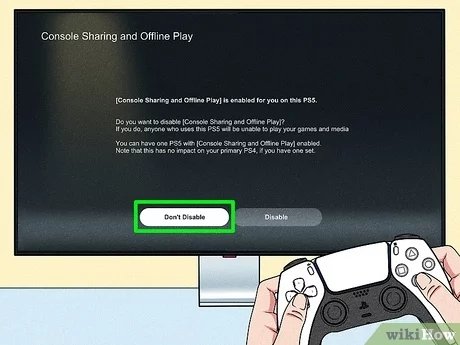
Sharing games on a PS5 requires enabling console sharing and offline play on the primary console, allowing one other user to access your digital library.
Ever wondered how your friend can play that awesome game you bought without buying it themselves? The answer lies in a feature called game sharing on the PS5. It’s a way to share your digital games with another person.
This feature allows one other PS5 console to play your purchased digital games. It does this via enabling ‘console sharing and offline play’ on your primary machine. Understanding exactly how does ps5 game share work can greatly enhance your gaming experience.

How Does PS5 Game Share Work?
Ever wanted to play a friend’s awesome new game on your PS5 without buying it yourself? That’s where game sharing comes in! It’s like borrowing a game from a friend, but instead of swapping discs, you’re sharing it digitally. This cool feature lets you and a buddy play each other’s games on your own consoles. Sounds pretty great, right? Let’s explore how this works!
What is PS5 Game Sharing?
PS5 game sharing, also known as console sharing, is a feature that allows you to share your digital games and PlayStation Plus subscription benefits with another player on a different console. It essentially links two accounts and two consoles together. Think of it like having a digital lending library. You aren’t permanently giving away a game; you’re just allowing another person to access it. This is different from actually buying the game as the primary holder of the digital license is still you.
How Many People Can Game Share With?
You can only game share with one other person at a time. This means you can only set up game sharing between two PS5 consoles. It is not possible to share your games with multiple friends or family members simultaneously using this method. It is a one-to-one sharing agreement.
Understanding the Roles: Primary Console and Secondary Console
To make game sharing work, it’s important to understand the two main roles:
The Primary Console
This is the console that belongs to the account that owns the digital games and the PlayStation Plus subscription. This console is considered the “home” console. It has a special setting that makes it so all the games owned on that account are accessible by anyone who uses that console. This means that even if someone plays on another user account on this console, they can play all the games owned by the main account which is set as the primary. This is important to know, because when setting up sharing, you will need to “activate” the console you want to share from as the Primary Console on the PlayStation account which has the games to share.
The Secondary Console
This is the console that will have access to the digital games and PlayStation Plus benefits owned by the primary account. To make this happen, the owner of the primary console account logs in to their PSN account on the secondary console. Then, this person will activate console sharing on the primary account, but they will not set this console as the main console. After that, users of the secondary console can play the primary account’s games on the secondary console using their personal accounts. However, there is a limit to how many times you can change the primary console on your account in a certain timeframe, so it’s best to make sure to change this setting when it’s needed and you won’t have to change this for sometime again.
Setting Up PS5 Game Share: A Step-by-Step Guide
Alright, ready to get sharing? Here’s how you and your friend can set up PS5 game sharing:
- Choose Who’s Sharing: Decide who will be sharing their games. This person is the owner of the Primary Console account, and the games you wish to share are linked to this account.
- Log In on the Secondary Console: The owner of the primary account needs to sign in to their PlayStation Network account on the secondary console.
-
Activate Console Sharing and Offline Play: On the secondary console, go to Settings > Users and Accounts > Other > Console Sharing and Offline Play.
- Select “Enable” for “Console Sharing and Offline Play.”
- If this is the first time you’ve done this on this account on this console, this console will now be set as primary. Make sure it is the primary console you want to be on this account.
- If the account was already primary on another console, it will be deactivated, then activated here. You will lose all primary console access on that console.
- Log Back Into Primary Console Account: The owner of the primary account should then log out of the secondary console and log back in to their own console (the primary console).
- Check Settings on Primary Console: On the primary console, ensure “Console Sharing and Offline Play” is still set to “Enabled” (This should be by default). If this is the same console the account was already primary on, you should not need to change this at all.
- Enjoy Playing Games: Now, anyone on the secondary console can play digital games owned by the primary account’s owner, even if that account isn’t signed in. On your primary console, you will also be able to play all games that the account has owned.
Important Details About Game Sharing
Before you start sharing, there are some key things you need to know to avoid any confusion:
PlayStation Plus Requirements
If the primary account has a PlayStation Plus subscription, the user on the secondary console will get most of the PlayStation Plus benefits as well. This includes playing online, accessing the monthly PlayStation Plus games, and accessing cloud save storage. However, it is important to note that the primary account’s online saves are not available for the other account.
Game Availability
The games that are available for game sharing on the secondary console are only the digital games that are owned by the primary account owner. The secondary account will not be able to access any games that the other user may own. Also, if the primary account user doesn’t have PS Plus, neither account can access the monthly PS Plus titles through gameshare. The secondary account owner must also have an active PS Plus subscription if they want to play any games online, even when they are able to play a game owned by the primary account, except if they play on the primary console.
DLC and Add-ons
If the primary account owner buys downloadable content (DLC) or add-ons for their games, those will also usually be shared with the secondary console. This means if a game has some add on content, both users will have access to it.
Playing Simultaneously
The two accounts can play games from the primary account’s library at the same time. There is no conflict. However, only one person can use a specific game at one time from an account. If the same person is logged into the primary account, or is on their console that has the account as primary, they cannot also play a game from the primary account library from another device/console.
Changing the Primary Console
You can only change your primary console a limited number of times within a certain time period. This is a security measure to prevent abuse. After doing so, the old primary console loses its primary status, and this might cause you to lose access to any games you are playing. The old primary console will then only be able to use games by playing through the account that owns the games.
What Can’t Be Shared
There are some limitations to what can be shared. For example, items purchased with a particular account’s digital wallet, like in-game currency or cosmetics, are not shared across accounts. Also, if one account buys a game on disc, it cannot be shared digitally via this process, as this game has no link to digital ownership in the same way. In these cases, you will have to share the physical disc.
Game Sharing With Multiple Accounts
You cannot game share with more than one account at a time. This limits how many people can play the same library. If you try to activate game sharing on a third console, it will turn off the access on the previous secondary console.
Security Considerations
Because you need to give your login information to the other person’s console, be sure that you are doing this with someone you can trust. Don’t share your account information with a stranger. The other person can play your games, but they will also have access to your account if you give them your login information.
Troubleshooting Common Issues
Sometimes, game sharing can encounter problems. Here are a few common issues and how to resolve them:
- Lock Icon on Games: If the games have a lock icon on the secondary console, it means the console might not be properly activated as the primary. Double check that the primary account’s “Console Sharing and Offline Play” is enabled in settings of the console where the account is being used. Make sure the owner of the primary account also logs in on their primary console after enabling the secondary console for game sharing.
- Cannot Play Online: If the secondary account user cannot play online, make sure that the primary account has a PlayStation Plus subscription, or that the secondary account has a subscription of its own. Online multiplayer requires an active PS Plus subscription for both accounts if playing on two different consoles, unless they are playing on the primary console.
- Issues With DLC: If the DLC isn’t working, make sure that the DLC was purchased with the primary account. If not, then it will not be shareable on the secondary account. Also double check that the DLC is compatible with the version of the game being played.
- Primary Console Activation Errors: If you encounter errors when trying to activate a console as the primary one, you might have changed it too recently. You may need to wait some time before you can change it again.
Game sharing on the PS5 is a fantastic way to enjoy more games with your friends and family. It’s simple to set up and can save you both some money by sharing digital games. However, understanding all the important details, the steps required, and limitations is key for a smooth and enjoyable experience. So go ahead, share those games, and have fun playing!
How to GameShare on PS5 – OverSimplified (2024)
Final Thoughts
To summarize, PS5 game share lets you play digital games from another account on your console. You enable console sharing and offline play on your account. Then, other users on that console can play those titles. This is how PS5 game share work. You can only share with one console at a time.

