
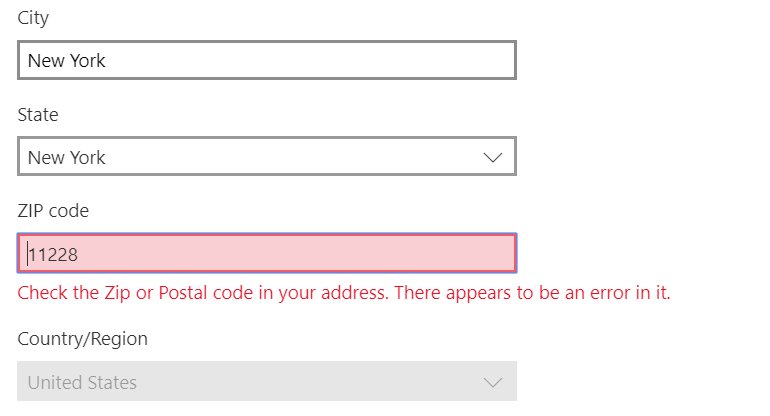
To enter a zip code on Xbox Game Pass, you’ll typically do this during the sign-up process or when updating your payment information, within the Xbox settings or Microsoft account management pages.
Getting set up with Xbox Game Pass can sometimes involve a few extra steps. Many users are curious about how enter a zip code on Xbox Game Pass, especially when dealing with billing or location settings. The process isn’t complex but knowing where to go is crucial for a smooth experience.
This information is necessary for proper subscription management and to make sure you have the correct regional content. It helps tailor the service to your needs and ensures everything runs as expected.

How to Enter a Zip Code on Xbox Game Pass
Okay, so you’re trying to get your Xbox Game Pass set up and it’s asking for a zip code? That can be a bit confusing, but don’t worry! It’s usually a simple step, and we’re going to walk you through everything you need to know about entering a zip code on Xbox Game Pass. We’ll talk about why it asks for this information, where you’ll need to put it in, and what to do if you run into any problems. Let’s get started!
Why Does Xbox Game Pass Need My Zip Code?
You might be thinking, “Why does my game console need to know where I live?” Well, it’s not just about knowing your address. There are a few important reasons why Xbox Game Pass asks for your zip code. It all comes down to making sure your experience is safe, secure, and follows the rules.
Region Locking and Content Availability
First, think about movies and games. Not every movie or game is available in every country. Some might only be available in certain regions because of licensing agreements. Your zip code helps Xbox determine what content you are allowed to access. This makes sure that you are able to play games and watch movies that you are supposed to have, and it prevents you from accidentally getting something that is not available where you are. This is called region locking.
Sales Taxes and Payment Processing
Next up is the important stuff – taxes. Just like when you buy something at the store, taxes are different in different places. When you sign up for Xbox Game Pass or buy a game digitally, Xbox needs to know your zip code to figure out the correct sales tax. This helps ensure that everything is legal and that everyone pays their fair share. Also, when you use a credit card or another type of payment method, the zip code might be needed to make sure that you’re the person using the card and not someone else. Think of it as another way to keep your account safe!
Setting Up Your Profile and Location
Finally, your zip code helps Xbox set up your profile correctly. This is particularly true when you’re setting up your account for the first time. It also helps with things like setting up the local time and language, which makes your whole gaming experience better and easier to use. It is also good for any targeted promotions that are specific to your area.
Where to Enter Your Zip Code on Xbox Game Pass
Okay, now that you know why Xbox needs your zip code, let’s talk about where to actually put it in. The exact steps might be a little different depending on what device you’re using, but it’s usually pretty easy to find.
On Your Xbox Console (Xbox Series X/S or Xbox One)
If you’re signing up on your Xbox, the process goes like this:
- Turn on your console: Get your Xbox powered up and ready to go.
- Sign in to your profile: Make sure you’re signed in with the Microsoft account you want to use for Game Pass.
- Go to the Xbox Store: This is where you get your games and subscriptions. You’ll find it on the home screen.
- Find Game Pass: You might see a big Game Pass banner on the main store page, or you might need to search for it.
- Choose your plan: Select the Xbox Game Pass plan you want (for example, Game Pass Ultimate, Game Pass for Console, or Game Pass for PC).
- Follow the prompts: Now, Xbox will guide you through the process of setting up your account. This will likely include a screen where you need to put in your zip code, along with other information like your billing address.
- Enter your zip code carefully: Make sure you type it in correctly. A wrong zip code could lead to problems down the line.
- Complete the setup: Once you have entered all the required information, you can complete the steps and get set to use your Game Pass.
On the Xbox App (For PC or Mobile)
You can also set up Game Pass on the Xbox app, if you prefer. Here are the steps:
- Download and open the app: Get the Xbox app from your PC’s Microsoft Store or your mobile app store.
- Sign in to your Microsoft Account: Log in with the account you want to use for your Xbox Game Pass.
- Go to the “Game Pass” section: Look for the Game Pass tab or option. It might be on the home screen or in the menu.
- Start your subscription process: Pick the Game Pass plan that’s right for you.
- Follow the prompts: As you start signing up, the app will prompt you for information. This will involve adding your zip code and other billing details.
- Type in your zip code correctly: It is important to enter your zip code carefully, so it matches your location.
- Finalize your setup: After you have given all the required details, finish setting up your account and start using the service.
During Account Creation
Sometimes you might be asked for your zip code during the initial creation of your Microsoft account, not just when you’re signing up for Game Pass. This is another common place where you will need to type in the information. Here’s what you can expect:
- Starting a New Microsoft Account: When you first start setting up a Microsoft Account you will be prompted to enter your personal details, and this will include your zip code.
- During Profile Creation: Make sure to enter all of your details carefully and use your actual zip code, so that your account is associated with your real location.
- Double Checking Your Input: After adding your zip code, make sure to look it over again to make sure that it’s correct, before continuing.
What to Do If You Have Trouble Entering Your Zip Code
Sometimes things don’t go exactly as planned. Don’t worry, there are solutions if you run into issues while entering your zip code on Xbox Game Pass.
Typos and Incorrect Zip Codes
The most common problem is simply entering your zip code incorrectly. It’s easy to mistype a number or get the digits mixed up. Always make sure that the zip code you have entered is the correct one.
- Double-check your input: Before you click “Next” or “Submit,” take a second to make sure you’ve typed everything in correctly.
- Compare with your billing statement: If you’re unsure, check your credit card statement or other billing information to confirm your zip code.
- Try again: If it gives you an error, simply try to put it in again carefully.
Mismatched Billing Addresses
If your zip code doesn’t match the billing address connected to your payment method, it might cause problems. This mismatch can cause the system to reject your payment information. This is a safety feature designed to protect your account.
- Make sure your information is current: Ensure that the zip code you’re using is connected with your bank card.
- Check with your bank: Contact your bank if you are still unsure about what your billing address is.
- Update your payment information: You can always update or correct your information in your Microsoft Account settings.
Regional Restrictions
If you’re using a zip code from a country or region that is different from where your Microsoft account is registered, you might be restricted in accessing some content. This happens because of the region locking we discussed earlier. For example, you cannot use a US zip code if your account is registered in Japan.
- Use the correct region: Make sure the zip code matches the country that your Microsoft account is registered to.
- Change your account region: If you’ve moved or have made an error in your original account setup, you can change your account’s country settings, but this might require extra steps and might affect your access to some content.
- Contact customer support: Xbox support can help resolve these issues.
Problems With the Service
Sometimes, the problem might not be on your end. There could be temporary issues with the Xbox service itself. These problems are usually resolved quickly, but it is useful to check the status of the service before going further.
- Check Xbox Service Status: Look at the official Xbox service status page. It will show if there are any known issues going on.
- Wait and try later: Sometimes all you need to do is give it a bit of time and try again later.
- Restart your Device: Sometimes restarting your console or app will help resolve the problem.
Contacting Xbox Support
If you have tried everything and are still experiencing issues, it might be time to reach out to Xbox support. They are there to help you and will be able to help with any problems you are experiencing. They have seen and solved many different issues, and can provide personalized assistance.
- Visit the Xbox support website: You can find help pages and contact information on their official website.
- Use the Xbox Support app: On the Xbox console you can also use the support application, which will allow you to contact support directly through the console.
- Explain your issue clearly: Provide them with as much detail as possible so they can help you quickly.
Tips for Smooth Zip Code Entry
To make entering your zip code on Xbox Game Pass as smooth as possible, here are a few extra tips:
- Keep your address handy: Have your address and billing information nearby, so you can easily refer to it when you need to. This can help avoid any mistakes.
- Enter carefully: Take your time while entering your information. Even a small mistake can cause problems.
- Use the correct payment method: Make sure that you are using the correct payment card, with a correct billing address.
- Update your information regularly: If you move or your billing information changes, make sure you update it on your Microsoft account.
Entering your zip code on Xbox Game Pass is a really important step in setting up your account and accessing all of the great games that come with Game Pass. It’s usually a straightforward process, and by following these guidelines and understanding why your zip code is important, you should be able to get it done easily. By making sure to double-check your information and follow these steps, you’ll be gaming in no time! Remember, Xbox wants to make sure your experience is safe, secure, and fun. So, take a deep breath, enter that zip code, and get ready to play!
How To Find your Zip Code on Xbox One (2025)
Final Thoughts
To add your zip code, navigate to your account settings within the Xbox Game Pass app or website. The precise location might slightly vary depending on the platform. You will then see a section to edit your personal information.
Enter your zip code in the specified field. Be sure to save your changes. This action is crucial for accessing region-specific content or features.
In short, remember the account settings route, find your profile section and edit to enter your zip code. This answers “how enter a zip code on xbox game pass”.

