
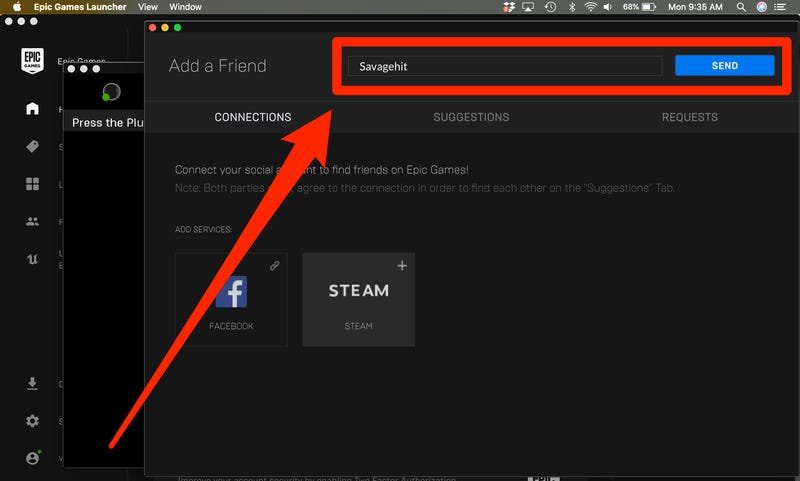
To add friends on Epic Games, use the friends icon, which looks like two people. Click it, then type your friend’s Epic Games display name into the search bar, and send a friend request.
Want to connect with fellow gamers on the Epic Games platform? Adding friends makes playing together simpler. You can easily join parties, see what your friends are playing, and share your gaming experiences. This is a quick guide covering how to add friends on Epic Games.
Having friends on Epic Games enhances the social gaming experience. It opens the door for co-op play, friendly competitions, and overall more fun. Lets make sure you can connect with your friends fast.

How to Add Friends on Epic Games
Adding friends on Epic Games is super easy and lets you connect with your buddies to play awesome games together! Whether you’re into Fortnite, Rocket League, or any of the other cool games on the Epic Games platform, having friends to play with makes everything more fun. This guide will show you all the different ways to add friends, so you can start teaming up and conquering those virtual worlds. Let’s jump right into it!
Finding Friends Using Their Epic Games Display Name
The most common way to add friends is by using their Epic Games display name. This is the name they chose for their Epic Games account. Here’s how to do it:
- Open the Epic Games Launcher: First, you need to open the Epic Games Launcher on your computer. It’s the app you use to start all your Epic Games.
- Find the Friend Icon: Look for a little icon that looks like two people. It’s usually at the top right corner of the launcher. Click on it! This opens your friend list.
- Click “Add Friend”: In the friend list window, you’ll see a button that says “Add Friend.” Click on it.
- Type in the Display Name: Now, a box will pop up. In this box, carefully type in the exact Epic Games display name of the person you want to add. Double-check to make sure you’ve spelled it correctly. Even a small mistake will stop you from finding them.
- Send the Friend Request: After you’ve typed the name correctly, press the “Send” or “Add Friend” button. A friend request will be sent to the person.
Once you send the request, the person needs to accept it before they show up in your friend list. You might have to wait a little while! If they don’t accept right away, be patient; they might not be logged in. Once they do, you’ll be able to see when they are online, and you can jump into games together.
Using the Search Bar to Find Friends
Sometimes, you don’t have a friend’s exact display name or want to look for friends within a game you’re playing. You can use the search bar within the Epic Games platform. Here’s how:
- Open the Epic Games Launcher: Make sure you have the launcher open.
- Go to the Social Panel: Find and click the friend icon located at the top right of the launcher, as described earlier. This will open the social panel.
- Find the Search Bar: There should be a search bar within the friend’s panel. This might have a little magnifying glass icon beside it. Click in the bar to make it active.
- Type in the Name: Now you can type the display name or a partial name of the friend you are trying to find. The search bar will then display a list of possible matches.
- Look for Your Friend: Look through the list of matches and find your friend. Once you find your friend’s name, select it to open the option to send a friend request.
- Send Request: Click the “Add Friend” button associated with your friend’s profile. This will send a friend request, just like when adding using the display name in the previous method.
The search bar can be helpful if you know some part of your friend’s name but aren’t sure of the exact capitalization or spelling. It’s another handy way to connect with others on the Epic Games platform.
Adding Friends Directly Through a Game
Sometimes, you’ll meet new people in a game and want to add them as friends right away. The good news is, you often can do that directly from within the game. The exact steps can change slightly depending on the game, but the basic process is generally similar.
General Steps to Add Friends in-Game
Here’s what you usually need to do:
- Open the Game’s Social Menu: Most games have a social menu or friend list that you can access from inside the game. Look for an icon that looks like people, or it might be in the game menu or settings.
- Find the Player’s Name: Look for the name of the player you want to add. This might be in a list of players you’ve been in a game with or from a chat window.
- Select the Player and Add: When you find the player you want to add, click on their name. There should be an option that says “Add Friend” or something similar. Click it!
- Confirm the Request: The game will send a friend request to the player. You might see a confirmation message to let you know that the request was sent successfully.
Specific Examples: Adding Friends in Fortnite
Fortnite is one of the most popular games on the Epic Games platform, so let’s look at how you can add friends from inside Fortnite itself.
- Open the Fortnite Menu: In Fortnite, press the start or menu button on your controller or the ESC key on your keyboard.
- Go to the Social Menu: Find the “Social” icon which usually looks like three heads at the top of your screen and select it.
- See the “Add Friends” Option: Look for a button that specifically says “Add Friends”. Click on it.
- Use Search Bar or Player List: You can either search for a user by their display name, or find recent players you played with using the “recent players” tab. Select your friend in either of the way.
- Add Friend: Finally, select “Add Friend”, this sends friend request to them.
Important Notes About In-Game Friend Adding
- Game Dependency: Remember that the specific way to do this can be different for each game. Check the in-game menus or the game’s instructions for exact steps.
- Crossplay: If you are playing with people on different platforms (like PC vs. console), adding them as friends on the Epic Games platform is important so you can play together often!
Managing Your Friend List
Once you’ve got a good group of friends on Epic Games, it’s useful to know how to manage your list. You can do several things, including removing friends, blocking players, and changing how you see your friend list.
Viewing Your Friend List
To see your friend list, simply click on the friend icon (the two people icon) in the top right of the Epic Games launcher. This will open the social panel, which shows all your current friends and incoming friend requests.
Removing Friends
If you ever want to remove someone from your friend list, here’s how:
- Open the Social Panel: Click the friend icon to open the social panel.
- Find the Friend You Want to Remove: In the list, find the friend you no longer want to be friends with.
- Click on Their Profile: Click on their name or profile picture to open their profile.
- Select the Remove Option: In the profile you will usually see an option to “Remove Friend”. Select that option to remove them from your friend list.
- Confirm the Removal: You may get a message asking you to confirm. Click yes, and they’re no longer on your list.
Blocking Players
Sometimes, you might want to block a player if they’re being rude or disruptive. Blocking someone prevents them from sending you friend requests, messages, or joining your games. Here’s how to block someone:
- Open the Social Panel: Open the social panel using friend icon.
- Find the Player to Block: In the list of friends or recent players, find the player you want to block.
- Select Their Profile: Click on their name or profile to open their profile.
- Click the Block Option: Usually there is a “Block” button on their profile. Select it.
- Confirm the Block: Just like when removing a friend, a message will prompt you to confirm the blocking. Click on ‘yes’ or ‘confirm’ to confirm the block.
Once you block a player, they can’t interact with you, making your gaming experience much better.
Other Helpful Tips About Friends
- Friend Request Notifications: You get a little notification when someone sends you a friend request, so always keep an eye out for those. You’ll find them in the same area as the friend list.
- Accepting Friend Requests: You need to accept friend requests for people to show up on your list. So if someone sends you a request, don’t forget to click on the notification and accept it.
- Friends Online Indicator: You’ll see little green dots next to your friends’ names when they are online, so you know who you can play with at any given time. This little dot indicates who you are currently able to play with.
- Cross-Platform Play: Remember, adding friends on Epic Games makes it easier to play with them even if they are on different game devices, like PC, PlayStation, Xbox, or Nintendo Switch.
Adding and managing friends on Epic Games is not only easy, but it makes your gaming experience even more fun and social. So now that you know how, go ahead and add your gaming buddies so you can have the best online gaming experience!
With the methods outlined above, connecting with friends on Epic Games should be straightforward and hassle-free. Whether you’re adding friends through display names, utilizing the search bar, or connecting directly in-game, there are several easy and reliable ways to grow your gaming community. Just remember to check those friend requests and manage your list to keep your experience top-notch! Enjoy gaming with your friends on the Epic Games platform.
[GUIDE] How to Add Friends on Epic Games Very Easily
Final Thoughts
Adding friends on Epic Games is straightforward. You can use the Epic Games launcher or the website. Find the friend icon, usually at the top.
Enter your friend’s display name or email and send a request. The other person needs to accept. This simple action connects you for gaming fun.
In conclusion, adding friends to play together is easy, making your gaming experience better. Now you know how to add friends on epic games. Enjoy your gameplay with friends!

