
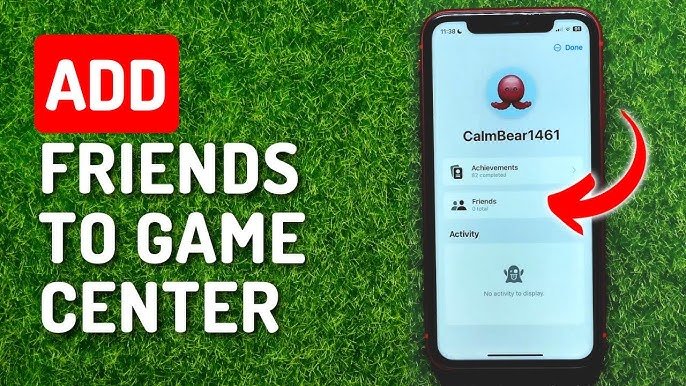
Adding friends to Game Center involves going to the Game Center app, tapping your profile, and then selecting the “Friends” option to invite or accept friend requests.
Want to compete with your buddies or see their high scores? Learning how to add friends to Game Center is easier than you might think. This simple process opens up a whole new level of fun and connection within your favorite games.
We will guide you through the steps required to connect with other players. It lets you share your gaming achievements and enjoy friendly competition. Let’s dive right in and show you how to add friends to game center.

How to Add Friends to Game Center: Your Ultimate Guide
Adding friends to Game Center opens up a whole new world of gaming fun! Imagine playing your favorite multiplayer games with your buddies, seeing their achievements, and even competing on leaderboards. It’s like having a built-in gaming club right on your device. But how exactly do you add these friends? Don’t worry; it’s simpler than you might think. This guide will walk you through every step, making sure you’re connecting with your friends in no time. Get ready to level up your gaming experience!
Understanding Game Center
Before we jump into adding friends, let’s quickly understand what Game Center is. Think of it as your personal gaming hub on Apple devices like iPhones, iPads, and Macs. It keeps track of your achievements, scores, and lets you play with others. Having friends in Game Center allows you to:
- Play multiplayer games together.
- Compare your scores on leaderboards.
- See what games your friends are playing.
- Share your gaming triumphs (and maybe a few funny fails).
Basically, it’s the key to enjoying a richer, more social gaming experience.
Different Ways to Add Friends
There are a few cool ways to add friends to Game Center. It’s not just one way or the highway! You can pick the method that works best for you. We will go through each one in detail, so you become a friend-adding pro.
Adding Friends via Their Nickname
One of the easiest ways to add friends is using their Game Center nickname. This is the name they use when playing games online. Here’s how:
- Open the Settings app on your iPhone or iPad. Look for the gray gear icon.
- Scroll down until you see Game Center and tap on it.
- Tap on Friends.
- Tap the Add Friends button (it usually looks like a plus sign in a person icon).
- In the text field that appears, type your friend’s Game Center nickname. Make sure you spell it correctly!
- Tap the Add button, which could also look like a + or a check mark.
If your friend’s nickname is correct, they will receive a friend request. They need to accept the request before you become connected. If you’re having trouble, double-check the nickname to avoid any typos. Sometimes, a letter or two makes all the difference!
Adding Friends from Your Contacts
If your friend is in your contact list, you can add them to Game Center easily! This way, you don’t need to remember their nickname. Your device does all the work. Here’s how to do it:
- Go back to the Game Center section in your Settings app.
- Tap on Friends again.
- Tap the Add Friends button.
- This time, instead of typing a nickname, you will see an option to invite from your contacts list (it might say “Invite from Contacts”). Tap on that.
- You’ll see a list of your phone contacts. Find your friend’s name and tap on it.
- Tap Send. This will send an invitation to your friend using their contact information.
Now, your friend will get a notification about the invitation and can accept it from their device. This is a super-quick way to add buddies who are already in your phone. Sometimes they need to have already used Game Center with the same email they used in your contacts for it to work perfectly.
Adding Friends Through a Shared Game
Playing a multiplayer game with a stranger can actually lead to a new Game Center friend! If you played a game with someone cool, you can send them a friend request right from the game. This is useful to connect with the people you play with regularly. It will vary a bit from game to game, but here’s the general idea:
- First, make sure you have finished a game or have at least interacted with them in the game.
- Look for a list of players on the game’s screen. This might be on a scoreboard or in a special section for players you’ve just played with.
- Click or tap on the user you want to add as a friend, their profile info should appear.
- On that user’s profile, you should see an option to send them a friend request in Game Center.
- If there’s no option directly in the game you are playing, you might find an option to view their Game Center profile which will lead to a friend request option on their Apple Game Center profile.
This is a great way to make new friends who enjoy the same types of games as you do! Once the person receives your friend request, you can play games with them in the future and track each other’s achievements.
Using the “Share with Nearby Players” Option
If your friend is physically next to you, you can use the “Share with Nearby Players” function in certain games. This is a quick way to connect when you are together in the same place. Here’s how:
- Make sure that your friend is nearby and that both of you have the same game open.
- Look for a ‘Share with Nearby Players’ option in the game menu. You may need to go into a game session or a lobby before this appears.
- Select this option. Your device will search for other players with the same function active nearby.
- Your friend will appear on your screen, then select their name/profile to send them a friend request directly in game.
This method is really convenient if you are hanging out with friends and want to play something together!
Accepting Friend Requests
Adding friends is only one part of the equation. You also need to know how to accept friend requests that you receive. This is essential if you want to start gaming with your buddies. Here are the steps for accepting friend requests:
- Open the Settings app.
- Tap on Game Center.
- Tap on Friends.
- You will see a list of friend requests. They might say “Pending” or “New Request”.
- Tap on the request you want to accept, if you have multiple, you need to tap them one by one.
- Tap Accept.
Once you accept, your new friend will appear in your list of Game Center friends. You can also deny a request if you don’t want to be connected. Denying is the same as not responding to a request. The other person won’t get a notification that you have specifically denied it, but they won’t get the connection they want from you either.
Troubleshooting Common Issues
Sometimes, adding friends might not go smoothly. Don’t worry, here are some common issues and how to fix them:
- Incorrect Nickname: Double-check the spelling of your friend’s nickname. Even a small mistake can prevent you from finding them.
- Friend’s Privacy Settings: Your friend might have privacy settings that prevent them from receiving friend requests. Ask them to check their Game Center settings. They may need to adjust their settings to allow friend requests from anyone, or from friends of friends, or from their contact list.
- Game Center Issues: If there is an issue with your or your friend’s Apple ID, that may also cause the friend request not to work. Make sure that both are properly logged into Apple ID on the device they are trying to game on, and that the Apple ID has a valid email or contact.
- Network Problems: Make sure you and your friend have a stable internet connection. A weak Wi-Fi or cell signal can sometimes cause connection issues.
- Device Issues: Sometimes restarting your device will fix temporary errors. Try turning your phone or tablet off and on again, sometimes that fixes a bug.
If you’re still having issues, you can reach out to Apple Support or visit the Apple support page online. They have additional resources for Game Center problems.
Managing Your Friend List
Once you’ve added some friends, you might want to manage your list. Here’s how you can do that:
Removing Friends
If you want to remove a friend from your list, follow these steps:
- Go to the Game Center section in your Settings.
- Tap on Friends.
- Tap on the friend you want to remove from your list.
- Scroll down and select the Remove Friend button.
The user will be removed from your friend list, and you will no longer see their profile data, scores, or achievements, and they also can’t see your profile data, scores or achievements. They will not receive a notification that you have removed them.
Blocking Users
If you need to, you can block a user. This is different from just removing them. If you block someone, they cannot send you friend requests or message you. This can be useful if you do not want to interact with a specific user anymore, and you want to prevent them from contacting you in the future. To block a user:
- Go to the Game Center section in your Settings.
- Tap on Friends.
- Tap on the user you want to block.
- Scroll down and select the Block User button.
The user will now be blocked. You can manage the users you have blocked in the Blocked section within Game Center Settings.
Why Add Friends to Game Center?
Adding friends to Game Center is about more than just seeing their scores. It’s about building a community and sharing the fun of gaming. It allows you to:
- Compete with your friends and keep each other motivated.
- Play multiplayer games together, increasing the fun factor.
- Share gaming strategies and tips.
- Discover new games that your friends are enjoying.
- Simply have more fun while playing.
With friends, gaming is so much better! It’s an interactive and enjoyable experience that can bring you closer to your buddies.
Tips for a Great Game Center Experience
To make the most of Game Center, here are a few extra tips:
- Keep Your Nickname Simple: Choose a nickname that’s easy for your friends to remember and type in, not too complicated.
- Check Your Privacy Settings: Make sure your Game Center privacy settings are how you want them to be, so you’re sharing the right level of info with your friends.
- Use a Profile Picture: Add a profile picture to make your account look awesome and easier for friends to find.
- Explore Different Games: Try different multiplayer games with your friends, there’s something out there for everyone!
- Be a Good Sport: Whether you win or lose, remember to be a respectful player. Gaming is all about fun!
Game Center: More Than Just a Leaderboard
Game Center really is more than just a place to see high scores. It’s a way to connect with other players, share your love for gaming, and find new buddies. Once you start adding friends, you’ll see how the gaming experience is enhanced by playing with others. Now that you know the many ways you can add your friend, you can go out there and build up your list!
Adding friends to Game Center is a straightforward process that significantly enhances your gaming experience. By using the different methods we’ve covered, you can easily connect with your friends, play your favorite games together, and share your passion for gaming. Remember to keep your device updated, double-check your settings, and, most importantly, have fun!
iPhone 13/13 Pro: How to Add Friends to Game Center
Final Thoughts
Adding friends to Game Center is straightforward. Open the Game Center app and navigate to your profile. Find the ‘Friends’ option and tap the plus icon. You can then add friends via their email or phone number.
Another way is through a game that supports Game Center. Invite friends directly within the game itself. This method is convenient if you’re playing together.
In summary, whether using the app or a specific game, you now know how to add friends to game center. Make sure your friends also use Game Center for seamless connections.

