
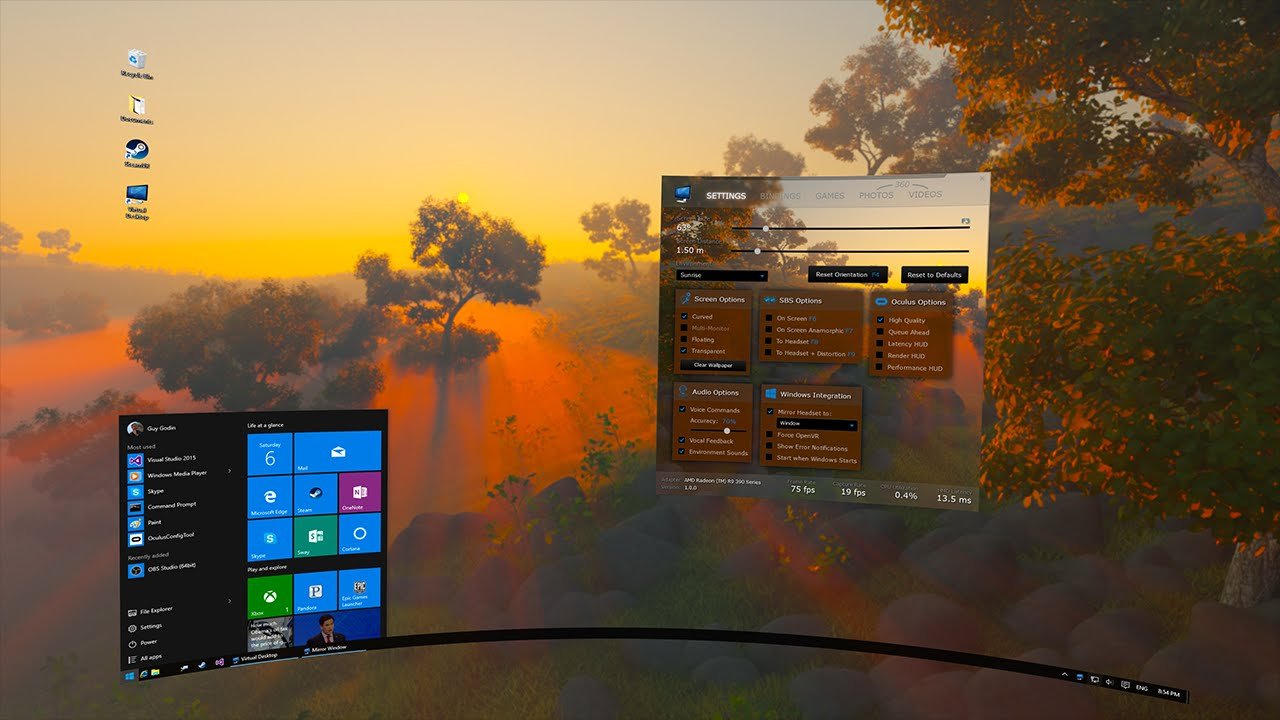
You add games to the games tab in Virtual Desktop by manually adding their executable files through the settings menu within the Virtual Desktop app on your PC.
Ever found yourself wanting quick access to your favorite PC games within your virtual reality environment? You’re not alone! Figuring out how to add games to games tab in virtual desktop can initially seem tricky. We’ll guide you on this process.
It’s a simple procedure involving locating the game’s .exe file on your computer and then adding it through the Virtual Desktop settings. This will give you a seamless experience while playing your game.

How to Add Games to the Games Tab in Virtual Desktop
Ever wanted to jump into your favorite games with your VR headset without fussing with menus? The “Games” tab in Virtual Desktop is your friend! It’s designed to quickly show you the games on your computer that work with VR. But sometimes, a game might not show up automatically. That’s when you need to know how to add it yourself. This article will walk you through the process step-by-step, making sure you can play any compatible game with ease.
Understanding Virtual Desktop’s Game Detection
Virtual Desktop is a clever piece of software. It tries its best to automatically find the VR games you have installed. It does this by checking common places where games are stored, like your Steam library or the Oculus app. Think of it like a detective, looking for clues about your games. However, sometimes the detective might miss something. Maybe you installed a game in a different folder, or the game uses a launcher that Virtual Desktop doesn’t know about yet. This is why it’s important to know how to manually add your games. When a game is not recognized, you will not see it show up in the games tab. Don’t worry, you can fix this in just a few easy steps.
Locating Your Game’s Executable File
Before we can add a game, we need to find where it lives on your computer. Every program, including your games, has a main file that makes it run. This file is called an “executable file,” and it often has a “.exe” at the end of its name. Here’s how to find it:
Finding the Executable for Steam Games
If your game is on Steam, this is a simple process. Here’s what you do:
- Open the Steam application.
- Go to your Library.
- Find the game you want to add to Virtual Desktop.
- Right-click on the game’s name and choose “Manage.”
- Select “Browse local files.” This opens the folder where the game’s files are kept.
- Look for the file that ends in “.exe.” This is the executable file you need. Make a note of its name and the folder it’s in.
Finding the Executable for Oculus Games
For games you have on the Oculus app, the process is a bit different:
- Open the Oculus application on your computer.
- Go to your Library.
- Find the game you want to add.
- Click the three dots (…) next to the game’s name.
- Select “Details.”
- Look for the ‘Install Location’ section, usually at the bottom of the details page.
- Navigate to the folder and find the .exe file for the game.
Finding the Executable for Games from Other Stores or Sources
If you got your game from somewhere other than Steam or Oculus (like the Epic Games Store, GOG, or directly from a website), it can be a little more varied, but the steps are generally the same:
- Find where you installed the game. You probably chose this location when you first installed it.
- Open the folder where the game is installed.
- Look for the main .exe file that starts the game.
- Note down the full path and the name of the file.
Adding Your Game to Virtual Desktop
Now that you know where your game’s executable file is, let’s add it to Virtual Desktop. There are two main methods: through the Virtual Desktop Streamer app on your computer and through the Virtual Desktop app in VR.
Adding Games Through the Virtual Desktop Streamer App on your PC
The Virtual Desktop Streamer app runs on your computer and is the place where you can control and modify various settings for your VR experience. Here’s how to add your game here:
- Open the Virtual Desktop Streamer app on your computer.
- Find the “Games” tab or section. It might be represented by an icon of a gamepad or by the word “Games.”
- Click on the “Add” or “Add Game” button, which usually has a plus (+) symbol.
- A window will open, allowing you to browse your computer’s files. Navigate to the folder where your game’s .exe file is located.
- Select the .exe file and click “Open” or “Add.”
- The game should now appear in the list of games in your “Games” tab.
Adding Games Through the Virtual Desktop App in VR
You can also add games directly while you are in Virtual Reality using your headset. This can be a quick way to add games. Here’s how:
- Put on your VR headset and launch Virtual Desktop.
- Go to the “Games” tab.
- Look for an “Add Game” or similar option, usually a plus (+) icon.
- A file browser will appear in VR. Use your controllers to navigate to the location of your game’s .exe file, just as you would on your PC.
- Select the .exe file.
- The game will now be added to your list.
Troubleshooting Common Issues
Sometimes, adding games doesn’t go perfectly the first time. Let’s talk about some common problems and how to fix them:
Game Doesn’t Appear in the List
If the game doesn’t show up after adding it, try these steps:
- Double check that you selected the correct .exe file. Make sure it’s the main executable and not a launcher or an updater.
- Restart the Virtual Desktop Streamer app on your computer. Sometimes it just needs a fresh start.
- Restart your Virtual Desktop app on your headset.
- Check if your game runs normally outside of VR. If the game itself is not working then virtual desktop won’t help.
Game Launches but Doesn’t Work Properly in VR
If the game starts but doesn’t show up correctly in your headset or doesn’t work well with VR, consider these solutions:
- Make sure the game is actually compatible with VR. Some games are just not meant for VR.
- Adjust the game’s video settings. Lowering graphics settings might help.
- Try launching the game in a different VR mode, if one is available (like OpenVR or Oculus mode). Virtual Desktop usually supports both, and some games will work better under one than the other.
- Make sure you have the latest graphics drivers installed on your computer.
- Check that both your headset and Virtual Desktop software is up to date.
Game Requires a Launcher
Some games use a launcher, which is a separate program that starts the actual game. Sometimes, you might need to add both the launcher and the game’s .exe file. However, it’s usually best to add the game’s executable file. If you’re having issues, try this: add the game’s launcher to Virtual Desktop as a non-VR game. Then, try launching the game from the launcher after launching the launcher itself from virtual desktop.
Advanced Tips and Tricks
Now that you have the basics down, here are a few extra tips to take your Virtual Desktop game adding skills to the next level:
Using Batch Files
If a game requires additional commands or settings when it starts, you can use a “batch file.” This is a simple text file that contains commands to be executed. Here’s how to create one:
- Open Notepad or another text editor.
- Type in the command to launch your game. This will usually be the full path to the game’s executable file, surrounded by quotation marks, like this:
"C:\Games\MyGame\MyGame.exe" - Add any special commands you need after the executable path. For instance, some VR games need you to include certain commands to run them in VR. ( Check game’s documentation for details)
- Save the file with a “.bat” extension (e.g.,
MyGame.bat). Make sure to select “All Files” instead of “Text Documents” in the “Save as type” menu. - Now, when you add the game in Virtual Desktop, add the .bat file rather than the game’s .exe.
This is an advanced technique, but it can be very useful when a game requires extra steps to start correctly.
Organizing Your Games
If you have many games, you may want to organize them by adding labels or using specific folder structures on your computer. While Virtual Desktop doesn’t offer advanced organization features for games inside the interface, keeping your games in order will help you easily locate their executables. This is good practice that helps finding the exact file much easier.
Testing with different launch options
Virtual Desktop gives you different launch options that you may need to play some games. you may need to test and see what is the best way to play that game. If you are still having problems, you can search online for that particular game and see what are the best settings to run this on virtual desktop.
Updating Your Software Regularly
The software is continuously improved by the developers. Keep your Virtual Desktop application and the Virtual Desktop Streamer updated. This will fix the common bugs and make it work flawlessly. This is important because updating may fix the bugs that you might be facing with a certain game.
Adding your games to the “Games” tab in Virtual Desktop may seem complicated at first, but once you understand the basics, it’s pretty easy. Remember, finding the executable file is key, whether it’s for a Steam game, an Oculus game, or a game from a different source. By following the methods outlined above, you will be able to add any game easily and troubleshoot common issues. Enjoy your immersive VR gaming!
Quest 2 and Quest 3 Virtual Desktop Tutorial and Setup in Less Than 5 Minutes – Play Wireless PC VR
Final Thoughts
Adding games to the games tab in Virtual Desktop involves locating your game files and manually adding them through the application’s interface. You use the “Add Game” option and navigate to the executable file. This method allows you to quickly launch your games within VR.
Ensure the game’s executable is selected correctly for proper launch. You can also rename them for easier identification in your games library. This process of how to add games to games tab in virtual desktop is quite straightforward.

