
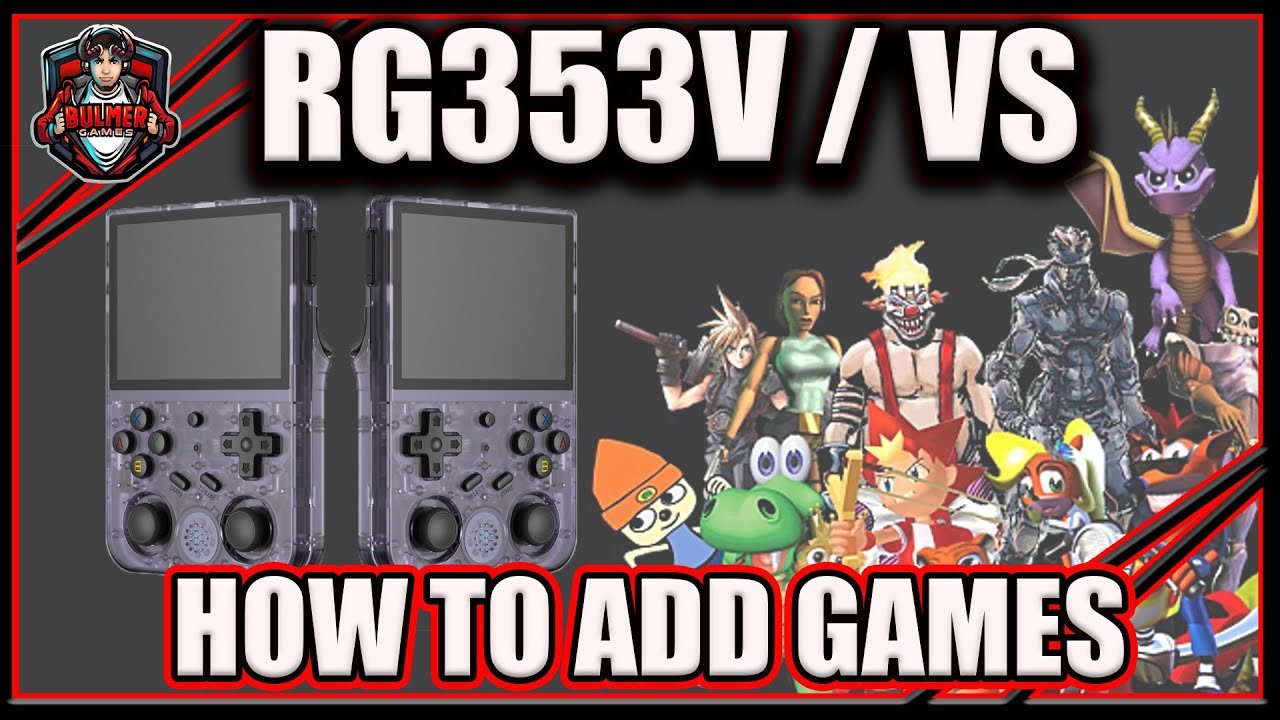
To add games to your RG353V, you’ll typically transfer game ROM files to the appropriate folders on the device’s SD card using a computer.
Want to relive classic gaming moments? The RG353V is perfect for that, but first, you need to know how to add games to my rg353v. Getting your favorite retro titles onto the device is simpler than you might think.
This process usually involves connecting your RG353V to your computer. You can then copy the necessary ROM files to the designated game folders. We’ll guide you through it.

How to Add Games to My RG353V
So, you’ve got your hands on the awesome RG353V handheld console, and you’re ready to dive into some retro gaming fun! But wait, where are the games? Don’t worry; adding games to your RG353V is easier than you might think. This guide will walk you through everything you need to know, from finding the right game files to getting them up and running on your device.
Understanding Game Files: ROMs and ISOs
Before we begin, let’s talk about game files. You’ll often hear two terms: ROMs and ISOs. These are essentially digital copies of games from old consoles and handhelds. Think of them as the digital versions of the cartridges or discs you used to play. Here’s a quick breakdown:
- ROMs: These files typically contain game data from older cartridge-based consoles like the NES, SNES, Game Boy, and Sega Genesis.
- ISOs: These files are used for disc-based games from consoles like the PlayStation, PlayStation 2, and Sega Dreamcast.
It’s very important to note that you should only use ROMs or ISOs of games that you own. Downloading games that you don’t own is usually not legal, and it’s important to respect the hard work of game developers.
Where to Find Game Files (Legally!)
Finding game files can be tricky, and it’s super important to do it legally. Here’s what you should know:
- Your Own Collection: The safest and most ethical way to get game files is to create them yourself. If you own the original cartridges or discs, you can use specialized devices or software on your computer to create backups of your games. This is the best way to ensure you’re playing your favorite games legally.
- Homebrew Games: Many independent developers make homebrew games, which are usually available for free and ready to play. These are a fun way to enjoy new gaming experiences on your RG353V.
- Public Domain and Abandonware: Some older games have entered the public domain or been classified as abandonware. These can sometimes be found online, but it’s important to be careful and make sure you are downloading these files from reliable and trustworthy websites.
Important Note: Downloading copyrighted games without owning the physical copy is illegal and goes against copyright laws. Always make sure you are staying within the legal boundaries of game ownership. Never download ROMs from untrusted websites because these files might contain malware or viruses that could damage your devices and computers.
Getting Ready: The Basics
Now that we have discussed about the game files, let’s get your RG353V set up for action. You’ll need a few basic things:
- Your RG353V: Obviously! Make sure it’s charged and ready to go.
- A microSD card: The RG353V has limited built-in storage, so you’ll need a microSD card to hold your games. A 64GB or 128GB card is a good starting point, but you can use larger ones if you have a bigger collection.
- A Computer: You’ll use your computer to copy game files to the microSD card. A Windows, Mac, or Linux computer will work.
- A microSD card reader: Your computer needs to be able to read microSD cards. If your computer doesn’t have a built in microSD card slot, you’ll need an external card reader.
Once you have all these items, you can move on to preparing your microSD card.
Formatting Your microSD Card
Before you start transferring games, it’s always a good idea to format your microSD card so it is ready to go for the RG353V. Formatting makes sure your card is working correctly and that any old data is removed. Here’s how to do it:
- Connect your microSD card: Put your microSD card into the card reader and connect it to your computer.
- Open File Explorer (Windows) or Finder (Mac): Locate the microSD card in your computer’s file browser.
- Format the card: Right-click on the microSD card and choose “Format.” Make sure that you select the correct microSD card and not one of your computer drives or any other drives.
- For Windows, choose “FAT32” or “exFAT” as the file system.
- For Mac, choose “MS-DOS (FAT)” or “exFAT” as the file system.
- Click Start: Make sure you understand that formatting will erase all the data on the card, click “Start,” and the format process will begin.
- Wait for completion: Once done, click “Close” or “OK.” Your microSD card is now ready for your games.
Adding Games to Your microSD Card
Now for the fun part! Transferring your game files to your microSD card is quite straightforward. Here’s how it works:
- Organize your games: It’s a good idea to organize your game files into folders based on the console. For instance, make a folder called “NES” for NES games, “SNES” for SNES games, and “PS1” for PlayStation games. This makes it much easier to find the games later on the RG353V.
- Locate your game files: Find the ROMs or ISOs that you want to put on the RG353V.
- Copy the files: Copy the game files and paste them into the appropriate folders on your microSD card. For example, put your NES game ROMs in the “NES” folder that you created earlier.
Important Tip: Some systems, like the PlayStation, might need BIOS files to run games correctly. These are system files that are necessary for emulation, and they are usually placed in a BIOS folder on your microSD card. You can find the BIOS files online (make sure that you search for files that you are legally entitled to use) and copy them to the right folder.
Navigating Your Games on the RG353V
Now that you have your games on the microSD card, it’s time to load them up on your RG353V. Here’s how to do it:
- Insert the microSD card: Turn off your RG353V, and put the microSD card into the card slot on the device.
- Turn on the RG353V: Power on your console.
- Go to the game browser: The console will boot up into its menu. Find the “Games” or “Emulators” section. The menu might look a little bit different depending on what custom firmware you have.
- Find your games: The RG353V will now look for the folders that you created on your microSD card and display the game files. Use the directional pad and buttons to select the folder for the console you want to play.
- Select a game: Pick the game you want to play. You can use the direction keys to navigate the game list and press the “A” button to start the game.
Congratulations, you’re now playing games on your RG353V!
Different Emulators and RetroArch
The RG353V uses emulators to play games. An emulator is a special computer program that acts like another gaming device, allowing you to play games from older systems. The RG353V usually uses RetroArch, which is a popular all-in-one emulator. Here’s a little more about them:
RetroArch
RetroArch is like a universal emulator that can play games from many different systems, all in one place. Think of it as one app that can play games from NES, SNES, PlayStation, and more. It’s a little more advanced to setup, but it also has many settings that can be changed to make your games look and perform better. However, it can be a bit difficult to navigate at first.
Standalone Emulators
The RG353V also uses standalone emulators. These are single programs for each separate console. For example, there might be an emulator just for the NES or just for the PlayStation. Sometimes, these emulators can be easier to use and also might run certain games slightly better. They are usually less customizable compared to RetroArch.
Choosing the Right Emulator
Knowing which emulator to use can be important. Here’s how to choose:
- RetroArch for Versatility: Use RetroArch if you want all your games in one place and you like to customize your settings.
- Standalone for Simplicity: Use standalone emulators if you want a simpler setup for one console or if certain games work better.
Most of the time, you won’t have to worry too much about which emulator is being used, because the operating system on the RG353V will automatically pick the best emulator for each game. But, knowing the difference between them can be helpful if you run into any problems.
Troubleshooting Common Issues
Sometimes, things might not work exactly as you expect. Here are some common issues and how to fix them:
Game Won’t Load
- Check the File: Make sure the file is a ROM or ISO and not something else. Sometimes, you might accidentally download a zip or rar file. Make sure that you extract the zip or rar file into the same folder so that the device can load the game file correctly.
- Make Sure Its Right Game: Make sure that the file is for the right console. You should not use an NES game with a SNES emulator.
- BIOS Files: If the game is for a disc-based system like PlayStation, make sure that you have the correct BIOS file in the right place.
Game is Lagging
- Try Different Emulator: Try a different emulator if one is having performance problems. The RG353V usually picks the best one automatically, but you can try manually choosing one to see if performance improves.
- Close Other Apps: Make sure that no other apps are running while you are playing games. Closing other applications or programs that are using system resources might improve gaming performance.
- Make Sure Its Not Overclocked: Overclocking your RG353V might make it run hotter or unstable. Running it on the default setting will help with stability.
Controls Not Working
- Check the Control Settings: In your emulators settings, ensure that the controller buttons are correctly set up. You can usually change this in the settings menu.
- Controller Issue: Double check to make sure that your controller is in a working condition. Sometimes the controller might be faulty. Check that you can move around and press buttons in the main menu to see if that works.
Black Screen
- Unsupported Format: If you are getting a black screen, it is very common for this to happen if your game format is not supported by your device. You have to make sure that the format of the file is supported.
- Try Different Emulator: Similar to the game lagging issue, you can also try a different emulator if you get a black screen, this might help you see if the emulator is causing the issue.
If you still run into any problems with your games, don’t worry! There are lots of online communities and forums for the RG353V that can offer assistance. It’s likely that somebody else has also had the same problem that you are facing, and there will be many solutions that are offered.
Tips for a Better Gaming Experience
- Battery Life: Keep an eye on your battery life, especially during long gaming sessions. You might want to have a power bank so you can play for hours.
- Screen Protection: You might want to purchase a screen protector for your RG353V to avoid scratches or damage.
- Save Frequently: Make sure that you save your game progress often. Emulators usually have different save states features, which allow you to save your game at any point.
- Try Different Custom Firmwares: If you don’t like the default firmware, then you might want to install other custom firmware on your device. There are different firmware options with all different features.
- Explore the community: You should try exploring different community groups and online forums so you can see more tips and also ask questions that other people will answer. There is a big community for these devices.
Using these tips you can ensure a better gaming experience.
Adding games to your RG353V opens up a whole world of retro gaming fun. By understanding game files, properly organizing your collection, and knowing how to troubleshoot common issues, you’ll be ready to enjoy your favorite games wherever you go. Just remember to always play games that you have legally obtained.
The Emulation Machine Anbernic RG35V is Here! But how do you put games on it? Let's Find Out!
Final Thoughts
In summary, adding games to your RG353V involves transferring ROM files to the correct folders on your device’s SD card. You need to locate these files online and move them using a computer.
Remember to format your SD card correctly before starting. Properly organizing your game files helps with easy navigation. This process is key to how to add games to my rg353v effectively and enjoy playing!

