
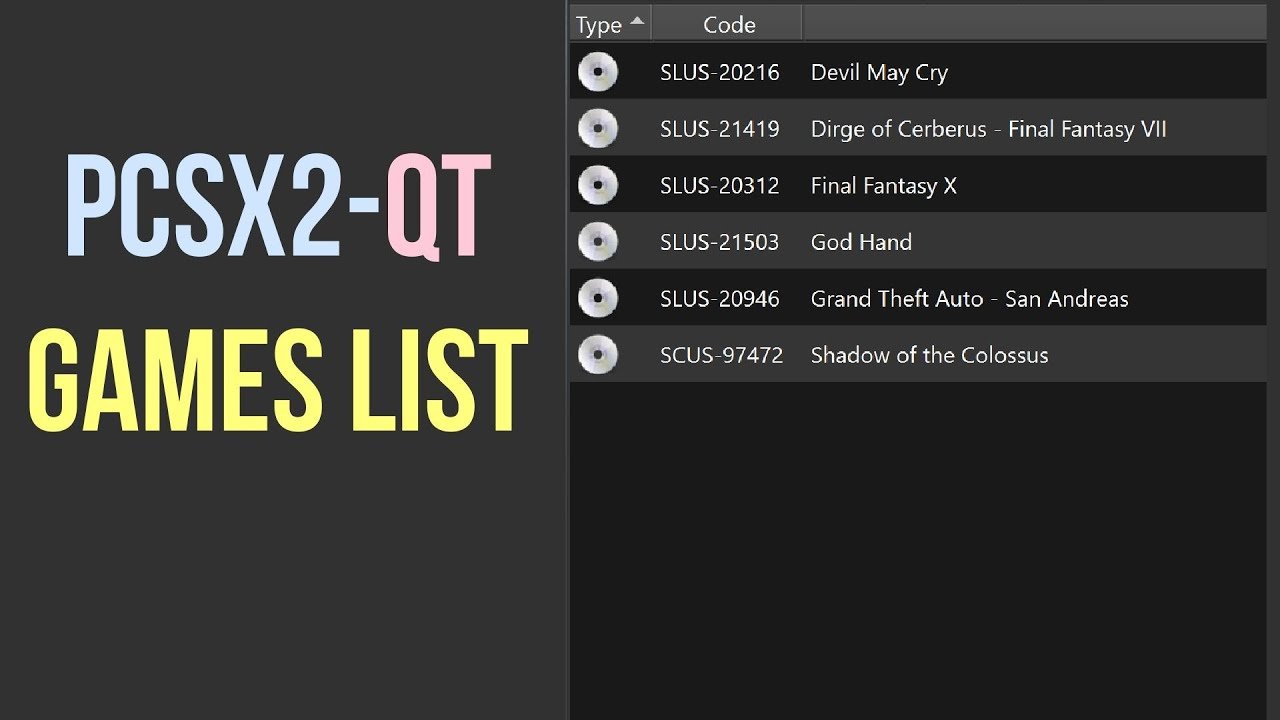
To add games to PCSX2, you must obtain game ISO files or disc images and then load them through the PCSX2 emulator’s menu by using the ‘ISO Selector’ option under the ‘CDVD’ menu.
Want to revisit your favorite PlayStation 2 titles? Figuring out how to add games to pcsx2 can seem daunting at first, but it’s actually quite simple. We’ll guide you through the process of loading games so you can jump right into playing.
Getting started involves obtaining the correct files for your games. Once you have these, loading them into the emulator is just a few clicks away. The process is fairly straightforward.

How to Add Games to PCSX2
So, you’ve got PCSX2, the awesome PlayStation 2 emulator, all set up! Now comes the fun part – getting games to play. It might seem a bit tricky at first, but don’t worry. This guide will walk you through everything you need to know about how to add games to PCSX2, so you can start playing your favorite PS2 classics. We’ll cover where to get game files, how to make sure they work, and even some troubleshooting tips if you run into any snags. Let’s get started!
Understanding Game File Formats
Before we jump into adding games, it’s important to know what kind of files PCSX2 can use. PlayStation 2 games usually come in two main file formats:
- ISO Files (.iso): Think of an ISO file like a digital copy of a PS2 game disc. It’s a single, large file that contains all the data from the original game. This is a very common format and works great with PCSX2.
- BIN/CUE Files (.bin, .cue): This is another common way that PS2 games were often copied, especially early on in emulation. A .bin file holds the game data, and the .cue file tells your computer how to read it. You usually need both files to run a game.
Sometimes, you may see games as compressed files (.7z, .rar, .zip). You’ll need to extract these files (using something like 7-Zip or WinRAR) to get the ISO or BIN/CUE files inside before using them in PCSX2.
Finding Game Files
This is probably the biggest question – where can you get PS2 game files? It’s really important to understand the rules here. You should only use game files that you have legally obtained. This means making copies of games you own for your personal use. Downloading or distributing copies you do not own is illegal. When you have a copy of your games and you have them in proper format, then you are ready to play your games on emulator. Here are some safe options for sourcing those:
Making a Backup of Your Own Discs
The safest and most legal way to get your game files is to create a digital copy, or “rip,” of your own physical PlayStation 2 game discs. To do this, you’ll need a computer with a DVD drive and software capable of creating ISO images. Here’s a basic rundown:
- Install the right software: Popular programs for ripping DVDs include ImgBurn (free) and Alcohol 120% (paid).
- Put the PS2 game disc into your DVD drive: Make sure your computer can recognize the disc.
- Use your ripping software to create an ISO image: Follow the software’s instructions to copy the disc’s data to your computer as an ISO file. This might take a little while, but be patient.
Once this process is complete, you’ll have a digital copy of your game that you can use with PCSX2.
Using Game Files from Your Purchased Games
If you have already copied your games to hard drive, then these files are ready to use in emulator. Make sure to check your files that they are in correct format, or convert them in the correct format. Make sure not to use pirated or illegally downloaded games. If you follow all these rules, then you can continue by starting using games in emulator.
Configuring PCSX2 to Recognize Your Games
Now that you have your game files, let’s get them working with PCSX2. Here’s how:
Setting the Game Directory
PCSX2 needs to know where to find your game files. This is where setting a game directory comes in handy. Follow these steps:
- Open PCSX2: Start the PCSX2 emulator program.
- Go to “CDVD” menu: Look for “CDVD” at the top of the PCSX2 window and click on it.
- Select “ISO Selector”: Go to “ISO Selector” and click on “Browse.”
- Choose your game folder: A window will pop up, now find the folder where you saved your PS2 games. Select the folder, and click “OK.”
After doing this, PCSX2 will know where to look for all your games. When you select “ISO selector”, then all available games will be listed there.
Loading a Game
After setting your game directory, you can easily select and load a game. Follow these steps:
- Go back to “CDVD”: Click “CDVD” again at the top of the window.
- Select the game: A new list will appear. In this list, you can see all of your available games from game folder. Click on the game that you want to play.
- Start the game: Now, you can go to “System” and click on “Boot CDVD(fast)”, this starts the game.
If everything is set up correctly, your game should load and start playing. Congratulations, you did it!
Dealing With Common Issues
Sometimes, things don’t go perfectly the first time. Don’t worry; it happens to everyone. Here are some typical issues and solutions:
Game Not Appearing in the ISO Selector
If your game files don’t show up in the ISO Selector list, here are a few things to check:
- Is the directory set correctly? Double-check that you have selected the correct folder that contains your game files. Sometimes, you may not have set it correctly, it can be a main reason for not showing up games.
- Are the game files in the correct format? Make sure that the files are .iso, .bin or .cue formats. If your game files are compressed in .zip or .rar formats, make sure to extract these files before loading.
- Check your file names: Sometimes, long and complicated file names can cause issues. Try to rename your game files to something simple, and check again.
Game Crashes or Freezes
If your game starts but crashes or freezes during gameplay, there can be a couple of reasons. Here’s what you can try:
- Try different graphics settings: PCSX2 has many graphics settings that you can adjust. Sometimes, these settings may not be correct for a particular game. Experiment with different options to find the best settings. You can lower or increase resolution, or you can try other settings such as upscaling, anti-aliasing.
- Update PCSX2: Ensure you are using the latest version of PCSX2. New versions often fix bugs and improve compatibility. Try downloading the latest version from official PCSX2 website.
- Check for game compatibility: Some PS2 games may not be fully compatible with PCSX2. You can check the PCSX2 compatibility list to see if a game has known issues, and what settings you can use to resolve issues.
- Check for computer’s system requirements: Make sure your computer meets the minimum requirements for running PCSX2 smoothly. If your PC is old, or not a very high-performance computer, then it can create problems in the emulation.
Slow Gameplay
If your game is running very slow, try these tips:
- Lower resolution: Playing at a lower resolution will reduce the load on your computer. Try reducing your game resolution.
- Close unnecessary programs: Close any other programs that are running in the background. This can free up resources and make your game run smoother.
- Use performance settings: In PCSX2 settings, there are performance settings that you can tweak. Try enabling or disabling those to see which ones improve speed.
- Update graphics drivers: Ensure you have the latest drivers for your graphics card. Updated drivers can often improve performance.
Advanced PCSX2 Features
Once you’ve mastered the basics, you can explore some of PCSX2’s more advanced features. These can enhance your gaming experience.
Using Memory Cards
PCSX2 uses virtual memory cards to save your game progress. This works exactly as with a real PlayStation 2.
- Go to the “Config” menu: Click on “Config” from the top of the window.
- Select “Memory Cards”: On the left side of settings panel, you can see “Memory Cards”, select it.
- Create or select memory cards: Here you can create new memory cards, or you can choose already created memory cards.
Memory card settings are often pre-configured for most users. If you have created custom memory cards, then you can load them. You can also transfer your real PS2 memory card’s data into this memory card.
Tweaking Game Settings
Many games require you to adjust settings to run properly on PCSX2. Look for specific game settings by searching on the internet, or watching game videos on video platforms.
- Game fixes: You may need to enable or disable game fixes for some games. You can find these under the “System” menu.
- Advanced graphics: You can fine-tune your game graphics in the “Video(GS)” section. Here, you can increase or decrease resolution, use texture filtering, and also other graphics options.
Using Cheat Codes
For some fun, you can use cheat codes in some games. PCSX2 supports the use of “Pnach” files, which contain cheat codes.
- Obtain .pnach file: Download .pnach file from community resources, or create your own .pnach file.
- Place file in correct folder: Place your .pnach files in cheat folder under PCSX2 program folder.
- Enable cheats: Go to “System” menu, click on “Enable Cheats”.
Using cheat codes can make your games a lot of fun, or sometimes makes the game easier for the user. Use it carefully.
Organizing Your Game Collection
As you add more games, it can be helpful to keep your game collection organized. Here are some tips:
- Use folders: Create folders for different genres or series, or other organization you like. For example, if you have sport games, then keep them in one folder.
- Naming conventions: Use clear names for your game files, which will be easy to recognize. You can name games with game name or with other information such as game region, game format etc.
- Keep game files in one folder: It’s best to keep all your games in one folder, so that you know where they are. When you move them, you should update the folder path in PCSX2 also.
By organizing your game collection, you can quickly locate games and avoid confusion.
Adding games to PCSX2 can seem like a challenge at first, but with a little bit of patience and understanding, you’ll be playing your favorite PlayStation 2 games in no time! Remember to follow the steps in this guide and don’t hesitate to explore other resources on the internet and also communities for some specific help.
How to Add Your PS2 Games Collection to PCSX2-Qt
Final Thoughts
To play your favorite PS2 titles, you must first acquire the game files, usually ISO format. Then, within PCSX2, select ‘CDVD’ then ‘ISO Selector’ and choose the game file. Finally, the game should now load when you click ‘System’ then ‘Boot ISO (full)’.
It is quite simple when you understand where the setting lies. Remember the path you used when you want to repeat the process. These steps explain how to add games to pcsx2.

