
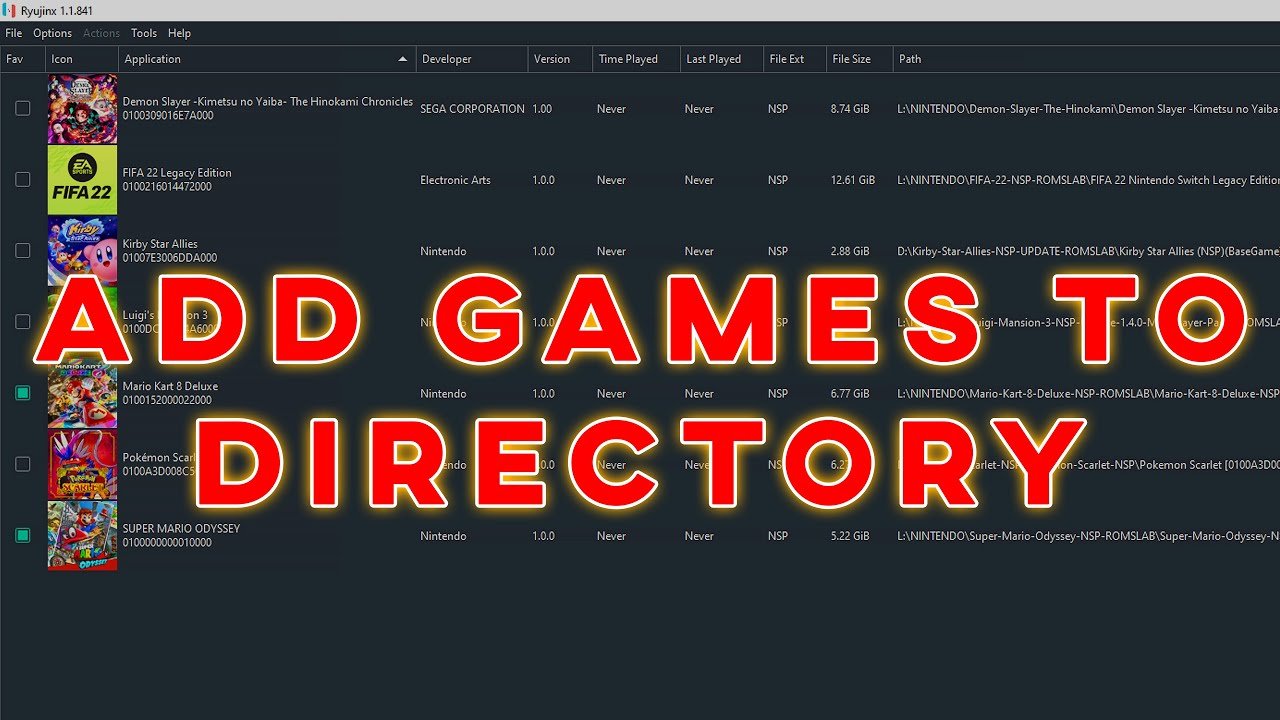
To add games to Ryujinx, you need to obtain game files in the correct format (NSP or XCI) and then use the ‘File’ menu within the Ryujinx emulator to ‘Load Game From File’ or ‘Load Game From Directory’.
So, you’re ready to dive into the world of Nintendo Switch emulation but unsure where to start? Perhaps you’ve downloaded Ryujinx and are now scratching your head wondering how to add games to Ryujinx. It’s a common question for newcomers, and the process is actually quite simple once you understand the basics.
Don’t worry, this short guide will explain the necessary steps to get you playing in no time. We will explore the way you load your game files within the emulator. So get ready to enjoy your favorite Switch games on your computer.

How to Add Games to Ryujinx
Ready to play your favorite Nintendo Switch games on your computer using Ryujinx? It’s a fun way to experience those games, and it’s not too hard once you know the steps. This guide will walk you through everything you need to know about getting your games ready for Ryujinx. Think of it like preparing your toys for a really cool playdate – you need to make sure everything is set up just right. Let’s jump in and see how it’s done!
Understanding Game File Formats for Ryujinx
Before we even think about adding games, it’s important to know what kind of files Ryujinx can understand. Imagine Ryujinx is like a picky eater; it only likes certain types of food! These “food” types are the file formats for Nintendo Switch games. The two main file formats you’ll encounter are:
XCI Files
XCI files are like a digital version of the game cartridge you might have for your Nintendo Switch. They usually contain the entire game, just like the cartridge. Think of it like getting the whole toy set in one package. These files are usually larger, because they contain all the game’s data.
NSP Files
NSP files are like digital downloads from the eShop. They are often smaller than XCI files and can sometimes be split into different parts. Imagine getting your toy in separate pieces, but they all go together to make the full toy. Some games come as base game NSP files and might have separate update or DLC (downloadable content) files in the same format.
Getting Your Game Files
Now, where do you get these game files? This is a very important step, and you have to make sure you obtain your games legally. You need to own the physical copy of the Nintendo Switch game, and then extract it using your own Nintendo Switch. If you are not sure about the legalities, please consult the proper sources. We cannot help you with illegal activity. Here’s a quick list of options to consider when you have a physical game copy:
- Dumping Your Own Games: If you have the physical cartridge, there are tools you can use to extract the game files. This process can be a bit tricky for a beginner, so make sure you research it properly. You will need a modified Nintendo Switch with custom firmware.
- eShop Digital Copies: If you bought digital copies of games from the Nintendo eShop, they are already in a digital format. There are tools and methods to extract the files from your console to your computer. Again, this requires a custom firmware Nintendo Switch.
Important Note: Downloading game files from unauthorized sources can be dangerous and could even damage your computer. Always make sure you’re getting your files from a legitimate source and from a physical copy you own.
Setting up Ryujinx
Before you add games, you need to make sure that Ryujinx is ready. This means downloading the program and setting up some essential configurations. Think of it like setting up the play area before the fun begins. Here is a simple guide for that:
Downloading Ryujinx
Go to the official Ryujinx website, which is usually available on the internet. Find the “Download” button and choose the version that works with your computer, either Windows, macOS, or Linux. Once downloaded, open the file and follow the instructions on the screen. The installation process is usually straightforward, like installing any other program on your computer.
Configuring Ryujinx
After installing, open Ryujinx. You’ll need to set up some important things, like:
- Firmware: You’ll need a Nintendo Switch firmware file. Just like the game files, you need to get this from your own console. You can not download this anywhere on the internet.
- Prod.keys: These files are essential for Ryujinx to understand the game files. You need to get this from your console as well. Just like the firmware, you cannot download this anywhere on the internet.
Ryujinx will guide you through adding these files. Follow the instructions, and if you face any problems, there are lots of online guides and videos that can help you through this part of the setup process.
Adding Games to Ryujinx
Now, it’s finally time to add games! Once Ryujinx is set up correctly, you can easily add games to its game list. Here are the main methods:
Using the “Add Game Directory” Option
This method is similar to organizing your toys into different boxes. You can tell Ryujinx which folder contains your game files, and it will list them all for you:
- Open Ryujinx: Start the Ryujinx program.
- Go to “Options”: Look for the ‘Options’ menu at the top of the screen.
- Click on “Add Game Directory”: There will be an option that says something like “Add Game Directory” or “Add Game Folder”. Click on this.
- Find your folder: A new window will pop up. Find the folder on your computer that has your game files (NSP or XCI files), and click on “Select Folder” or “Ok.”
- See your games: Ryujinx will now scan this folder and show your games in the main window, ready for you to play!
Direct File Loading
Another method is to directly open the specific game file. It’s like choosing a specific toy from your toy box:
- Open Ryujinx: Start the program.
- Go to “File”: Look for the “File” menu at the top of the screen.
- Click on “Load Game”: You will find this option under the File menu.
- Find your game: Select the specific game file (.XCI or .NSP).
- See the game load: Ryujinx will start the game.
Organizing Your Games
Once you have added a lot of games, it’s good to keep them organized. You can do this by:
- Creating Separate Folders: Make a folder for each game. Put the NSP and XCI files for each game in its own special folder. This helps avoid clutter.
- Using a Proper Naming Scheme: When you name folders and files, use names that make it easy to find them later. You can even add the game version or update number to the title, making it much easier to find.
Dealing with Update Files and DLCs
Sometimes, games have updates and additional content (DLCs) that make the game better and even add new content. Just like adding extra accessories to your toy! When these are in a form of .NSP files, Ryujinx can install them automatically:
Installing Update Files
When you install an update, you are basically getting the game in a newer, more polished version, as if your toy has been improved with new features. Here is how to do this:
- Right Click on the Game: In Ryujinx, right click on the game you want to update.
- Select “Manage DLC”: In the context menu, choose “Manage DLC”.
- Click on “Add”: In the new window, click the “Add” button and select your update NSP file.
- Install: Ryujinx will install your update, which will be available after that.
Installing DLC Files
DLCs can add new characters, levels, or features. Here is how to install them:
- Right Click on the Game: Just like you did to install updates, do the same for the game to install the DLC.
- Select “Manage DLC”: Choose the same option again.
- Click on “Add”: In this section too, you have to select your DLC file (.NSP).
- Install: After this Ryujinx will install your DLCs and you will find the new content in your game.
Troubleshooting Common Problems
Sometimes, things might not work perfectly. Here are a few common issues and how to fix them, like fixing a toy when it’s not working correctly:
Games Not Showing Up
If Ryujinx doesn’t list your games after you have added the directory, you can try these things:
- Check the folder: Make sure your game files are actually inside the folder you chose.
- Check the file format: Ensure the files are .XCI or .NSP. If not, it might be a wrong format.
- Restart Ryujinx: Sometimes, simply closing and opening Ryujinx can make the games appear.
Game Crashing or Not Starting
If the game crashes or simply does not start, then there are many things you should try:
- Check your firmware and keys: Make sure you have the correct and updated firmware and keys.
- Update Ryujinx: Make sure you are using the latest version of Ryujinx.
- Check your PC Requirements: Some games need more power than others. So make sure your PC can handle running the game.
- Re-dump Your Game: If you are having issues, it is possible that there was an error when dumping your game. Re-dump the game to make sure it is not corrupted.
Graphical Issues
Sometimes you might see weird shapes or colors in the game. Here are a few things to try:
- Update your Graphics Drivers: Make sure that your PC has the latest drivers installed.
- Change Graphics Settings: Try playing around with the graphics settings in Ryujinx.
- Look for Compatibility Information: There might be online forums which have information about your specific game. Maybe they know how to fix the issue.
Sound Issues
If you are not hearing any sound, here is what you should do:
- Check the Volume: Make sure that the volume in the game and in Ryujinx is not muted.
- Check the Audio Settings: Go to Ryujinx settings and see if everything related to audio is set up correctly.
Enhancing Your Ryujinx Experience
Now that you can add games and play them, you can make your experience even better! You can add custom game cover arts, change graphic settings and even change the controller layout. There is always more to learn, so keep trying new things.
Adding games to Ryujinx might seem difficult at first, but once you know what to do, it becomes very easy. Just follow these steps, take your time, and have fun!
Remember, it’s all about being patient and making sure you get your game files legally from your own Nintendo Switch. When you do that, you can have a great time playing your favorite games on your computer!
How to add games to directory in ryujinx
Final Thoughts
Adding games to Ryujinx involves acquiring game files in the correct format. Then, you’ll navigate to the “File” menu and select “Load Application from File”. Choose the game file and Ryujinx will add it.
This simple process will allow you to play your favorite Switch games on your computer. You must follow the proper steps to ensure compatibility. So, that’s how to add games to ryujinx.

