
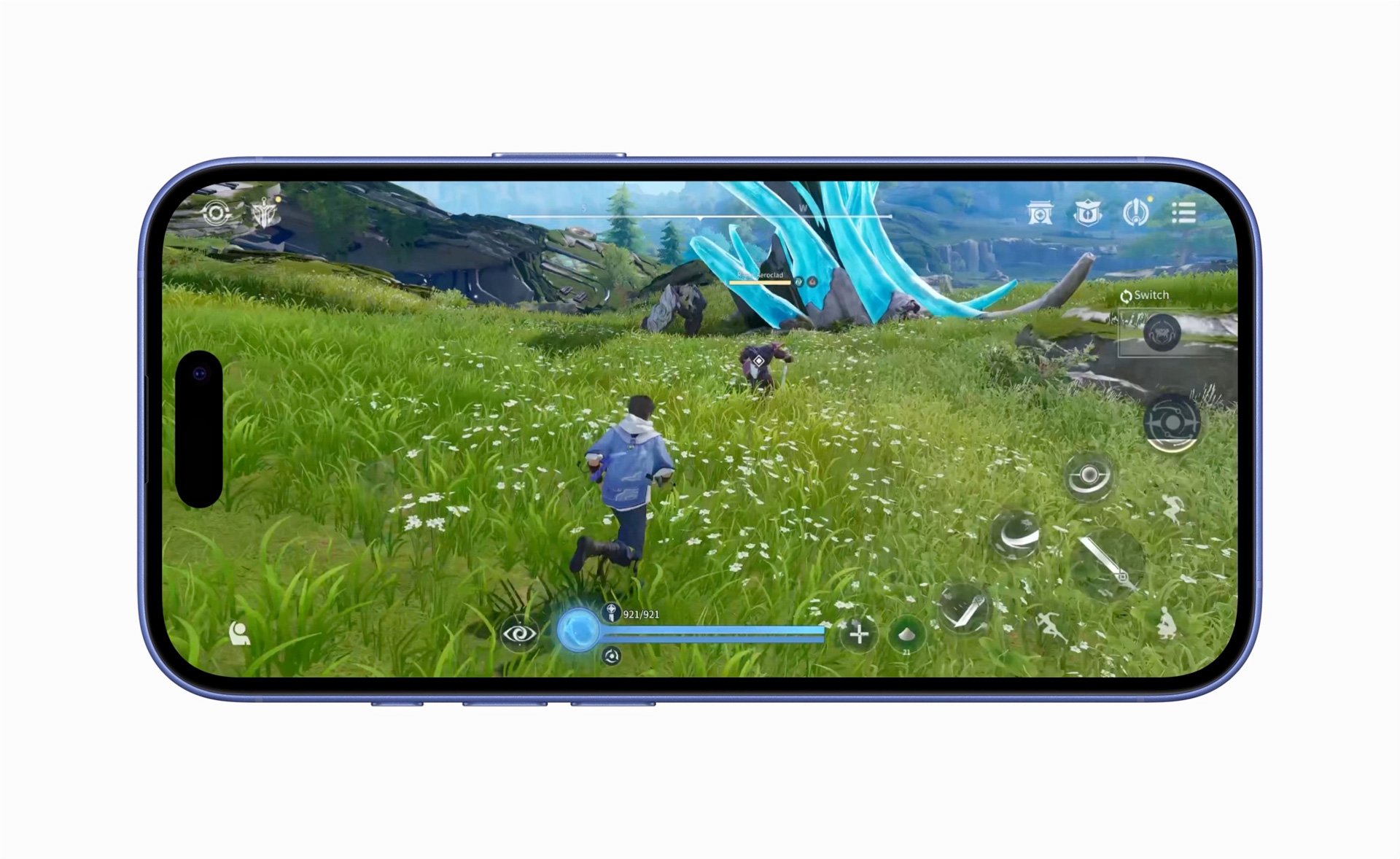
To zoom game on iPhone, use the Accessibility Zoom feature found in Settings. Enable it, then double-tap with three fingers on the screen to zoom in. Adjust the zoom level using the zoom controller or with three-finger drag.
Ever found yourself squinting at tiny details in your favorite mobile game? It’s a common issue, and thankfully, there’s a simple solution. We’ll guide you through the process of how to zoom game on iphone, making those intricate details larger and easier to see.
This built-in accessibility feature helps many users improve their gaming experience. With a few easy steps, you can customize the zoom level to your preferred view. Learn how to quickly enable and use the zoom feature and enjoy your games more comfortably.

How to Zoom Game on iPhone
Ever wanted to get a closer look at the action while playing your favorite game on your iPhone? Maybe you’re trying to spot a tiny detail or just want the game to fill up more of your screen. Well, guess what? You can zoom in on games on your iPhone! It’s not always obvious how to do it, but with a few helpful tricks, you’ll be seeing your games in a whole new way. Let’s dive into the different ways you can magnify your gaming experience on your iPhone.
Using the iPhone’s Built-In Zoom Feature
Your iPhone actually has a special zoom feature that works all over the phone, not just for pictures. This is the most common way to zoom in on a game, and it’s super easy to set up. This tool makes everything on your screen bigger, so it works great for games!
Turning On Zoom
First things first, you need to turn on the zoom feature. Here’s how:
- Open the Settings app. It’s the gray icon with gears on it.
- Scroll down and tap on Accessibility. It’s near the bottom of the list.
- Look for Zoom and tap on it.
- You’ll see a switch at the top of the screen. Tap this switch to turn Zoom ON. It will turn green when it’s on.
Now that you’ve turned it on, you’ll see a zoomed-in square area appear on the screen. Don’t worry, we’ll fix that!
Navigating the Zoomed View
You’ll notice a little circle with a handle on it – this is the Zoom controller. Here’s how to move the zoomed area around:
- Move the zoom window: Drag the handle on the circle to move the zoomed area around your screen.
- Zoom in and out: Double tap the screen with three fingers to zoom in or out.
You can also change the zoom level by double-tapping with three fingers and then dragging up or down on the screen. Dragging up makes things zoom in more, and dragging down makes them zoom out.
Using the Zoom Controller Menu
Sometimes, it’s easier to use the Zoom controller menu. Tap on the circle once, and a small menu will pop up. This menu has several options:
- Zoom Region: Allows you to choose a window zoom (the square you’ve seen), or a fullscreen zoom. Fullscreen zoom is best for most games.
- Zoom Filter: Gives a filter, like a black and white effect for some contrast adjustments. it does not impact gaming, and it is optional for setting up zoom feature.
- Choose Region: This lets you adjust the size and shape of the window zoom if you are using that mode, not necessary with full screen.
Once you’ve set the zoom region to fullscreen, you can play your games with the whole screen zoomed in! Double tap with three fingers again to turn the zoom off when you are done. Or simply tap the zoom button from the menu.
Adjusting Zoom Settings
You can customize the Zoom feature even more. In the Accessibility settings, while zoom feature is on, you will find few additional options that might be helpful.
- Maximum Zoom Level: Adjust the maximum level of magnification, make sure you set it to a level that works best for you.
- Follow Focus: When turned on, this allows the zoomed section of your screen to move and follow keyboard inputs when you are typing. this isn’t essential for gaming.
- Smart Typing: This is good for when you are typing something, it ensures zoomed window will switch to normal view when you are typing, and it’ll switch back to zoomed view when you are done typing.
Experiment with these settings to find what works best for your gaming experience.
Game-Specific Zoom Options
Some games have their own built-in zoom features. This is less common, but if your game offers it, it’s usually the easiest way to get a closer look.
Checking In-Game Settings
Here’s how to check if a game has its own zoom option:
- Start the game.
- Look for a Settings menu. This is usually an icon that looks like a gear or has three horizontal lines.
- See if there is a “Graphics” or “Display” option.
- Look for a “zoom”, “camera”, or “view” setting. Some games even have a button directly on the gameplay screen that allows for toggling between zooming or not.
If you find a zoom option, it might be a simple slider that lets you change the field of view, or a different view mode altogether. Each game does it differently, so always check in game settings first.
Examples of Games with Zoom
Some strategy games and puzzle games often include zoom features. Here are some examples to give you an idea:
- Strategy Games: Many strategy games will have the ability to zoom in and out of the map, so you can focus on a particular area or get a birds eye view.
- Puzzle Games: Some puzzle games will let you zoom in on the playing field, so you can see the details more easily.
- Simulation Games: Building simulation games may have a zoom feature that allows you to look at all the finer details of your build.
These in-game zoom features usually work better for seeing specific parts of the game because they are made to work with the game’s design, unlike the iPhone’s accessibility zoom, which makes everything bigger.
Using Third-Party Apps for Game Zooming
While less common, there are some third-party apps that might offer game specific zoom features. However, these apps can sometimes be tricky to use, so it’s usually best to stick with the iPhone’s built-in zoom or in-game settings if possible. These apps may not always work as you expect or could interfere with how the game runs.
Screen Recording Apps
Some apps that record your screen allow you to zoom in while recording. However, this does not directly zoom in on your game, but it can be helpful to go back and look at a recording of game, and watch them in zoom.
For example, the built-in iPhone screen recorder does not zoom while recording, but you can zoom in on a screen recording that you made.
Potential Issues with Third-Party Apps
Before using third-party apps, be aware of a few issues:
- Security: Some apps may ask for permission to access a lot of information on your phone. Always use official trusted apps.
- Performance: Some apps might make your games run slower or crash. This is because they use more of your iPhone’s resources.
- Reliability: Third-party apps may not always work as expected, or stop working with iOS updates.
Because of these issues, using the built in settings and in game options are usually the safest and most reliable way to zoom in on your games.
Tips for a Better Zoomed Gaming Experience
Zooming in on your games can be great, but here are some tips to make the experience even better:
Adjusting Zoom Level as Needed
Don’t just set one zoom level and leave it. Adjust it as you play, depending on what’s happening in the game.
- If you need to see a lot of the game, zoom out.
- If you need to focus on small details, zoom in.
Managing Screen Overlap
When using the iPhone’s built-in zoom, things can overlap. The zoom controller can get in the way of buttons and controls.
- Move the zoom controller around so it’s not covering up important parts of the game, or hide it if you are using full screen zoom.
- Use the zoom controller’s menu to hide it when you are using full screen zoom, then tap the screen again to bring it up.
Being Mindful of Battery Usage
Zooming can use more battery power, especially the iPhone’s built in accessibility zoom.
- Turn the zoom off when you are not using it.
- Try using in game zoom when available, it is usually less taxing.
Practicing with Different Games
Not all games are the same, so spend some time getting used to zooming in different kinds of games. Some games will work better with zoom than others.
Using Headphones
Zooming is a visual aid, but sometimes it can be helpful to combine that with audio as well.
- Using headphones helps in hearing the minute details and audio cues which can help enhance your overall gaming experience
With these helpful tips, you’ll be well on your way to playing all your favourite games on your iPhone with enhanced viewing.
Zooming in on games on your iPhone can truly change your gaming experience. Whether you use the built-in Accessibility Zoom, take advantage of in-game zoom features, or experiment with recording apps, there are several ways to get a closer look at the action. Just remember to adjust the zoom level as needed, keep your battery in mind, and find what works best for each game. With a little practice, you’ll become a zoom gaming expert in no time!
Fixed: iPhone screen zoomed in Stuck [Lock Screen Zoom stuck]
Final Thoughts
To zoom a game on your iPhone, use the built-in Accessibility feature. Enable Zoom in Settings, then use three fingers to double-tap to zoom. Drag three fingers to move around the screen.
Adjust the zoom level by double tapping with three fingers and dragging up or down. This will help you see details better. This function greatly benefits gameplay.
Knowing how to zoom game on iphone gives you better control and visibility. Remember to explore other zoom options in accessibility for even greater customisation.

