
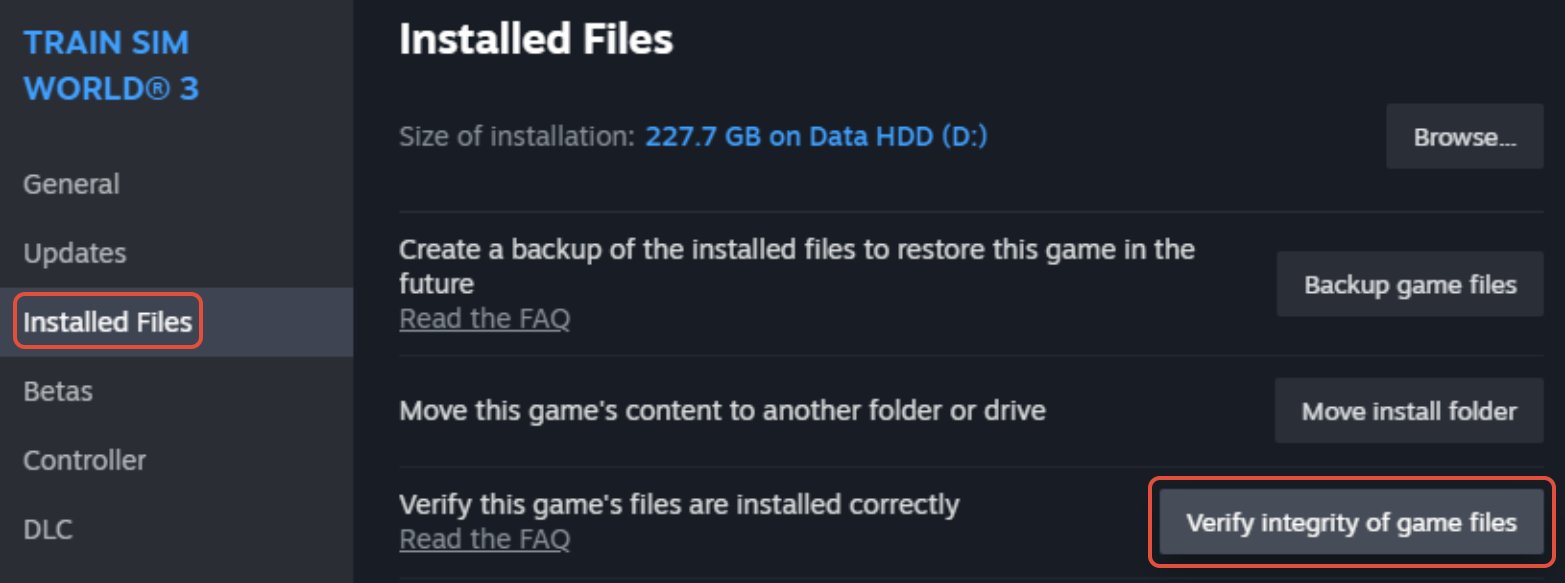
To verify integrity of game files on Steam, right-click the game in your library, select “Properties,” navigate to “Installed Files,” and click “Verify integrity of game files.”
Ever experienced a game crashing or acting strangely? It’s frustrating, I know! Sometimes these issues stem from corrupted or missing game files, but don’t worry, Steam offers a simple way to fix this.
Learning how to verify integrity of game files steam can save you a lot of headache. This process ensures all your game files are present and in their original state. It’s like giving your game a quick health check.
This built-in tool often resolves common gameplay issues. It’s a good first step when troubleshooting any game problems. Now, let’s get into the details.

How to Verify Integrity of Game Files on Steam
Have you ever been super excited to play your favorite game on Steam, only to be met with crashes, glitches, or other weird problems? Sometimes, these issues aren’t because of your computer or the game itself, but because some of the game files might be broken or missing. Don’t worry, there’s a simple tool built right into Steam that can help you fix this: the “Verify Integrity of Game Files” option. Let’s dive into how this works and why it’s so helpful.
Understanding Game File Integrity
Before we jump into the how-to, let’s talk a bit about what “game file integrity” actually means. Think of a game like a big puzzle, made up of many small pieces called files. These files contain all the information the game needs to run correctly: pictures, sounds, character information, and much more. When these files are complete and in the right place, the game works perfectly. But sometimes things happen. Files can get damaged, go missing, or be changed during updates, downloads, or even if your computer has a hiccup. That’s when you start experiencing the dreaded crashes and glitches. Verifying file integrity is like having Steam check each piece of your game puzzle to make sure everything is there and in good shape.
Why Files Go Missing or Become Corrupted
Several things can cause game files to become messed up. Here are some common reasons:
- Interrupted Downloads: If your internet connection drops or your computer turns off while a game is downloading or updating, some files might not get downloaded properly.
- Software Conflicts: Sometimes, other programs running on your computer might clash with the game files, leading to corruption. This is especially common with antivirus software that might mistakenly flag game files as suspicious.
- Hard Drive Issues: Problems with your hard drive or storage device can cause files to become damaged or unreadable.
- Operating System Errors: Occasionally, the operating system itself might have a hiccup that leads to file errors.
- Modifications: If you install mods that aren’t compatible or that change original game files, it can cause issues.
The Benefits of Verifying Game Files
Now you might be wondering why you should bother with verifying game files. The good news is there are many reasons, and it’s a useful tool to keep in your gaming toolbox!
- Fixes Crashes and Glitches: This is the main reason most people use this function. If you’re getting frequent game crashes, freezes, or visual bugs, verifying files is a great first step in fixing the issue.
- Improves Game Performance: If game files are corrupted, it can slow down your game or cause it to use more computer resources than it should. Verifying ensures your game runs smoothly.
- Saves Time Troubleshooting: Before you start digging into complex fixes, verifying files is a quick and easy way to rule out a common problem. It’s like a simple checkup for your game.
- Ensures You Have the Latest Version: Sometimes, game updates don’t install correctly. Verifying files will automatically download the latest correct files, which ensures your game is up-to-date.
- Helps with Mod Issues: If your game isn’t working correctly after installing mods, this tool can help you revert back to the original game files, allowing you to start fresh.
Step-by-Step Guide: How to Verify Game File Integrity on Steam
Now that we know why it’s important, let’s see how to use this tool. It’s really straightforward and you’ll get the hang of it quickly.
- Open Steam: First things first, make sure you have Steam open and you’re logged into your account.
- Go to Your Library: Click on the “Library” tab at the top of the Steam window. This is where you’ll find all your games.
- Find the Game: Locate the game you want to check in your list. You can either scroll through or use the search bar to find it.
- Right-Click the Game: Once you’ve found your game, right-click on its name. This will open a menu of options.
- Select “Properties”: In the menu, click on “Properties.” This will open a new window with more settings for your chosen game.
- Navigate to “Installed Files”: In the properties window, find the tab that says “Installed Files” and click on it.
- Click “Verify Integrity of Game Files”: You should see a button that says “Verify Integrity of Game Files.” Click this button.
What Happens After Clicking “Verify Integrity”
Once you click the button, Steam will start checking your game files. This might take a little while, depending on how big the game is and how fast your computer is. Here’s what’s going on behind the scenes:
- Scanning: Steam goes through each file in your game’s folder and compares it to a record of what the files are supposed to look like.
- Identifying Errors: If Steam finds a file that’s missing, damaged, or different from how it should be, it marks it for repair.
- Downloading Missing or Damaged Files: After the scan is complete, Steam will download any missing or corrupted files from their servers.
- Confirmation: Once the download is finished, you will get a confirmation message on Steam, this message typically states something like “All files successfully validated” or if any changes were made, they’ll be mentioned.
After the process is done, it’s a good idea to restart Steam, and potentially your computer, to make sure everything is applied. Then, try running your game again and see if the problems are gone.
Common Scenarios Where Verification Is Helpful
Let’s look at some specific situations where using the “Verify Integrity of Game Files” option can save you a lot of frustration.
Game Crashes Frequently
If your game crashes out of nowhere, or freezes frequently, this can be a sign of corrupted files. The verification tool is excellent for identifying and fixing such issues.
In-Game Textures or Models are Missing
Sometimes, you may find that parts of the game world are missing, like textures on the ground or characters not appearing properly. This can happen if the files related to these graphics got messed up.
Games That Won’t Launch
If a game simply won’t launch, and you don’t see error messages, or the error messages are vague, trying the verification is a good first step. Missing critical files could be the problem.
Problems After a Game Update
If your game has issues after a new update, try verifying the files. There might have been a problem during the update that this tool can fix.
Issues with Audio
Missing sounds, weird noises, or sounds that don’t match what should be happening can indicate audio file corruption. Verifying files often fixes these problems.
Troubleshooting if Verifying Files Doesn’t Work
Sometimes, even after verifying game files, problems might persist. Don’t worry, here are a few more things you can try:
Restart Your Computer and Steam
Sometimes, a simple restart can fix problems that verifying the files didn’t solve. Close Steam completely, then restart your computer and Steam again. This can clear out temporary issues. Also, make sure Steam isn’t just running in the background as you want to close it fully.
Update Your Graphics Drivers
Outdated graphics drivers can cause a lot of game-related issues, even if the game files are fine. Visit your graphics card manufacturer’s website (NVIDIA, AMD, or Intel) and download the latest drivers. Make sure you have the correct driver for your graphics card.
Check Your Internet Connection
A shaky internet connection can interfere with your game. Make sure your connection is stable and try to use a wired connection (Ethernet) instead of WiFi if possible, as this gives a more stable internet connection.
Check Your System Requirements
Make sure that your computer meets the minimum requirements for the game you’re trying to play. If your computer is older, it might struggle to run newer games, causing crashes and performance issues. The system requirements will usually be listed on the game’s Steam page.
Temporarily Disable Your Antivirus
Antivirus software can sometimes interfere with games. Temporarily disabling it might help to determine if the issue is related to your antivirus. Be sure to turn it back on after you’ve finished testing.
Reinstall the Game
If none of the above steps fix the issue, it might be necessary to completely uninstall and then reinstall the game. This will give you a completely fresh copy, as sometimes files can be corrupted in ways the verification tools can’t catch. Be aware that some games have a very large download size, and this will take time.
Contact Steam Support
If you’ve tried everything and the problems persist, contact Steam Support. They have a team that can provide more advanced help for tricky issues. Provide as much detail as possible about your problems and what troubleshooting steps you have already taken.
Preventative Measures for Game File Integrity
While verifying game files is a good way to fix problems, it’s also a good idea to take steps to prevent issues in the first place. Here are some tips to help keep your game files healthy:
- Use a Stable Internet Connection: Make sure you have a reliable internet connection when you’re downloading or updating games. If possible, use an Ethernet cable for a more stable connection.
- Close Unnecessary Programs: Before running games, close any other programs that you aren’t using, to avoid software conflicts.
- Keep Your Drivers Updated: Make sure that your graphics and other hardware drivers are up-to-date, which will help your games run well.
- Regularly Back Up Your Important Data: It’s a good idea to back up your game saves and other important files, so if something does happen, you don’t lose your progress.
- Don’t Install Mods From Unreliable Sources: When installing mods, always use trusted sources, as unknown mods can sometimes damage game files.
Verifying the integrity of your game files is a simple but powerful tool in your gaming arsenal. By following the steps we’ve outlined, you can ensure your games run smoothly, and you can minimize crashes, glitches, and other problems. Remember to keep your drivers updated, be careful about mods, and check your internet connection if you’re having persistent problems. When you have problems with a game on Steam, this should be one of the first things that you try. It saves time and can get you back to gaming quickly!
2023: How to Verify Game File Integrity on Steam UPDATED Guide
Final Thoughts
To summarize, verify your game files using Steam if you experience crashes or glitches. This process checks for missing or corrupted data, which can cause issues. ‘how to verify integrity of game files steam’ is a useful troubleshooting step.
It’s a simple way to ensure all game assets are correct. Access the game’s properties through Steam to begin verification. This action can resolve many gameplay problems.

