
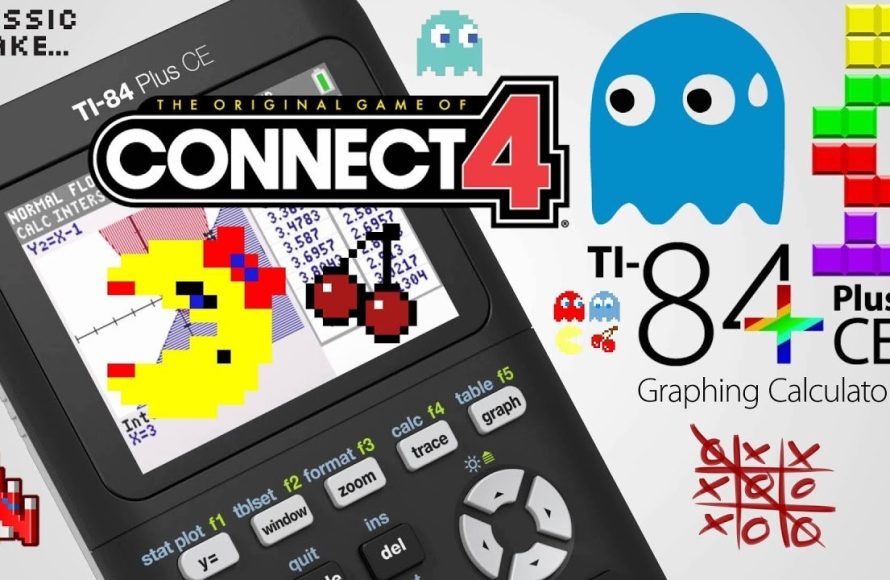
To add games to your TI-84 Plus CE, you’ll need to transfer game files (.8xg or .8xp) from your computer using TI Connect CE software and a USB cable.
Ever felt that your TI-84 Plus CE is more than just a calculator? You’re right! This powerful device can actually run games, providing a bit of fun beyond complex math. The question is, how to add games to ti 84 plus ce? Well, it’s simpler than you might think.
We can show you the process step by step, from finding suitable games to transferring them correctly. Get ready to transform your calculator into a portable gaming device.

How to Add Games to TI 84 Plus CE
Want to play games on your TI-84 Plus CE calculator? It’s more possible than you might think! This powerful calculator isn’t just for math class. You can actually load lots of fun games onto it. Let’s explore how you can turn your calculator into a portable gaming device. It’s easier than you might imagine, and we’re going to break it down into simple steps.
Understanding the Basics
Before we jump into adding games, let’s get familiar with a few important concepts. The TI-84 Plus CE uses a special kind of programming language, and games are usually written in that. You’ll be using your computer to download these games and then transfer them to your calculator.
What kind of games can I add?
There’s a wide variety of games available for the TI-84 Plus CE. You can find classics like Tetris, Snake, and simple puzzle games. There are also games that resemble old school platformers. The capabilities are limited compared to a phone or console, but you can find lots of enjoyable games. Many of these games are created by other students or calculator enthusiasts, which adds to the cool factor! Most games are small, so you can fit plenty of them on your calculator at one time.
File Types to Know
You’ll mostly be working with two types of files: .8xp and .8xv files. These are the specific file types that the TI-84 Plus CE can understand.
- .8xp files: These files contain the actual game programs.
- .8xv files: These files usually contain extra data, such as levels or graphics that the game needs.
Make sure you download files specifically for the TI-84 Plus CE. Files meant for older models might not work properly.
Preparing Your Calculator and Computer
Before you begin adding any games, you need to make sure your calculator and computer are ready to go. Here’s what you need:
Required Materials
- Your TI-84 Plus CE Calculator: Make sure it’s charged!
- A USB Cable: The cable that came with your calculator.
- A Computer: Either a Windows PC or a Mac will work.
- TI Connect CE Software: This software is essential for transferring files between your computer and calculator.
Installing TI Connect CE
The first important step is to get TI Connect CE. This software is like the bridge between your computer and your calculator. You can get it from the Texas Instruments website. Here’s a simple guide:
- Go to the official Texas Instruments website and find the TI Connect CE download section. You can use a search engine to find it.
- Choose the version compatible with your computer’s operating system (Windows or macOS).
- Download the software and follow the installation prompts. It’s usually a simple process, just keep clicking “next” until it’s done.
- After installation, open TI Connect CE and you should be ready to connect your calculator to your computer.
Connecting Your Calculator
Now it’s time to connect your calculator to your computer using the USB cable.
- Plug one end of the USB cable into your computer’s USB port.
- Plug the other end into the port on your TI-84 Plus CE calculator.
- If you have correctly done these steps, your computer should recognize the calculator, and TI Connect CE will probably show that you have a connected device.
- If your computer doesn’t recognize the calculator, make sure that the USB cable is properly connected and working. You might also need to restart your computer or calculator.
Finding Games for Your TI-84 Plus CE
Now comes the exciting part – finding cool games to play! You need to find websites that offer games specifically designed for the TI-84 Plus CE calculator. Here are a few good places to look:
Websites to Search For Games
- Ticalc.org: This is a very popular website with a HUGE library of games and programs for TI calculators. You can find many games here, from simple puzzles to more complex titles.
- Cemetech.net: Another well-known website, it hosts a lot of games and utilities made by the calculator community. They often have new games and programs being shared.
- UnitedTI.org: This website is a good source for different types of programs including games.
Tips for Searching
When you search for games, make sure to use the right keywords such as ‘TI-84 Plus CE games,’ or ‘TI-84 CE programs’. Also, when you’re downloading, ensure that the files are .8xp and .8xv files, otherwise they won’t work on your calculator. Be aware of the download sources and ensure you only get your programs from reputable websites to avoid any issues.
Game Download Example
Let’s say you’ve found a cool version of Snake game. On the game’s download page, there should be download buttons for the .8xp or .8xv files. Click them to download these files onto your computer. Try making a dedicated folder on your computer for your calculator files. This will help keep things organized.
Transferring Games to Your TI-84 Plus CE
Okay, you’ve got your games downloaded. Now it’s time to get them onto your calculator using TI Connect CE. This is a crucial part, so make sure to follow the steps carefully:
Opening TI Connect CE
First, make sure your calculator is still connected to your computer and then launch the TI Connect CE software. The software should show that your calculator is connected.
Navigating the Software
In TI Connect CE you should find a section that allows you to send files to your calculator. It might be named “Device Explorer” or something similar.
Sending Files to Your Calculator
Here’s how to actually send the game files:
- In TI Connect CE, go to the file transfer section.
- Look for the “Send to Device” option and then find the .8xp game file and .8xv data files (if any) you downloaded to your computer.
- Select the file and click the ‘send’ or transfer button. The software will now transfer the game program from your computer to the TI-84 Plus CE.
- Wait for the transfer to complete. TI Connect CE will likely show a progress bar. Once it is done, you’ll see a message indicating a successful transfer.
- Repeat this process for each game file that you want to transfer to your calculator.
Tips During Transfer
- Make sure the calculator isn’t turned off or disconnected while the files are transferring.
- If the file transfer fails, check that you are sending the correct file type and that your calculator is connected to the computer.
Running Games on Your TI-84 Plus CE
The files are now on your calculator! You are ready to play some games. Here’s how to find and start your new games:
Accessing the Program Menu
On your TI-84 Plus CE, press the [PRGM] button. This will bring up the program menu where all the programs or games you have transferred are stored. You will see a list of program names.
Choosing and Running a Game
- Use the arrow keys to scroll to the game you want to play. The program list will display the names of each of your transferred .8xp program files.
- Once you have selected the game name, press [ENTER] to execute the program.
- Often, after pressing [ENTER] to choose the program, another screen will appear asking you to select “Execute.” Press [ENTER] again, and your game should launch!
Troubleshooting Common Issues
- Game doesn’t start: Ensure the files you have are for the TI-84 Plus CE and that they are .8xp and .8xv files. Double check if the game is properly transferred to calculator memory. Sometimes, restarting the calculator might help.
- Game crashes: Some games might not be fully optimized. If the game crashes, just go back to the main screen by pressing [2nd][MODE] (QUIT) and start it again.
- The game isn’t showing in program menu: Sometimes, the calculator needs to update the list of programs. Turning off the calculator and turning it back on can help. Also make sure that you have sent the file to the correct place by checking in the memory settings under [2nd] then [MEM].
Managing Your Games
As you add more games, you might want to learn how to keep things organized on your calculator.
Deleting Old Games
If you have too many games or want to delete some, here’s how you can remove them:
- Press [2nd] then [MEM] to access the memory menu.
- Select the “Mem Mgmt/Del” (Memory Management / Delete) option.
- Choose “Program” to view your programs.
- Use the arrow keys to select the game you want to delete and then press [DEL]. You’ll be asked to confirm deletion, so select “Yes”.
Organizing Your Games
You can’t create folders on the calculator, but you can use the file names to help you organize. For example, you can add a number or letter at the beginning of the file name, so that similar game types are together in the program list.
Battery Life Considerations
Playing games can drain the calculator’s battery. Be mindful of how much you’re playing and keep an eye on the battery indicator. Make sure you charge the calculator regularly, so that it is available when you need it. This is good practice to avoid any unexpected shutdowns.
Safe Practices
It’s good to know some safety tips when downloading files for your TI-84 Plus CE.
Reliable Sources
Make sure you only download files from trustworthy websites. Ticalc.org, Cemetech.net, and UnitedTI.org are generally considered safe and reliable. Avoid downloading from suspicious websites, which might try to give you files that are not appropriate for your calculator or can cause issues.
File Scanning
You can scan the downloaded files with your computer’s anti-virus program before transferring them to the calculator. Although uncommon, this can help reduce the chance of having any issues. Remember, most of these files are programs for the calculator and not executable files on your computer so the risk is low.
Backing up your files
It is useful to keep the original downloaded game files on your computer in case you want to re-transfer them to your calculator in the future.
Adding games to your TI-84 Plus CE can bring a new level of fun to your calculator. It’s an easy process once you know the steps. By following the advice and guidance in this article, you can start enjoying a variety of games on your calculator. Remember, always stay safe online and enjoy the games!
How to Put Games on the TI 84 Plus CE
Final Thoughts
Adding games to your TI-84 Plus CE involves transferring game files via a computer using TI Connect CE software. First, you must install the software on your computer. Then, connect your calculator with a USB cable.
After the software recognizes your calculator, select the game files and send them over. The game files, often in a .8xg format, must be compatible with your calculator’s operating system. Now, you understand how to add games to TI-84 plus CE successfully and enjoy the game.

