
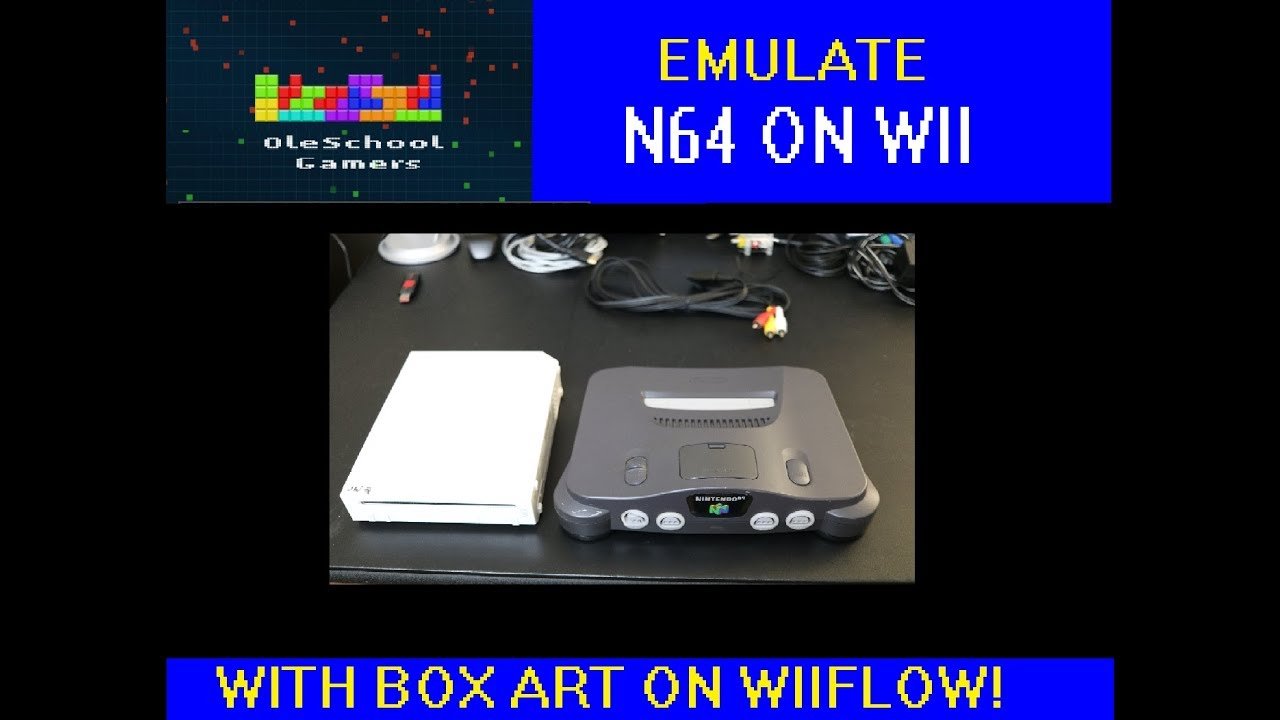
To add N64 games to WiiFlow, you need to place your N64 ROM files in the correct folder, typically named ‘roms’ or ‘n64’, on your USB drive or SD card, and ensure you have a working N64 emulator, such as Not64, set up in WiiFlow.
Ever wanted to play classic Nintendo 64 titles on your Wii? Many people find themselves asking how to add N64 games to WiiFlow. It is not as complicated as it sounds and you can easily enjoy your favorites.
This guide helps you through each step of the process. We will cover where to get your files and how to configure the emulator correctly. Get ready to revisit those 64-bit gems!

How to Add N64 Games to WiiFlow
Alright, let’s dive into the exciting world of playing Nintendo 64 games on your Wii using WiiFlow! It’s like having a time machine that lets you enjoy classics like Mario 64, Zelda: Ocarina of Time, and GoldenEye 007 all over again. While the Wii wasn’t built to play N64 games on its own, we can make it happen with a little bit of tech magic. This guide will walk you through all the steps, making it easy peasy even if you’re not a tech whiz.
What You’ll Need Before We Start
Before you get your hands dirty, let’s gather the tools you’ll need. Think of it like getting ingredients ready before cooking a yummy meal. Here’s what’s on the list:
- A Wii Console that’s been modded: This is the big one. Your Wii needs to have homebrew software installed so it can run things it wasn’t originally designed for. If you haven’t modded your Wii yet, you’ll need to do that first, which requires a separate guide. Check YouTube or search online for Wii modding guides – there are plenty available!
- An SD Card or USB Drive: You’ll need either an SD card or a USB drive with enough space to hold your games. A 16GB SD card is often plenty, but it’s also helpful if you have a USB drive and want to store more games. Make sure it’s formatted to FAT32, so the Wii can read it.
- WiiFlow: This is the homebrew application that will let you launch the games. If you don’t have it yet, we’ll get to that part soon.
- N64 Roms (Game Files): These are the actual game files. You need to find these online – but be aware that downloading ROMs of games you don’t own isn’t usually legal. Make sure to only download games that you have purchased before!
- A Computer: You’ll need a computer to transfer files to your SD card/USB drive.
- The Not64 Emulator: This is the special software that lets your Wii play N64 games. It goes hand-in-hand with Wiiflow.
Preparing Your Storage Device
Now that you’ve got everything, let’s get your SD card or USB drive ready. This is like making sure your plate is clean before you put food on it.
Formatting Your SD Card/USB Drive
If you haven’t already, you’ll need to format your storage device to FAT32. If you are using Windows, open the File Explorer and Right click on your device (SD card or USB), then select “Format”. Choose “FAT32” as the file system. Click “Start”. Remember: this will erase everything on the storage device, so make sure you have backed up any important information.
Creating the Necessary Folders
Next, let’s create the right folders. This is like sorting your toys into labeled bins to keep things organized. On your freshly formatted SD card or USB drive, create these folders:
- apps: This folder holds homebrew apps, like WiiFlow.
- wiiflow: This folder is specifically for WiiFlow’s files.
- roms: This is where your N64 game files will live. You can create subfolders within this folder if you want to organize them. Example: “roms/n64”.
- not64: This is the location of the emulator within your SD Card.
After all is said and done you should have an SD Card with the following structure. sd:/apps/ , sd:/wiiflow/, sd:/roms/ , sd:/not64/ . It is incredibly crucial that you have all of these folders.
Installing WiiFlow
Time to get WiiFlow onto your SD card or USB drive. This is like putting the oven mitts where you can easily find them.
Downloading WiiFlow
You’ll need to find the latest version of WiiFlow online. Usually it’s available on websites dedicated to Wii homebrew. Search for “WiiFlow download” on your favorite search engine. Make sure you download from a safe source!
Transferring WiiFlow Files
Once you have the download, extract the file. Inside the extracted file, you’ll find folders. The goal is to place everything inside the main folder (ex: /wiiflow-5.5.0/) into the apps folder, and other required files in /wiiflow/. Example. the extracted files (wiiflow-5.5.0) has a folder that is named “apps”, the file inside this folder needs to be transferred to “sd:/apps/”. You should have a folder that looks like “sd:/apps/wiiflow/” , with the executable file “boot.dol” and its icon on the apps folder. You should also have a /wiiflow folder, and place all the files from your extracted folder there. After that, you can remove the /wiiflow-5.5.0/ or whatever folder that you extracted. Make sure to copy all the folders from the original WiiFlow folder.
Adding Not64 Emulator
Not64 is what actually makes the N64 games playable. You need to put this on your SD card too.
Downloading Not64
You’ll need to find the Not64 emulator online. Search for it using a search engine or check on popular forums related to Wii homebrew. Make sure it’s a legitimate source!
Transferring Not64 Files
Once downloaded, extract the file to a folder. From within the extracted folder, you’ll find a folder named “Not64”, or similar. Copy the full folder named Not64 into the root of your SD Card, so you have a folder like this: sd:/not64/. This is the location that WiiFlow will use to read the N64 emulator. Make sure that the location of the files is accurate.
Adding Your N64 Game ROMs
Now for the fun part – adding those classic N64 games! Remember that only games you own in physical format can be downloaded as ROMs.
Copying Your ROMs
Copy your N64 game ROM files (they usually end in .n64 or .z64) into the “roms/n64” folder (or whatever subfolder you created) that is on your SD card. Do not put them in the folder directly, as it needs to be within a specific folder.
Naming Conventions
Make sure your rom names do not include any special characters other than “.” or “-“. Avoid special characters like “?”, “/”, “#” and others. The emulator might have problems reading files that have special characters or accents. If it happens that the emulator doesn’t load your game, it could be because of this. Always remember to rename the file, if you suspect there are special characters included.
Setting Up WiiFlow
Now let’s get WiiFlow ready to play your games. This is like making sure the game console is plugged in and the TV is on.
Launching WiiFlow
Put your SD card or USB drive into your Wii. Then, launch the Homebrew Channel. This is where all your cool modded apps live. Find WiiFlow on the list and click on it to start it.
Configuring WiiFlow
When WiiFlow starts for the first time, it might ask you some initial questions. Usually, it’ll ask where to find your games and what kind of games you want to load. For N64 games, make sure it’s configured correctly. Navigate through the settings menus. You might need to point WiiFlow to the “roms/n64” folder. The goal here is that WiiFlow recognizes the folder that has all of your games.
Selecting the Not64 Emulator
WiiFlow must know that it needs to use the Not64 emulator to run the N64 Roms. This step is very important, if you don’t do this correctly your N64 Roms will not work. You need to go to Settings > Emulators Settings, and inside this section find the Nintendo 64 Emulator tab and direct it to /not64/boot.dol. This will make WiiFlow use the emulator for N64 Games. Remember that this will depend on how you have configured it. Some Wiiflow versions may ask you to create a text file (.ini) to point to the directory.
Troubleshooting
If, for some reason, you can’t make Wiiflow recognize your games, there are some troubleshooting steps you can follow:
- Make sure the SD Card / USB is correctly formatted to FAT32
- Make sure all the folder directories are accurately placed, and are the same you’re using in settings.
- Make sure you have the latest version of WiiFlow, as it can be outdated
- Make sure the folder permissions are correctly configured, sometimes this is the cause of your games not loading up.
- Make sure that your game files doesn’t have special characters on the name, or any accents.
- Try using a different SD card, as it could be that yours is failing
- Try using a different USB Device, as sometimes they are not compatible with the Wii.
Playing Your N64 Games
Finally, the moment you’ve been waiting for – playing your N64 games on your Wii!
Navigating WiiFlow
WiiFlow should now show your N64 games. Use your Wii Remote to move through the list and find the game you want to play. Just like selecting a movie to watch, it’s easy to browse and choose.
Starting the Game
Once you’ve found your game, select it using the A button on your Wii Remote. The Not64 emulator will start and load your chosen game. Get ready for some nostalgic gaming fun!
Extra Things to Consider
Let’s talk about some things that could come up when playing your N64 games.
Controller Compatibility
Not all Wii controllers work perfectly with N64 games. The Wii Remote and Nunchuk don’t always map well to the N64’s controls. A Classic Controller or a GameCube controller will often give you a better experience. Test with your available controllers and see which one works better.
Performance
Keep in mind that the Wii isn’t a native N64 console, and the emulator may not run every game perfectly. Some games might run smoothly while others might have a little bit of slowdown. It is the nature of emulation, and something to be expected from time to time.
Saving Games
Most N64 games save their progress to the game’s virtual memory. How it works will vary according to the games, but usually when the game saves, it is stored on the file path of your N64 emulator. Make sure your emulator has the permission to write the save file, as it could sometimes cause errors. If you are having problems with saving the game, make sure the .SRA is being created at the same directory you have the game file on. Make sure that the save file is not corrupt, if you have any issues loading your save files, you can try to erase the save file and try again from scratch.
Game Compatibility
Not every N64 game will work perfectly with Not64. Some games may have glitches, or not work at all. The compatibility of the emulator depends on the development and updates of the emulator. Sometimes the emulator may not be able to run certain ROMs correctly, and that may be the cause of crashes or problems. You can check online communities to see what games work best with Not64.
Adding N64 games to WiiFlow might seem like a lot of steps, but once you’ve done it a few times, it’ll be a breeze. You’ll be able to enjoy all of your favorite N64 classics on your trusty Wii. Enjoy your journey through gaming history!
How to setup and play N64 games on Wii with WiiFlow boxcovers!!
Final Thoughts
To summarize, you must place your N64 ROM files into the “roms/n64” folder on your storage device. Ensure the correct emulator core is installed for WiiFlow to recognize the games. You then must refresh the game list in WiiFlow.
Following these steps ensures WiiFlow identifies your N64 games. Properly configuring the emulator and folder structure is key. This process makes how to add n64 games to wiiflow very clear.

