
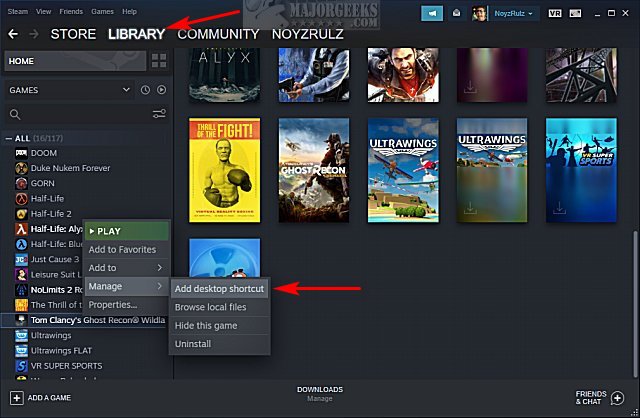
You can add steam games to your desktop by right-clicking the game in your Steam library, navigating to ‘Manage,’ and selecting ‘Add desktop shortcut.’
Want to get faster access to your favorite Steam games? It’s quite simple to place shortcuts directly on your desktop for easy launching. This makes starting up your games quicker than going through the steam client each time. Let’s explore exactly how to add steam games to desktop.
Creating these desktop shortcuts is a very quick process. Having direct access is a time saver for your frequently played titles. It’s just a few clicks to get it all setup.

How to Add Steam Games to Desktop
Having your favorite Steam games just a click away on your desktop is super handy! Instead of opening the Steam app each time, you can place shortcuts right on your screen. This makes playing your games faster and more convenient. Let’s explore the different ways you can add those cool game icons directly to your desktop.
Creating Simple Desktop Shortcuts: The Drag-and-Drop Method
The easiest way to put a Steam game on your desktop is by dragging and dropping. It’s like moving your toys from one box to another! Here’s how you can do it:
- Open the Steam App: First, find and open the Steam application on your computer. It looks like a little cogwheel.
- Go to Your Library: Once Steam is open, click on “Library” at the top. This will show you all the games you own.
- Choose Your Game: Scroll through your library until you find the game you want to put on your desktop.
- Drag and Drop: Click on the game’s name (not the big ‘Play’ button) and hold down the mouse button. Now, drag the game’s name from the Steam window and drop it onto your desktop.
- Check Your Desktop: You should now see a new icon on your desktop. It’s a shortcut to launch your selected game directly!
That’s all there is to it! This drag-and-drop method is quick, simple, and works for most Steam games. But, what if you want a bit more control or if that doesn’t work?
Using Steam’s Built-In Shortcut Creation
Sometimes, dragging and dropping might not work as expected. Steam has a built-in way to create these desktop shortcuts. Here’s how to use this method:
Right-Clicking for Shortcuts
- Open the Steam App: Start by launching the Steam application on your computer.
- Go to Your Game Library: Head over to your game library by clicking “Library” at the top.
- Find Your Game: Locate the specific game you wish to have a desktop shortcut for.
- Right-Click the Game: Right-click on the game’s name in your list. A menu will pop up.
- Go to Manage: In the menu, look for “Manage” and hover over it. Another sub-menu will appear.
- Add Desktop Shortcut: Click on “Add desktop shortcut” in the sub-menu.
- Check Your Desktop: The desktop shortcut for your game should now appear on your desktop.
This is a slightly more structured way to create shortcuts. If you have any issues with the simple drag-and-drop method, this way can often fix it.
Understanding Steam Shortcut URLs
Underneath the shiny icons, these desktop shortcuts are actually just special links that tell your computer to open a game through Steam. These links are called URLs (Uniform Resource Locators). They have a specific format so that Steam knows which game to launch. If you’re having any unusual issues creating shortcuts, sometimes knowing a bit about these URLs can be helpful.
The Anatomy of a Steam URL
Each Steam game has a unique app ID. This ID is part of the shortcut’s URL. Here’s how a basic shortcut URL looks like:
steam://rungameid/#######
steam://: This tells your computer to use the Steam application.rungameid: This command tells Steam to start a game.#######: This is the unique app ID for the particular game.
You don’t usually need to deal with these directly, but knowing they exist can help if you need to troubleshoot.
Customizing Your Desktop Game Shortcuts
Adding game shortcuts to your desktop is great, but you can also customize them to make them even better! Let’s look at how you can do this.
Changing the Shortcut Icon
Maybe you don’t like the standard icon for your game. You can change it to something you like more!
- Find the Shortcut: Locate the game shortcut on your desktop.
- Right-Click and Select Properties: Right-click on the shortcut icon and choose “Properties”.
- Go to the Shortcut Tab: In the “Properties” window, click on the “Shortcut” tab.
- Change Icon: Click on “Change Icon”. A new window will pop up, letting you choose an icon.
- Choose an Icon: You can pick a new icon from the list or use a custom icon file you have.
- Apply Changes: Select the icon you want, click “OK,” and then click “Apply” in the “Properties” window.
Your shortcut should now display the icon you chose!
Renaming the Shortcut
Sometimes, you want to rename the shortcut to something different or shorter. Here’s how to do it:
- Find the Shortcut: Locate the game shortcut on your desktop.
- Right-Click and Select Rename: Right-click on the shortcut and choose “Rename”.
- Type the New Name: Type the new name you want for the shortcut.
- Press Enter: Press the “Enter” key, or click anywhere outside the name box.
Now your shortcut has the name you picked!
Troubleshooting Common Issues
Sometimes, things don’t go exactly as planned. Here are a few issues that might occur when you create desktop shortcuts for Steam games, and how to fix them.
Shortcut Not Working
If your desktop shortcut does not start the game when clicked, try these steps:
- Restart Steam: Close Steam completely and then open it again. Sometimes this fixes minor problems.
- Recreate the Shortcut: Try creating the shortcut again using the method by right-clicking.
- Verify Game Files: In the Steam library, right-click the game and choose Properties, then Installed Files, and finally Verify Integrity of game files.
Shortcut Icon Not Displaying
If the icon for the shortcut is just a blank paper, try this:
- Change the Icon: Re-select the game’s icon in the “Change Icon” settings.
- Clear Icon Cache: You can search on Google, ‘how to clear icon cache on windows’, because the method is different for each version of windows.
Multiple Shortcut Icons Appear
If several shortcut icons appear after creating one, ensure you haven’t accidentally created the same shortcut more than once.
- Delete the Extra: Remove the duplicate shortcuts by right-clicking and choosing “Delete.”
- Check for Duplicate Shortcuts: Check you only have one shortcut on your desktop and not multiple
Benefits of Having Desktop Game Shortcuts
Having your Steam games on your desktop is more than just fun – it actually makes things better!
Quick Access to Your Games
Instead of opening Steam, then going to the library, then finding your game, you can simply double-click on the icon on your desktop. This makes getting into games much faster and more convenient!
Organization of Games
If you have many games, your desktop becomes a more organized launchpad. You can put all your favorites right in front of you and quickly see the games you want to play.
Customization
Desktop shortcuts let you change the icons and names to personalize your gaming setup. This makes it more visually appealing and easier to locate specific games at a glance.
Adding Steam games to your desktop is a simple yet useful trick to enhance your gaming experience. Whether you prefer the drag-and-drop method, the right-click method, or a little more customization, there’s a way for everyone to get their favorite games right at their fingertips. With these tips, your game library is now faster and more accessible, and you’re ready to play whenever you want!
How to create desktop shortcuts for Steam Games 2022
Final Thoughts
Adding game shortcuts to your desktop is simple. Locate your game within your Steam library. Right-click the game title and select “Manage.”
Choose “Add desktop shortcut” and a new icon will appear. You can now launch your game directly from your desktop. This is a fast way to access your favorite games. You have now learned how to add steam games to desktop.

