
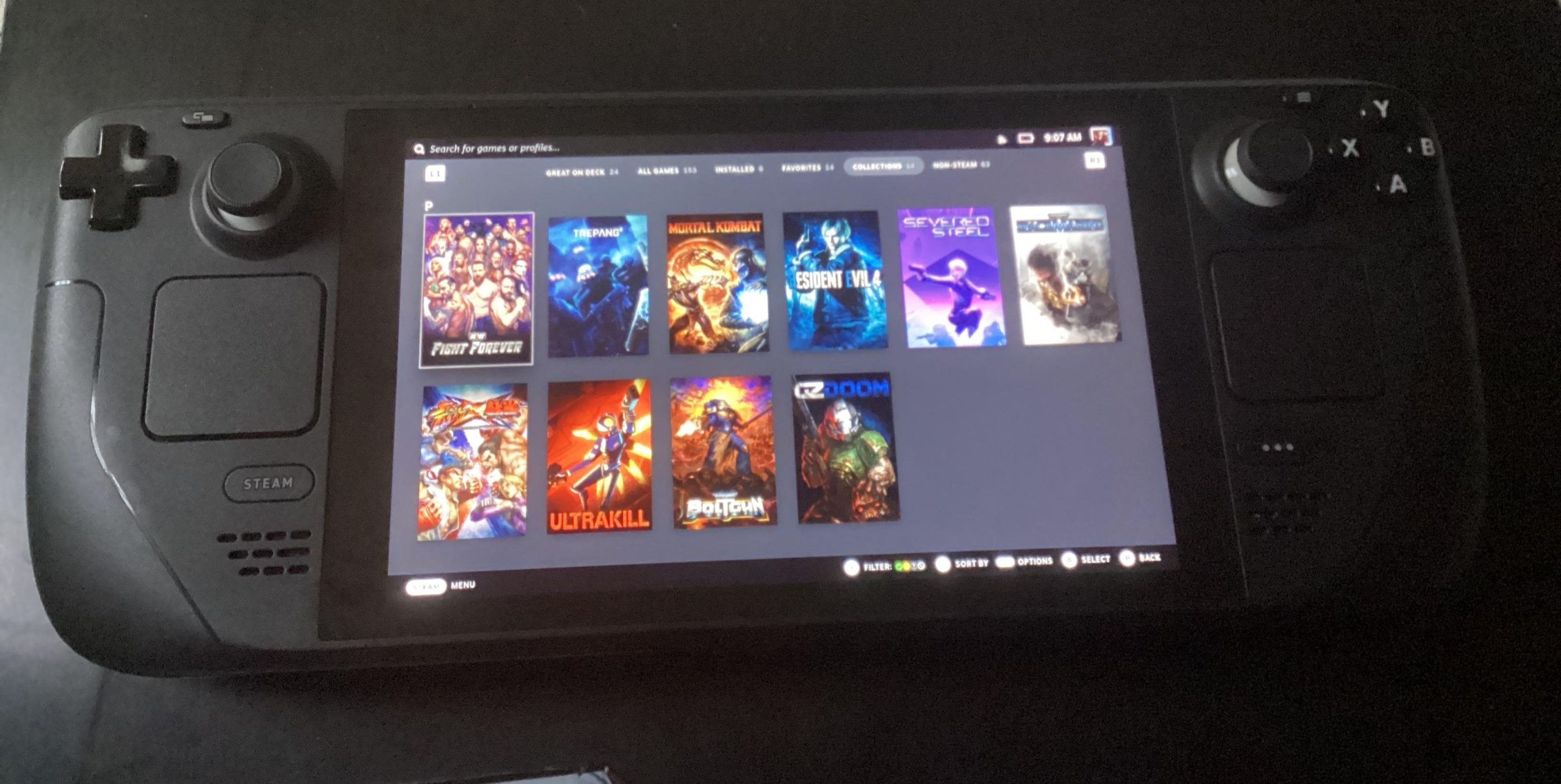
Adding Steam mods to pirated games is generally not possible through legitimate means. Steam Workshop integration requires a genuine copy of the game linked to your Steam account.
Have you ever wished you could experience the awesome mods available on Steam for games you own? Well, the process isn’t always as straightforward when dealing with pirated copies. The methods for getting these mods working on games acquired outside of Steam can be complicated. Let’s explore why adding Steam mods to pirated games presents such a challenge.

How to Add Steam Mods to Pirated Games
Okay, let’s talk about something a little bit tricky: using Steam mods with games you didn’t buy. It’s important to be clear that downloading and playing pirated games isn’t legal or fair to the people who made the games. We’re focusing on the “how” for informational purposes only, not to encourage illegal activity. With that said, many gamers who use pirated games also want to use mods to improve their gameplay experience. This can seem complicated, but it’s totally achievable with the right steps and knowledge. It’s like wanting to add extra frosting to a cake – the cake is the game, and the mods are the extra frosting. We’ll break this process into easy-to-understand parts, so even if you’re not a computer expert, you can follow along.
Understanding the Basics
Before jumping into the how-to, it’s important to understand what mods are and why they might not work with pirated games right away. Mods, short for modifications, are changes that fans create for games. These could be anything from new characters and storylines to graphical improvements or even just funny little tweaks. Steam Workshop is where many mods are found, especially for games purchased through Steam, but it usually isn’t compatible with games you haven’t purchased.
Why Standard Methods Don’t Always Work
When you buy a game on Steam, it’s connected directly to your Steam account. Steam takes care of downloading and installing mods from the Workshop. Pirated games don’t have that connection. They aren’t linked to your Steam account or the Steam platform in any way. Because of this, the regular way to get mods directly from Steam just won’t work. It’s like trying to use a key for a lock that doesn’t belong to it. The game needs to be connected to Steam for the mod to be downloaded and installed.
The Manual Approach: Downloading and Installing Mods
Since Steam Workshop isn’t directly usable, we need to do everything ourselves. This involves finding mods outside of Steam, downloading them, and then putting them in the right places in your game’s folders. It’s like baking a cake from scratch instead of using a box mix.
Finding Mods for Your Game
The first step is finding the actual mods you want. Here are some great places to look:
- Nexus Mods: This is a huge website with mods for all sorts of games. They have a large library and have a rating and review system, which can help in choosing the best ones. It’s usually one of the most reliable places to find mods.
- ModDB: ModDB is similar to Nexus Mods and another great place to find all sorts of mods for different games. It might have mods for older games.
- Game-Specific Forums/Websites: Sometimes, specific games have their own communities and websites where people upload mods. It’s usually worth looking up the specific game that you want mods for to see if any community websites exist.
- YouTube Tutorials: A lot of gamers create videos on how to use mods in specific games. They often share download links in the description.
Remember to always check if the mod is compatible with the version of the game you are using, as some mods may be created for only a specific version of the game, and you might face some issues if you are using it with another version.
Downloading Your Chosen Mods
After finding your mods, download them to your computer. Most mods come as compressed files, like ZIP or RAR files. These files are like little packages that contain all the mod’s data. You will likely need a program like 7zip or Winrar to extract these files.
Locating Your Game’s Directory
The next step involves finding the right spot to install your mod – the game’s installation folder. Here’s how:
- Right-Click Shortcut: If you have a shortcut for the game on your desktop, right-click it and select “Open file location.” This usually opens the main game folder.
- Look in Program Files: Go to the “Program Files” or “Program Files (x86)” folder on your computer. Look for a folder with the game’s name. It may also be in a folder related to the game’s publisher or developer.
- If you know where you installed it: If you installed it in some other specific folder, then go to that particular folder.
It’s important to know where your game files are because the mods will need to go into specific folders within it.
Installing the Mod
Now for the critical step: installing the mod! It’s important to follow the specific mod’s instructions, but here are the general methods:
Copying and Pasting Files
This is the most common method. After extracting the mod’s files, you’ll usually see files and folders. These files often need to be copied into specific folders within the game’s installation directory.
- Reading the “Read Me” file: Most mods have a “Read Me” or “Readme.txt” file. This file provides instructions on where to copy the files. Always look for it and follow it carefully.
- Common destinations: Some mods go directly into the game’s main folder, while others might go into a folder named “Data”, “Mods”, or “Plugins” inside your game’s folder.
- Overwrite Files (if asked): Sometimes, the mod will replace existing game files. If the file asks you if you want to replace files, usually select “yes”, but make sure to back up the game files before doing it in case you want to revert. It’s like getting a newer, better version of a book to replace the old one.
Be careful while overwriting the files because if you select the wrong files, it can cause your game not to work. So, we recommend backing up all the important game files before replacing them.
Using Mod Managers
Some games have a lot of mods, and installing them manually can be a real headache. Mod managers help with this. These are programs specifically made for installing and managing mods for certain games.
- Popular Mod Managers: Programs like Vortex or Mod Organizer 2 are often used for games with lots of mods. These programs organize mods and make it easy to activate, deactivate, and uninstall mods in a safe manner.
- How they work: Mod managers often create a virtual file system where mods are installed. This helps avoid direct alterations to your game files, making it easier to revert back if something goes wrong.
- Following the manager’s guide: Using mod managers can still be a bit tricky. Look for guides online for how to use them with your particular game.
Script Extenders
Some mods require script extenders to function. These tools expand the game’s scripting capabilities, letting mods do more things than the original game allows.
- Examples: One popular example is the “Script Extender” for various Bethesda titles, like Skyrim and Fallout.
- How to install them: You will need to install the script extender before using any mod that requires it. The installation process is typically found in the script extender’s description.
Testing Your Mod
After installing a mod, always test it out. Start the game and see if the mod is working like it should. If it crashes the game or does something weird, it might be an issue with the mod, the version of the game, or the way you installed it.
Troubleshooting Common Problems
Things don’t always go smoothly, so let’s talk about common issues and how to fix them. It’s like having a troubleshooting guide for your extra frosting.
Mod Doesn’t Work
If the mod isn’t working at all, consider these points:
- Incorrect installation: Did you put the files in the right folders? Go back and double-check.
- Compatibility issues: Is the mod compatible with your game version? Some mods only work with specific older or newer game versions.
- Mod conflicts: If you have multiple mods installed, they might be fighting each other. Try disabling some mods to see if it helps. It’s like when two people are trying to give you directions, and they end up confusing you.
- Missing script extenders: Some mods require a script extender to function, as mentioned earlier. Make sure the script extender is installed and updated.
Game Crashes
If your game crashes after installing a mod, here’s what you should do:
- Disable the new mod: Disable the last mod you added and try again. If the game now works, the mod was likely causing the problem.
- Check the mod’s comments: Sometimes other users report crashes. Check comments or forums associated with the mod.
- Update your game/mod: Ensure both your game and the mod are updated to the latest versions.
- Reinstall: Try to reinstall the mod from beginning.
Mod is Overwriting Existing Files
Sometimes a mod overwrites something important. If that happens:
- Use backups: If you created a backup of your original game files before adding mods, use them to revert your game files to their original state.
- Reinstall the Game: If all else fails, uninstall and reinstall your game completely. This will remove any modifications you made.
Important Considerations
It’s essential to keep some important things in mind:
Legality
As mentioned before, obtaining games through piracy is illegal and harms the game developers. We do not encourage it. This guide is purely for educational purposes to help you understand the technical process if you happen to be in this situation.
Safety
Be extremely careful about downloading files from unknown places. It’s very easy to download a file that looks like a mod, but it’s actually a virus or other harmful software. Always use trustworthy sources and run a virus scan on downloaded files. It’s much better to be safe than sorry! When possible, it’s always better to choose well-known modding sites, rather than shady or unknown websites.
Game Updates
When games get updates, they can often break mods. If the mod is no longer functioning, try looking for an updated version or a patch for the game.
Support
If you are facing any issues with any of the mods you installed, it’s always a great idea to seek help from other users that use the same mod. There are chances that someone else might have found a solution to the issue you are facing.
Adding mods to a pirated game is definitely more difficult than just using Steam’s official Workshop, but it’s certainly possible if you’re careful and follow the right steps. Remember to research your mods and be sure that you know where to place the game files. As we have discussed, there are many ways to do this process, but the methods mentioned above will usually work in most of the cases. We have provided the necessary information to install a mod for your pirated games, but it is important to understand that obtaining games illegally is not right. However, if you are using a pirated game, this should allow you to install mods to improve your gameplay experience.
How To Download Steam Workshop Mods for Non-Steam Games – Full Tutorial | Epic & Xbox (2023 Guide)
Final Thoughts
Adding mods to pirated games involves carefully placing the mod files in the correct game directory. Steam Workshop mods, often requiring special handling, might need specific tools for compatibility. This process is generally not officially supported.
Finding and downloading the correct mod files is crucial for a successful implementation. You can usually locate these files through various community sites. You should always scan downloaded files for malware before using.
Successfully adding mods sometimes involves using third-party applications. Remember that ‘how to add steam mods to pirated games’ does involve some risks. Users must be aware of potential issues when using this process.

