
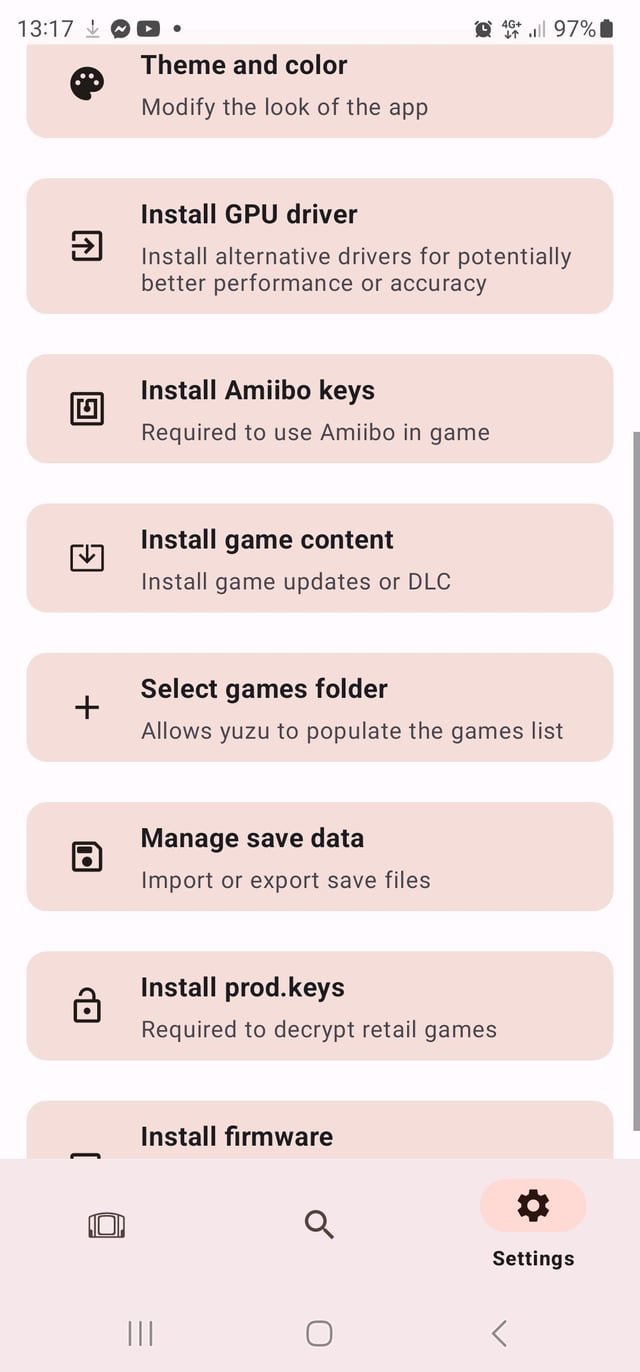
To add updates to games on Yuzu, you must place the update files within the corresponding game’s folder in the nand/user/titles directory. These files often come as .nsp or .xci files.
Want your favorite Switch games running smoothly with the latest fixes and content? We’ll quickly guide you on how to add updates to games on Yuzu. It might seem complicated, but it’s actually a straightforward process when you know where to put the update files.
This guide provides all the essential information. You will be adding updates to games on Yuzu in just a few simple steps. Get ready to enhance your game experience!

How to Add Updates to Games on Yuzu
So, you’re enjoying your favorite Nintendo Switch games on Yuzu, that fantastic emulator that lets you play those games on your computer. But, like with any game system, sometimes games get updates that fix bugs, add new features, or maybe even extra content. How do you get these updates onto your Yuzu emulator so you can keep playing with the latest and greatest version? Don’t worry, it’s not as tricky as you might think! This guide will walk you through the whole process step-by-step.
Understanding Game Updates
Before we dive into the “how,” let’s talk a little bit about what game updates actually are. When developers make a video game, they sometimes find little problems or think of cool stuff to add after the game is already out. To fix those problems or give you the new content, they release updates. These updates are usually small files that change or add onto the original game data. These update files work together with the original game file, so you have both.
Why are Updates Important?
- Bug Fixes: Game updates often fix frustrating problems that might make a game not work right. This makes the game smoother and more fun to play.
- New Features: Sometimes, an update might add a whole new game mode, special characters, or exciting locations for you to explore.
- Performance Improvements: Updates can make games run better on your hardware. They can speed things up, and reduce issues, so you have a better experience.
- Content Additions: Game updates may include additional items, levels, or other content, providing even more entertainment value.
Finding Game Updates
The most critical first step to adding updates to your games on Yuzu involves finding those update files. Unlike your actual Nintendo Switch, Yuzu doesn’t magically download updates by itself. That means you have to find the update files yourself, and the place to get them from is not always the same. It’s important to find these files from trusted sources to protect your computer. Also, always have an antivirus on your device, so that you don’t accidently download something unsafe.
Common Sources for Game Updates
- Dedicated Forums and Websites: Many online communities are devoted to emulating games. These sites often have sections or posts where people share game updates. These resources are useful because other users can help point out trustworthy links.
- File-sharing Websites: Some file sharing websites also host game update files, but you need to be extra careful here. Be sure to do your research on the specific website before you download files. Only download updates from website that have a good reputation in the community.
- Community-Driven Resources: Many people in emulation communities share resources they’ve collected. Be sure to research the reputation of the source carefully before downloading anything.
Important Note: Always be careful when downloading files from the internet. Some websites might not be safe, so only use trusted sources, and make sure you have an antivirus program. You can usually tell if a website is reputable by checking how many people use and review it.
Preparing Your Files
Okay, so you’ve found your game update file! Before adding them to Yuzu, you need to make sure they’re in the right format. Update files for Nintendo Switch games on emulators usually come in specific formats, typically XCI or NSP, which are the same format as the games themselves.
Checking File Types
The file name usually tells you what kind of file it is. For example, you might see something like:
- game_name_update.nsp
- game_name_update.xci
If you see a file ending in “.nsp” or “.xci,” you’re usually good to go. If you see something else, it might not be the right kind of file. Always double check to make sure, so that you don’t accidently break your game file.
Extracting Files (If Necessary)
Sometimes the update file is in a compressed file like a .zip or .rar file. If that’s the case, you’ll need to extract the actual update file from the compressed file before you can use it on yuzu. To extract files:
- Locate the compressed file: Go to wherever you downloaded the .zip or .rar file.
- Right-click the file: When you click, a menu pops up.
- Select “Extract Here” (or similar): If your computer is able to, it will extract a file. The update file that ends in .nsp or .xci will then appear in the same folder.
Once you’ve done this, you should have the .nsp or .xci update file ready to use in yuzu.
Adding Updates to Yuzu
Now, finally, for the most important part – actually adding the update to your game on Yuzu. The process is simple, once you know where to click. Here’s a detailed breakdown:
Step-by-Step Guide:
- Open Yuzu: Launch the Yuzu emulator on your computer. Make sure the emulator is running and ready to use.
- Locate your Game: On the main Yuzu window, you will see a list of all the games you have set up. Find the specific game you want to update. This will be the game for which you downloaded an update for earlier.
- Right Click the Game: Click the game with the right button on your mouse. A menu will appear with a list of options.
- Select “Install File” (or similar): From the menu that appears, select the option that says “Install File to NAND”. This is the correct option to add an update to your game on Yuzu.
- Locate Your Update File: A window will pop up that lets you browse your computer files. Go to where you have saved your update file that ends in .nsp or .xci, and select it.
- Install the Update: Once you have selected the correct update file, click “Open,” or “Install”. Yuzu will begin to add the update to your game. This usually only takes a little while, so you won’t have to wait for too long.
- Check the Update Installation: After the update is complete, yuzu usually shows a message to tell you that it has worked. If not, you can look for specific signs the update is installed. See the section below to check if it is working.
- Start Your Game: Start your game to see if the update has installed correctly. If it has installed, your game will be the most up-to-date version.
Checking if the Update Worked
After you have installed the update, how can you know that it really did update? Many updates change the version number of the game, which can be checked within the yuzu emulator. Also, some updates will have new menus or characters, which will be a sure sign that the update worked correctly.
- Version Number: In Yuzu, right-click the game and select ‘Properties’. Look for the version number. Compare this version with the original version of the game, or the details of the update that you downloaded. If the version number is correct, then it worked.
- New Features: Start your game. Look for any new features that the update should have added. If those features are there, then you know that the update worked.
Troubleshooting Common Issues
Sometimes, things might not go exactly as planned. Here are a few common problems people face and how you can fix them:
Issue: The update file isn’t working
If Yuzu is saying that the update file is wrong, or that it can’t install it, here are a few things to check:
- Incorrect File Type: Make sure that the update file you downloaded is the correct format (.nsp or .xci). If it’s something else, like a .zip, make sure you extract the files from the .zip first.
- Incorrect Region: Make sure that the update file region matches the game region. For example, if you have a US version of a game, then you need a US version of the update. If the region is different, it won’t work, so make sure you are getting updates made for your game.
- Corrupted File: The file might be damaged. Try downloading the update file again, from a different source.
Issue: Game crashes or acts weird after updating
Sometimes, even after installing the update, games can have issues. If your game starts to behave oddly after the update, here are a few things to try:
- Restart Yuzu: Sometimes simply restarting the emulator will make everything work smoothly again.
- Check Yuzu Compatibility: Check the yuzu website to make sure your game is compatible with the update. Sometimes, the update is not fully compatible with the emulator.
- Graphics Driver Update: Update the graphics card drivers on your computer. This might help the emulator better process the new update.
- Redownload Update: Delete the update file you downloaded, and find a different source to download the same update. Sometimes the file might be wrong.
Issue: Yuzu Doesn’t Recognise the Update File
If Yuzu can’t see the update file when you are trying to install it, here’s what to do:
- Correct File Location: Make sure the file is not stored in a location that is hard for the computer to find. Try moving it into a downloads folder that is easy to find.
- Check File Format: Double check the file type. It should be a .nsp or .xci type.
- Restart Yuzu: Close and reopen Yuzu, and try again.
Staying Safe
It is so important to stay safe when you download files from the internet. Here are a few tips to keep your computer safe:
- Only Use Trusted Sources: Download game updates from reliable communities and websites that have a good reputation. Check reviews and forums to make sure that others have used the source safely.
- Run Anti-virus Scans: Before you open any file you download from the internet, run a virus scan. Your antivirus program will tell you if the file is unsafe.
- Be Skeptical: If a website or link looks suspicious, don’t download anything. Be especially careful if a website is asking for personal information or passwords, as these are often scam websites.
Adding updates to your favorite games on Yuzu is very easy once you know how to do it. By following the steps above, you can make sure that your games always have the newest and best content available. Just remember to only use trusted sources for your update files and you can enjoy playing your games with the latest updates!
How to install updates and DLC for Switch ROMS in YUZU
Final Thoughts
To add game updates on Yuzu, first locate the update files, usually in .nsp or .xci format. Next, open Yuzu and navigate to File then select “Install Files to NAND”. Select the update file to install it.
The emulator will handle installing the update. Properly installing updates is key to ensure you have the most current and stable game versions. This method describes specifically how to add updates to games on yuzu.

