
It’s generally not possible to directly allocate more RAM to individual Steam games. Instead, the operating system manages RAM allocation. Ensure unnecessary programs are closed for improved performance.
Experiencing sluggish gameplay? It often feels like your system is holding back. Many players search for methods to improve performance, and one common query is how to allocate more ram to steam games. The frustrating truth is, the operating system controls how RAM is used. We can explore practical steps to get the best performance. These techniques are helpful even if you can’t manually force a game to use more ram.

How to Allocate More RAM to Steam Games
Ever noticed your favorite Steam game stuttering or running slowly? One common reason for this is that your computer isn’t giving the game enough memory, or RAM. Think of RAM like your computer’s short-term memory. When you play a game, the computer needs to quickly access lots of information. If there isn’t enough RAM, it has to rely more on your slower hard drive, causing those annoying lags. Luckily, you can often give your games more RAM, making them run smoother. It’s not always a simple click-and-drag, but with a few tips and tricks, you can make a difference. Let’s get into it!
Understanding RAM and How Games Use It
Before we dive into the “how,” let’s talk about “why.” RAM, or Random Access Memory, is a very fast type of memory that your computer uses to store information it needs right away. Games, with their complex graphics, sounds, and character movements, need to access tons of data quickly. If a game doesn’t have enough RAM available, your computer has to use the hard drive for extra storage, which takes more time, leading to slowdowns, freezes, and even crashes. It is important to note that you can’t just magically create more RAM. The amount of RAM available in your system is a fixed hardware component. What we’re actually doing is optimizing how your computer manages and allocates its existing RAM.
Why Games Need Sufficient RAM
Games demand a lot of system resources to run smoothly. Here’s a breakdown:
- Loading Game Assets: Textures, character models, and sound files all reside in RAM when you play. If you are running a game with high-resolution textures, that will need more RAM.
- Calculating Game Logic: The game’s rules, physics, and AI all happen in RAM, requiring quick access for every action.
- Multiplayer Interactions: When you play online, RAM stores info about other players and the game server, further increasing RAM usage.
Signs That Your Game Needs More RAM
How do you know if RAM is the problem? Look for these common signs:
- Stuttering and Lag: The game freezes momentarily, making gameplay choppy.
- Low Frame Rates (FPS): The number of frames displayed per second drops significantly, making the game look jerky.
- Slow Loading Times: The game takes a long time to load or transition between scenes.
- Frequent Crashes: The game suddenly closes, possibly displaying an error message.
- High Disk Usage: Your computer’s hard drive is working hard, even when the game isn’t doing much, because of frequent memory swapping.
Checking Your RAM Usage
Before making any changes, it’s helpful to see how much RAM your system is using. Windows has a tool called Task Manager that makes this easy:
- Press Ctrl + Shift + Esc keys at the same time to open Task Manager.
- Click on the Performance tab.
- Look for the Memory section. This will show you how much RAM is being used.
- Start the game you want to optimize, and check the memory usage again. See how much the game is using.
If you see your RAM usage consistently near 100% while gaming, it’s a strong sign you need to optimize memory allocation or consider a RAM upgrade. Note that it’s fine if your RAM is near 100% only sometimes. What we’re looking for here is consistent usage near 100% which indicates a memory bottleneck. Always look into the recommended and minimum RAM specifications for each game you play, this will also help identify bottlenecks.
Methods for Optimizing RAM Usage for Steam Games
Now, let’s discuss ways to make sure your Steam games get the memory they need. It is not like setting a specific amount of RAM in the game settings, it’s more about optimizing your existing system RAM usage.
Closing Unnecessary Programs
One of the easiest ways to free up RAM is to close programs you’re not using. Even programs that run in the background can consume memory. Here’s how:
- Open Task Manager.
- Go to the Processes tab.
- Click on the Memory column to sort the list by memory usage.
- Close the programs you don’t need by selecting them and clicking “End task”. Be careful not to end important system processes.
This simple step can free up a significant chunk of RAM for your game. Sometimes, just minimizing the applications is not enough, make sure you fully close any background app. Web browsers, in particular, tend to use lots of RAM, so close those before gaming.
Adjusting Graphics Settings
Many games have different graphics settings you can adjust, that can indirectly help you in optimizing the RAM usage. Lowering these settings can reduce how much memory your game uses.
- Texture Quality: High-resolution textures take up lots of RAM. Lowering texture quality can save significant memory.
- Shadow Quality: Shadows also consume a considerable amount of memory. Try lowering them or turning them off completely.
- Anti-Aliasing: This smoothens edges in game. Lowering or turning this off can improve performance at the expense of visual clarity.
- Render Distance: Reducing the distance at which objects are rendered can help with RAM usage.
- Resolution: Running the game at a lower resolution reduces the memory pressure as well.
Experiment with these settings to find a balance between visuals and performance. Many games also have presets like “low” or “medium”. If the graphics settings are too complicated to adjust, these preset options can help significantly.
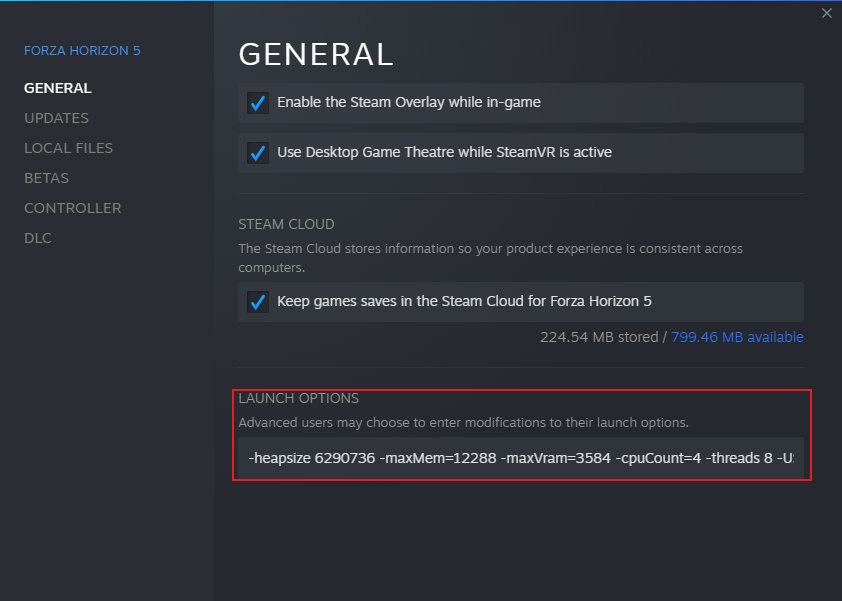
Using Steam Launch Options
Steam allows users to use launch options that alter how games start. These can sometimes improve performance.
- Open Steam.
- Go to your Library.
- Right-click on the game you want to change.
- Select Properties.
- In the General tab, find the Launch Options field.
- Enter the launch options you want to use.
While these options won’t directly increase RAM, they can help optimize performance by adjusting settings that might use memory inefficiently. Here are some commonly used launch options that can help, and some examples of the most commonly used launch options:
- -heapsize [size in bytes]: This option controls the heap size, the memory allocation for the game. Though it doesn’t directly “add” RAM, it is a way to more precisely allocate it. However, it may not be effective for all games, and it is important to not overestimate the available amount of system RAM. For example,
-heapsize 2097152would allocate about 2GB, however it’s better to not mess with it if you don’t understand it correctly. - -nojoy: Disables joystick support, which can free up some RAM. It can be helpful for games that do not require joysticks.
- -high: Runs the game with a high priority, giving it more system resources. Can be helpful, but may cause other programs to run slower.
- -console: Enables the game’s developer console, which can be used to debug the game further, but this is mostly for developers.
- -dxlevel [version]: This launch option specifies the version of DirectX, it is best to use the default version unless you are having issues, it can be useful for debugging as well.
Always research specific launch options for the game you’re playing to know which ones are useful for the best memory optimization. If you are not sure, do not try any of these commands as it may cause issues for the game. Keep in mind that many newer games don’t use these options. The effectiveness of launch options is highly variable.
Disabling Startup Programs
Many programs start automatically when you turn on your computer, and these programs can use precious memory. Here’s how to manage startup programs:
- Open Task Manager.
- Go to the Startup tab.
- Disable any programs that you don’t need to run at startup.
This means less programs competing for memory. Only disable those programs that are not essential to your computer’s functionality. In case you want to disable an important program, it’s better to do some more research about that particular program to know if it can cause issues.
Adjusting Virtual Memory (Page File)
Windows uses something called a page file or virtual memory. This is space on your hard drive that acts as extra RAM. While it’s slower than actual RAM, it can help if your RAM is running full. You can adjust the size of the page file:
- Type “Advanced System Settings” in the Windows search bar and select it.
- In the System Properties window, click the Settings… button in the Performance section.
- Go to the Advanced tab.
- In the Virtual memory section, click Change…
- Uncheck the Automatically manage paging file size for all drives box.
- Select a drive to store the virtual memory.
- Select the custom size and set both the Initial size and Maximum size to the same number, it is recommended to at least use the same as the amount of your installed RAM or at most double that amount. For example, if you have 8GB of RAM, you can set the page file to 8192MB, 16384MB, or something in-between. However, make sure that you have sufficient storage on your drive to set that amount.
- Click Set and then OK on all open windows.
Keep in mind that using the page file will make the game a bit slower than if it was using only your physical RAM, but this can help to avoid crashes and improve overall performance when there is not enough RAM. For SSDs, a larger page file may not cause too much performance degradation compared to using a mechanical hard drive. Always reboot your computer to have the changes fully applied.
Updating Drivers
Having the latest drivers for your graphics card can sometimes improve performance, as the drivers are optimized to work better with the latest games. Visit your GPU manufacturer’s website (NVIDIA, AMD, or Intel) and download the latest drivers, and then install them. Older drivers are known to sometimes cause performance problems and crashes, which can indirectly cause more RAM usage.
Using Third-Party Software
There are also some third-party programs available that claim to help optimize RAM usage for games. However, use them with caution, as some can be unstable or not work as advertised. Some of the third-party apps are:
- Razer Cortex: A game booster app that can help free up RAM.
- Intelligent Standby List Cleaner (ISLC): Helps clear up Windows’ standby memory list that may not be used efficiently.
- Mem Reduct: A lightweight app to clear up RAM and reduce the amount of memory that Windows has cached.
Always do your research and read reviews before downloading or using third-party programs. Always make sure that you download it from the official website, as other third-party websites may have malware. Also, it is always recommended to create a system restore point before trying these kinds of third-party software.
When to Consider a RAM Upgrade
If you’ve tried all the above methods and your game still struggles, you might need to consider adding more RAM to your computer. For most modern games, 8GB of RAM is a minimum, 16GB is considered to be the sweet spot, while 32GB or more can be helpful for very demanding games. Adding more RAM is a hardware upgrade and can be a bit expensive. To know if this is needed, check the system memory usage when playing. It is usually quite easy to add more RAM to a desktop computer, but it can be more difficult with some laptops, or even impossible if the RAM is soldered to the motherboard.
Before you buy more RAM, make sure you know what type of RAM your computer needs, and how much RAM your motherboard supports. There are various kinds of RAM (e.g. DDR4 or DDR5), and you must buy the correct one that is compatible with your motherboard, and it is generally good to buy the same RAM that you already have so that there are no compatibility problems. You should always consult with your computer manufacturer or a qualified technician to ensure compatibility.
It is important to note that adding more RAM may not be the only solution. A very old computer may have other performance bottlenecks like the CPU or GPU. In that case, adding RAM may not solve all the problems. In some cases it’s better to start from scratch with a new computer if the bottleneck is too severe, but that will depend on the budget.
Optimizing RAM usage for Steam games is not about magically creating more memory, it’s about making the most of what you have and that your existing system memory is used efficiently. By closing unnecessary programs, tweaking settings, and knowing when an upgrade is needed, you can ensure smoother and more enjoyable gaming. Hopefully, with the methods that were discussed here, you will be able to have better game performance.
How to Add More Ram to Steam Games
Final Thoughts
In short, adjusting launch options or using third-party software represents key methods to manage memory. You can use advanced system settings if you are comfortable with those configurations. Remember that your system’s total RAM limits what can be allocated.
Effectively managing RAM is crucial for a smooth gaming experience. If you know how to allocate more ram to steam games, you will see improvements. These simple adjustments can make a significant difference in performance.

