
Unity saves game data in platform-specific locations; commonly within the Application.persistentDataPath or a similar directory for user-specific data.
Ever wondered where your progress is stashed after a gaming session? It’s a common question for developers working in Unity and for players alike. This article dives into answering the crucial question, where does unity save game data. Understanding where this information is stored is key to managing player progress, settings, and more.
Unity cleverly handles data storage differently based on the target platform. It provides paths and functions to access these storage locations efficiently, meaning you don’t need to write lots of platform specific code. This keeps things simple for developers while giving a seamless experience to players.

Where Does Unity Save Game Data?
So, you’re making a cool game with Unity! That’s awesome! But have you ever wondered where all that important game data, like player progress, high scores, and custom settings, actually goes? It’s not magic; Unity uses specific locations on your computer (or phone or console) to keep track of everything. Understanding where your game saves data is really helpful, not only for backing up your game data but also for debugging and sometimes making small adjustments to your settings. Let’s explore these locations together!
Understanding Persistent Data Paths
Unity provides some handy paths that point to where it’s okay to store game data. These locations aren’t random; they are carefully chosen based on the type of operating system or platform you are using. Think of it like this: each device has its own special spots for saving things. Here are a few key paths you’ll encounter:
- Application.persistentDataPath: This is the main one you’ll use most of the time. It’s the place where you put most of your game save files. It changes based on your operating system.
- Application.dataPath: This one points to where your game files are actually stored as part of the game itself. This is mainly for storing things that are part of your project from the beginning, not the data you create while playing.
- Application.temporaryCachePath: This is like a short term memory for your game. It’s used to store stuff that the game doesn’t need to keep around for long, like temporary files and cached information.
How Persistent Data Paths Differ Across Platforms
Now, let’s see how that Application.persistentDataPath changes from platform to platform. It’s a little different depending on if you’re playing on a PC, a Mac, an Android phone, or an iPhone. The main thing to remember is that these paths can look different but they are all for the same purpose to store your game’s save data.
Windows
On a Windows PC, the data is saved in a folder within the %USERPROFILE%\AppData\LocalLow directory. It will be within a subfolder with your company name (as defined in Unity project settings) followed by your product name (again, defined in Unity). So it looks something like this:
C:\Users\[YourUserName]\AppData\LocalLow\[CompanyName]\[ProductName]
The AppData folder might be hidden by default, so you may need to show hidden folders in Windows Explorer to see it.
macOS
For macOS, you will find game data tucked away in a folder inside your user’s Library folder. The full path typically follows this structure:
/Users/[YourUserName]/Library/Application Support/[CompanyName]/[ProductName]
Just like on Windows, the Library folder is sometimes hidden by default on macOS, so you may have to press Command+Shift+. to show hidden folders.
Android
On an Android device, things get a little different. Your game data is saved within the internal storage allocated to the application. The path will look something like this:
/storage/emulated/0/Android/data/[YourPackageName]/files
Here, [YourPackageName] is the unique package name of your game. You won’t usually see this path directly from your phone’s file explorer without additional tools, but it’s there.
iOS (iPhone/iPad)
iOS follows similar guidelines as Android. Data for your game is saved within your app’s sandbox. It is also not usually directly accessible through the file system without some extra steps. The structure looks like this:
/var/mobile/Containers/Data/Application/[AppID]/Documents
[AppID] is the unique ID generated for your application by Apple. This area is very restricted and is really just used by iOS itself and to manage and retrieve game data.
It’s important to realize these paths are different. You don’t have to worry about this too much. Unity figures out these platform differences for you. Just use Application.persistentDataPath in your scripts and Unity will find the right place.
How to Access and Use Persistent Data Paths in Unity
Now that you know the paths, let’s look at how you use them in your Unity game. You access it with a simple line of code.
Using C# to Access the Path
Inside a C# script, you can get to the path using a line like this:
          string savePath = Application.persistentDataPath;
          Debug.Log("Save Path: " + savePath);
This simple code will show the correct path for your current platform in the Unity console. If you want to add specific files to this path, you would add more to the end of it. Example : string savePath = Application.persistentDataPath + "/MySaveFile.json";
Saving Data to the Path
After figuring out where to save data, the real work starts! You will probably want to save important player data to files at this location. Here are some common methods used to save data.
Using Text Files (.txt, .json, .csv)
Text files are easy to work with and great for storing simple data. You could save settings, high scores, or level progress. For more complex data you can save it using JSON or XML and then parse it.
Here’s a simple example saving a text file:
using System.IO;
using UnityEngine;

public class SaveManager : MonoBehaviour {

    void Start() {
        SaveGameData("This is my awesome game data!");
        Debug.Log("Save complete");
    }

    void SaveGameData(string dataToSave) {
        string savePath = Application.persistentDataPath + "/gameData.txt";
        File.WriteAllText(savePath, dataToSave);
    }
}
And here’s example code to read it:
using System.IO;
using UnityEngine;

public class LoadManager : MonoBehaviour {

    void Start() {
       string loadedData =  LoadGameData();
       Debug.Log("Loaded game data: " + loadedData);
    }

    string LoadGameData() {
         string savePath = Application.persistentDataPath + "/gameData.txt";
         return File.ReadAllText(savePath);
    }
}
This code shows how to save and load simple strings using files. You’ll probably want to work with more complex structured information like player data and inventory, which might require other data formats like JSON or XML.
JSON is very popular because Unity has a built in system for using it. If you need help with writing JSON code, there are tons of guides out there that can help!
Using PlayerPrefs (Simple Data)
Unity also offers a simple way to save basic data, called PlayerPrefs. It’s great for things like player preferences and settings that don’t need more complicated storage systems.
Here’s how you use PlayerPrefs:
- Saving an integer:
PlayerPrefs.SetInt("score", 100); - Saving a float:
PlayerPrefs.SetFloat("volume", 0.5f); - Saving a string:
PlayerPrefs.SetString("playerName", "CoolPlayer"); - Getting an integer:
int score = PlayerPrefs.GetInt("score"); - Getting a float:
float volume = PlayerPrefs.GetFloat("volume"); - Getting a string:
string playerName = PlayerPrefs.GetString("playerName");
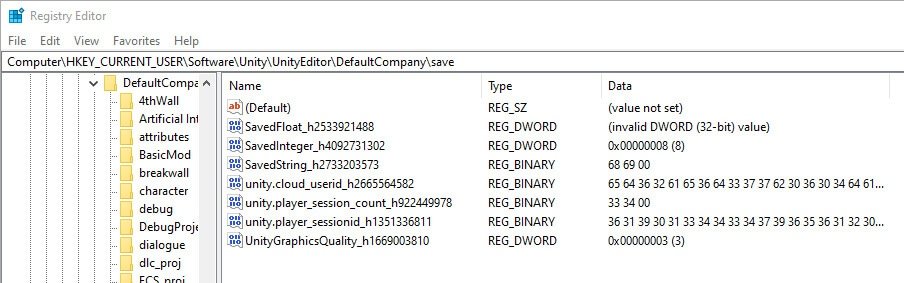
The data saved with PlayerPrefs also gets saved somewhere in a path based on your platform. You can’t control this location, or directly read or change the file with regular file system tools. It’s best for simple configuration settings. PlayerPrefs stores this data based on the platform, just like Application.persistentDataPath does, and it does not use the same folder structure.
Here is where PlayerPrefs stores data based on your platform. Note that you will not be able to browse it in the same way that you can browse the folders in persistent data paths:
- Windows: Stored in the Registry under
HKEY_CURRENT_USER\Software\[CompanyName]\[ProductName]. This means the data is not stored in a regular file but instead uses the Windows system registry. - macOS: Saved in
~/Library/Preferences/[Your Bundle Identifier].plist, which is an XML formatted property list. The bundle identifier is from your Unity project. - Android: Data is stored in a
.xmlfile within the application’s directory in the/data/data/[YourPackageName]/shared_prefsdirectory. Like the data files for the app, this isn’t usually directly browsable without developer tools or rooting your phone. - iOS: The data is within the app’s sandbox directory, also in a plist. Like Android, it is not usually browsable without developer tools or jailbreaking your device.
Organizing Your Game Data
Organizing your game data is super important. Imagine if everything was just randomly dumped into a folder. It would be really hard to find anything! That’s why good data organization is important. Here are some tips:
- Use descriptive file names: Instead of just using “savefile.txt,” try using names that describe what is inside, like “playerData.json” or “gameSettings.txt”.
- Use subfolders: You can also create folders within your persistent data path to better organize your data. For example, you might use “saves” for game saves, “config” for settings, and so on. Here’s a sample of how you would make such a structure:
using System.IO;
using UnityEngine;

public class OrganizeSave : MonoBehaviour {

  void Start() {
    string savesFolder = Path.Combine(Application.persistentDataPath, "saves");
    string configFolder = Path.Combine(Application.persistentDataPath, "config");

    //Make the folders if they don't exist
    Directory.CreateDirectory(savesFolder);
    Directory.CreateDirectory(configFolder);

    //Create your files in these folders:
    string saveFileLocation = Path.Combine(savesFolder,"saveGame1.json");
    File.WriteAllText(saveFileLocation,"{\"PlayerName\" : \"Cool Player\", \"Level\": 5 }");

    string configFileLocation = Path.Combine(configFolder,"settings.txt");
    File.WriteAllText(configFileLocation,"Volume: 0.75");

    Debug.Log("Files created in appropriate subfolders.");
    }
}
- Use a structured data format: JSON or XML are really helpful for saving complex data. They help you write data in a structured and readable way.
Tips for Managing Your Save Data
Handling save data can sometimes be tricky. Here are some points to keep in mind as you work with your game save systems:
- Error Handling: Always use try/catch blocks when saving and loading files. It will help if something goes wrong, like if a file is missing or gets corrupted.
- Backup Data: Let players back up their save files. If you are making a PC game, this can help give users more control and let them feel safer using your game.
- Data Versioning: If you update your game, your old save data might not work with the new version. Think about versioning your save files so you can upgrade them to the new system.
- Avoid Saving Too Often: Saving data too often, like after every single step, can use up the storage of your device. Saving every minute or after a level is often a good compromise.
Platform-Specific Considerations
While Application.persistentDataPath is very helpful, you might also want to think about some specific platform things:
- Cloud Saves: On mobile devices and consoles, you often have the option of cloud saving your data. This allows players to keep their data and progress even if they lose their device or use multiple devices. Unity and the platforms will usually have ways to help you handle this, but you will still need to implement some specific code.
- Permissions: Some platforms, like mobile, might ask for permission to access the file system. Make sure your game has the proper permissions.
- Performance: Save data to disk operations can sometimes make your game slow. You should always be aware when you are loading or saving data and avoid doing it during gameplay if you can.
Managing save data is a crucial part of game development. This guide should give you a good start on understanding how Unity deals with storing game data.
SAVE & LOAD SYSTEM in Unity
Final Thoughts
Unity saves game data differently depending on the platform. For standalone builds, it often uses the Application.persistentDataPath. This path points to a location specific to the operating system.
Mobile platforms like iOS and Android also have distinct storage areas. Generally, these are located within the app’s sandboxed data directory. Knowing where does unity save game data is crucial for accessing or modifying saved information.

