
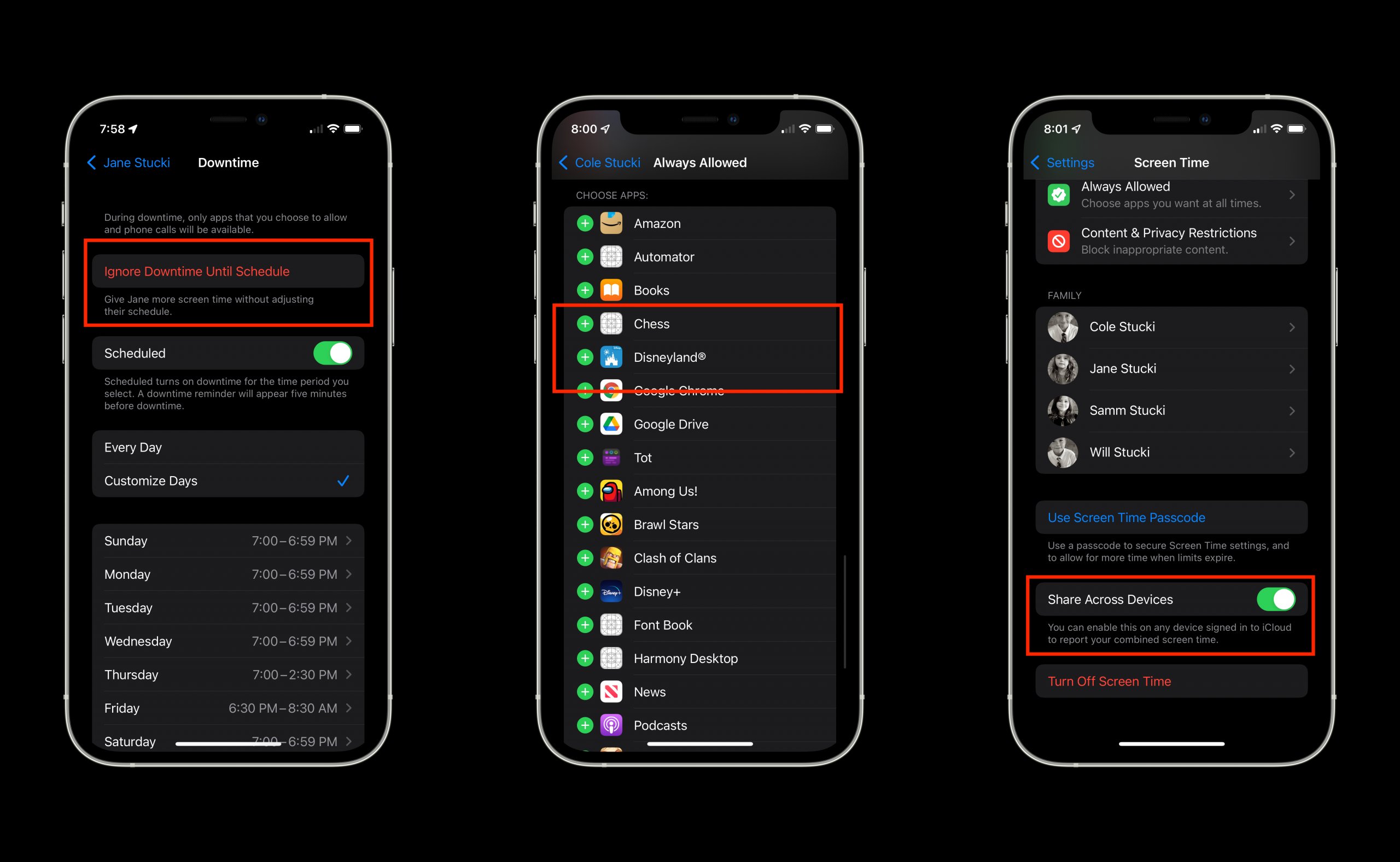
To allow Game Pigeon during Downtime, navigate to Settings > Screen Time > Always Allowed and add Game Pigeon to the list.
Ever felt that urge to challenge your friend to a quick game of 8-ball when you should be taking a digital break? You’re not alone. Many find that the restrictions of Downtime can interrupt fun moments. So, how to allow Game Pigeon during downtime becomes a common question, especially for those who enjoy a casual game within their iMessage. This guide will show you exactly how to make that happen.

How to Allow Game Pigeon During Downtime
Have you ever been in the middle of a super important Game Pigeon match, only to have your screen suddenly go dark because of Downtime? It’s like the game is saying, “Nope, not right now!” Downtime is a feature on your iPhone or iPad that helps you take a break from your apps. It can be a good thing, but sometimes it gets in the way when you want to play a quick game with your friends. Thankfully, there’s a way to make sure Game Pigeon is always ready for action, even during Downtime. In this guide, we’ll walk you through how to set things up so you can keep those friendly competitions going.
Understanding Downtime on Your Apple Device
Before we jump into the fix, let’s talk a little bit about what Downtime actually does. It’s part of Screen Time, which is a tool built into your iPhone and iPad that helps you manage how much time you spend on your device. Think of it like a timer for your apps. You can set it so that certain apps are only available at certain times, which can be helpful for focusing on homework or getting ready for bed.
How Downtime Works
When you set up Downtime, you choose specific hours when most apps will be off-limits. You can set up different Downtime schedules for weekdays and weekends. Once Downtime is on, you’ll only be able to use the apps you’ve specifically allowed. All other apps on your phone will appear greyed out, and you won’t be able to open them unless you turn off Downtime or change your settings.
Why Use Downtime?
People use Downtime for different reasons. It can help you limit distractions, especially if you find it hard to put down your phone when you need to focus on other things. For instance, you might want to block social media apps during study time. Also, it helps you make sure you are not using any kind of apps before going to sleep. Downtime can also help you keep your screen time balanced, so you can enjoy other activities.
Why Game Pigeon Gets Blocked by Downtime
So, if Downtime is great for taking a break, why does it affect your fun with Game Pigeon? Game Pigeon is an app that works through the Messages app. The Messages app is often included in the list of apps that get blocked during Downtime because, for most people, it’s a messenger, and you might not want to be distracted by messages when you are focusing on something else. Because Game Pigeon relies on the Messages app, it gets caught in the Downtime net too. That’s why you see that grey icon when you try to play during those hours.
Allowing Game Pigeon Through Downtime: The Step-by-Step Guide
Now for the part you’ve been waiting for! Here’s how to make sure you can still get those Game Pigeon matches in even when Downtime is on.
Step 1: Open Your Settings
First, look for the Settings app on your iPhone or iPad. It looks like a grey gear icon. Tap it to open it.
Step 2: Find Screen Time
Scroll down a little in the Settings menu until you find “Screen Time.” Tap on it.
Step 3: Access Always Allowed
In the Screen Time menu, you’ll see an option called “Always Allowed”. Tap it to proceed.
Step 4: Add Messages to Always Allowed
This is where you’ll tell your device that you want to use certain apps even when Downtime is activated. Look for the section titled “Choose Apps.” If the Messages app isn’t listed under the “Allowed Apps” list, it means it’s being blocked by Downtime. Tap the “+” sign next to “Messages” to add it to this list. Once you add the app, it will appear in the “Allowed Apps” section. You might need to scroll through the list of apps to find Messages.
Important Note: By allowing Messages, you’re not just allowing Game Pigeon; you’re also allowing access to all your messages. If you only want to allow Game Pigeon, unfortunately, there’s no specific setting just for it. You’ll need to allow the Messages app to make it work.
Step 5: Verify Your Settings
Once you add Messages to the “Always Allowed” list, go back to your main Screen Time menu and activate your Downtime if it’s not already on. Check and see if you can now open Messages and launch Game Pigeon. If you have followed the steps correctly, Game Pigeon should work even during your set Downtime.
Additional Tips and Considerations
Here are some other things to keep in mind when setting up Game Pigeon and Downtime.
Managing Downtime Schedules
You can create different schedules for weekdays and weekends. If you know you’re more likely to play Game Pigeon on a weekend, you might want to make Downtime a little later, or adjust the allowed apps based on your routine.
Family Sharing and Screen Time
If your phone is part of a family sharing plan, the person who manages the family account can set Downtime and app restrictions for all devices in the family. This means the settings will be applicable to all the family members of your account. If you are trying to allow Game Pigeon through Downtime, then the family manager needs to make changes. Make sure to communicate with them about wanting to allow messages, so you can play your games during downtime.
Changing Downtime Settings
If you are having problems after enabling messages to the “Always Allowed” list, double check to ensure that you didn’t accidentally change your settings. Sometimes a small oversight can cause problems. Carefully reviewing your settings again can help you identify and fix any issues.
Temporary Downtime Bypass
There is another option that you may try to continue your games during Downtime, that is bypassing the Downtime for 15 minutes. After a 15-minute bypass, your Downtime will be enforced again. This can be helpful if you are not sure if you want to allow the Messages app always and you still want to play for a quick 15 minutes. To do this, just tap the ‘Ignore Limit’ when the Downtime is triggered and choose ‘Remind me in 15 minutes’ option. It gives you a little buffer to get through a final match or finish up your game.
Regularly Review Your Screen Time
It’s a good idea to check your Screen Time report regularly. This report shows you which apps you’ve been using and for how long. This can give you a better idea of your app usage patterns and help you make informed decisions about your Downtime and allowed apps.
Troubleshooting Common Issues
Sometimes things don’t work quite right the first time, so let’s talk about some common problems you might run into.
Game Pigeon Still Not Working
If, after following the steps, you still can’t access Game Pigeon, here’s what to do:
- Double-Check Your Settings: Make sure you added the “Messages” app to the “Always Allowed” list, and not just “Game Pigeon” (because it’s not an app on its own). Check to see that your time is correctly set, as an incorrect time can cause Downtime to not be on when you think it is, or to be on when you think it is not.
- Restart Your Device: Sometimes, a simple restart can solve unexpected problems. Turn your phone or iPad off and then turn it back on again. This can help the changes you made take effect.
- Update Your iOS: Sometimes old software can interfere with how Downtime works. Go to Settings > General > Software Update to see if there are any updates available.
- Check for Message App Updates: Ensure the message app is up to date, as some older versions may have bugs which might cause an issue. Go to App Store, search for Messages app, and see if it needs any updates.
Downtime Starts at the Wrong Time
If your Downtime starts or ends at the wrong time, check your Downtime schedule under Screen Time. Make sure you have the correct times set for weekdays and weekends. It may also be an issue of time zone, so verify that your phone time is properly set up in settings > general > date & time. You can turn off the auto set and set your time zone manually if you are having issues with it.
Issues with Family Sharing
If you are using a shared family account, you will need to make these changes via the family manager. Communicate with them to make the required changes.
The Balancing Act: Games and Downtime
It’s important to find a good balance between fun and downtime. Game Pigeon is a great way to connect with friends and have some fun, but it’s also important to take breaks and focus on other activities. Using Downtime wisely can help you make sure you’re getting the right amount of both. Just make sure that you are able to play the games you want to play, when you want to play them.
Keeping Game Pigeon Available
Following the steps and tips we’ve shared, you can make sure your favorite Game Pigeon games are available even when Downtime is active. By adding the Messages app to your “Always Allowed” list, you are opening yourself up to always available Game Pigeon fun. It’s all about setting up your device in a way that works best for you, balancing when to work and when to play. Just remember, you can adjust your settings anytime to fit your needs.
You now have the tools to keep playing even during Downtime, so go have fun, win some games, and enjoy time with your friends!
How to TURN DOWNTIME OFF for GamePigeon and YouTube on iMessage (please check out my other vids)
Final Thoughts
To permit Game Pigeon during downtime, you must first navigate to the Screen Time settings. Select “Always Allowed” and then add Game Pigeon from the app list. This specific setting overrides the usual downtime restrictions.
This allows you to enjoy a game, even when other apps are blocked. By including Game Pigeon in your “Always Allowed” list, you make sure you can play it whenever you want. This is how to allow game pigeon during downtime, providing a simple solution.

