
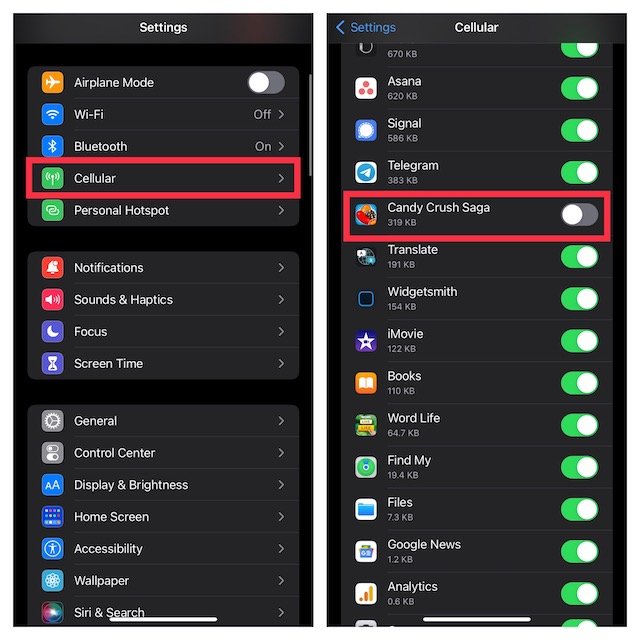
To block mobile game ads, you can use built-in phone settings, third-party ad-blocking apps, or adjust your game’s settings if available.
Annoying interruptions ruin your mobile gaming experience. Those constant ads popping up can be frustrating. We understand the struggle of trying to enjoy a game when ads relentlessly bombard you. This article explores exactly how to block mobile game ads effectively.
Many solutions exist, from simple device settings to specialized apps. We’ll guide you through options so you can play in peace. Let’s reclaim your gaming sessions from unwanted advertising.

How to Block Mobile Game Ads: A Complete Guide
Mobile games are super fun, right? But sometimes, those pesky ads can really get in the way. They pop up at the worst times, break your concentration, and can even make you accidentally click them! Thankfully, there are ways to get rid of these annoying interruptions and enjoy your gaming in peace. This guide will show you all the best methods to block mobile game ads, so you can get back to having fun.
Understanding Why Ads Appear
Before we start blocking them, let’s talk about why ads show up in the first place. Most mobile games are free to play. This means the people who make the games need to make money somehow. They often do this by showing you ads. These ads can be for other games, apps, or even products. Think of it like this: the ads help pay for the game you’re playing. Sometimes, developers choose to add a lot of ads to get more money. Understanding this can make you feel a bit more patient (or just more determined to block them!). There are various types of ads to keep an eye out for. Here are the most common ones:
- Video Ads: These are the most common type. They usually appear between levels or after you finish a round. They often have sound.
- Banner Ads: These are small ads that usually sit at the top or bottom of the screen while you’re playing.
- Interstitial Ads: These ads pop up fullscreen and can sometimes be tricky to close.
- Rewarded Video Ads: These are the ads you choose to watch to get something in the game, like extra coins or lives.
Knowing what types of ads you are dealing with can help you choose the best way to block them.
Blocking Ads Using Built-in Settings (Android & iOS)
Your phone actually has some built-in tools that can help limit ads, though they won’t block them completely. These options are more about limiting personalized advertising than complete blocking, but they can reduce the number of ads you see. Let’s take a look at the common options for both Android and iOS devices.
Android: Limiting Ad Tracking
Android phones have an option to limit ad tracking. This means that apps can’t use your information to show you specific ads. You won’t stop seeing ads entirely, but they may be less targeted to your interests and habits.
Here is how you do it:
- Go to your phone’s Settings.
- Find Google and tap it.
- Tap on Ads.
- Tap the option called “Delete advertising ID”. This will give you a new ID so the previous data can’t track you.
- Or tap the option called “Opt out of Ads Personalization”. Switch the toggle to the “on” position.
These steps should help reduce the amount of targeted ads that appear when you are playing your favorite game.
iOS: Limiting Ad Tracking
Like Android, iPhones have an option to limit ad tracking. This is called “Limit Ad Tracking” or “Allow Apps to Request to Track”. By turning it on or off, you change how apps use your data to show you ads.
Follow these steps:
- Open the Settings app.
- Tap on Privacy & Security.
- Tap on Tracking.
- You can see a list of the apps that want to track you. You can switch them on or off to manage.
- You can switch on or off the top setting “Allow Apps to Request to Track”. This way you can make all app tracking stopped.
By switching it off or by making it off in general, you limit how apps can track your information to target you with ads.
Using Ad Blocker Apps for Mobile Games
Sometimes, the built-in phone settings aren’t enough. That’s where ad blocker apps come in! These apps are made to stop ads from appearing in many apps, including games. However, it is important to note that not all ad blocker apps work perfectly for all games, as some games and developers are constantly trying to get around these kinds of methods.
How Ad Blocker Apps Work
Ad blocker apps work in different ways. Some of them use a technique called a “VPN,” which is like a secret tunnel for your internet traffic. They intercept the ads before they reach your device. Other ad blockers use special rules that block ads based on their website addresses. It is not always a given that these methods can always work, but here are some of the common ways ad blocker apps work:
- VPN (Virtual Private Network) based blocking: This method reroutes your traffic through a VPN server and filters the ads before they reach your app.
- DNS (Domain Name System) based blocking: DNS-based blocking prevents your device from connecting to the ad servers.
- Rule based blocking: Some ad blockers keep lists of where the common ads originate and stops your app from connecting to those places.
Choosing the Right Ad Blocker App
With many options available, here’s what to look for in a good ad blocker app:
- Easy to Use: The app should be simple to set up and use, without confusing menus or settings.
- Effective Blocking: It should be able to block a large variety of ad formats.
- Trusted Reputation: Read reviews and see what others say.
- Free or Low Cost: Many ad blockers are free or offer very affordable premium upgrades.
Some popular and well-reviewed ad blocker apps include AdGuard, Block This!, and NordVPN. Please note that VPN-based ad blockers often require an active VPN connection to work. It is always a good idea to try some out and choose the ones that work best for your needs and the types of games you play.
Using Modified Game Versions (APK Files for Android)
Another approach (which can be a little risky) is using modified game versions. These are special versions of games that have the ads removed by other people. These modified game files are commonly called “APKs” for Android devices.
Understanding the Risks
It’s important to know that downloading and using these kinds of APK files comes with risks:
- Security risks: These files can sometimes contain viruses or malware.
- Game Instability: The games can be unstable or crash more often.
- Legal issues: Using modified game files is often against the terms of service of the game, and could lead to your account being banned.
How to Find and Install Modified APKs
If you choose to take this path, be extremely careful. Find websites with high ratings and comments that speak well about the game files they offer. It is not a very safe way to get rid of ads, but here’s how it is generally done:
- Search for “
modified APK” online. - Find a reputable website with good reviews.
- Download the file.
- Before installing the file, ensure that you allow apps from unknown sources in your phone’s settings (under Privacy settings).
- Install the APK file.
Even if you install the modified apk file, remember that it is not safe and you need to take the necessary precautions. It is always safer to try other methods first.
Using Custom DNS Servers to Block Ads
Custom DNS servers can help block ads at a network level. This method changes how your phone looks up websites, and helps prevent connections to known ad servers. This can be done in both Android and iOS.
How DNS Blocking Works
Think of DNS servers as phonebooks for the internet. When you type a website address, your phone asks a DNS server for the number to dial (the IP address). By using a special DNS server, you can prevent your device from connecting to servers known for showing ads. Your phone will be able to open the game without being able to access the servers where the ads come from.
Setting up a Custom DNS Server
Here is how to set up a custom DNS server on your phone:
On Android:
- Go to your phone’s Settings.
- Tap on Connections or Network & internet.
- Tap on Private DNS.
- Choose Private DNS provider hostname.
- Enter the hostname for a known ad-blocking DNS server. (Example: dns.adguard.com or dns.nextdns.io)
- Tap Save.
On iOS:
- Open the Settings app.
- Tap on Wi-Fi, and choose the wifi network you are connected to by pressing the (i) button next to it.
- Tap on Configure DNS.
- Change it from Automatic to Manual.
- Press Add Server.
- Enter the address for an ad-blocking DNS server. (Example: 176.103.130.130 for adguard.)
- Press Save.
Some well known ad-blocking DNS servers are AdGuard, NextDNS and Cloudflare. Choose the one that works best for you.
Playing Games Offline
A simple, yet very effective way to reduce ads is to play the game offline. Many single player mobile games do not require an active internet connection to play. By playing in airplane mode, or just turning off WiFi and mobile data, you can stop most ads. This is because ads need to connect to the internet to load. There is no connection, there is no ads.
When This Method Works Best
This method is great for single-player games that don’t require an internet connection for gameplay. It won’t work for online multiplayer games or games that need a constant connection to work, but it is a very simple trick to avoid ads when possible. It is always a good idea to test out a game before deciding whether this method works or not.
How to Enable Airplane Mode
- Open the Quick Settings menu (usually by swiping down from the top of your screen).
- Tap the Airplane Mode icon. This will disable all your phone’s connections.
This way, you can enjoy your single player mobile games without pesky ads.
Paying to Remove Ads
Many games offer a way to remove ads by paying a one-time or monthly fee. This can be the easiest way to have an ad-free experience, and it supports the game developers so they can continue to update the game with new content. If you enjoy a particular game very much, you might want to pay the fee so you can get rid of the ads, and support the game developer.
When to Consider This Option
Consider this option if you play a game a lot, and the ads really bother you. If you enjoy the game and play it very often, buying the ad-free version of the game will make your game play more enjoyable.
How to Pay for Ad-Free Version
- Open the game where you want to get rid of ads.
- Look for the option that says “Remove Ads” or something similar, often in the settings menu.
- Follow the on-screen instructions to buy the ad-free version.
Paying for the ad-free version is the easiest method for removing ads and also helps the developers.
Adjusting In-Game Settings (If Available)
Some games might have settings that allow you to limit the amount of ads you see. This is not very common, but some games do have options that limit the amount of ads that show. You should always check the settings to see what the game offers.
How to Check for In-Game Settings
- Open the game where you want to adjust the settings.
- Look for a settings or options icon, usually a gear.
- Look for any options relating to ads, and see what can be toggled.
While not a very common method, you might find some game developers who make it easier to play the game by reducing the amount of ads you see. Remember that different games will have different settings, so it is always worth a check.
Combining Methods
Sometimes, one method alone might not be enough. You can try using multiple ways together for the best results. For example, you could use a custom DNS server along with an ad blocker app, or you can turn on airplane mode and limit the ads when you play single player games. By combining methods you may find that the games are more ad free.
Examples of Effective Combinations
- Ad Blocker App and DNS: Use both together to create a double layer of ad blocking.
- Airplane Mode and Paid Removal: Use airplane mode for games that do not require connection, and paying to remove ads for other games.
You can experiment to find the best combination for your needs.
Dealing with mobile game ads can be frustrating, but by using the right tools and techniques, you can definitely reduce or even completely eliminate them. Remember that there are multiple ways to block ads. You can try out these different methods to find the best ones that suit your needs and your gaming habits. You can also try out a combination of methods for the best results. By combining a few methods, you can have a much more relaxing, and ad free experience.
Block Ads on ALL Games (FREE and FAST) #shorts
Final Thoughts
Effectively blocking mobile game ads is possible through various methods. You can use in-app purchases, or utilize ad-blocking apps. These applications filter out the ads, improving your gaming experience.
Some devices offer built-in settings to limit ad tracking. Adjusting those settings can reduce the number of targeted ads. This method helps somewhat with how to block mobile game ads.

